

An AI Instagram Reel maker can turn a written idea or a still image into a short video, but the tools take very different paths. Veo Studio is an independent, browser-based video tool powered by Google's Veo 3.1 models, with synchronized sound and dialogue; the other picks focus on editing, captions, prompt-led video, or team work. Here are five options and the kind of Reel workflow each fits.
We analyzed 48 YouTube comments about AI Instagram reel makers and found that 15% mentioned frequent crashes and access problems.
1. Veo Studio
Veo Studio makes video from text prompts or reference images. It suits creators who want to direct a scene, rather than only edit footage they already shot. Use it for a product reveal, a short dialogue scene, or a vertical clip that needs sound generated with the picture.
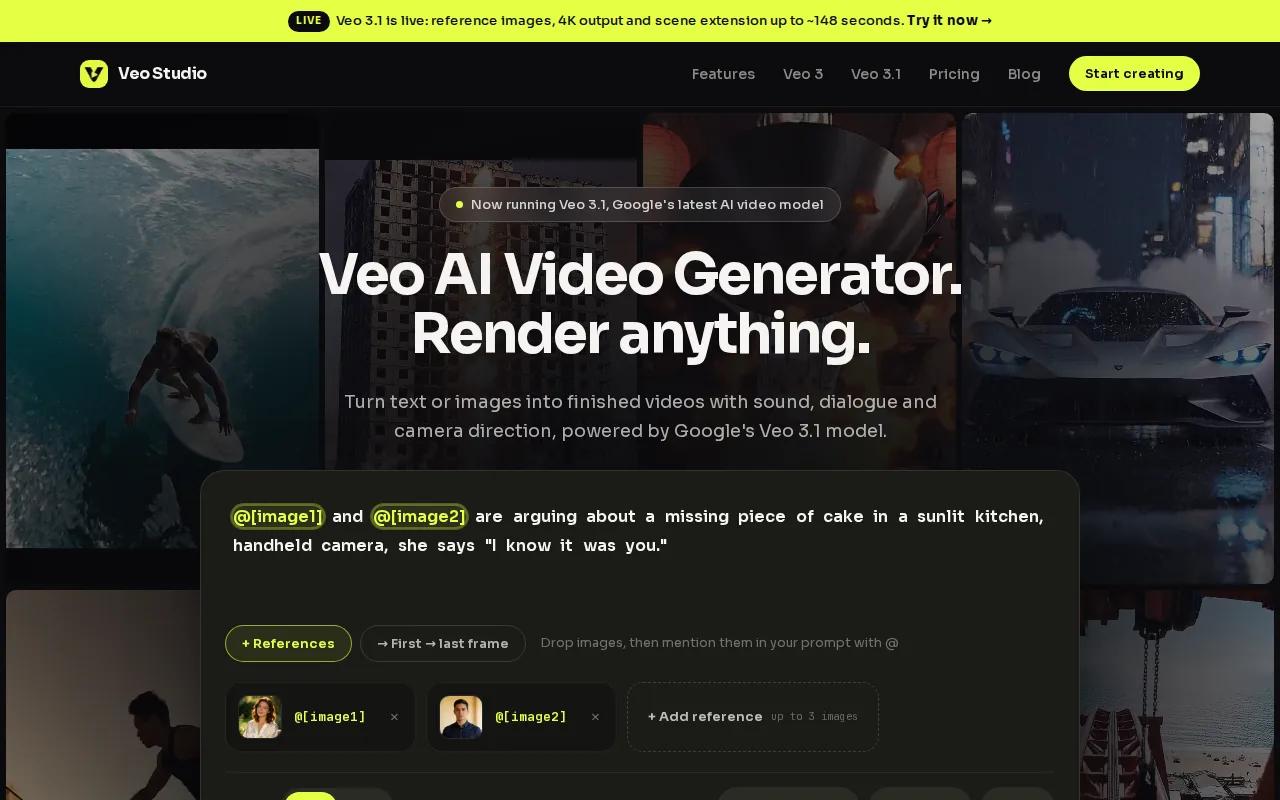
Describe the shot and camera move in plain language, then choose a vertical 9:16 frame for Reels. You can attach up to three reference images to guide character or product consistency. First- and last-frame control can shape a transition between two stills. Veo Studio can also make synchronized sound and dialogue, with lip-sync for quoted lines, and supports output up to 4K.
For a brief social post, a four- to eight-second clip can work as the opening shot or main visual. If a scene needs more room, supported 720p clips can be extended by seven seconds at a time, up to roughly 148 seconds. That's useful for a small-business ad that starts with a close product shot, then continues into a wider scene. The free plan includes a couple of 720p videos a month, with no card required. Paid plans start at $14 per month and include higher resolutions and a commercial licence.
Veo Studio's generations are short clips, so a full Reel may need a few shots assembled in an editor. Keep each prompt focused on one action. For more prompt and workflow ideas, see this AI Reels generator guide.
One simple workflow: write the hook first, generate a vertical shot to match it, then add any extra clips and captions in an editor. Download the finished file and review it on a phone before posting.
2. CapCut: A familiar editor for cross-posting creators
CapCut is a video editor with AI features, including one-click text-to-video and a full timeline. It fits creators who already cut social clips and want to adapt them for Instagram without changing their whole editing routine.
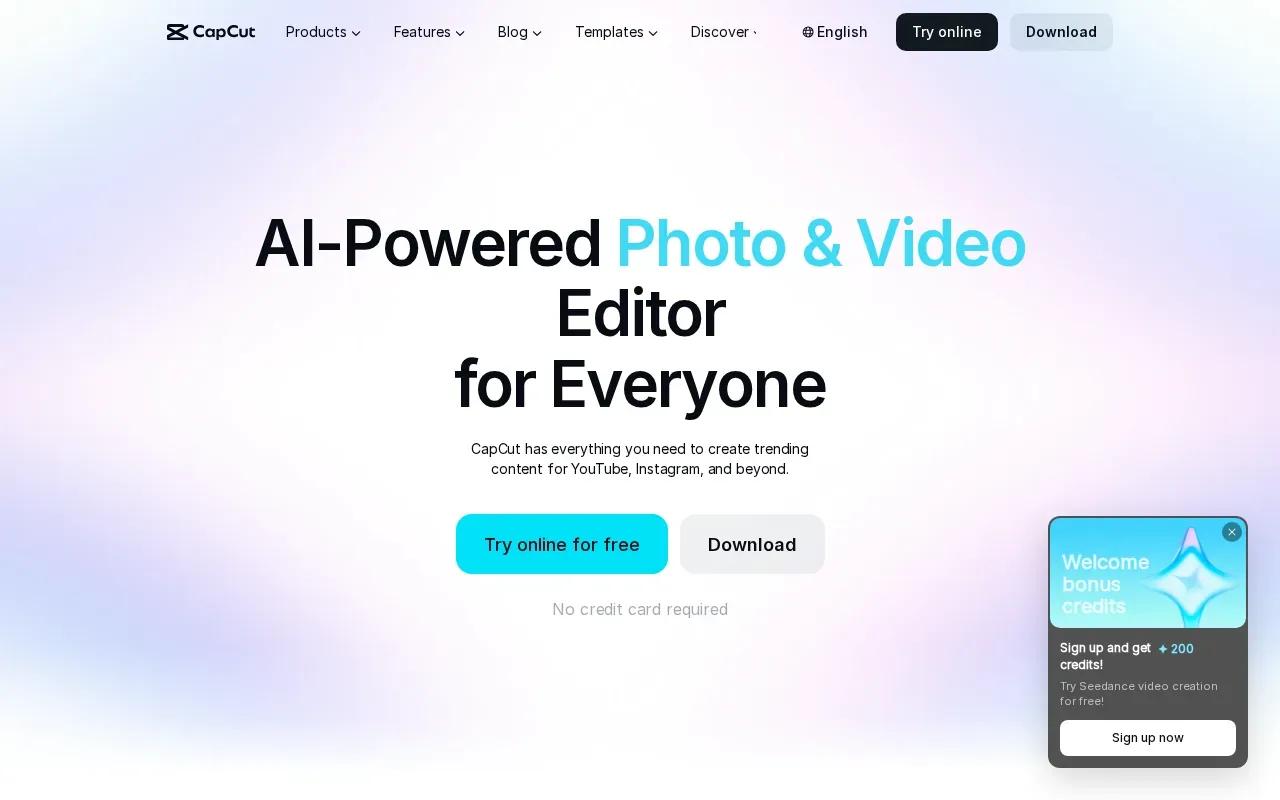
The timeline is useful when you have footage to shape. Set the sequence, trim the pauses, then add text or sound effects where they support the action. CapCut also has Instagram Reel templates, which can help when you want a ready-made timing pattern instead of building every edit from scratch. A template gives you a starting point, not a finished idea: swap in footage that fits your message and check that the text still makes sense.
CapCut is a familiar choice for creators who began with TikTok and now cross-post to Instagram. One edit can serve more than one short-form feed. Check text placement and playback after upload, since a clean edit on your device can feel different on a phone screen.
For a product clip, you might start with a close-up from your camera roll, cut to a demonstration, then end with a short call to action. If the source video already has the right visuals, an editor-first tool can be more direct than generating a full scene from a prompt.
3. VEED: Fast automatic captions for Reels
VEED is a browser-based editor with AI caption tools. It suits podcasters, educators, and creators who have spoken footage and want to make the words easier to follow on a phone.
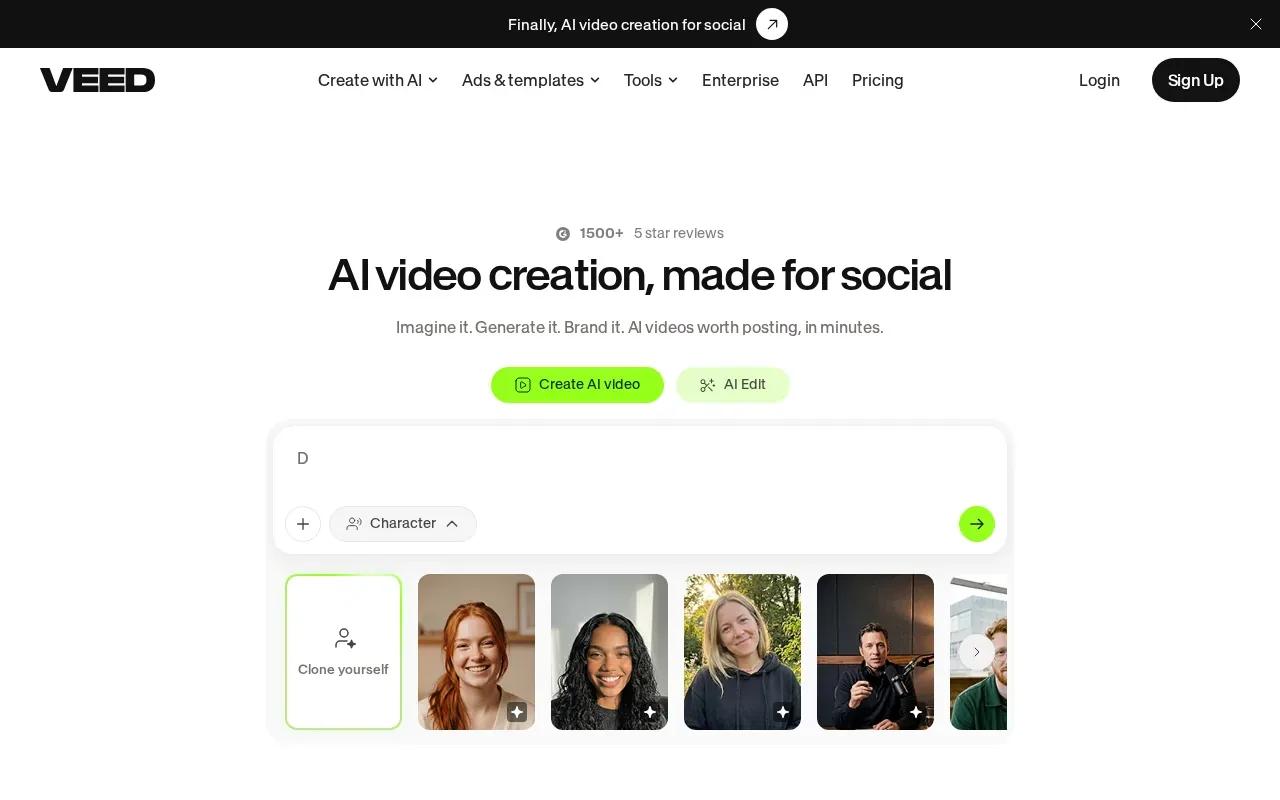
Auto-captions can cut down on manual typing, but treat the first pass as a draft. Names, product terms, and short phrases can be misheard. Read the captions against the audio, fix any errors, then check that each line stays visible long enough to read. That review is especially helpful for a clip with a fast speaker or several cuts.
Pricing includes a free option with a watermark, and paid plans start at $12 per user per month, billed annually. The free tier can help you test the caption workflow before paying. If you plan to use the export for a brand account, check the watermark and output needs for your project before choosing a tier.
Think of VEED as a finishing and repurposing tool. A podcast host could pull a short answer from a longer recording, place it in a vertical frame, then add captions and review the text before exporting. It is a better fit for that job than for a Reel whose main visual must be generated from scratch.
Captions also need to match the way people speak. Break long lines at natural pauses, and keep emphasis on the speaker's main point rather than decorating every word.
4. InVideo AI: Prompt-led video creation for promotional content
InVideo AI turns a prompt into promotional video content. It suits marketers or small businesses starting with an idea, a product image, or a short script rather than a folder of edited clips.
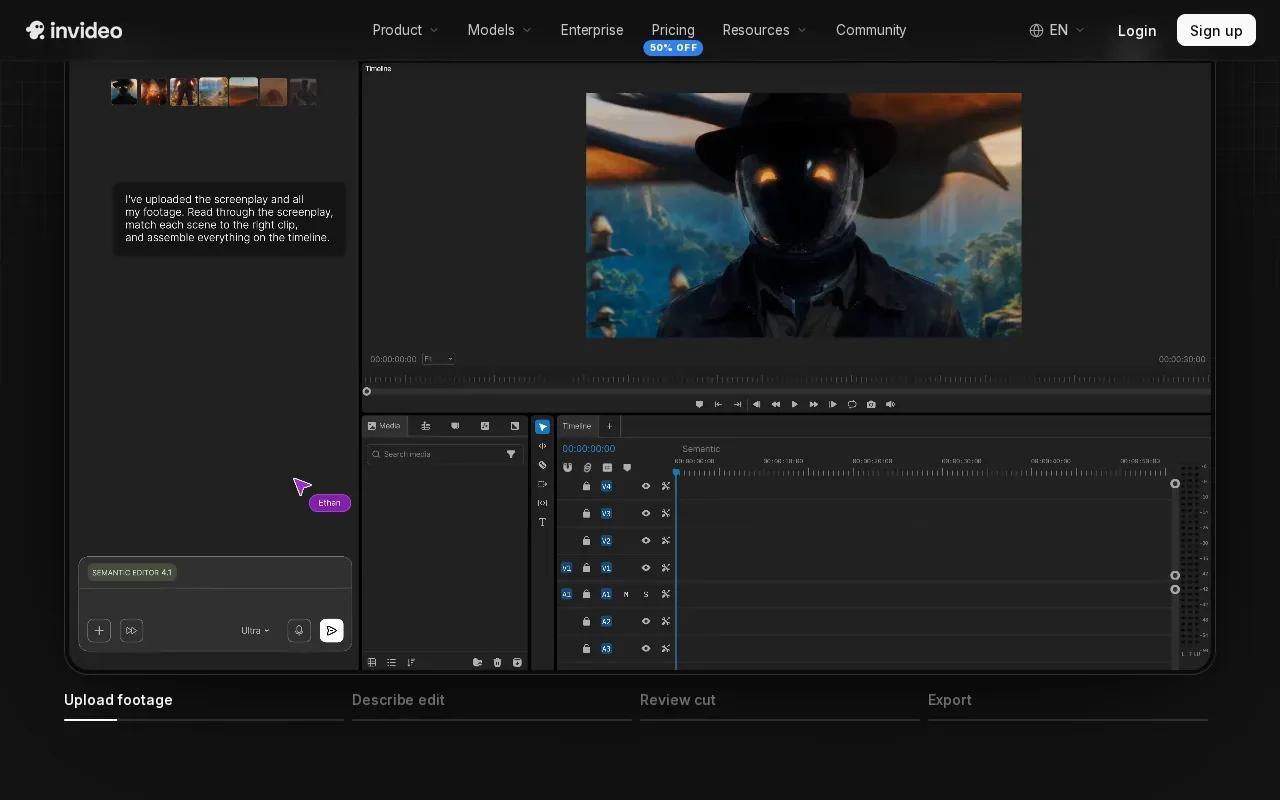
Describe the Reel's purpose, then include the subject and the scene you want. For a product launch, the prompt might ask for a close view of the item, a clear demonstration, and a final shot that leaves space for a call to action. InVideo AI can generate a Reel from a prompt and let you add image or audio files. Its Instagram Reel workflow also supports promotional formats such as product showcases, announcements, and how-it-works videos.
The tool's value is the prompt-led start: it can help turn a brief into a video outline without beginning on an empty timeline. You should still review the result before publishing. Check that the visual matches the claim, that on-screen text reads clearly, and that the music suits the message. A product ad has little use if the generated scene hides the product or the first seconds do not explain why someone should keep watching.
Its plans include a free option, a Plus plan at $60 per month (or $30 per seat per month billed annually), and a larger Max plan. Check the current plan terms before budgeting for repeated production.
For a brand that needs a quick first draft, prompt-led generation can get the structure on screen. Leave time for edits and a final fact check.
5. Kapwing
Kapwing is a browser-based video workspace built for teams. It suits a small marketing group that needs to review and edit Reels together, especially when each client or brand needs its own workspace.
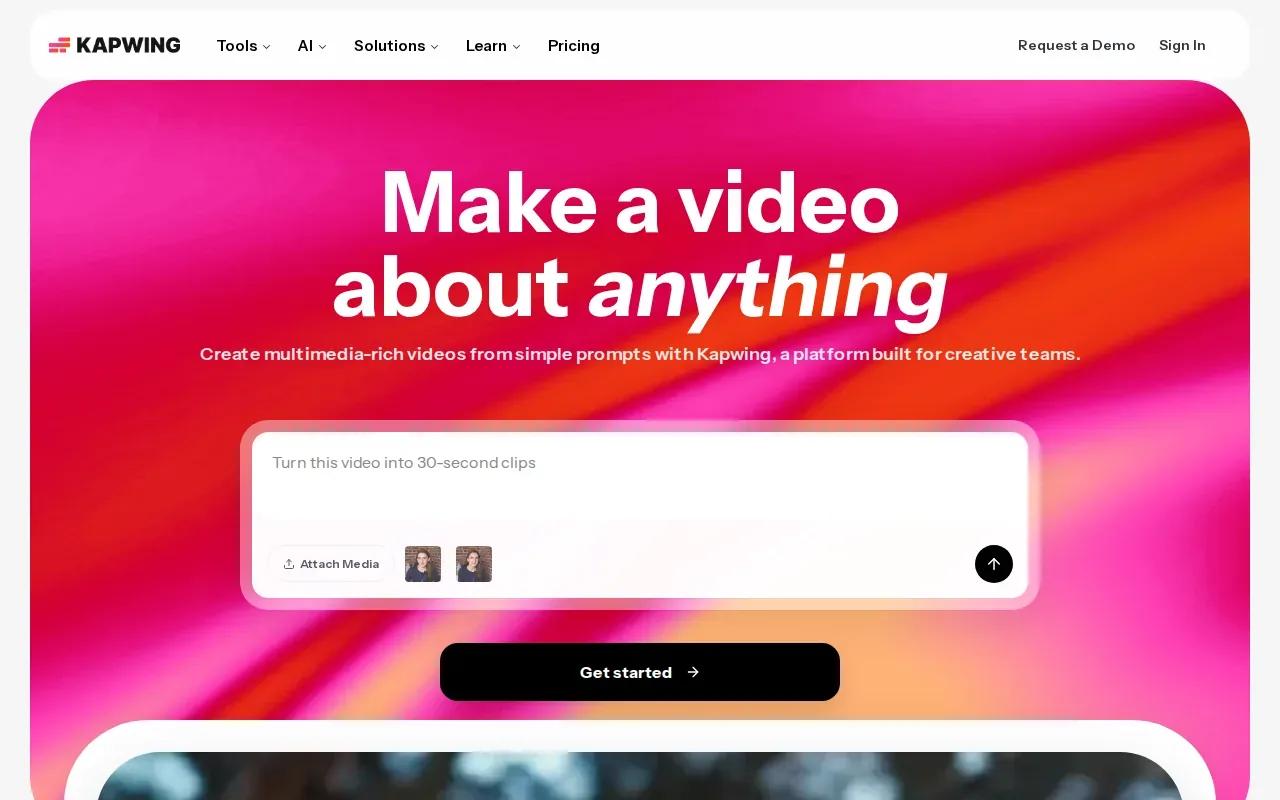
Real-time collaboration helps teammates work on a shared edit. Brand workspaces can keep client work separate, while AI features can speed up repetitive editing tasks. That setup can help when one person assembles a draft and another checks captions or brand details before it goes out.
The free option exports with a watermark at up to 720p. If your team needs a higher resolution, account for that in the choice of workflow. For a first pass, the free tier may be enough to test how the group shares feedback and handles edits. For a polished client deliverable, compare the export you need with the plan you intend to use.
A simple team handoff works well: one person makes the rough cut, a reviewer checks the wording and brand look, then the editor applies changes and exports. Agree on who has final approval before starting, or a quick Reel can collect too many rounds of feedback.
Kapwing is less about generating every scene from a single prompt and more about getting people through a shared editing task. If your main need is team review, that distinction matters.
AI Instagram Reel Makers Compared
Pick by the work you need done, not by the longest feature list. A generated scene, a clean caption pass, and a shared team edit are different jobs. This comparison frames each option around its main use and a point to check before you commit.
| Tool | Fits this workflow | Useful detail | Check before you start |
|---|---|---|---|
| Veo Studio | Prompt-led scenes with sound | Synced dialogue, reference-image guidance, scene extension, output up to 4K | Build a full Reel from short clips if it needs multiple shots |
| CapCut | Editing and cross-posting footage | Timeline editing, text-to-video, Reel templates | Review the final text and framing on a phone |
| VEED | Captions and spoken-video edits | Browser-based auto-caption workflow | Proofread captions and check watermark needs |
| InVideo AI | Prompt-led promotional drafts | Can generate an Instagram Reel from a prompt | Review the visuals and on-screen claims |
| Kapwing | Shared editing and team review | Real-time collaboration and brand workspaces | Check resolution needs for the planned export |
If you're weighing broader editing needs too, the social media video maker comparison looks at short-form creation, captions, control, and team workflows across platforms.
For a Reel from a prompt or reference image, consider Veo Studio for synchronized sound and dialogue, character consistency, scene extension, and output up to 4K. The free plan includes a couple of 720p videos each month, with no card required.
FAQ
What is an AI Instagram Reel maker?
An AI Instagram Reel maker is a tool that helps generate or edit short vertical videos for Instagram. Some tools start with a prompt or image, while others focus on editing footage or adding captions. The right fit depends on your source material: choose generation for new scenes, editing for existing clips, or caption tools for spoken video.
Can I make Instagram Reels with AI for free?
Yes, some of these tools have free options. Veo Studio's free plan includes a couple of 720p videos per month and doesn't require a card. VEED and Kapwing's free options include watermarks. Check the export limits that matter for your post.
How do I make a Reel with an AI video tool?
Start with one clear idea and choose whether you're generating a new scene or editing footage. For a prompt-led clip, describe one action, the camera view, and any spoken line. Generate a draft, review the image and sound, then add or correct captions in an editor if needed. Export a vertical file and watch it on your phone before posting.
Which AI Reel tool is good for captions?
VEED is a sensible option to consider when captions are the main task. It has a browser-based editor with auto-caption tools, so you can work with spoken footage and correct the text before export. Always proofread names and key terms. If the clip also needs new AI-generated scenes, pair captioning with a generation tool.
Can I use AI-generated Reels for a business?
Yes, but check the rights and terms for the tool and the assets you use. Veo Studio's paid plans include a commercial licence. For any workflow, review the finished video for accurate product details and use audio or images that you have permission to use. Keep a person responsible for approving the final post.
Conclusion
Choose Veo Studio if your Reel needs generated scenes with synchronized dialogue, consistent reference characters, or scene extension. Start with its free plan, write one focused vertical-video prompt, and review the clip before you build the rest of the Reel.


