
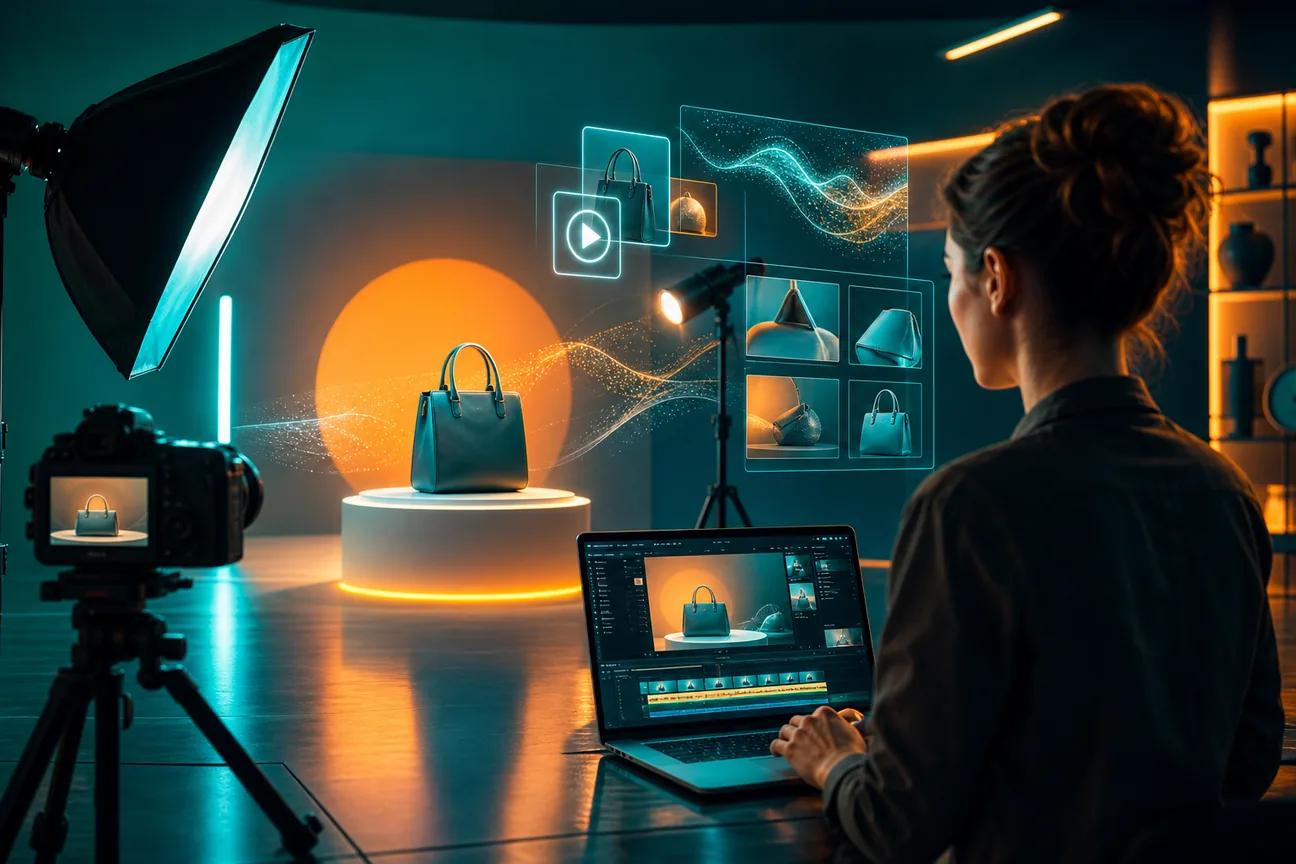
A sharp product photo can become a moving ad without a full shoot. An AI video generator for ecommerce can also help you test different scenes and messages, but each tool fits a different kind of work.
Here are five options, starting with Veo Studio, plus a comparison of their best-fit workflows and tips for getting a usable first draft.
1. Veo Studio
Veo Studio is an independent, browser-based AI video creation tool powered by Google's Veo 3.1 models. It turns a prompt or reference image into a video with synchronized sound and dialogue.
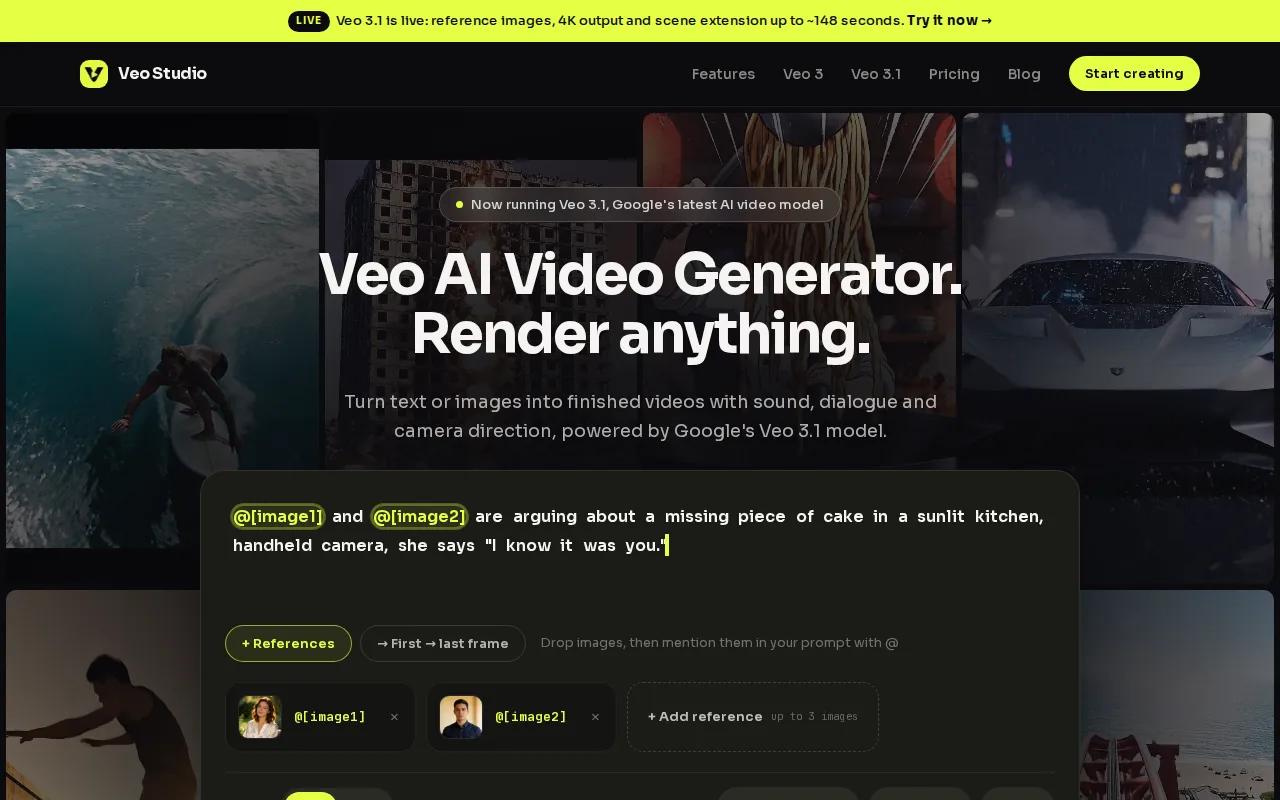
It fits brand marketers and small-business advertisers who want to direct a product scene rather than assemble an ad from a fixed template. Upload a clear product image, then describe the setting, one camera move, and what should happen. For example, you might ask for a close-up of a mug as the camera moves toward its handle in warm kitchen light.
The model can generate sound with the video, including dialogue that matches a character's lip movement. You can also use character consistency and first- and last-frame control to guide a scene. Scene extension can add time to a supported clip, while eligible settings allow output up to 4K.
Veo Studio's free plan includes a couple of 720p videos each month with no card required. Paid plans start at $14 per month, with higher limits, higher resolutions, and a commercial licence. For the full production path from still image to clip, see the AI product video generator comparison.
Use it when the scene, sound, or character continuity is part of the ad idea. Check the product carefully before publishing, especially if the label, color, or shape must match your actual item.
2. VidAU: Purpose-built for ecommerce ads
VidAU is built for ecommerce product videos and paid social ad creative. It can start from a product URL, an image, or text, which makes it a fit for Shopify and Amazon sellers and teams that need ad concepts for TikTok or Meta.
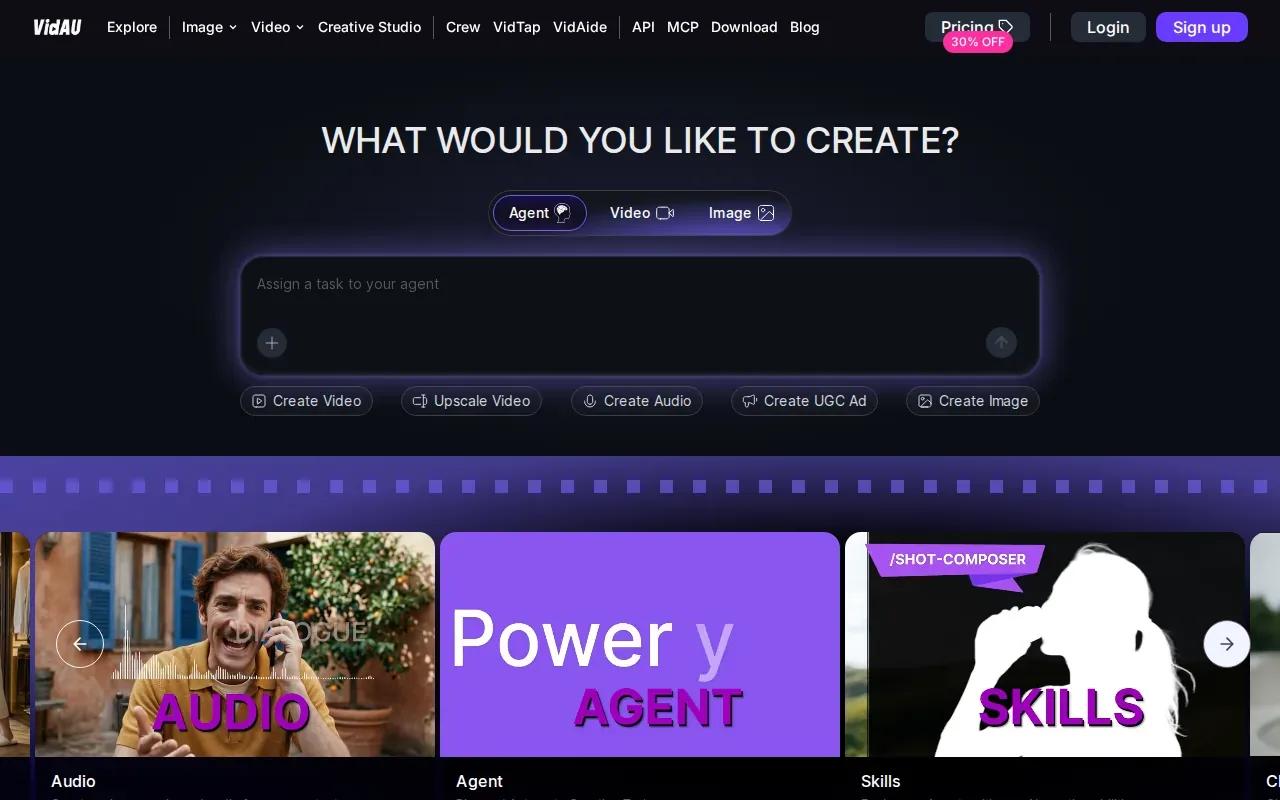
A URL-led workflow can suit a seller who already has a complete product listing. An image-led workflow gives a marketer a way to build around catalog photography. VidAU describes creating video ads from these inputs, with access to models such as Veo, Sora, and Kling in one platform.
That focus can help when the job is promotional creative rather than open-ended film-making. A team can start with one product listing and shape a short ad concept around its features. For other approaches to product-focused ads, see the ecommerce video ad tool overview.
VidAU is a reasonable fit when ad creation is the main task and you want to begin with existing product information. Keep a human review in the process: confirm that the generated claims match the listing and that the final visual represents the item accurately. Then check the export in the actual placement before you spend on distribution.
3. CapCut AI Video Editor: For editing social-first product videos
CapCut AI Video Editor is an editing tool for shaping videos for social channels. It can suit a team that wants to generate a clip, then make edits in the same workspace before posting.
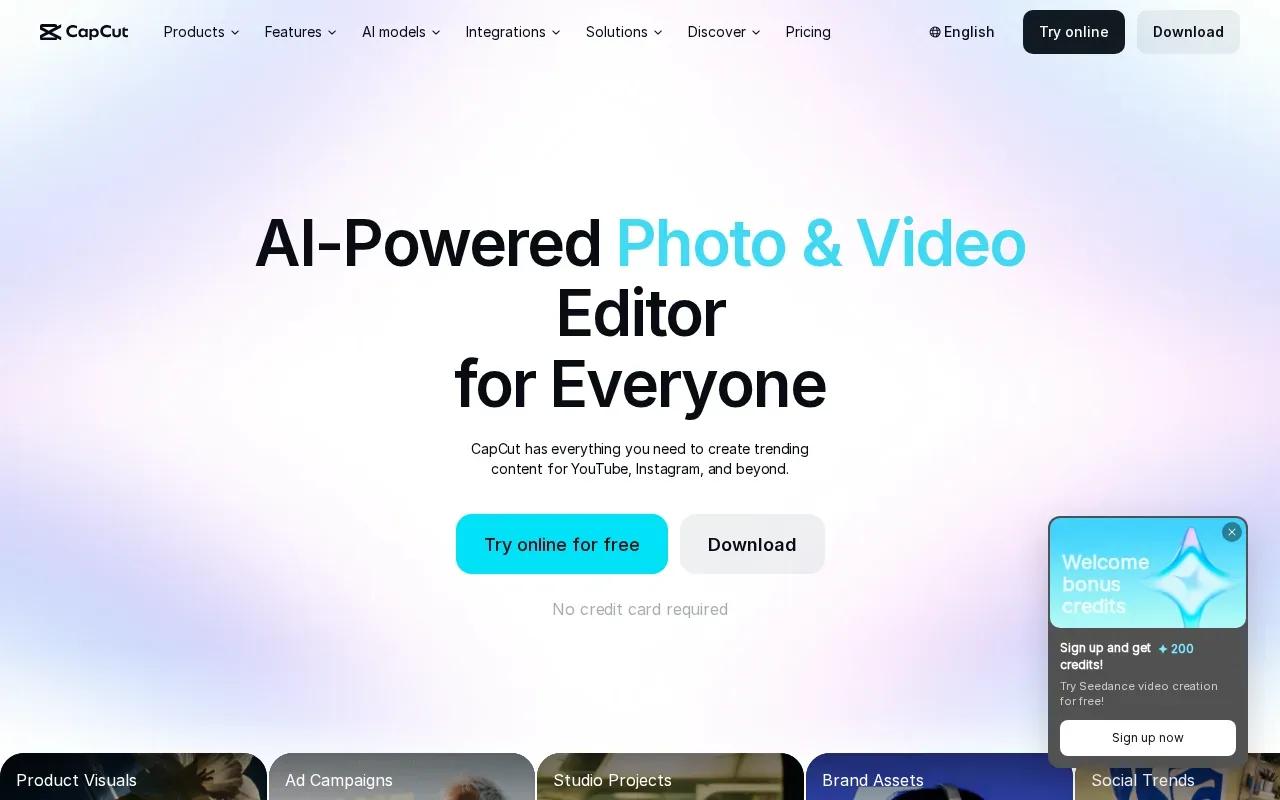
CapCut AI Video Editor includes editing tools. Availability can vary by region and account, so check what appears in your editor.
For a product team, the editing step matters. You may need to trim an opening, add a short offer, or change the order of shots before a clip is ready for a feed. Keep the product and the message easy to read on a phone screen. If the opening takes too long to show what is for sale, cut it.
CapCut fits teams that want generation and hands-on editing together. It is less of a product-listing-to-ad workflow than VidAU's described URL, image, and text inputs. The choice comes down to whether your main bottleneck is getting an ad draft from product details or finishing and editing a social clip.
4. AKOOL: For AI-generated marketing visuals
AKOOL makes AI-generated images and marketing visuals, with an image-to-video workflow for adding motion to a still. It can fit marketers who need to develop a campaign look or build a visual scene around a reference image.
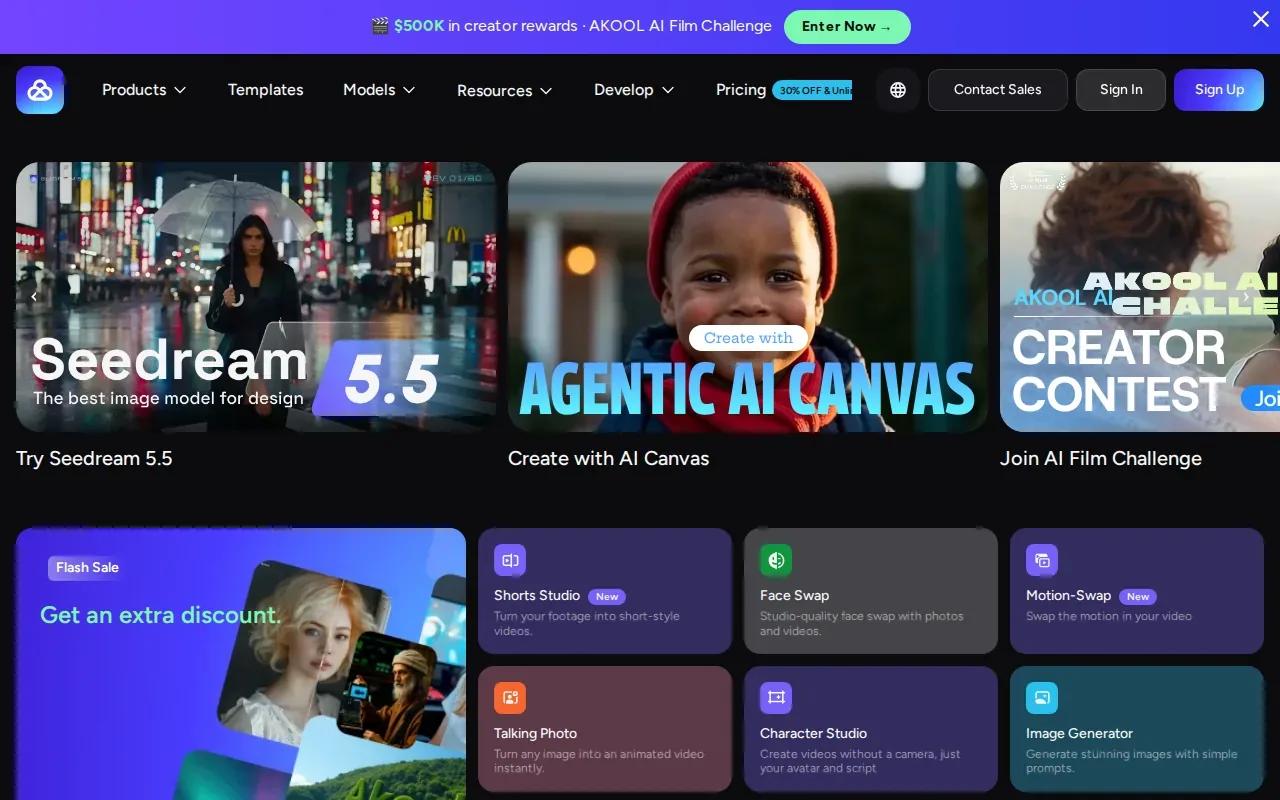
Start with a prompt or reference photo, then describe the subject, setting, lighting, and style. For video, use an image as the starting frame and describe the movement or camera direction. That can help you turn a still concept into a moving asset without writing a long script.
AKOOL lists output options up to 4K, but available settings vary by selected model and plan. Its image workspace also uses credits, so check the cost shown for a chosen setting before generating a batch. If you use an actual product photo, inspect the generated result closely for changes to its shape, color, or label.
This option makes sense when the creative brief begins with marketing imagery and a visual style. If you need an ad built directly from product details, VidAU's product-oriented workflow may be a closer match. If sound and spoken dialogue need to be generated with the scene, Veo Studio supports those capabilities in its video workflow.
5. OpenArt: For consistent characters across campaign clips
OpenArt lets you save and reuse AI characters across image and video generations. It suits a campaign built around a recurring spokesperson, mascot, or story character.
You can define a character with a prompt, a reference image, or guided presets, then reuse that character in later generations. Its Director tool plans videos shot by shot through chat, which can help when an ad needs several shots with the same person and visual style.
For example, a brand could use one recurring character in a product introduction and later campaign clips. That gives a creative team a shared starting point for each scene. OpenArt also describes synchronized sound and dialogue features, including voiceovers with lip-sync, music, and sound effects.
Character consistency helps with continuity, but it does not confirm product accuracy. Review each scene for both. If the product itself must remain exact, use a clear reference image and check every frame you plan to publish.
Compare the AI Video Generators for Ecommerce
The best fit depends on where your production work starts. Some teams have a product listing and need an ad draft. Others have a visual concept or rough cut that needs more editing. Use the table to match the tool to that first task.
| Tool | Useful starting point | Strong fit | Review before publishing |
|---|---|---|---|
| Veo Studio | Prompt or reference image | Directed scenes with synchronized sound, dialogue, and scene extension | Product details and the selected output settings |
| VidAU | Product URL, image, or text | Ecommerce product ads and paid social creative | Product claims, imagery, and placement format |
| CapCut AI Video Editor | Video generation plus editing | Social-first clips that need hands-on edits | Region and account availability for generation features |
| AKOOL | Prompt or reference photo | Campaign visuals and image-led scenes | Product fidelity and selected model settings |
| OpenArt | Prompt, character, or reference image | Recurring characters across campaign scenes | Character continuity and product accuracy |
AI can reduce the time spent arranging shoots and help a small team make more creative variations from existing assets. It does not remove review. A generated scene can change a label or imply a product feature that is not true, so treat each export as a draft until someone checks it.
Keep the first brief small. Use one product, one message, and one action. A short script needs a clear opening, a useful product detail, then a direct next step. Avoid cramming a full campaign into one short clip.
Once the draft passes review, export a version that fits its destination. A vertical social ad and a product-page video may need different framing and pacing. Keep versions organized by product and campaign so the team can tell which creative was used in each placement.
Measure the video against the job it was made to do. For a paid ad, review the campaign's chosen conversion metric alongside view and click data. For a product page, look at whether shoppers who saw the video move through the purchase flow. Compare similar periods or audiences where possible, and avoid crediting a video for changes caused by pricing, traffic, or an offer.
Keep the same product details and core message when making variants. Change the first shot or spoken hook, then see which version earns stronger engagement or sales actions. This kind of test gives you a usable lesson without changing every part of the creative at once.
FAQ: AI Video Generators for Ecommerce
Can AI generate a video from a product photo?
Yes, some tools can turn a product photo into a video. Veo Studio accepts reference images, while VidAU can start from a product image. Use a sharp photo with clear lighting, then describe the motion or scene you want. Review the result against the real item before publishing, since generated footage may change visual details.
Which tool can make an ecommerce video ad from a product URL?
VidAU's described workflow can start with a product URL, an image, or text. That makes it a fit when your product listing is the source for an ad concept. Check the generated script and visuals against your actual listing. Keep claims precise, and make sure the final clip suits the channel where you plan to run it.
Can AI video tools generate dialogue and sound?
Yes. Veo Studio supports synchronized sound and dialogue with video, and OpenArt describes sound features that include voiceovers with lip-sync. Some CapCut generation workflows also include synchronized audio. Check the output yourself: spoken words, timing, and sound should fit the scene and match the message you intend to share.
What should I check before publishing an AI product video?
Check that the product looks like the item you sell, and confirm that its label, color, and shape are right. Then review every spoken or written claim for accuracy. Watch the full clip at the size your audience will see, confirm the format suits the placement, and make sure you have permission to use any reference material.
Conclusion
Choose Veo Studio when you want to direct a scene with synchronized sound, dialogue, and optional scene extension; choose another tool when its product-ad or editing workflow better matches your starting point. To test the fit, create one short clip from a clear product image, review it closely, and then decide whether to build more variations.


