
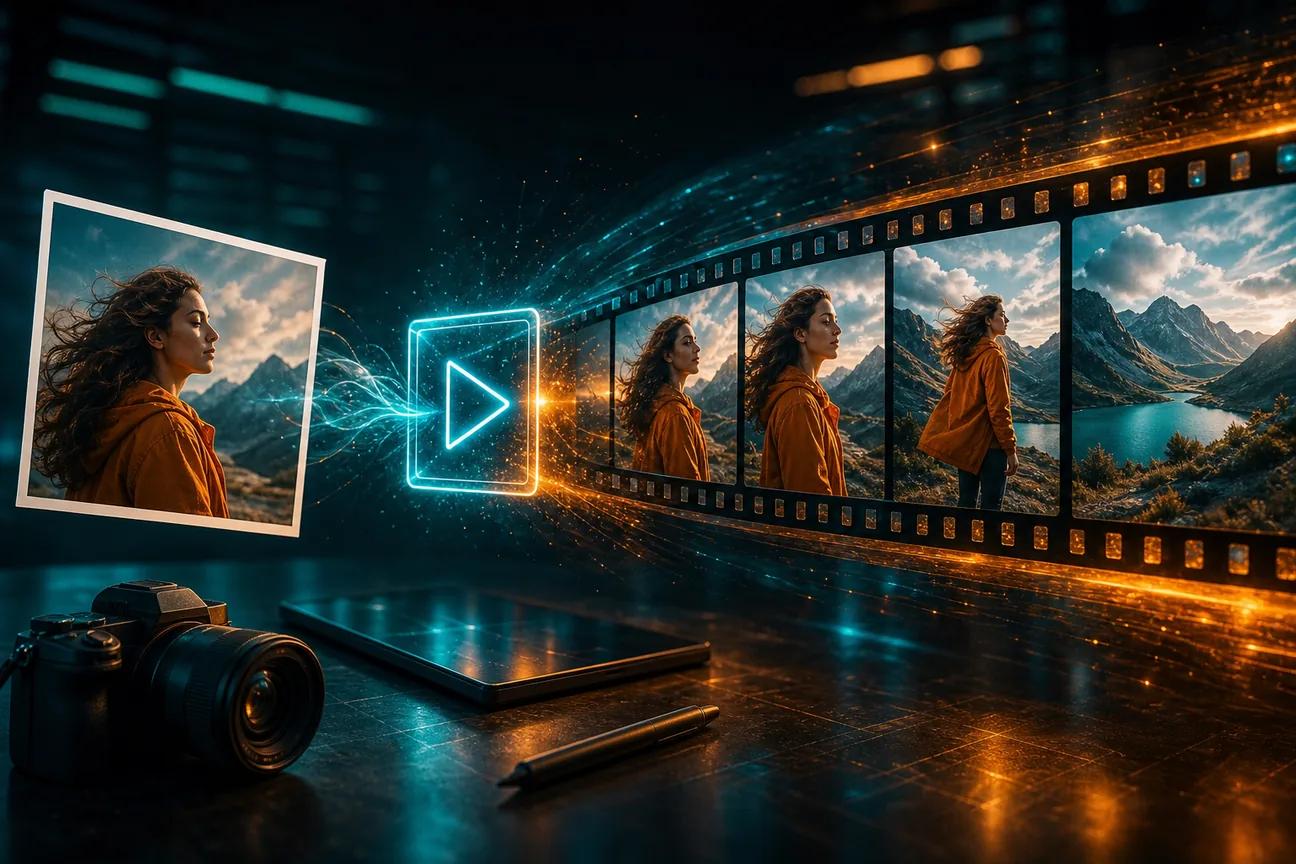
A single photo can become a moving scene, a product clip, or a short social post. An AI video from a photo tool can add motion, sound, or both, but each option gives you different controls. Here are eight tools plus Veo Studio, with notes on the work each one fits.
We analyzed 44 YouTube comments about AI video generation from photos and found that 25% mentioned missing features.
1. Veo Studio
Veo Studio is an independent, browser-based AI video creation tool powered by Google’s Veo 3.1 models. Upload a reference image, describe the shot, and generate a clip with synchronized sound and dialogue. It suits creators who want to direct a scene from a still, including a product reveal or a dialogue-led short.
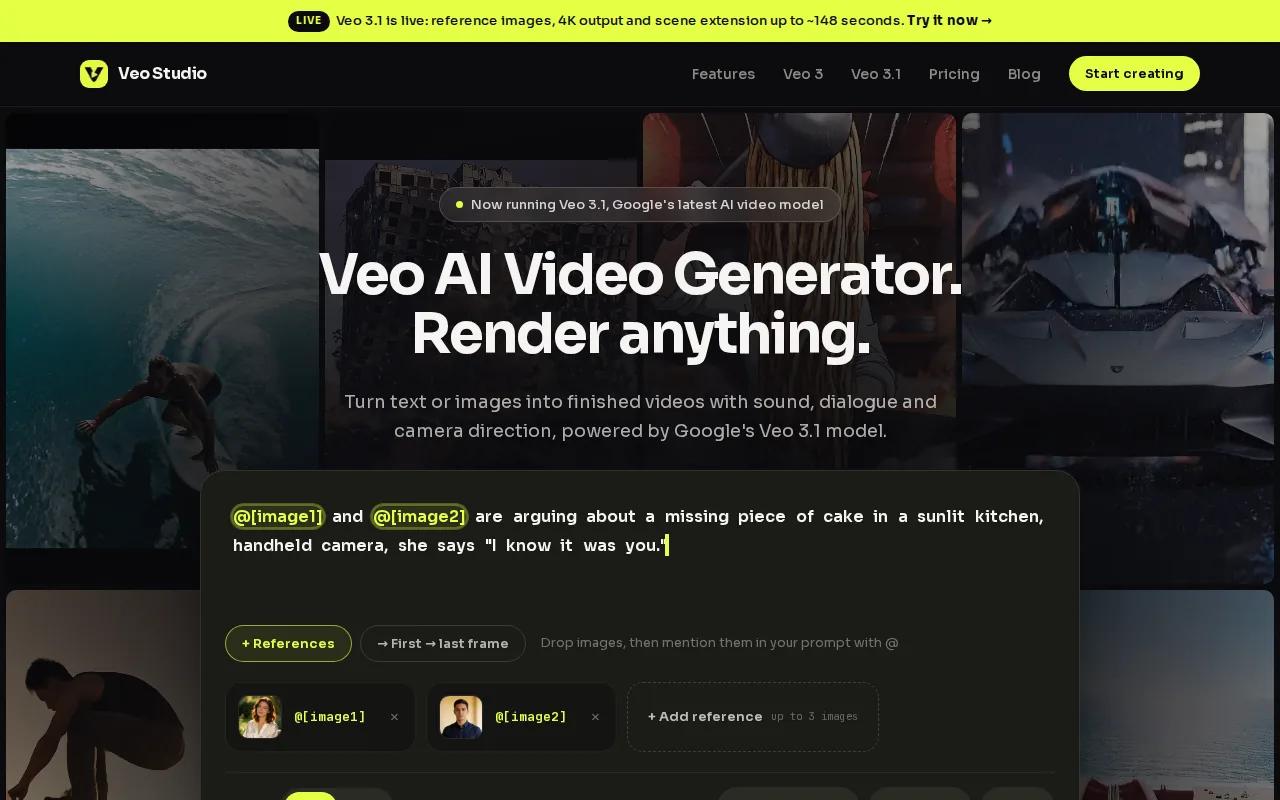
Veo Studio supports character consistency, first- and last-frame control, scene extension, and output up to 4K. Clips can be 4, 6, or 8 seconds, and supported 720p clips can be extended in 7-second steps. The free plan includes a couple of 720p videos each month without a card. Paid plans start at $14 a month and include a commercial licence.
Related: Image-to-Video creation.
For the first draft, name one main action and one camera move. A product photo might call for a slow push toward the label while the item turns. Keep the shot description focused, then review the generated video for changes to the subject or product details.
2. Pika: playful effects and keyframe transformations
Pika is a fit for creators who want a photo to change in a bold, playful way. Its Pikaffects can make a subject inflate, melt, crush, or explode. That makes it suited to a quick visual gag or a social clip built around one clear effect.
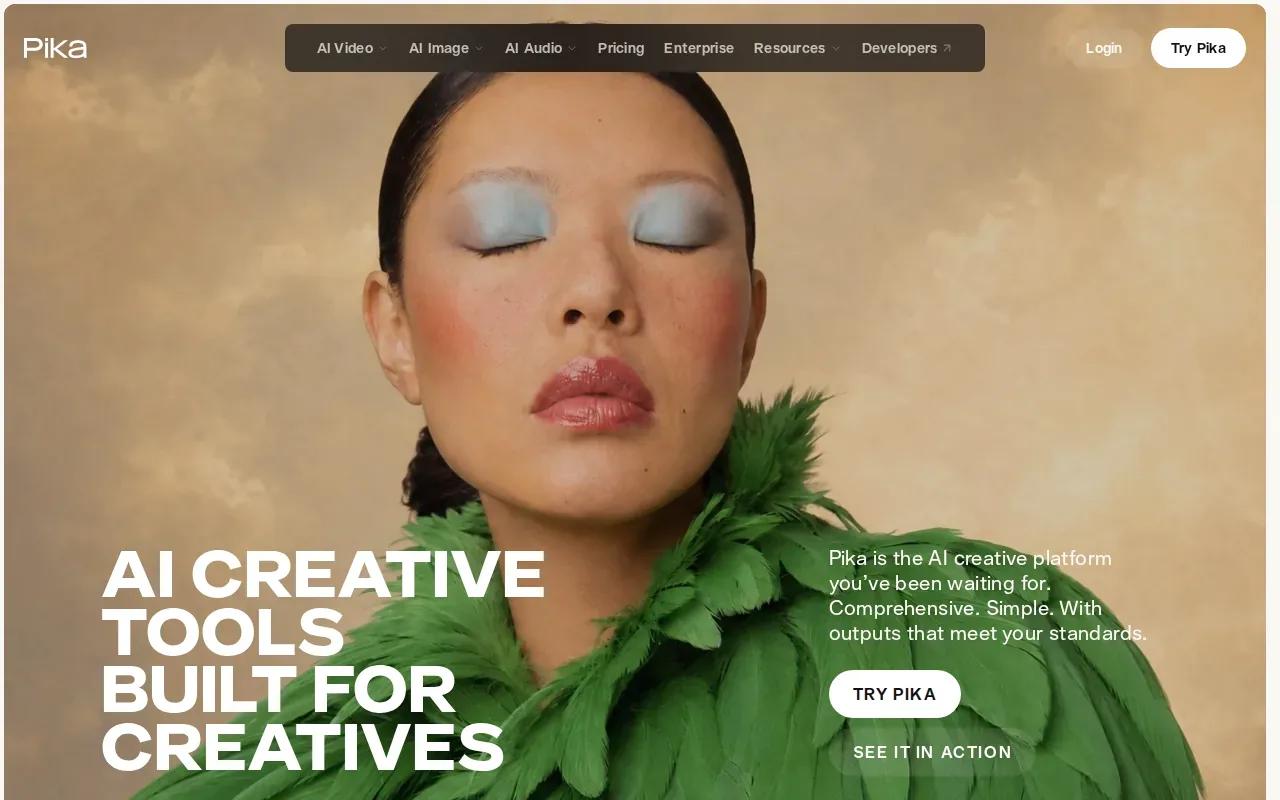
Pikaframes adds keyframe interpolation for longer transformations. You can use it to shape a change between chosen frames rather than relying on one motion prompt alone. Check the output resolution on your plan before you build a post around it.
For a smoother first test, keep the photo’s main subject easy to see and ask for one change. Generative AI can produce new visual content from a prompt or image, but the result still needs a close look before you publish it.
3. Vidu by ShengShu Technology: reference consistency and longer clips
Vidu by ShengShu Technology is a strong fit for photo-led clips where the subject needs to stay recognizable through the shot. Its Reference-to-Video workflow is designed to keep a subject coherent across the clip. That can help when you’re animating a person or character from a reference image.
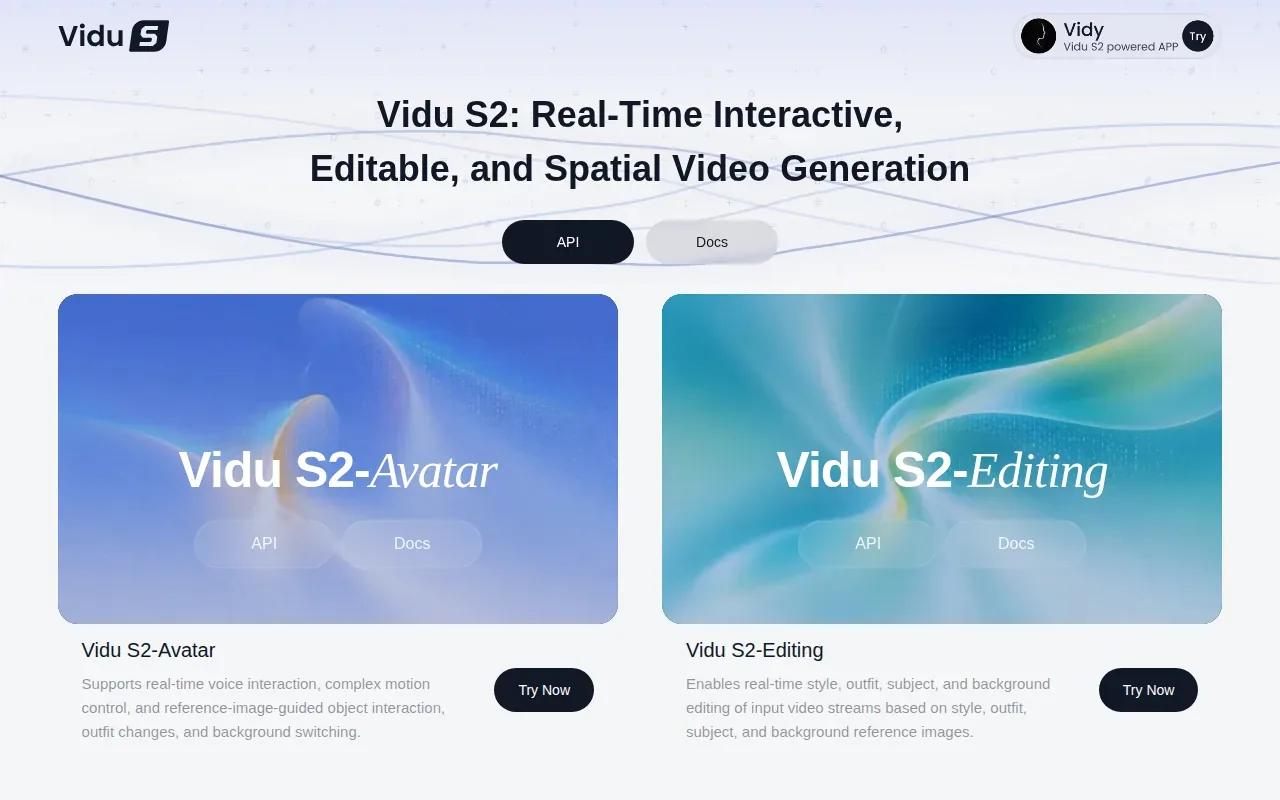
Vidu supports start and end frames, generates clips up to 16 seconds, and can add native audio. Its maximum output resolution is 1080p. For a short scene, you might use the first frame to set the opening pose and the last frame to guide the finish, then describe the movement between them.
This control is useful for a small story beat, such as a character turning toward the camera or a sports figure moving through a scene. Still, check faces and fine details in the final frames. A reference can guide a result, but it’s worth confirming that the subject remains true to the source image.
4. ImagineArt: a multi-model creative workspace
ImagineArt brings image, video, and audio creation together in a workspace with more than 50 AI models. It suits marketers and creative teams who want to test different models or make several kinds of media within one workflow.
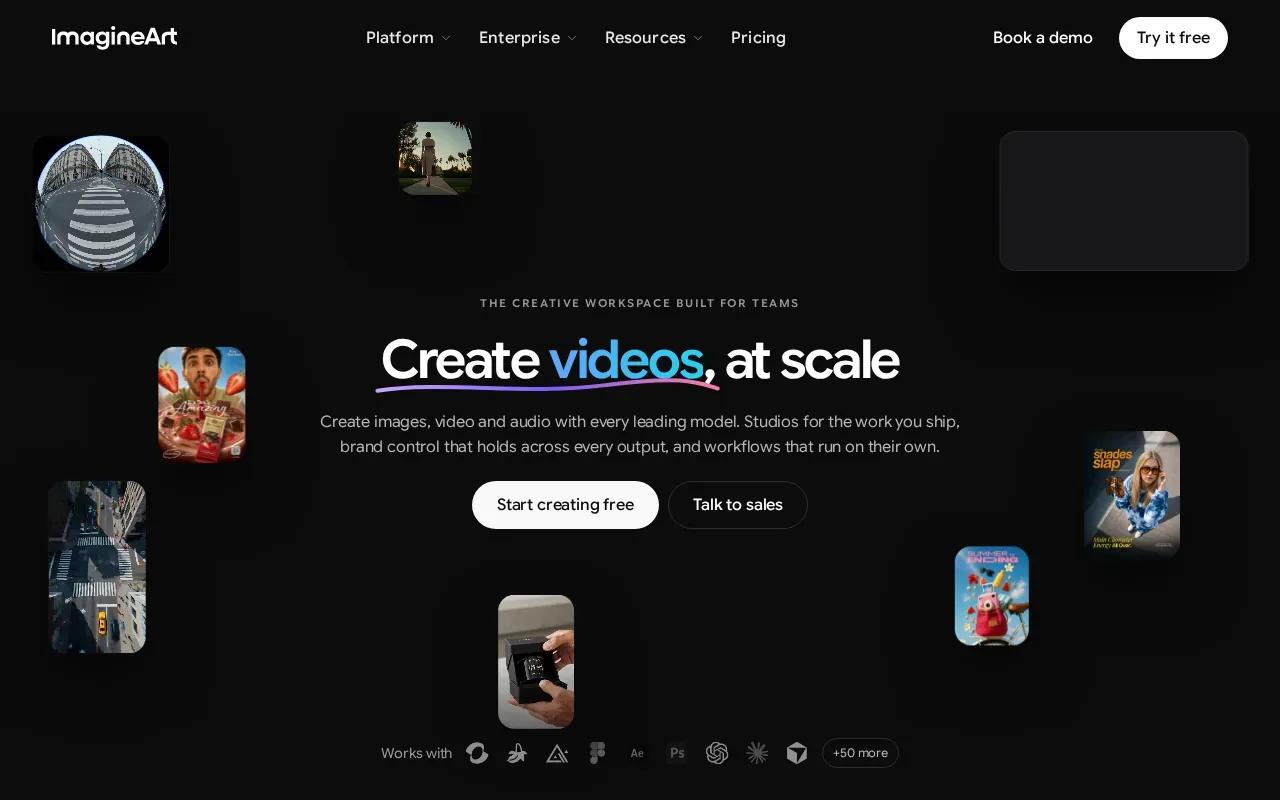
For image-to-video work, you can start with a reference image and use scene extension to lengthen a clip. ImagineArt also supports character consistency, plus voices, speech, and sound for clips. That combination can fit a short campaign scene that needs the same character and a spoken line.
The number of models gives you room to test different approaches. But keep the task in view: choose the model and settings based on the scene you need, then check the generated result before editing it into a campaign. Its free plan lets you start before upgrading for more generations or higher resolutions.
5. Higgsfield: image-led creative workflows across web and mobile
Higgsfield supports image, video, and voice content from text prompts or references, with access on web and mobile. It suits creators who want to start with a still and move into a broader creative workflow.
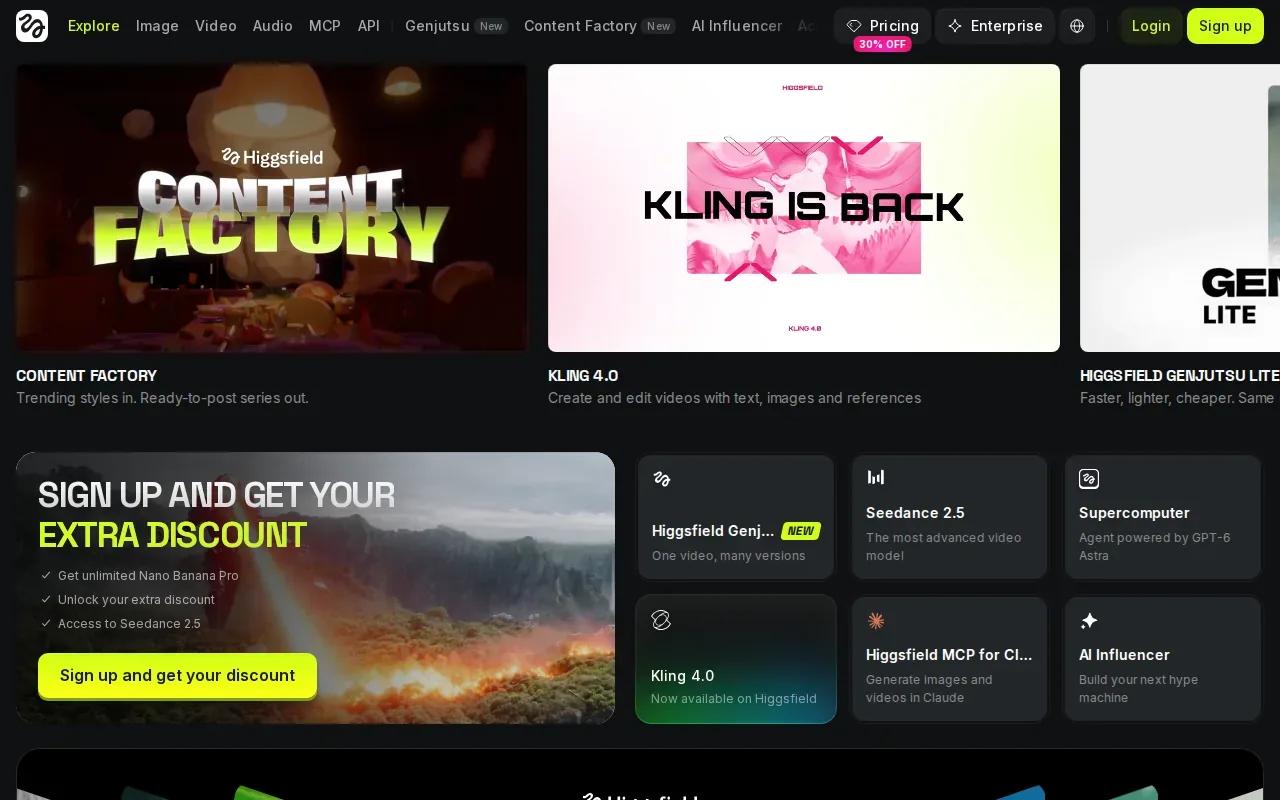
You can edit and upscale media, and its AI agent can automate creative workflows.
For a campaign, a reference image can help define the look before you generate a scene. If you need a specific camera path, put the movement into the direction you give the tool. Then review the clip for framing and subject changes before using it in a finished edit.
6. AI Image to Video Generator by VEED: a browser-based option
AI Image to Video Generator by VEED is a browser-based option for short clips from a still image. Upload a photo, describe the movement, then generate a scene in the editor. It suits social posts, product teasers, and simple animated brand graphics.
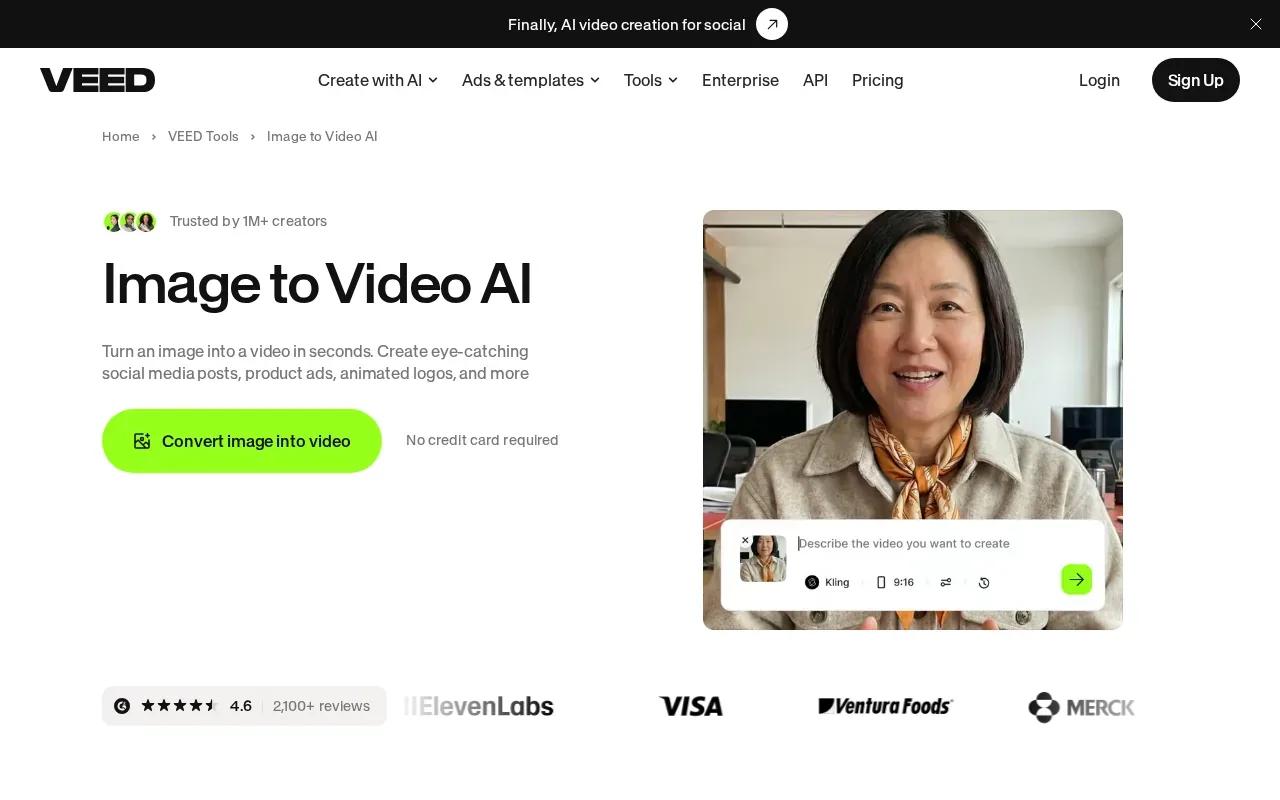
VEED suggests prompts that name clear movement, such as a slow zoom or a camera pan. Supported upload formats include JPG, PNG, and WebP. The free version includes a watermark, while the tool can be tried without starting with a paid plan.
If you’re preparing a clip for a specific feed, decide on the frame shape before you generate. A vertical crop may suit a Reel, while a horizontal crop may fit a standard video player. An image’s aspect ratio describes the relationship between its width and height, which affects how the frame fits your source photo.
7. Krea: image, video, and 3D creation in one platform
Krea supports image, video, and 3D creation in one platform. It suits creators who want to work across more than one media type, such as making a still concept before animating it.
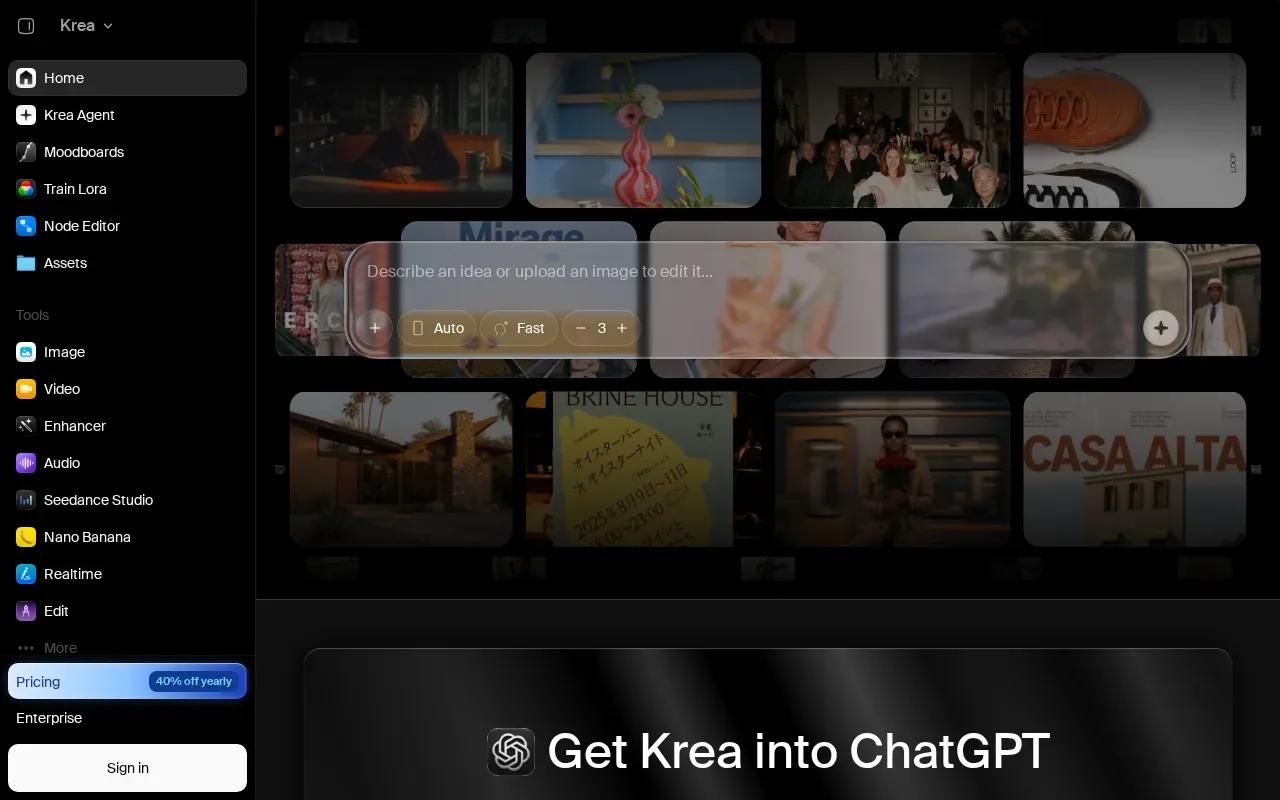
Krea lets creators generate, edit, and enhance images, videos, and 3D content. That can make it useful when your workflow moves from a still image into a video concept, or when you want to refine the source before animation.
For an educational clip, a creator could start with an illustrated scene, then animate a clear motion. Keep the prompt tied to what the viewer should notice. A simple camera move can help direct attention without asking the subject to perform several actions at once.
8. Domo AI: stylization and upscaling in a creative studio
Domo AI creates videos from text, images, or footage. It’s suited to creators who want to stylize source material or work with more than a still photo.
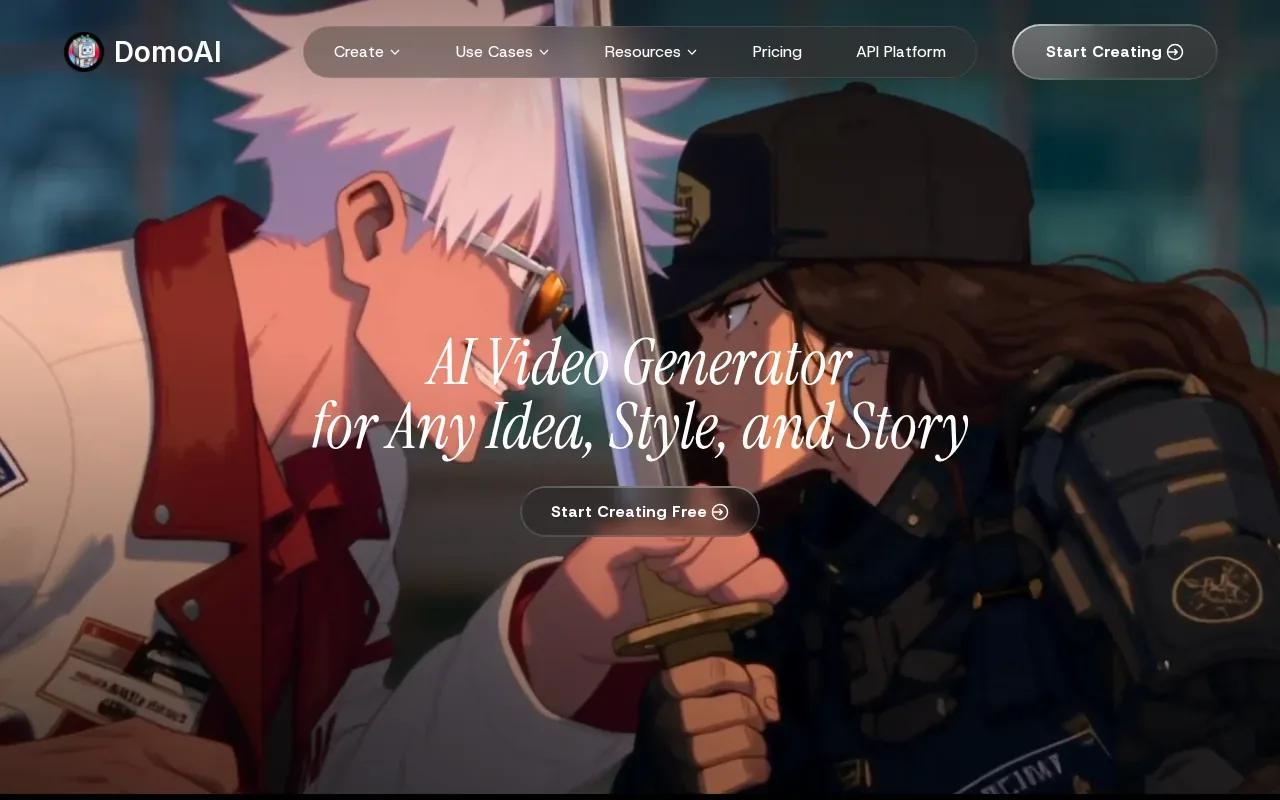
The studio combines video generation with stylization and upscaling. That workflow can fit an illustration or existing clip that needs a distinct visual treatment. Start with an image or footage that already has a clear subject, then judge whether the style keeps the details you need.
For a personal message or a social clip, a stylized look may be the point. For product marketing, check the output carefully so the item’s shape and key details remain clear. Choose the tool based on the finish you need, not only on how striking a sample looks.
9. Veo 3.1 by Google: native audio and frame control
Veo 3.1 by Google generates synchronized native audio, including dialogue, sound effects, and ambience. It suits creators making a scene where sound needs to match the action without being added as a separate generation.
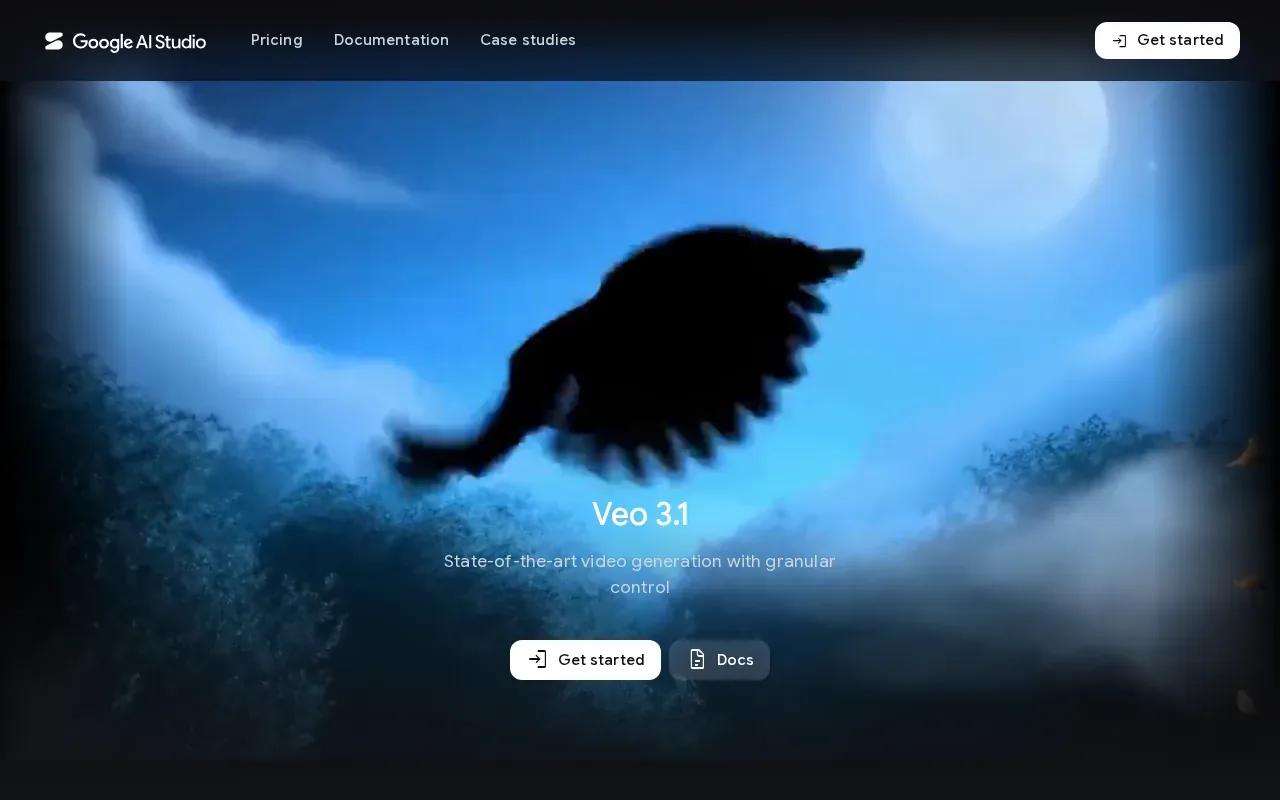
The model supports start and end frames, with output at 720p, 1080p, or up to 4K. A creator can set the opening and closing images, then generate the transition between them. That can help with a planned reveal or a short scene that needs a specific final pose.
Veo Studio is an independent browser-based tool powered by Google’s Veo 3.1 models. It brings that model into a workflow with reference images, synchronized sound and dialogue, character consistency, scene extension, and up to 4K output. Use Veo Studio when you want those controls together in a browser workflow.
Quick comparison: strengths, use cases, and workflow fit
For an AI video from a single photo, the useful choice depends on the shot you need. A stylized effect has different demands than a product clip with dialogue. This table gives you a quick way to narrow the options by workflow.
| Tool | Workflow fit | Useful controls or output |
|---|---|---|
| Veo Studio | Photo-led scenes with sound | Frame control, scene extension, up to 4K |
| Pika | Playful visual effects | Pikaffects, keyframe interpolation |
| Vidu by ShengShu Technology | Consistent reference-led clips | Start and end frames, up to 16 seconds, 1080p |
| ImagineArt | Multi-model creative work | 50+ models, scene extension, sound and speech |
| Higgsfield | Image-led work across devices | Editing, upscaling, workflow automation |
| AI Image to Video Generator by VEED | Short browser-based social clips | JPG, PNG, and WebP uploads |
| Krea | Image, video, and 3D projects | Generation, editing, and enhancement |
| Domo AI | Stylized video work | Generate, stylize, and upscale |
| Veo 3.1 by Google | Scenes with generated sound | Native audio, frame control, up to 4K |
When choosing, check how the tool handles the subject, the sound, and the final frame. For commercial work, confirm the usage terms for the specific tool and plan. Veo Studio's paid plans, from $14 a month, include a commercial licence.
Ready to turn a product photo into a moving clip?Explore Veo Studio’s synchronized sound and dialogue, frame control, scene extension, and up to 4K output →
FAQ
How do I make a video from a photo with AI?
Upload a clear photo, describe one main action, then generate a short clip. If the tool supports it, choose the frame shape and duration before rendering. Review the result for changes to the subject, product details, and sound. If something looks off, make one focused prompt change and generate another draft.
Can I use AI photo-to-video clips for commercial projects?
Yes, if the tool’s licence and plan allow your intended use. Veo Studio's paid plans include a commercial licence; the free plan is for trying the tool. For any other service, check its current terms before using a clip in an ad or client project, and make sure you have rights to the source photo.
Which tools can add dialogue or sound to a photo video?
Veo Studio supports synchronized sound and dialogue, and Veo 3.1 by Google generates native audio with video. Vidu supports native audio, while ImagineArt offers voices, speech, and sound for clips. The exact controls differ, so check whether you need spoken dialogue, effects, or ambience before choosing.
What file formats can I upload or export?
AI Image to Video Generator by VEED accepts JPG, PNG, and WebP images. Veo Studio generations can be downloaded as MP4 video. Formats vary by tool, so check the upload and export options that fit your editing app or social platform before you start a larger batch.
Conclusion
For photo-led clips that need synchronized dialogue, reference control, scene extension, or up to 4K output, start with Veo Studio. For more detailed direction, see how to turn a photo into a video.


