
An AI video dialogue generator can make a character speak as part of a generated scene, or animate a presenter to read a script. The key difference is the workflow: some tools build a whole scene, while others focus on a talking avatar or audio sync.
We analyzed 52 YouTube comments about AI video dialogue generators and found that 35% mentioned specific prompts and tutorial guidance.
Here are seven options for creators, marketers, and training teams, starting with Veo Studio, an independent browser-based tool powered by Google's Veo 3.1 models.
1. Veo Studio: Browser-based dialogue-driven video creation
Veo Studio is an independent browser-based tool powered by Google's Veo 3.1 models. It turns a text prompt or reference images into video with synchronized sound and dialogue. It suits creators who want a character to speak inside a scene, rather than a presenter reading against a fixed backdrop.
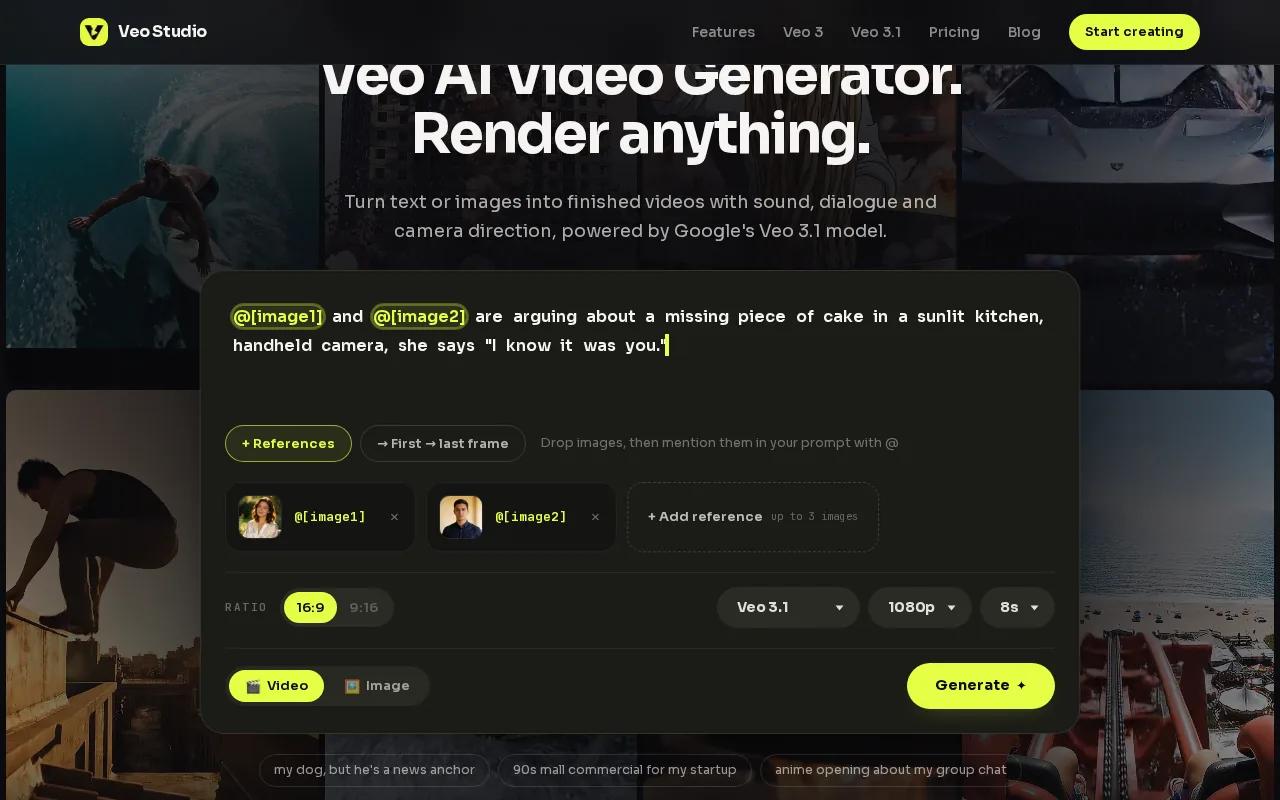
Describe the action and camera move, then put the spoken line in quotation marks. You can attach up to three reference images for character or product guidance. First- and last-frame control lets you set the opening and closing image, while scene extension adds seven seconds at a time to supported 720p clips, up to roughly 148 seconds.
In Veo Studio, supported output reaches 4K for eight-second clips. The free plan includes a couple of 720p videos a month with no card required. Paid plans start at $14 per month.
That mix fits a short social scene, a product spot built around a reference photo, or a film sequence that needs the same character across cuts. You can also explore specific ways to stage a spoken line in this AI video lip-sync overview.
Veo Studio runs in a browser, so there’s no editing software to install before you test a prompt. Paid plans include a commercial licence.
For a first test, keep the scene simple: one character, one camera move, and one short line. Watch the result with sound on before building a longer sequence.
2. Kling 4.0: Synchronized dialogue with reference-image control
Kling 4.0 generates videos with synchronized dialogue and lip-sync. It is a fit for branded shorts, ads, and previews where a visual reference should guide the character or product.
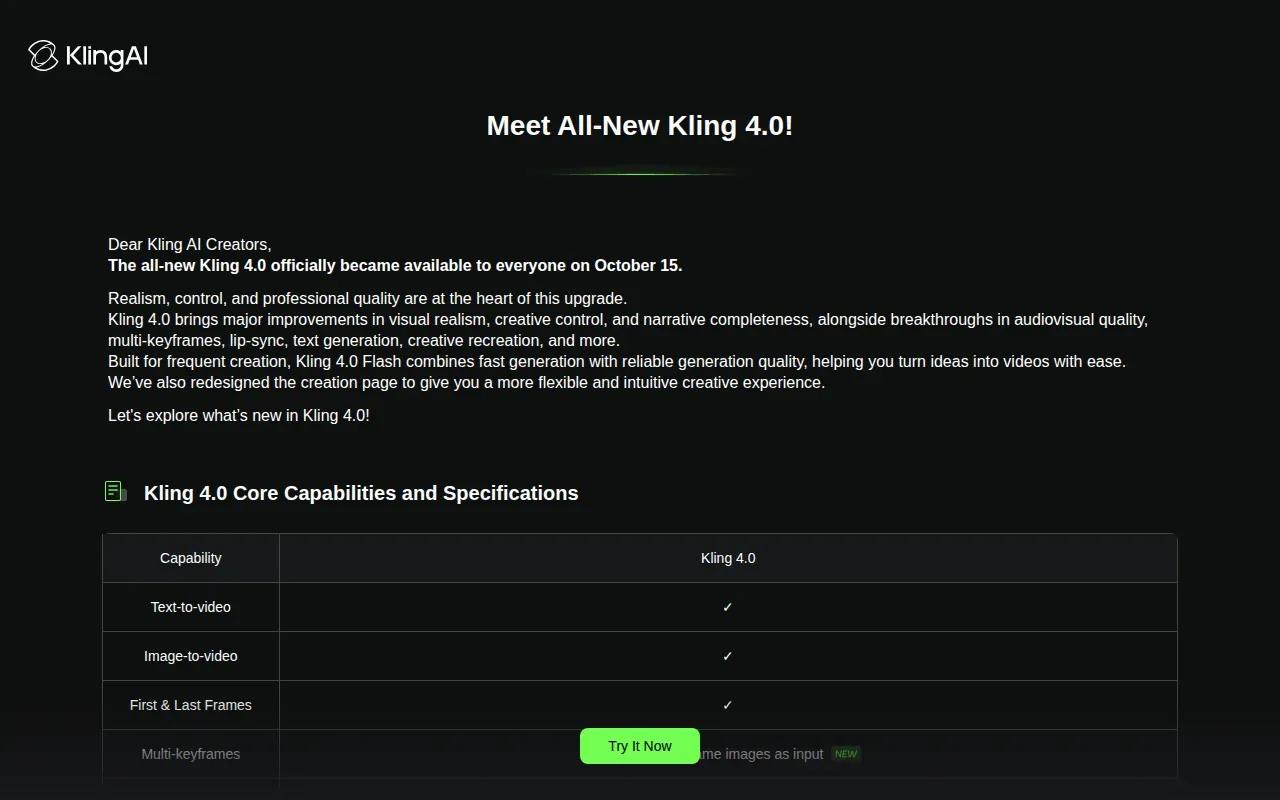
Element binding lets you lock up to four reference images to help keep a subject consistent across cuts. That can help when an ad returns to the same character or product in more than one shot. Dialogue comes with the generated scene, so you can shape the spoken moment in the prompt instead of treating it as a separate sync task.
A useful test is a short product preview with a clear subject and a single spoken line. Attach reference images that show the look you want to keep, then check whether the dialogue and visual identity hold up across the cuts you need.
Kling’s strength in this shortlist is the combination of synced dialogue and reference-image control for branded work. If the project needs a longer connected story, compare its workflow with a tool built around scene extension or a full animated narrative.
3. HeyGen: Avatar dialogue and multilingual marketing videos
HeyGen creates avatar-led video and supports synchronized dialogue through its Translate feature, which re-renders lip movements. Its strongest fit here is marketing agencies and teams that localize video for different markets.
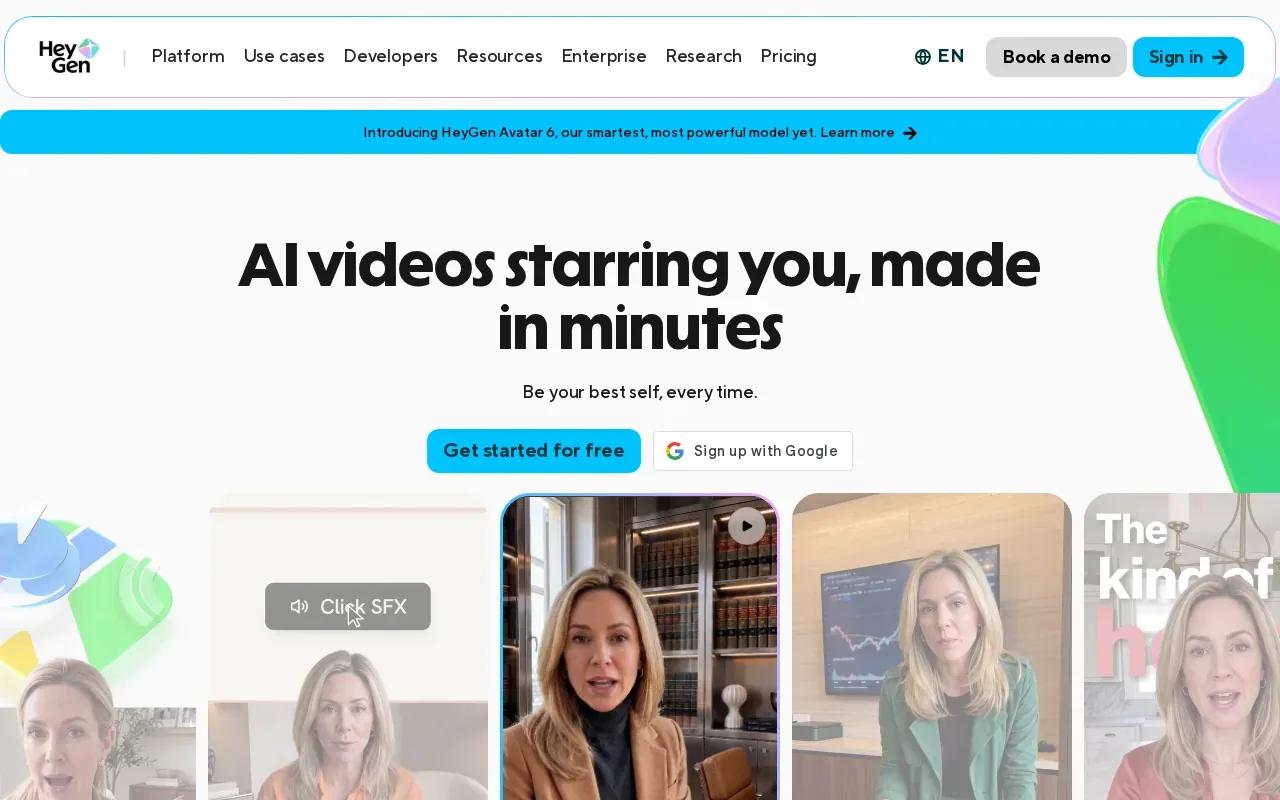
For a script-led clip, HeyGen voices pasted text through Avatar V and keeps the same face from the first line to the last. That makes it useful when a campaign needs a presenter to deliver a clear message, rather than a character moving through a generated setting.
Localization teams can use the Translate workflow to adapt existing footage and match the new speech to mouth movement. The usable check is to review the translated cut as a viewer would: listen for clear speech and watch whether the mouth movement fits the new track.
Choose this style when the on-screen speaker is the main point of the video. For a scene-led story with action around the speaker, a prompt-based video generator may be a closer match. The related AI talking-head video comparison looks at presenter-focused workflows in more detail.
4. D-ID: Talking-avatar videos from portraits and speech
D-ID specializes in talking-avatar videos made from portrait images and speech inputs. It suits a creator who already has a face image and wants to turn it into a speaking clip.
The basic workflow is direct: upload a portrait, add text or audio, then generate the talking-avatar video. This is a focused way to make an explainer, a short announcement, or a message built around one on-screen face.
Its defined scope matters. That makes it a better match for portrait-led clips than for a story that moves through several connected settings or needs a recurring character across cuts.
Before you prepare a batch of videos, test one portrait and one short script. The face is the center of the frame, so a clear source image and a line that sounds natural are sensible starting points.
5. Sync Labs: Audio-to-video synchronization
Sync Labs focuses on syncing supplied audio with compatible video footage. It is a fit when you have a clip already and want the visible speaker’s mouth movement to match the audio.
This is a different job from generating the whole scene with dialogue. Start with the video and sound you want to use, then apply the sync workflow to align the speech with the visible face. That can suit a recorded line, a voice track, or footage whose existing speech needs adjustment.
It handles the audio-to-video match, not a larger sequence of connected scenes. If your project needs a longer story, plan the scenes and continuity in another part of the workflow.
Keep the source clip and audio ready before you begin. A quick preview can help you decide whether the lip movement feels aligned before you use the result in a larger edit.
6. Synthesia: Scripted presenters for corporate training
Synthesia is built for scripted presenter videos, with a strong fit for enterprise training and compliance teams. It pairs presenters with support for more than 160 languages, plus SCORM export and SSO on Enterprise.
That setup suits learning and development teams that need a presenter to explain a policy or onboarding topic in a consistent format. A script gives the presenter the words to deliver, while language options help teams prepare versions for different audiences.
Its focus is training and internal communication, not cinematic scene generation. If the brief calls for a presenter explaining steps or policy details, a scripted format may be easier to review than a dialogue scene built from a visual prompt.
When comparing tools for a training project, check the output against the delivery workflow your team already uses. Synthesia’s SCORM export and Enterprise SSO are useful details to weigh when those needs are part of the brief.
7. MagicLight AI: Animated stories with character consistency
MagicLight AI is designed for animated storytelling where dialogue is part of a larger narrative. Its recurring-character support makes it relevant for a story that returns to the same character across scenes.
Its animated-story focus may fit when the goal is a connected narrative, especially one that returns to the same character across scenes.
Use the table to match each option with the kind of project it handles. The categories focus on the production task, not a score or general ranking.
| Tool | Project shape | Useful control or fit |
|---|---|---|
| Veo Studio | Dialogue-led generated scenes | Reference images, frame control, scene extension, and up to 4K output |
| Kling 4.0 | Branded shorts, ads, and previews | Synced dialogue and up to four bound reference images |
| HeyGen | Avatar-led marketing and localization | Scripted avatar speech and translated lip movement |
| D-ID | Portrait-based talking avatars | Portrait image with text or speech input |
| Sync Labs | Existing video with supplied audio | Audio-to-video synchronization |
| Synthesia | Corporate training and compliance | Scripted presenters, 160+ languages, SCORM export, and Enterprise SSO |
| MagicLight AI | Animated stories | Recurring characters across a larger narrative |
If spoken dialogue must match a character’s mouth, choose a tool whose listed workflow supports sync. If the story needs animation and recurring characters but not lip-synced speech, MagicLight AI’s focus may fit better.
FAQ
What is an AI video dialogue generator?
An AI video dialogue generator makes video in which a person or character speaks. Depending on the tool, you might describe a scene, provide a portrait, paste a script, or supply audio for an existing clip. Some tools generate the scene and speech together, while others focus on animating an avatar or matching audio to footage.
How do I make a video with synchronized dialogue?
Choose a tool that supports dialogue sync, then provide the input its workflow needs. That may be a prompt, a portrait and script, or existing video with audio. Generate a short sample first, then watch and listen to check the timing and mouth movement before preparing more scenes.
Can these tools make a longer video?
Some workflows are built around short clips or a single talking portrait, while others support story-driven sequences. Veo Studio supports scene extension for Veo 3.1 clips at 720p, adding seven seconds per step up to roughly 148 seconds. Check duration needs before planning the full project.
Which tool should I use for a talking avatar?
Pick based on what you already have. D-ID is focused on portrait images and speech inputs. HeyGen fits avatar-led marketing and multilingual video work. Synthesia is geared toward scripted corporate training. If you need a character to speak within a newly generated scene, compare scene-generation workflows such as Veo Studio.
Conclusion
For a scene with generated dialogue, character consistency, frame control, and room to extend the clip, start with Veo Studio. Describe one short shot, add a reference image if it helps, and test a line of dialogue in the browser before you build the full sequence.


