
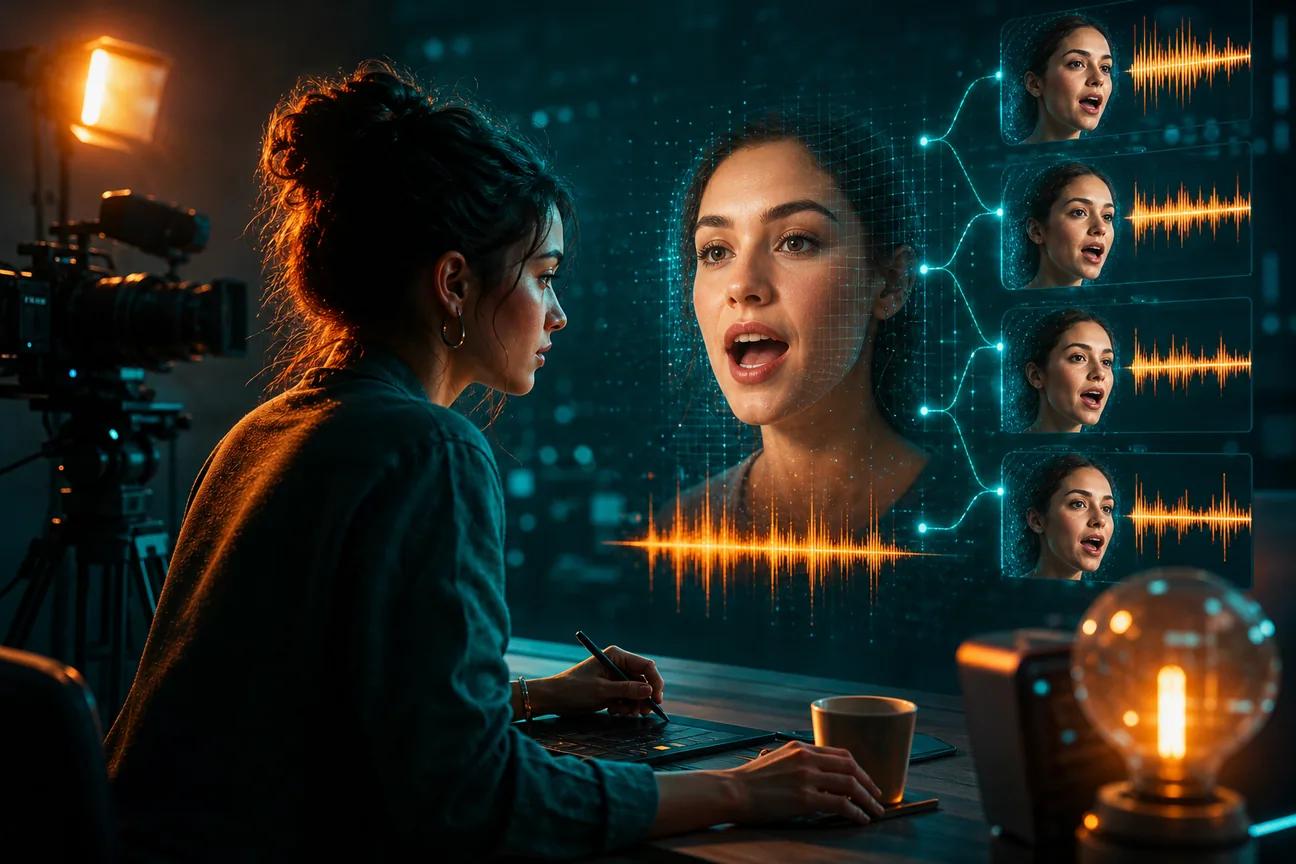
AI video lip sync can look convincing in one shot and drift in the next. The right tool depends on whether you’re making a scene with generated dialogue, dubbing existing footage, or building a reusable presenter. Here are six options, starting with Veo Studio.
We analyzed 41 YouTube comments about AI video lip sync and found that 20% mentioned a need for free or open-source tools.
1. Veo Studio
Veo Studio is an independent, browser-based AI video creation tool powered by Google’s Veo 3.1 models. It generates video from a prompt or reference images, with synchronized sound and dialogue in the same workflow.
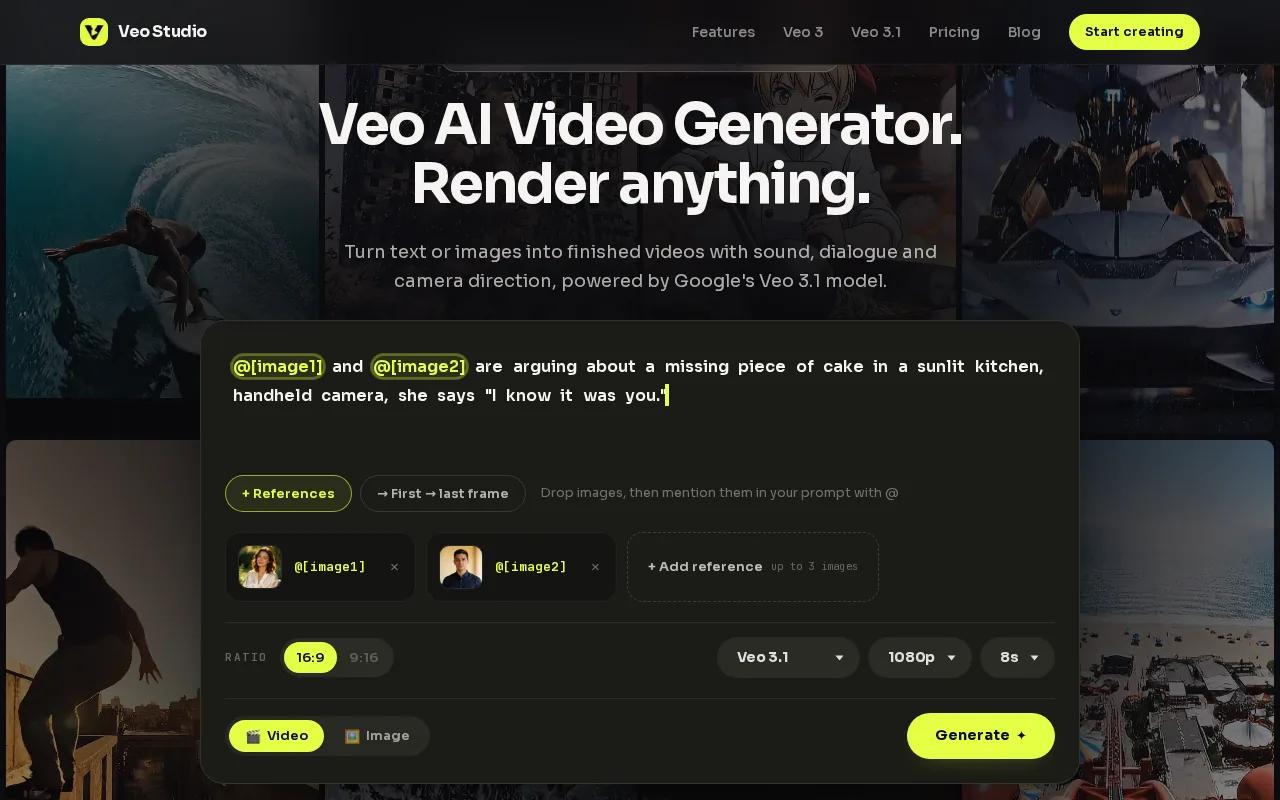
That makes it a fit for creators who want a character to speak as part of a larger scene, rather than animate a portrait alone. Put the exact spoken words in quotation marks and describe who says them. You can also guide a shot with up to three reference images, use first- and last-frame control, or extend a finished scene.
The model supports output up to 4K on supported settings. For creators making a short social clip, native dialogue can cut out a separate voiceover and sync step. For a longer scene, extensions add seven seconds at a time to supported 720p clips, up to roughly 148 seconds.
Veo Studio gives you browser access to Veo 3.1, with a free plan that includes a couple of 720p videos each month. Paid plans start at $14 per month, and include a commercial licence.
If you want to test a short spoken scene first, the AI lip-sync generator overview can help you plan the prompt. Veo Studio is a strong fit in this shortlist when dialogue, scene continuity, and higher-resolution output all matter in the same project.
2. Higgsfield: Phoneme-based lip sync for generated video
Higgsfield offers phoneme-based lip sync for generated characters. It’s a fit for creators who have a character image and want to generate speech-driven mouth movement, then try that character with different voices or languages.
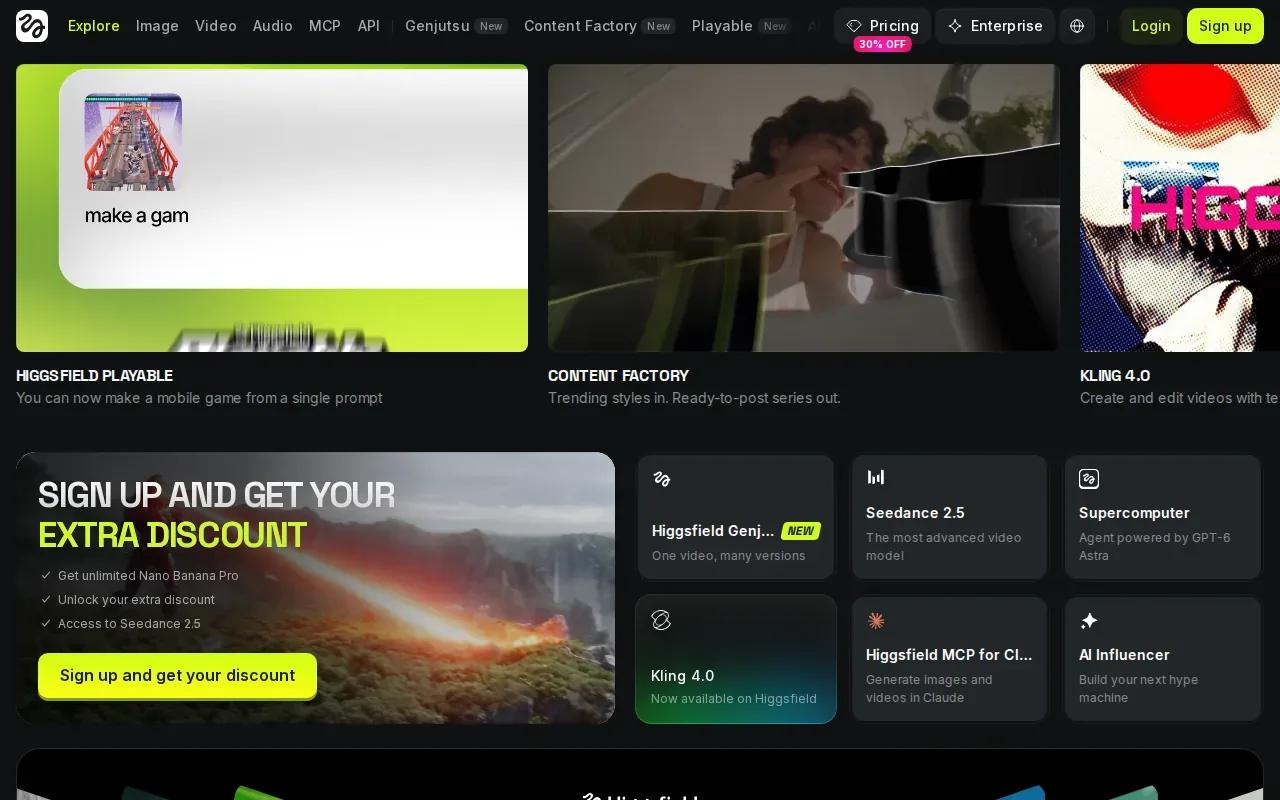
Phoneme-based systems tie mouth shapes to the sounds in speech. That can help the mouth follow words more closely than a general animation that moves to the broad rhythm of audio. A source image still matters. Start with a sharp, well-lit face where the mouth is easy to see, then use a spoken line that fits the clip.
Character consistency is useful when you want the same character across voice swaps or language translations. For a social ad, that can help you make several versions around one visual identity instead of starting from a new face each time.
For dialogue-led work, prepare the audio and script before generating. Use natural phrasing, then add cues for the speaker’s mood when the workflow allows it. Expressive audio and clear, front-facing source material can help. The result still needs a full review, since a mouth can match the words while the eyes or expression feel flat.
Choose this approach when a talking character is the main event. If you need sound and dialogue generated with a broader scene in one pass, compare it with the scene-first tools below.
3. Seedance 2.0 by ByteDance: Native audio generation in the video pass
Seedance 2.0 by ByteDance builds native audio generation into the video pass, which also provides automatic lip sync. It suits creators who want a short music or dialogue clip to form as one piece, instead of syncing a finished video to an audio track later.
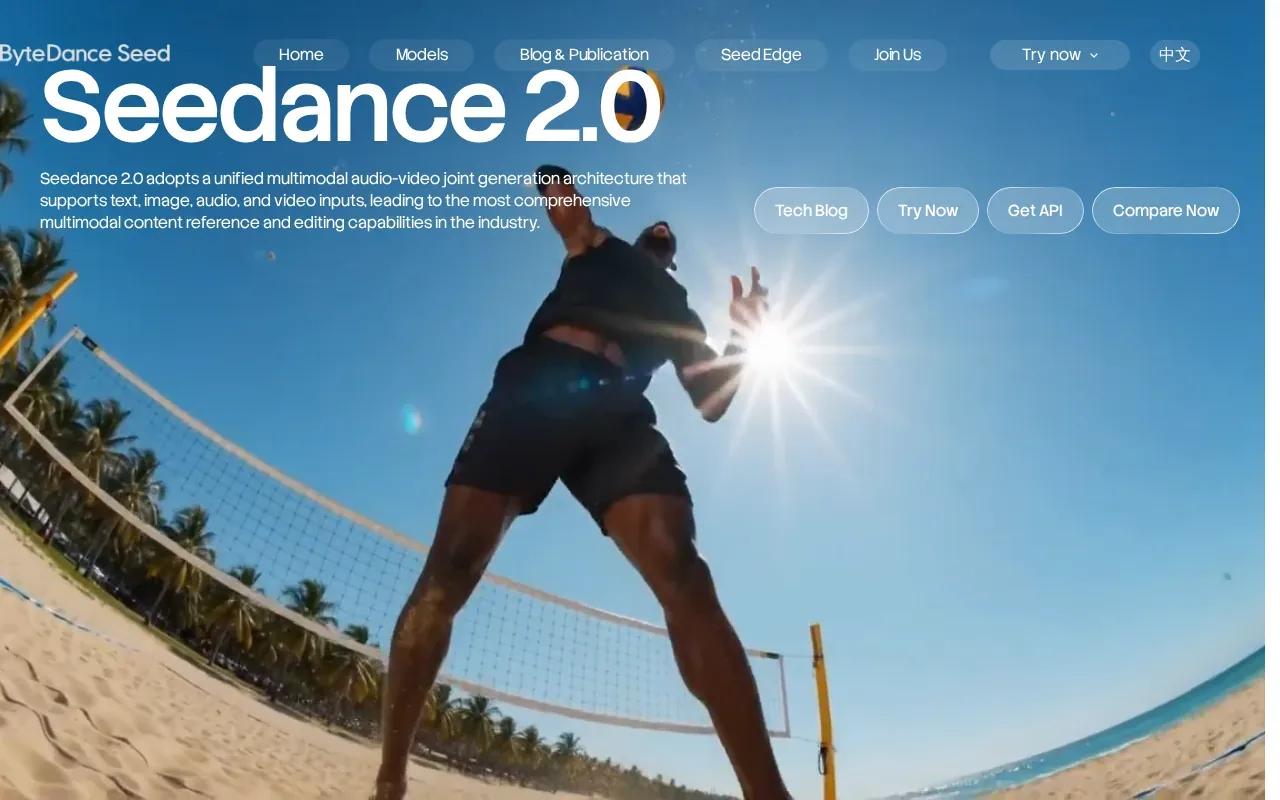
Clips are short, and reference images and videos help keep a character’s identity across clips. That can help a creator build a few related shots around the same person, rather than rely on a single unbroken take.
For a music video, plan the lyrics and the visual action together. Keep the face visible when the character is singing, and describe the shot order clearly if the scene changes. Then review each clip against the matching part of the song. A short generation limit means a longer edit may need several clips joined in an editor.
This workflow is different from dubbing a finished recording. It generates audio with the video, so it makes more sense when you’re building a new scene or visual from a prompt. It’s less of a direct match for a team that already has a filmed presenter and only needs translated speech.
Use it when short, audio-led scenes are the goal. If your project is an existing video with a new language track, a translation-first tool may fit the job better.
4. AKOOL: Lip sync bundled with video translation
AKOOL bundles lip sync into a video translation workflow that also brings faceswap and translation into one workspace. It’s suited to marketers and teams adapting a video for another audience, especially when they want translation and face changes handled in the same production path.
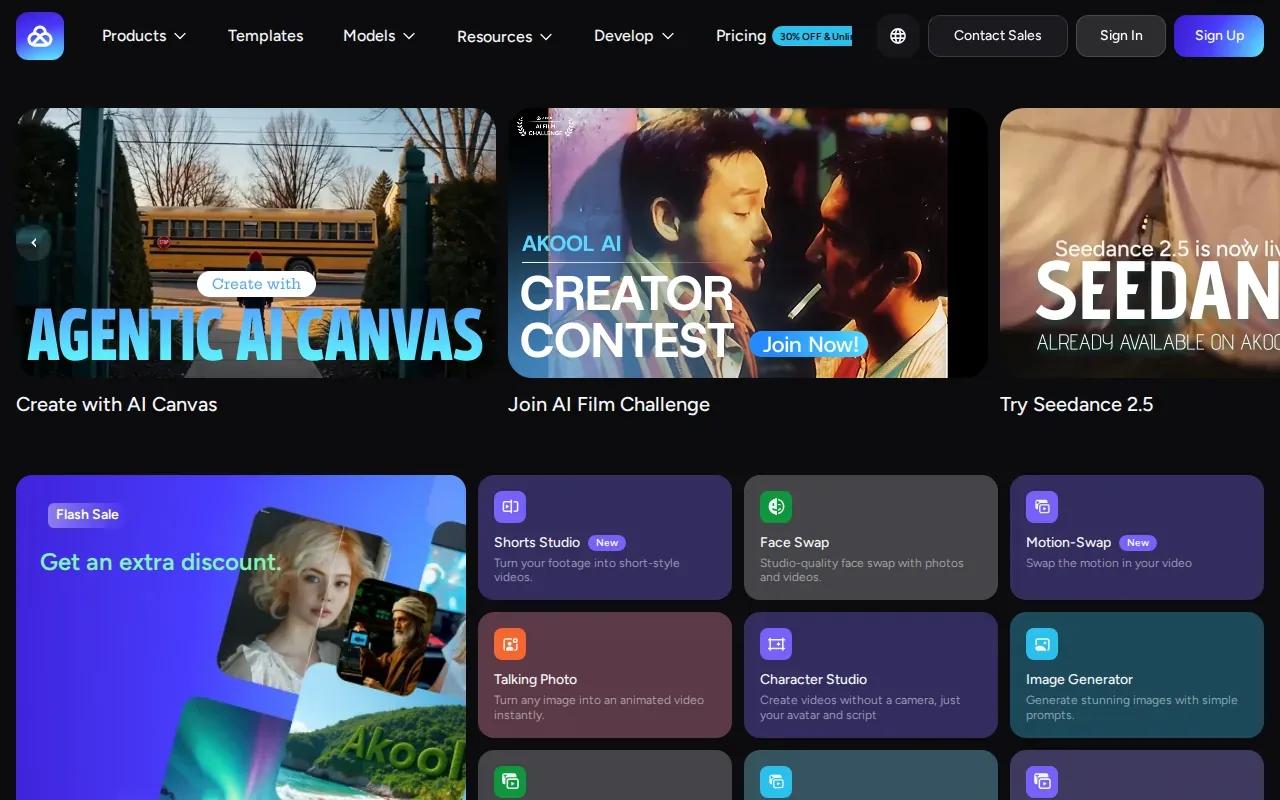
That changes the starting point. Rather than prompt a new character to speak, you begin with a video that already exists and work on its translated version. This can suit product explainers, promotional clips, or other filmed messages where the original speaker is already part of the content.
Keep a clean copy of the source footage and review the translated version in full. Check that the timing feels natural and that any changed face fits the scene. A close shot with a clear face gives you more to judge than a wide shot where the speaker’s mouth is small. These checks matter for any dubbing workflow, not only AI-made video.
AKOOL’s place in this list is its combined workflow: faceswap, translation, and lip sync in one workspace. If your primary need is a reusable digital presenter, an avatar-focused tool may be a closer fit.
5. HeyGen Avatar V: A digital twin from a short recording
HeyGen Avatar V builds a digital twin from a short recording of you. Its lip sync covers more than 175 languages and dialects. It’s a fit for creators or teams who want a recurring presenter to deliver scripts in different formats or languages.
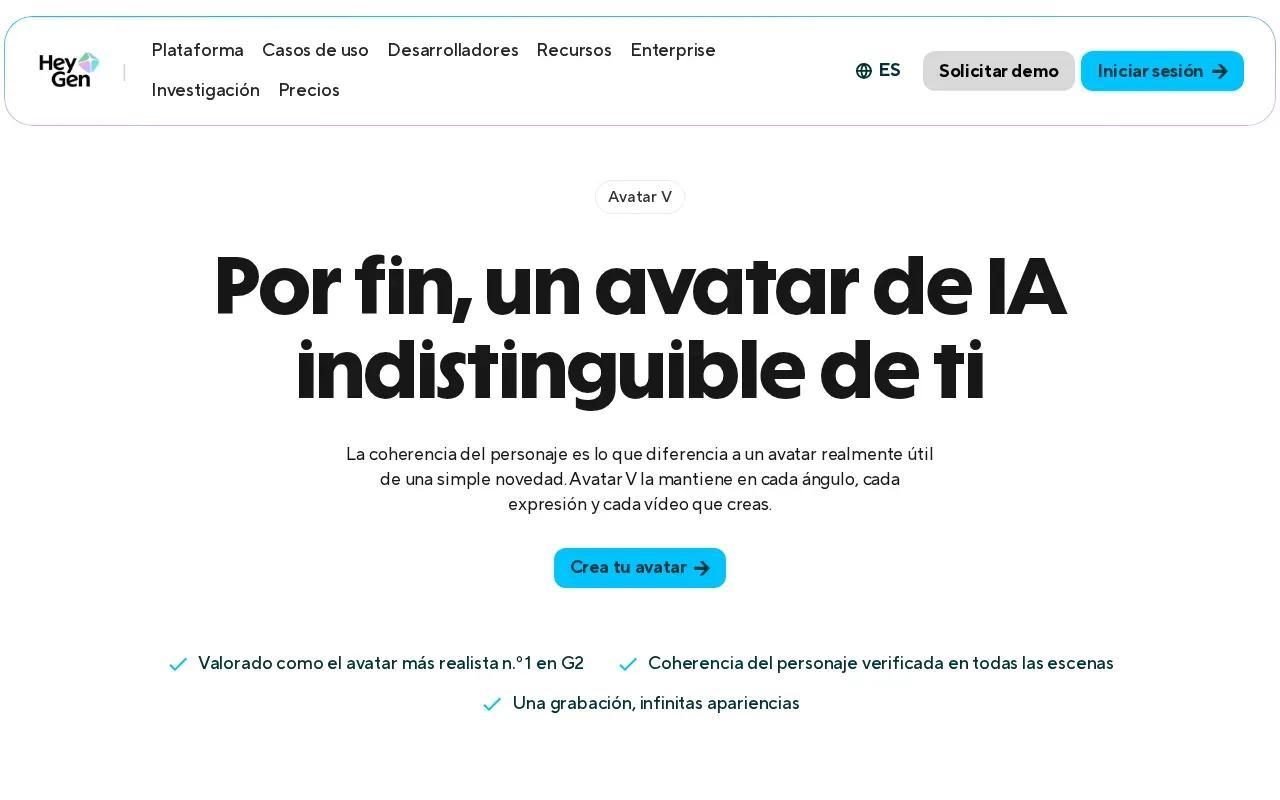
Avatar V is built to keep one identity across wide, medium, and close shots. That’s useful when a training video or product lesson needs more than one camera distance, but the same presenter should remain recognizable throughout.
For a multilingual campaign, the language range may help you prepare versions for different audiences. Still, don’t treat language count as a quality check. Play each version and review the pronunciation, timing, and tone. A translated line can fit the same idea while needing a different pace to sound natural.
A digital twin also calls for care with consent. Use your own recording or get clear permission from the person whose likeness you’re using. Then check the final video before sharing it, especially if viewers could mistake the avatar for a live recording.
Avatar V is a good match when the speaker’s identity should carry across scripted videos. If you don’t need a personalized twin, a pre-modeled avatar can be a simpler way to make steady presenter content.
6. Synthesia: Smooth lip sync for pre-modeled avatars
Synthesia uses pre-modeled avatars for presenter videos, with smooth lip sync on those avatars. It’s a fit for teams making training or business content where a consistent on-screen presenter matters more than cinematic scene generation.
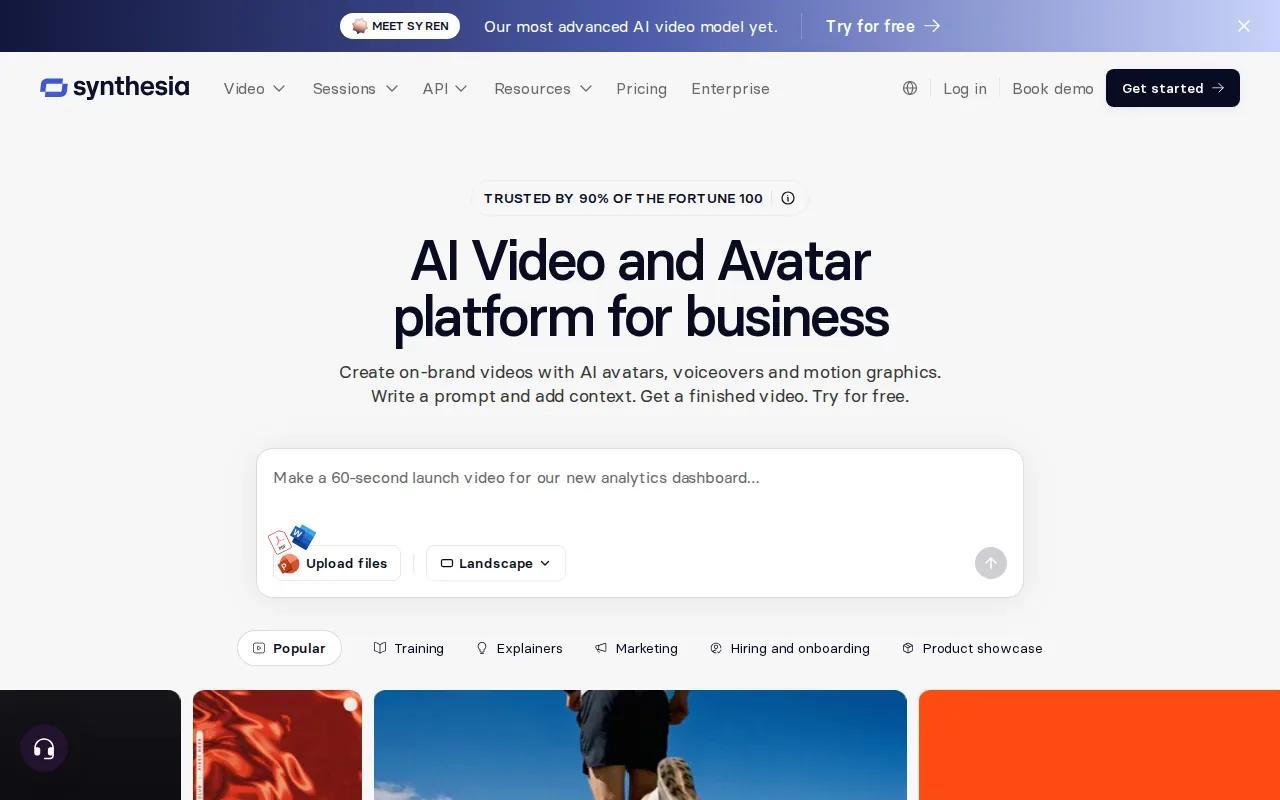
Synthesia also offers AI Dubbing for real footage. Use a pre-modeled avatar when you’re writing a fresh training script, or consider AI Dubbing with real footage. Either way, play the final video all the way through. Pay attention to a speaker’s mouth during key terms and names, where a small timing issue stands out.
| Project need | Workflow to consider | What to check |
|---|---|---|
| New scene with generated dialogue | Veo Studio or Seedance 2.0 by ByteDance | Character continuity and sound fit |
| Portrait driven by speech | Higgsfield | Face clarity and expression |
| Translated existing footage | AKOOL or Synthesia | Language, timing, and likeness |
| Recurring digital presenter | HeyGen Avatar V or Synthesia avatars | Identity across the full script |
For workplace lessons, onboarding, or product training, stable delivery can matter more than camera movement. That’s where pre-modeled presenters have a clear role. For a scene with a moving camera and generated dialogue, Veo Studio is the more relevant workflow to test for synchronized sound and dialogue.
FAQ
How does AI video lip sync work?
AI lip sync maps speech sounds to mouth movements in a video. Some tools generate the voice and visuals together, while others sync an existing audio track to a still image or recorded footage. The input matters: a clear face and clean speech make it easier to review whether the mouth follows the words.
How do I get more accurate lip sync?
Start with a sharp, front-facing face and make sure the mouth isn’t blocked. Use clean audio or a short spoken line, then generate and review the whole clip with sound on. If the sync drifts, simplify the shot or shorten the line before changing several settings at once.
Can AI lip sync translate a video into other languages?
Yes, some tools translate speech and resync the speaker’s mouth for another language. HeyGen Avatar V supports lip sync across more than 175 languages and dialects, while some tools offer AI dubbing for real footage. Review each version for pronunciation and tone before you publish it.
How long can an AI lip-sync video be?
It depends on the tool and the workflow. Seedance 2.0 by ByteDance makes short clips, while Veo Studio can extend supported 720p Veo 3.1 clips by seven seconds at a time, up to roughly 148 seconds. Avatar workflows can support longer scripted presentations, so check the tool’s current limits for your format.
Is it legal to make an AI video of someone speaking?
Use a person’s likeness or voice only when you have the right to do so, and don’t present a synthetic performance as a real recording in a way that misleads viewers. Rules can depend on where you live and how you use the video. Get consent before making a digital twin of another person.
Can these tools clone a voice?
Some avatar platforms support voice cloning, but the options depend on the product and workflow. Before you use a cloned voice, confirm you have permission from the speaker and review the generated audio for errors or a tone that doesn’t fit the message.
Conclusion
Choose Veo Studio when your clip needs generated dialogue, synchronized sound, and room for scene continuity in one browser-based workflow. Start with the free plan, write a short line in quotes, and review the result with sound on before moving to a paid plan.


