

A talking head video can put a presenter on screen without a camera shoot. But tools differ: some animate an avatar, while others make broader video scenes with generated speech. Here are nine options plus Veo Studio, with the key differences that can shape your workflow.
We analyzed 62 comments and questions from Reddit, YouTube and Quora about AI talking head video generators and found that 18% mentioned hybrid multi-tool workflows.
1. Veo Studio
Veo Studio is an independent, browser-based video creation tool powered by Google's Veo 3.1 models. You can write a prompt or attach reference images, then generate a video with synchronized sound and dialogue. It isn't a stock-avatar presenter editor. It suits creators who want a speaking character inside a directed scene, such as a short product spot or social clip.
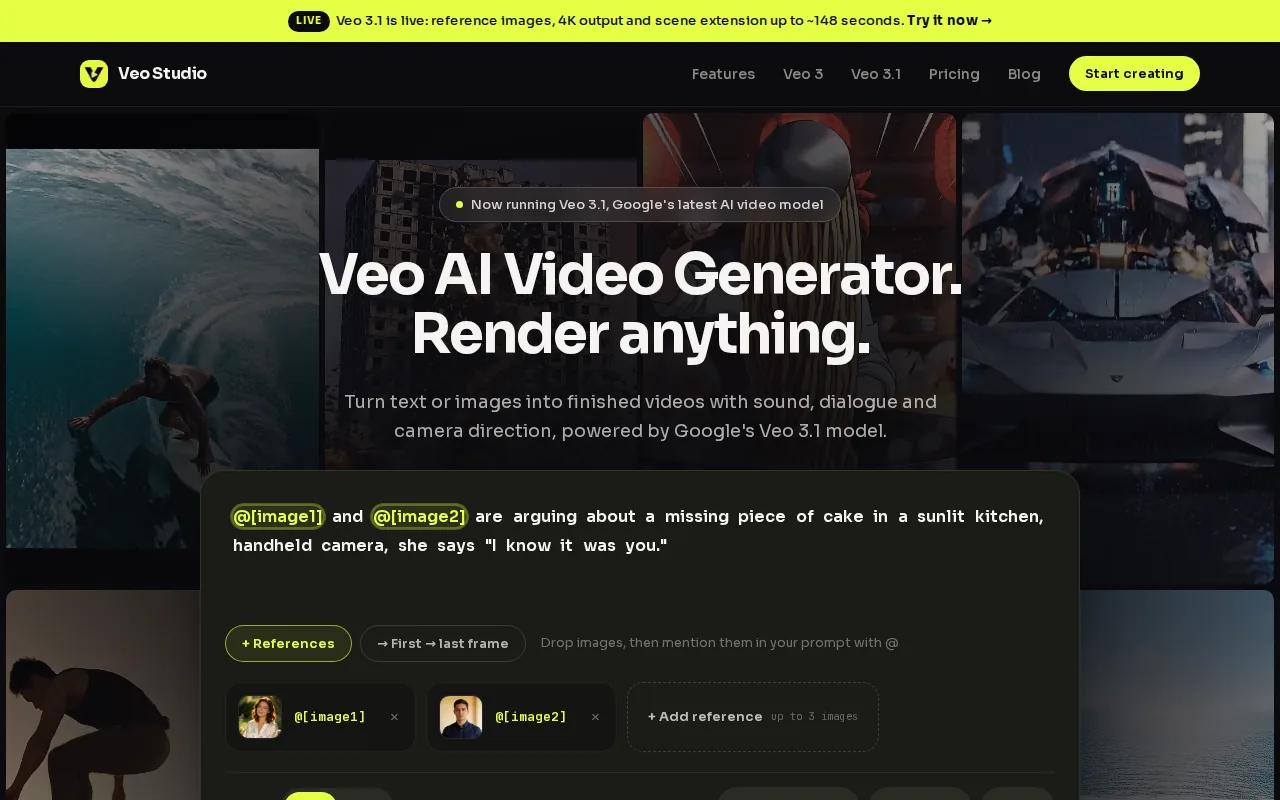
Reference images can help keep a character or product consistent. First- and last-frame control lets you guide how a shot moves between two stills. You can also extend supported scenes, and paid plans include output options up to 4K. For a character to speak, put the dialogue in quotation marks in your prompt.
The free plan includes a couple of 720p videos per month, with no card required. Paid plans start at $14 per month and include higher resolutions. If your brief needs a particular camera move, dialogue, or longer scene, Veo Studio's prompt-led workflow gives you room to shape the shot.
For more on the model behind the tool, see Veo's video generation model and synced audio. Veo Studio also has a guide to talking video, native audio and longer scenes for creators building dialogue-led clips.
2. Synthesia: polished presenter videos for training and localization
Synthesia is a scene-based presenter video editor suited to training, internal updates, and localized communication. It supports translation into more than 140 languages. You can build a video from scenes, then add slides or transitions to fit a lesson or company update.
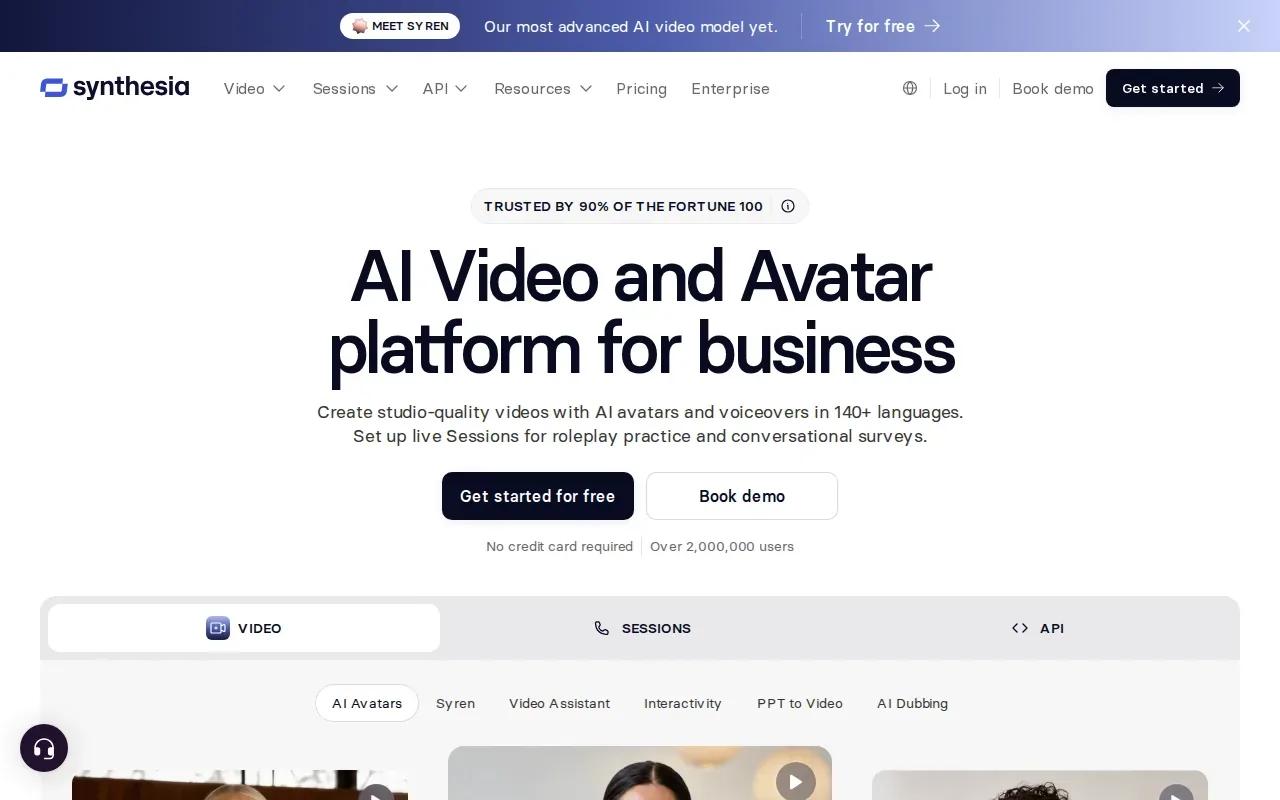
The free Basic plan allows up to 10 minutes of video per month. That gives a small team a way to test a presenter-led lesson before committing to a larger workflow. The tool's talking-head format works well when a script needs a steady on-screen presenter, rather than a cinematic scene with a character moving through a setting.
For a recurring course, a consistent presenter can make updates easier. Keep the script in short sections so each scene has one clear point.
Choose Synthesia when the video needs a structured lesson or company message. Its scene-based editor is the clearest fit here for content built around slides and distinct sections.
3. HeyGen: photo-based avatars and multilingual marketing
HeyGen lets you upload a photo of a person or choose from more than 500 stock avatars, then add a script and voice. It suits marketers and creators who want a recognizable presenter for a short ad, explainer, or social post. The photo-based workflow also gives you a way to animate a portrait instead of recording a new on-camera take.
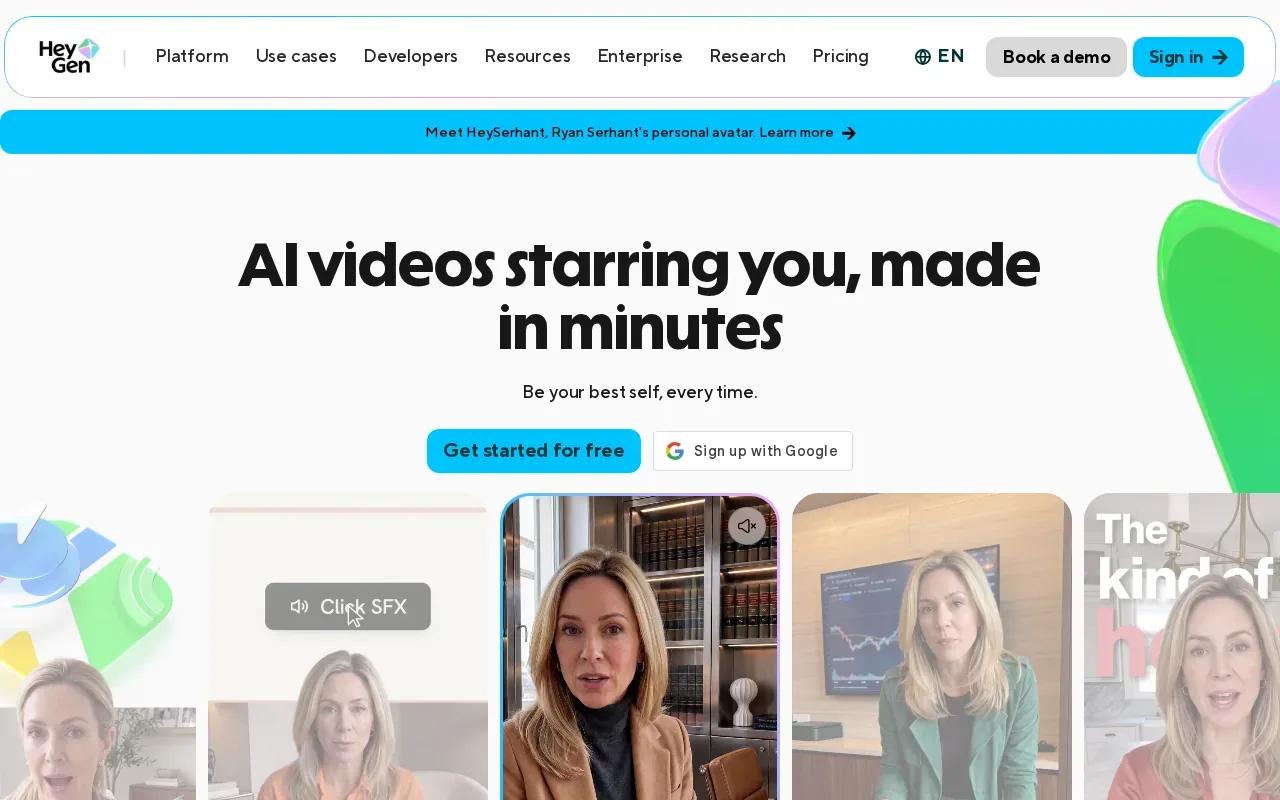
The free plan allows three videos per month, up to one minute each. Watermark removal and 1080p export start on the paid Creator plan, and 4K export on Pro. That makes the free tier useful for testing the editor and checking a short script, but it may not fit a workflow that needs clean, high-resolution exports.
For a product announcement, you could upload a presenter image, add a short spoken hook, and review the generated clip before sharing it. Keep the message brief and check the mouth movement against the words. A portrait-led avatar is a different production choice from Veo Studio, where the prompt can direct a character and the surrounding scene together.
HeyGen is a sensible match when the person speaking is the main visual. Check the free export limits against your publishing needs before you build a full campaign around it.
4. D-ID: talking-photo videos and API-led workflows
D-ID turns a portrait into a speaking video, making it a fit for quick talking-photo clips, social posts, or simple product messages. It offers a free trial, and videos on the Trial and Lite plans carry a D-ID watermark.
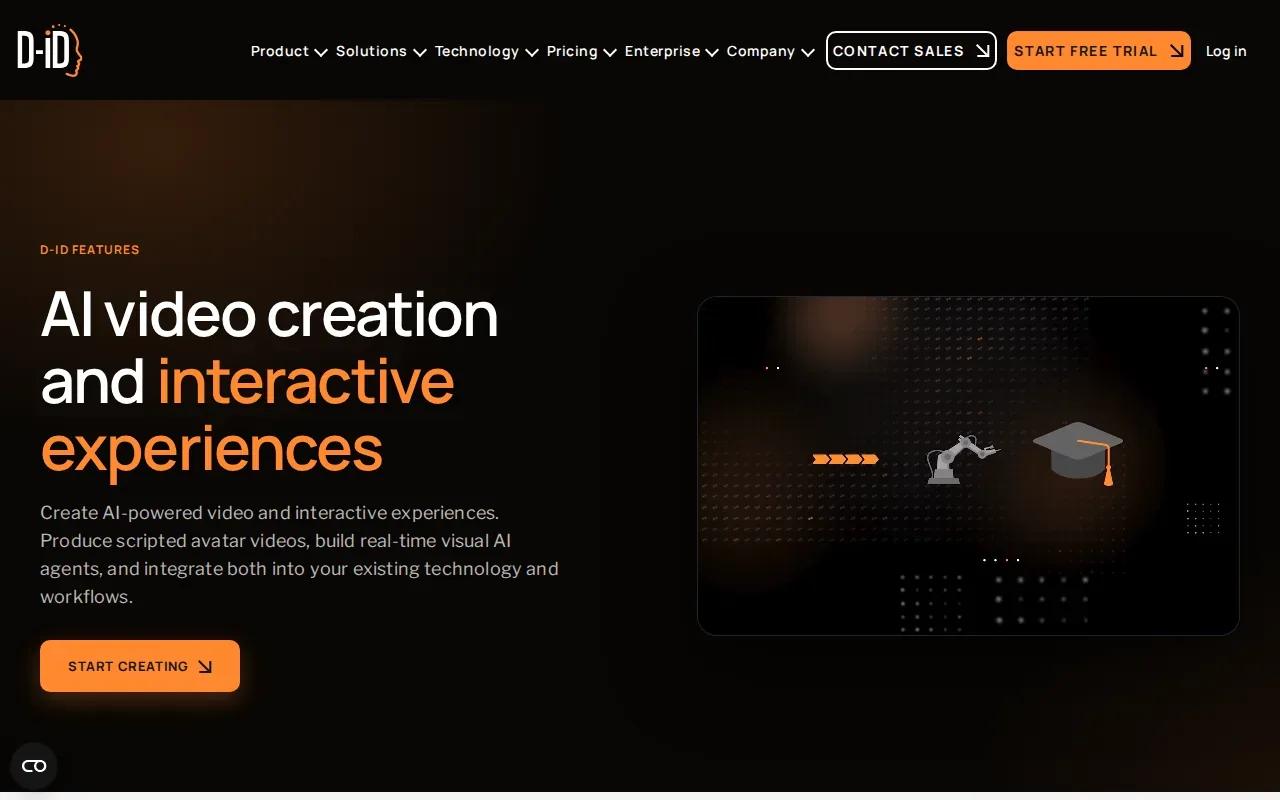
A trial works for a quick test: upload a portrait, try a line of copy, and see whether the face animation suits your use. Keep the script short. A single greeting or headline fits better than a full product lesson.
D-ID also offers an API for developers, and API minutes come from the same balance as the web app. That may be relevant if you're testing how generated clips fit inside a software workflow, rather than making each video by hand in a browser.
Pick D-ID when a still photo is the starting point and a brief speaking clip is the goal. If the project needs several scenes or a longer story, compare the workflow against a scene-based editor before you commit.
5. VEED.IO: talking heads with editing, dubbing, and subtitles
VEED.IO combines talking-head creation with editing, dubbing, and subtitles in one workflow. That makes it a fit for marketers or solo creators who want to prepare a clip for publishing after generating the presenter footage, rather than move straight to a separate editing tool.
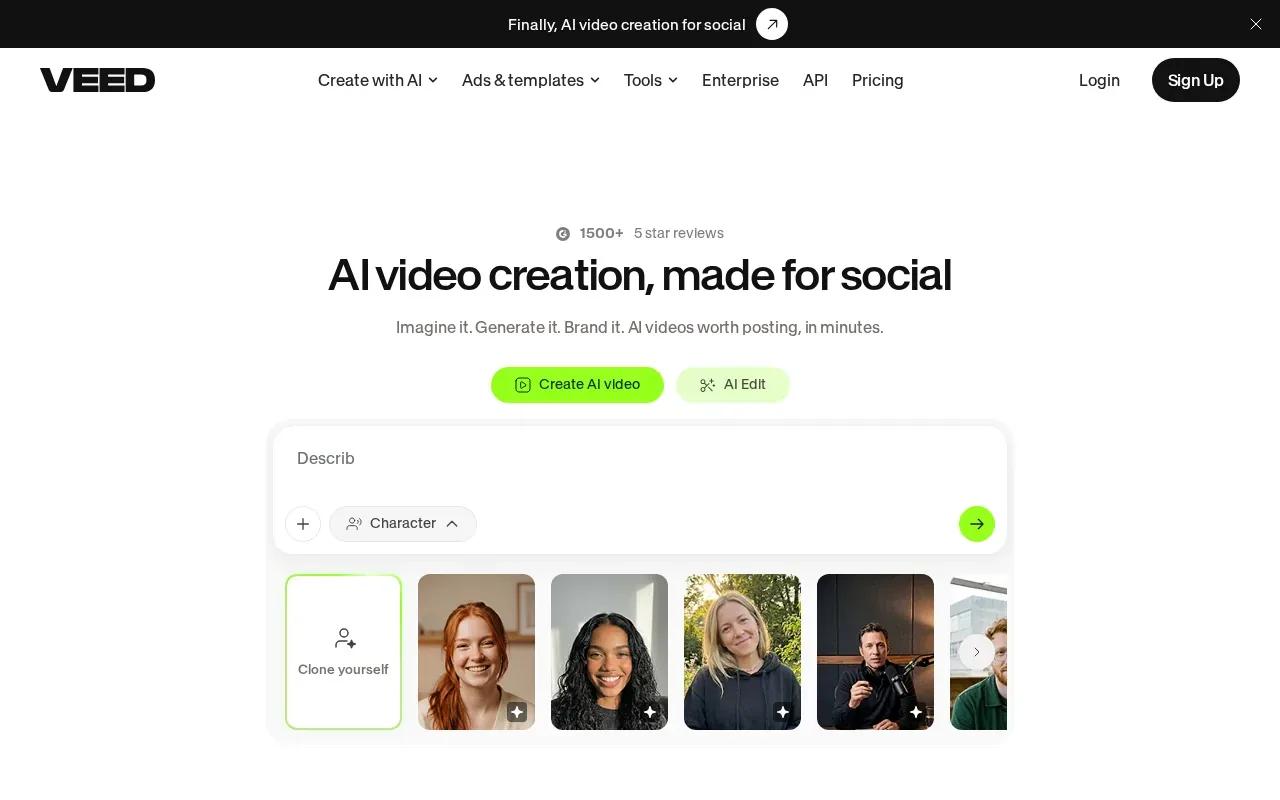
You can choose a preset avatar or record yourself to make a custom avatar from your face and voice profile. Add a script with its AI voice tool, then use the editor to adjust the video. Subtitle styling, brand colors, saved logos, and dubbing are part of its broader editing workflow.
Choose VEED.IO if the next job after avatar generation is editing, adding captions, or dubbing. The combined workflow is its main distinction in this shortlist.
6. CapCut AI Video Editor: a free-to-try option for short-form creators
CapCut AI Video Editor is a free-to-try browser option for creators working on short social videos. You can try it online. CapCut also has an AI talking-head feature for avatar presentations.
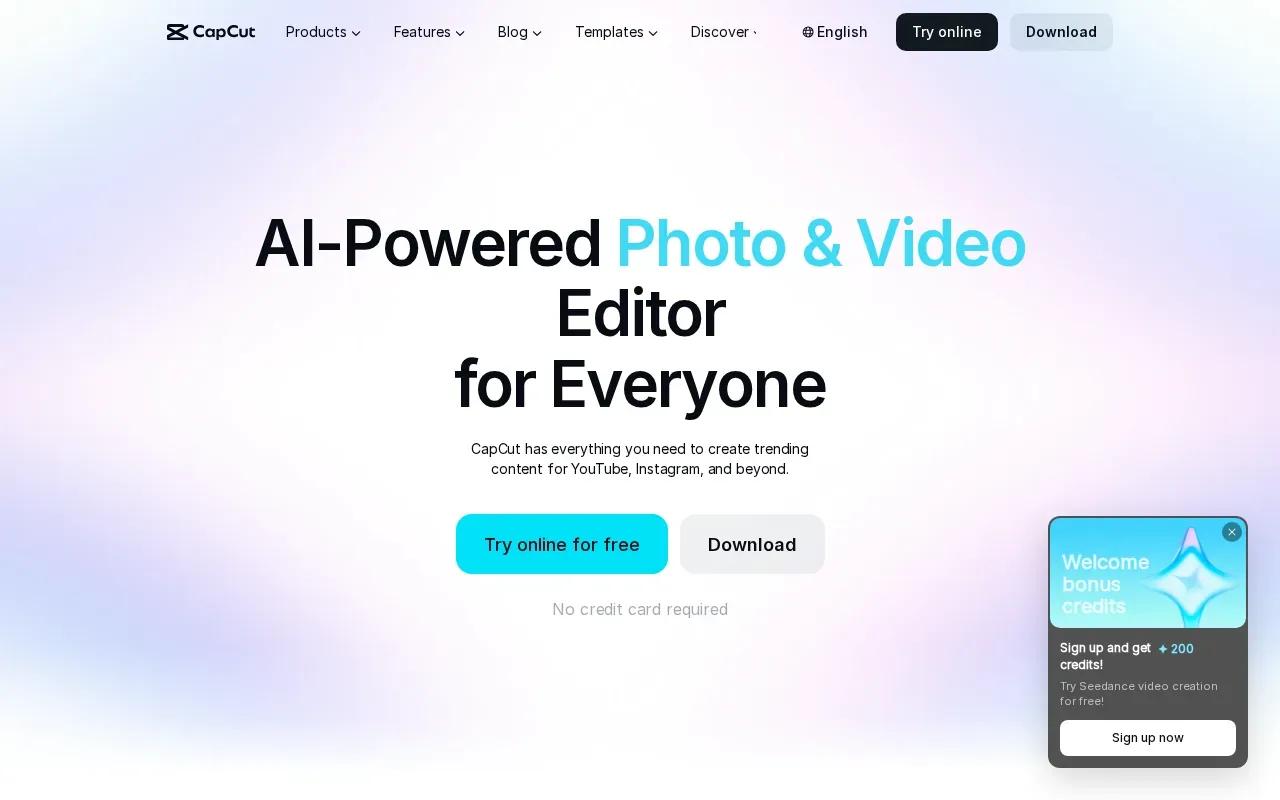
Its wider AI video workflow starts with a prompt or script. You can choose a style and voiceover, generate a draft, then adjust scenes or add captions and music. That makes it more than a portrait animation tool: it can help assemble a short video around a script when you want visuals and narration in the same edit.
For a quick social post, draft the message first, then check that the generated scenes support the point instead of distracting from it. The free online access lowers the barrier to a first test. Confirm the output settings during export if the clip needs to fit a specific channel.
CapCut is worth a look when you want to try an AI-assisted edit without paying up front. Check the export resolution options before planning a higher-resolution delivery.
7. Vidnoz AI: a free-entry avatar and voice toolkit
Vidnoz AI is a video creation platform with AI avatars and AI voices. It suits people who want to explore presenter-led or faceless video creation through a browser-based toolkit. Vidnoz AI is a free-entry option.
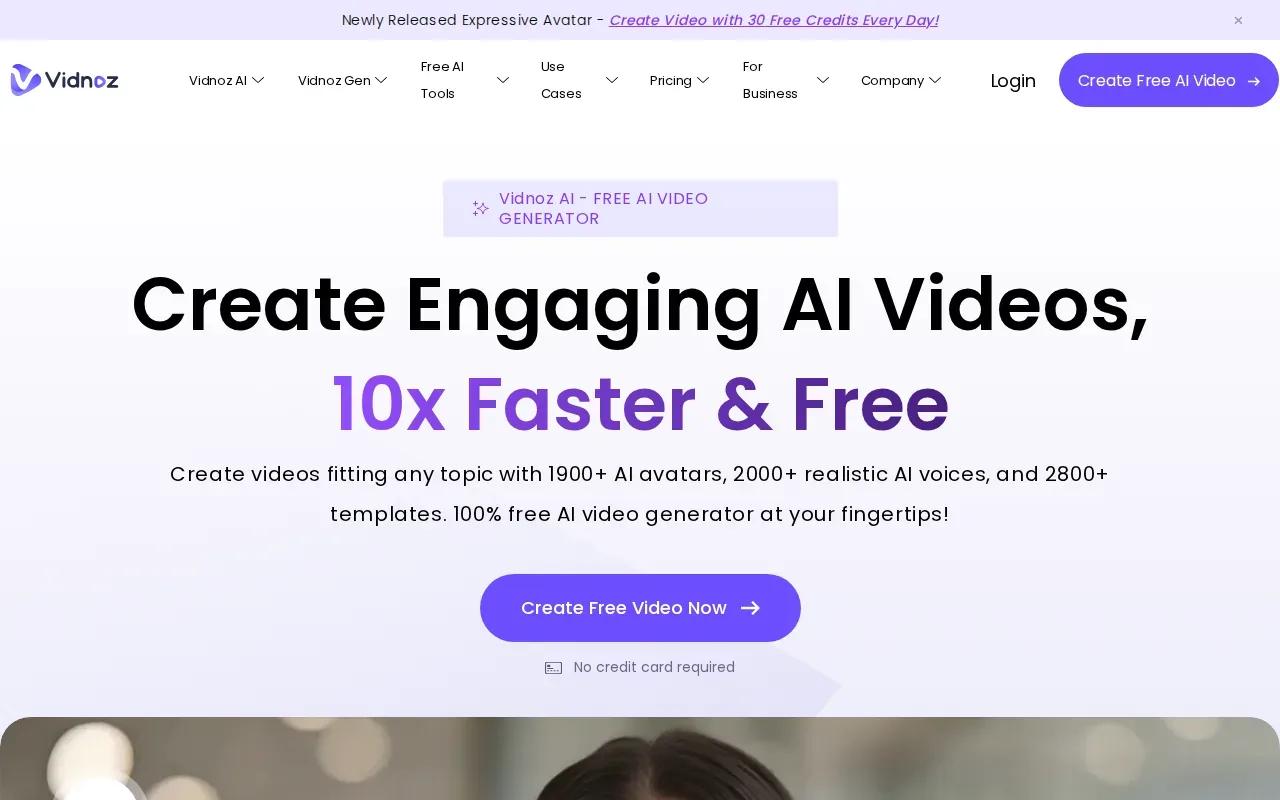
That means your first test should be small. Try one short script and see whether the avatar and voice style match the tone you want. For a course intro, a calm delivery may fit; for a social clip, a more direct line may be easier to follow. Review the output before planning a large batch of videos.
Vidnoz AI can make sense when you want to explore avatar and voice options without starting from a filmed presenter.
Keep the choice tied to your actual task: test a representative script, then judge the result for voice fit and the on-screen look.
8. AI Avatar Video Generator by Renderforest: presenter content within a broader creation suite
AI Avatar Video Generator by Renderforest turns a portrait into a speaking video and sits within a broader video creation suite. It suits teams that want to create a presenter clip, then make edits and prepare the video within the same browser-based service.
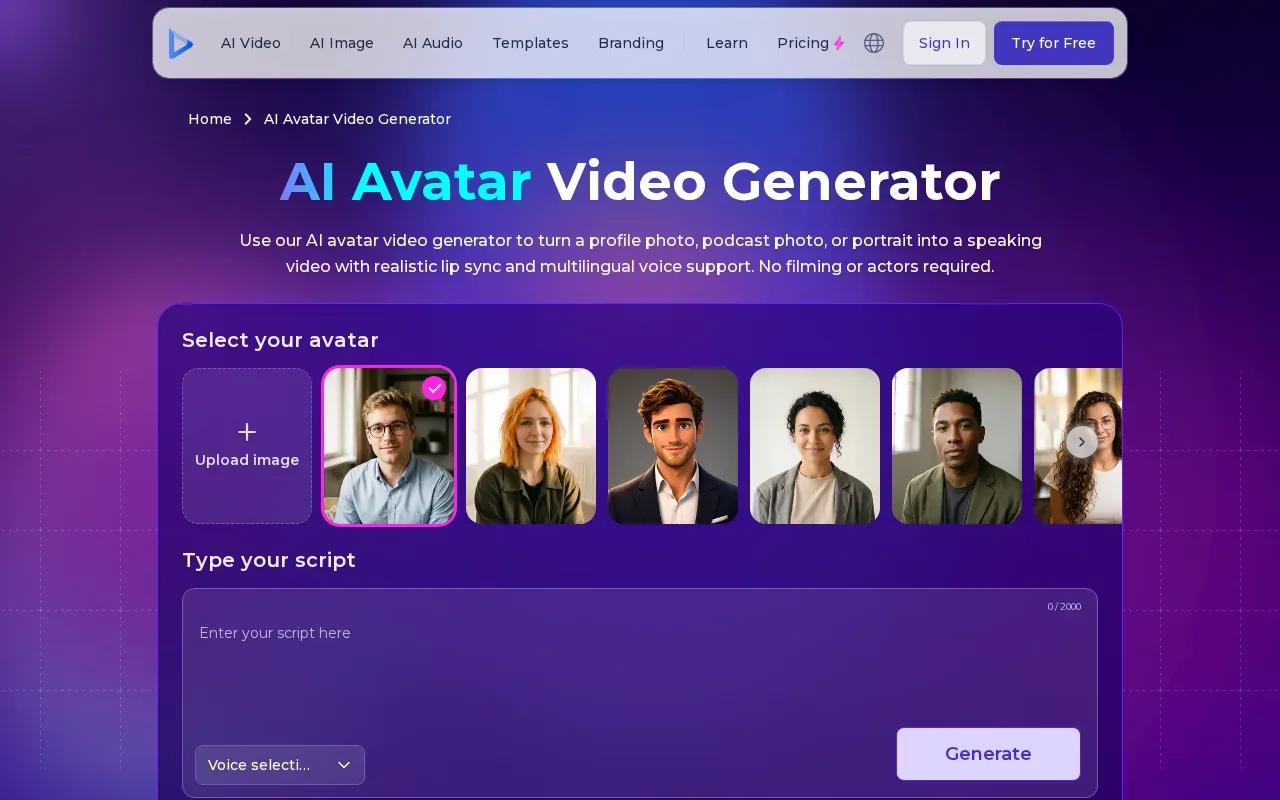
The workflow is simple: upload a clear portrait, enter a script or add audio, choose a voice, then review the generated clip. Renderforest also offers cloned or synthetic voices in more than 175 languages. Those options can help when one announcement needs versions for different audiences.
Because the starting point is a portrait, the tool is a natural fit for a profile-photo announcement or a short presenter-led update. For training, changing the script and generating a fresh take may be easier than filming a new lesson. The broader suite matters if you want to edit and brand the clip after the avatar speaks.
Try a short sample first. Check that the portrait feels right on screen and that the voice suits the message before planning a set of localized versions.
9. Avatar Video by Creatify: product-photo ads and multilingual creative
Avatar Video by Creatify is aimed at product and ad creative made from a photo or text. It supports more than 75 languages and has a free plan. That makes it relevant for marketers who need a presenter-led product message or want to adapt an ad for more than one audience.
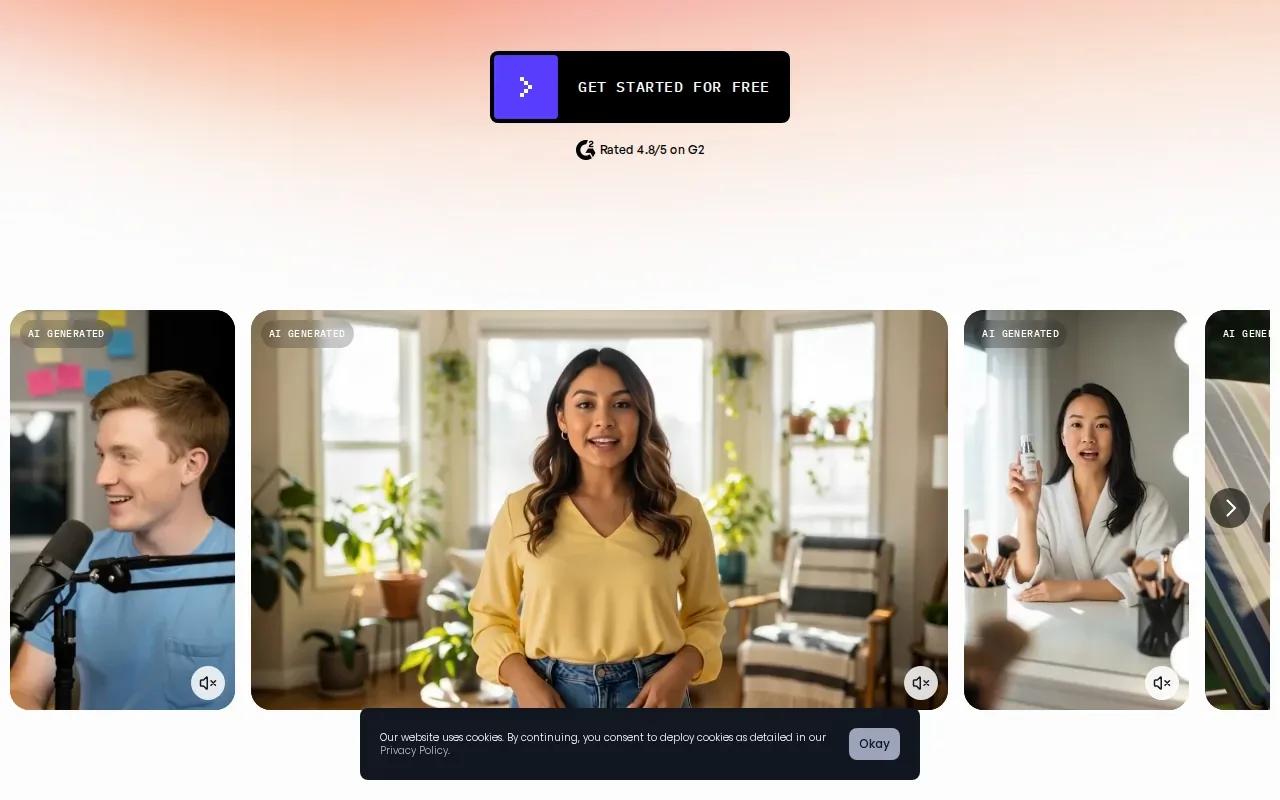
Creatify's broader video workflow can begin with a product URL or visual assets, then move into an ad draft. Treat its avatars and voices as options for shaping an ad, not a promise that every avatar will suit every brand or product.
For a small campaign, compare a few short scripts with different hooks before you spend time on a full set of versions. A product-photo ad has a different aim from an internal training video: lead with the product benefit, then make sure the presenter supports the message instead of taking over the frame.
Creatify fits a product-ad workflow best when you want to pair avatar content with campaign variations and multilingual creative.
10. InVideo: AI video creation with an agent-assisted workflow
InVideo is a tool to create and edit AI videos with Agent Two. That makes it a broader AI video option in this list, rather than a dedicated talking-avatar tool.
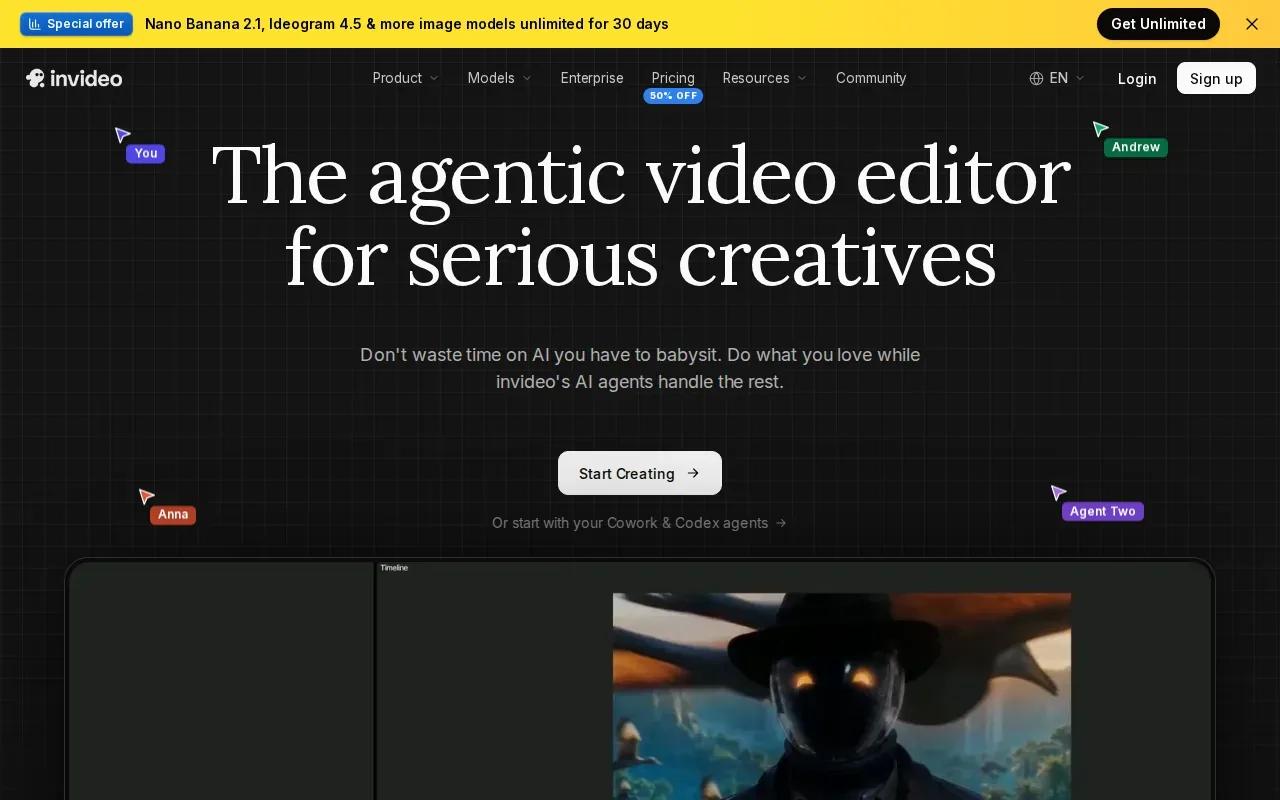
If you're considering it for a presenter clip, check whether its current workflow supports the kind of avatar, voice, and export you need. Start by testing a short script and inspect the finished result. That small check can show whether the tool builds the type of talking-head video you have in mind or whether its broader video workflow is a better fit for another format.
InVideo is the least specific match here for a photo-led or avatar-led talking head. It may suit you if your goal is to create and edit AI video more broadly, but confirm the presenter features before making it your main avatar workflow.
Compare the AI talking head video generators by use case and workflow
A talking head is a video framed around a person speaking to the camera. AI tools can generate that presenter from an avatar or portrait, then match a voice or script to the face. More broadly, generative AI creates new content from a prompt or other input.
| Tool | Good fit for | What to check first |
|---|---|---|
| Veo Studio | Prompt-led scenes with generated dialogue | Free plan is a couple of 720p videos per month; paid plans start at $14/month |
| Synthesia | Scene-based training and localized presenter videos | Free Basic plan allows up to 10 minutes monthly |
| HeyGen | Photo or stock-avatar presenter clips | Free plan has three videos monthly, up to one minute each; watermark removal starts on Creator |
| D-ID | Short talking-photo videos | Trial and Lite videos carry a watermark |
| VEED.IO | Avatar creation with editing, dubbing, and subtitles | Check its AI editing, dubbing, and subtitle workflow |
| CapCut AI Video Editor | AI-assisted short-form video drafts | Check export resolution options |
| Vidnoz AI | Exploring avatar and voice tools | Test the limits that matter to your output |
| AI Avatar Video Generator by Renderforest | Portrait-led videos with voice options | Try a sample in your target language |
| Avatar Video by Creatify | Product-photo ads and multilingual creative | Check the avatar against your campaign style |
| InVideo | Broader AI video creation and editing | Confirm its current presenter workflow |
For staff training, focus on scene structure and how quickly you can revise a script. For a social ad, check the vertical output and how the presenter looks in a close crop. For a character-led scene, consider whether you need reference images, dialogue, and continuity across shots. Veo Studio's browser-based video generator is designed for prompt- and reference-led creation, with synchronized sound and dialogue, scene extension, and output up to 4K on supported plans.
When you test any talking avatar, review more than the first few seconds. Listen for clear speech, watch the mouth during key words, and check the final export at the size your audience will see. If a real person's face or voice is involved, get their permission and make the synthetic nature clear when context could mislead viewers. The term deepfake describes synthetic media that depicts a person in a way that may appear authentic.
For a fast evaluation, use the same short script across your finalists. Include one sentence with names or terms your audience knows, then review the voice, lip movement, framing, and export limits side by side. That keeps the test grounded in the work you actually need to publish.
FAQ
What is an AI talking head video generator?
An AI talking head video generator makes a video of a presenter speaking, often from a script, avatar, or portrait. Some tools focus on animating a face, while others build scenes around a generated character. Before choosing one, check whether you need a stock presenter, your own likeness, or a scene-led character with generated dialogue.
Which tool is best for a free talking-head video?
There isn't one free option that suits every job. Synthesia's Basic plan allows up to 10 minutes per month, while HeyGen's free plan allows three videos of up to one minute each. D-ID offers a free trial with a watermark. Compare those limits with the length and export quality you need.
Can I make a talking video from a photo?
Yes. D-ID is a talking-photo option, and HeyGen lets you upload a photo or choose a pre-made avatar. Renderforest's avatar generator also starts with a portrait. Use a clear image and a short script for your first test, then review how the face moves while speaking.
What should I check before publishing an AI avatar video?
Check the spoken words, lip movement, image quality, and any watermark or export limit. Also make sure you have permission to use a real person's face or voice. If viewers could mistake generated footage for a real event or statement, disclose that it was made with AI so the context stays clear.
Conclusion
Choose the tool that matches your footage: a stock presenter for a scripted lesson, a photo animation for a short message, or a prompt-led scene for a character with synced dialogue. If you want to test scene-based creation, start with Veo Studio's free plan, then check whether its 720p allowance fits your first project.


