
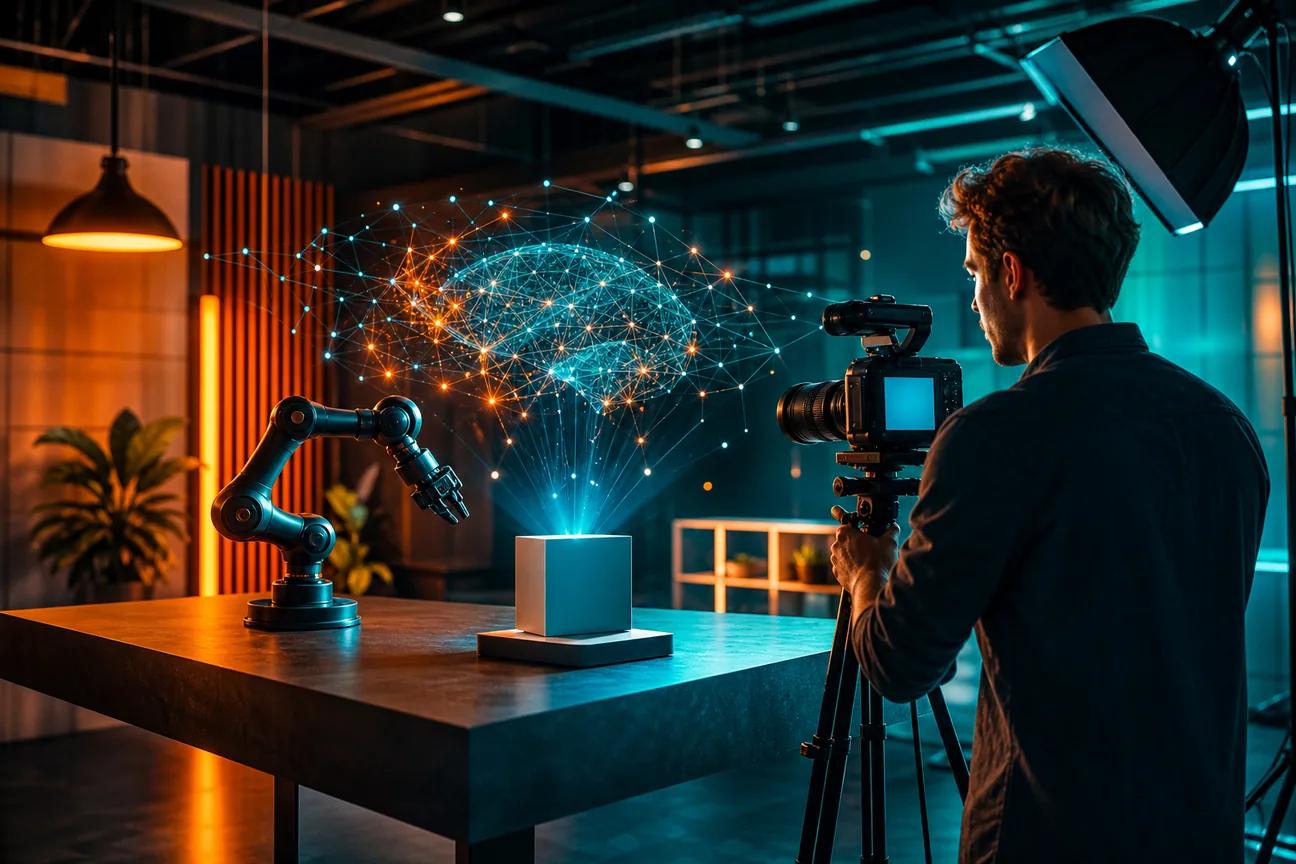
An AI product demo video can show a product in motion without a full crew or studio shoot. The format you choose should match the question your buyer needs answered. Here are five ideas, with ways to shape each one for social posts, product pages, or sales follow-up.
1. Product Reveal Videos: Make the First Impression Count
A product reveal is a short, visual introduction that puts the item first. It suits a launch, a new product page, or a social post where the viewer needs to understand what’s being shown within a few seconds.
Build the clip around one clear camera move. Start with a close view, then pull back or circle the object to show its shape and details. A small skincare tool could appear on a bathroom counter as morning light moves across its surface. Keep the scene focused, and save exact product names, claims, prices, and logos for text you add in editing.
Veo Studio is an independent, browser-based tool powered by Google’s Veo 3.1 models. You can upload a product reference image and describe the shot, camera move, and sound. Its generated clips can include synchronized sound, and its first- and last-frame controls let you set the opening and closing image. Output can reach 4K on supported settings.
That workflow can help a small team test a reveal before arranging a traditional shoot. It doesn’t mean every campaign should skip filming. A physical shoot gives you direct control over the item and each frame. AI generation can lower the setup burden for concept tests, while still requiring time to review and refine the result.
Veo Studio has a free plan with a couple of 720p videos each month and no card required. Paid plans start at $14 per month, with higher resolutions and more video capacity. Check the AI product video generator comparison if you’re deciding whether a prompt-led scene or another workflow fits the brief.
For a clean reveal, keep the product’s real image close at hand and inspect the generated details before publishing. A distorted shape or invented label can undermine the first impression.
2. Feature-in-Action Videos: Show the Product Solving a Problem
A feature-in-action video shows one task from start to finish. It works well when a buyer’s question is “How does this help me?” rather than “What does it look like?” For software, use a real screen recording when the exact interface matters. For a physical item, show the action that proves its use.
Write the video as a compact problem-and-proof story. Open on the friction, show the feature at work, then end with the result or next step. For example, a desk organizer demo could start with a crowded work surface, show someone sorting daily tools, and finish on the clear space. Avoid squeezing every feature into one clip. One useful action is easier to follow.
AI-generated scenes can add context or mood, but they shouldn’t stand in for a real software interface if the viewer must learn exact clicks. Keep screen capture for the steps a customer will repeat. Add generated shots as cutaways when they make the benefit easier to picture.
For products with a person speaking, a short line can explain why the action matters. Veo Studio generates sound and dialogue with the video, including lip-synced speech when the prompt gives a spoken line. Review the words and mouth movement carefully, especially when the line names a product feature or makes a factual claim.
Where you place this clip shapes what you should measure. On a product page, track plays alongside add-to-cart activity or product-page conversion. In a sales email, watch for replies or meeting requests. A view count alone can’t tell you whether the demo helped a buyer decide.
3. Before-and-After Videos: Make the Transformation Visible
A before-and-after video shows a change side by side or through a transition. It fits products whose benefit can be shown in a visible, honest way, such as a cleaning tool that removes a mark or a storage item that clears a crowded shelf.
Start with matched images. Keep the camera angle, light, and framing alike so the change reads clearly. Then choose a transition that suits the claim. A quick wipe can make a surface change easy to spot. A slower blend may feel more fitting for a gradual visual shift. If the comparison is real, use genuine before-and-after material rather than inventing a result.
Veo Studio supports first- and last-frame control. You can provide a starting image and an ending image, then guide the generated transition between them. This is useful when the clip needs a defined beginning and finish. It still calls for close review: check that the object stays recognizable and that the transition doesn’t imply a result the product cannot support.
Keep any claim within the proof you have. A visual demonstration can become misleading if it suggests an instant or guaranteed outcome that customers shouldn’t expect. For health, beauty, or other regulated claims, check the relevant ad rules and get legal review where needed. If the scene is illustrative rather than a real result, say so clearly on screen.
Test one change at a time. Try a side-by-side view against a wipe, or compare a benefit-led opening with a problem-led one. For a fair read, keep the audience, placement, and call to action consistent. Then compare meaningful actions, such as product-page visits or purchases, instead of choosing a winner by views alone.
This format can also support search and sales pages. Add a concise title and description that explain the product and the change being shown. Place the video near the matching product detail, and make sure the page still explains the claim in text for people who don’t play the clip.
4. Lifestyle and Use-Case Videos: Put the Product in Context
A lifestyle video puts the product into a setting where a buyer might use it. This suits items that are hard to judge from a plain photo, including home goods, apparel, or tools. The scene should make the use clear, not just look polished.
Describe a scene the camera could capture. Name the subject, action, place, camera direction, light, and frame shape. For instance, show a commuter setting a compact bag beside a train seat, then reaching for a notebook. That gives the video a visible action instead of asking the generator to make a vague “lifestyle ad.”
Reference images help guide the look of a product or character. Veo Studio supports up to three reference images in supported video settings, which can help keep a subject recognizable across a clip. If you need the product to appear from several angles, describe the camera path in plain terms, such as a slow arc around the item. Check the result frame by frame for changes to shape, color, or details.
Think about production cost as a workflow, not just a camera rental. A traditional shoot may involve planning, location access, crew time, and editing. AI can reduce some setup needs when you’re testing a scene from a reference image, but it still takes review and revisions. For a hero campaign that needs exact product handling, a real shoot may be the better fit.
Make versions for the placement. A vertical cut can suit Reels, TikTok, or Shorts, while a landscape clip may fit a site or presentation. Keep important action near the center so a crop doesn’t remove it. Publish the clip beside relevant product copy, and use a clear caption that tells viewers what they’ll see.
5. Dialogue-Led Product Stories: Give the Demo a Human Voice
A dialogue-led product story uses a spoken line to guide the viewer through a product moment. It suits a short brand story, an ad that needs a human voice, or a social clip where sound helps explain what’s happening. Keep the line short enough to understand on the first listen.
Write the words before you generate the scene. Give the speaker one point to make, then describe where they are and what they do. For example: “I keep my sketch tools in one place, so I can start drawing sooner.” Pair the line with an action that supports it. Don’t present a generated speaker as a real customer or attach a made-up testimonial to them.
Veo Studio generates synchronized sound and dialogue with the picture. Put the spoken words in quotation marks in the prompt to guide the line, then check the audio, timing, and lip movement. Its character consistency tools can help keep a character recognizable across shots. For a longer story, scene extension can add footage in seven-second steps on supported clips, up to roughly 148 seconds at 720p.
Choose the video type by the job it needs to do. A generated scene can set tone or show a product in context. A screen recording can teach exact software steps. An avatar-led presentation can put a scripted speaker at the center. A 360-degree view or multi-angle shot can help viewers inspect an object, but check every angle for product accuracy.
| Demo format | Use it when | Check before posting |
|---|---|---|
| Screen recording | The viewer needs to follow real software steps | Interface details and cursor actions are clear |
| Avatar-led explainer | A presenter needs to deliver a short script | The speaker is clearly identified as AI when needed |
| Multi-angle product scene | Shape or surface details matter to the choice | Product form and color stay consistent |
| Dialogue-led scene | A spoken line adds context or character | Words, sound, and lip movement match |
For distribution, make the first seconds understandable without sound, then add captions for people watching muted. Use the clip in a product page, a sales follow-up, or a short social post, and link each placement to a relevant next step. A separate product demo video maker overview covers how different creation workflows fit different demo needs.
Don’t treat a polished clip as proof of performance. Compare versions against the same goal, such as watch-through, click-through, trial starts, or sales conversations. If the video supports a campaign, compare the result with the campaign’s other creative and account for the work required to create and revise each version.
Frequently Asked Questions
How long should a product demo video be?
Make the video only as long as the proof needs. A social clip may show one action in a few beats, while a software walkthrough may need more time to show a task. Cut repeated claims and keep the key action visible. If one video feels crowded, split it into a short overview and a separate feature demo.
Can AI make a product demo from a photo?
Yes, some AI video tools can use a product photo as a reference for a generated scene. With Veo Studio, you can upload reference images and describe the motion or camera view. Review the output for changes to the product’s shape, color, or label. Add exact text and claims in editing rather than relying on generated lettering.
Are AI-generated product demos suitable for paid ads?
They can be used in paid campaigns, but the video still needs a claim and accuracy review. Check that the product depiction is fair and that any result shown is supported. Don’t use a generated person as a real customer or invent an endorsement. Follow the ad platform’s rules and the requirements that apply to your product category.
How do I measure whether a demo video works?
Choose a metric tied to the video’s purpose. For awareness, review reach and watch-through. For a product page, track clicks and purchase actions. For sales support, count useful replies or demo requests. Compare versions under similar conditions, then include production and revision time when judging the return.
Conclusion
Pick the format that answers one buyer question, then make a short draft around that proof. Veo Studio supports prompt-led scenes with synchronized sound and dialogue, as well as first- and last-frame control; review the clip before publishing it.


