
One still image can become a moving clip with a short motion prompt. The right AI picture animator depends on what you want to control, such as style, character continuity, speech, or shot length.
We analyzed 55 comments and questions from Reddit, YouTube and Quora about AI picture animators and found that 36% mentioned specific workflow steps.
Here are five options for creators, starting with Veo Studio. For a closer look at image-led workflows, see these AI picture animation tools for creators.
1. Veo Studio
Veo Studio is an independent, browser-based AI video creation tool powered by Google's Veo 3.1 models. Upload a reference image, describe the action, and generate a video with synchronized sound and dialogue. It suits creators who want a still to lead into a directed scene, rather than a simple motion effect.
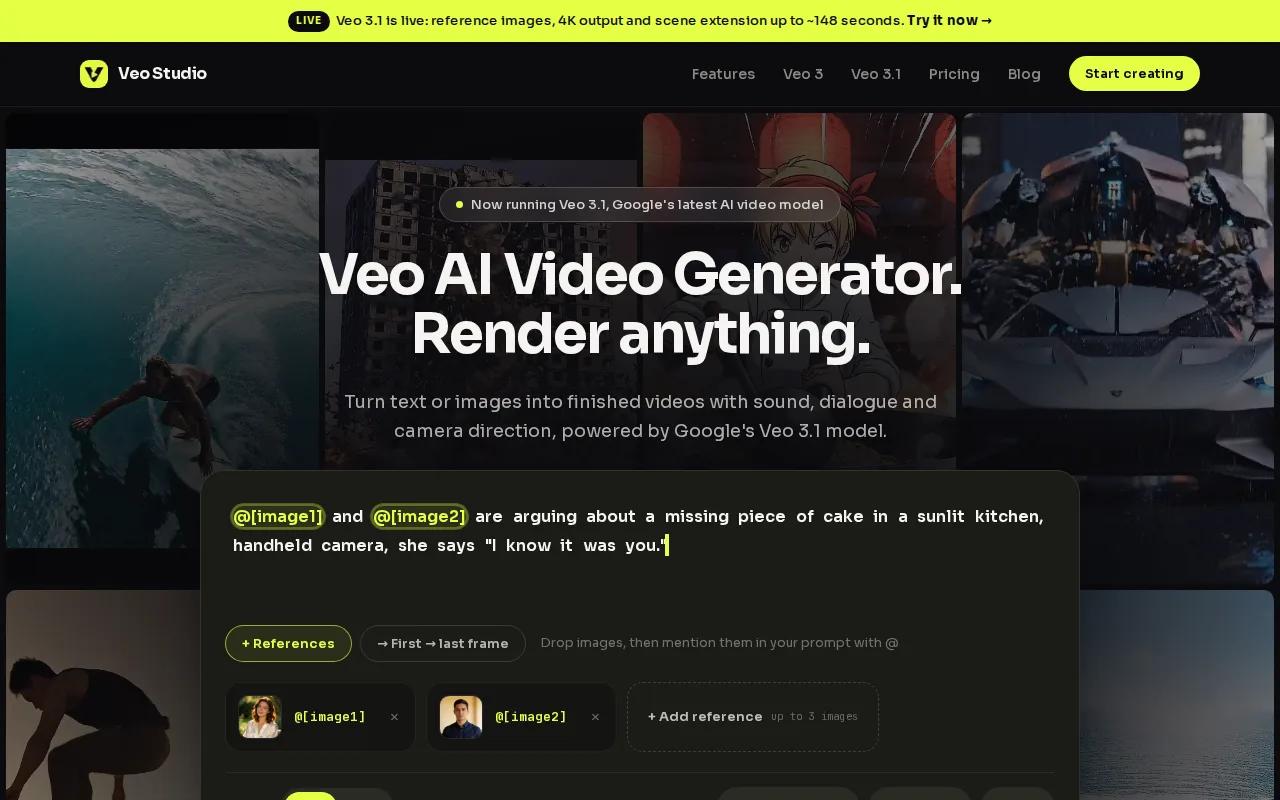
For example, a small business could upload a product photo and prompt a slow camera push with a short spoken line. You can attach up to three reference images to guide a character, product, or visual style. First- and last-frame control lets you supply two stills and generate the transition between them.
Veo Studio supports output up to 4K on paid plans. Its scene-extension feature can continue a finished clip seven seconds at a time, up to roughly 148 seconds. The free plan includes a couple of 720p videos per month, with no card required. Paid plans start at $14 per month.
Veo Studio is separate from Google.
Keep the first prompt focused. Name one subject action, then add a camera move or dialogue only if the shot needs it. That gives you a clear first draft to review.
2. Pika: quick image-to-video experiments
Pika supports quick image-to-video generation and has a community-focused workflow. It’s a fit for social media creators who want to test a visual idea and make short content at a brisk pace.
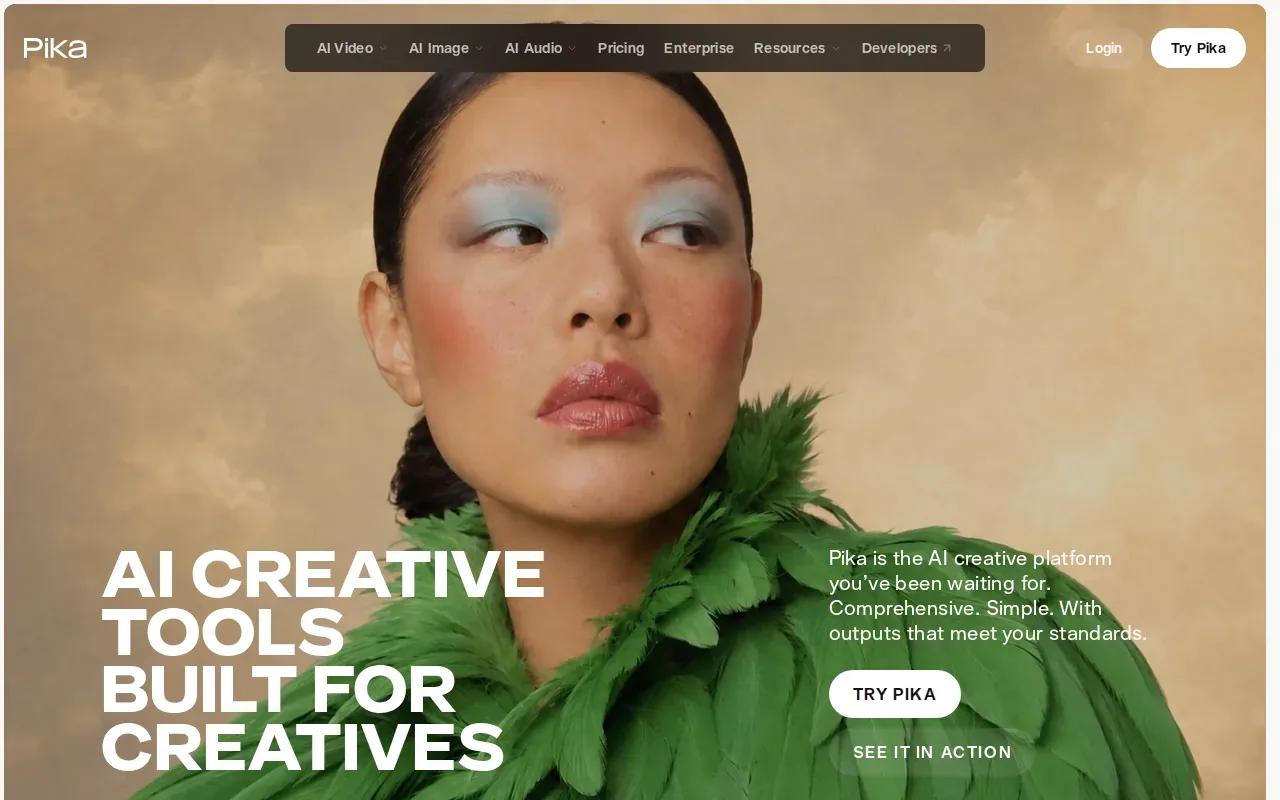
Start with a still that has one clear subject. Describe the change you want to see, such as a portrait turning slightly or a scene gaining a gentle camera move. Keep the direction narrow for the first pass. If you ask for several actions at once, it can be harder to tell which part of the prompt needs a revision.
Pika uses credits. Its free plan has no monthly credits, so you test with a credit pack, and it does not include a commercial license. The Starter plan is $10 a month for 900 credits. Check the license before using a clip in a public post.
For a short-form post, try a simple loop-like idea: ask for a small motion that fits the original image and doesn’t need a new scene. Review the result at full size, especially around the subject’s face and edges. If the movement changes the main subject too much, make the next prompt more specific about what should stay still.
Pika’s main appeal in this shortlist is speed for experiments. If your goal is to keep a character design consistent across references or add synchronized dialogue, compare those needs against the dedicated controls in the other options.
3. Kaiber: stylized motion from a still image
Kaiber turns a still into a stylized motion sequence. It’s aimed at creators making music visuals, experimental art, or brand clips where a strong visual treatment matters more than a restrained photo loop.
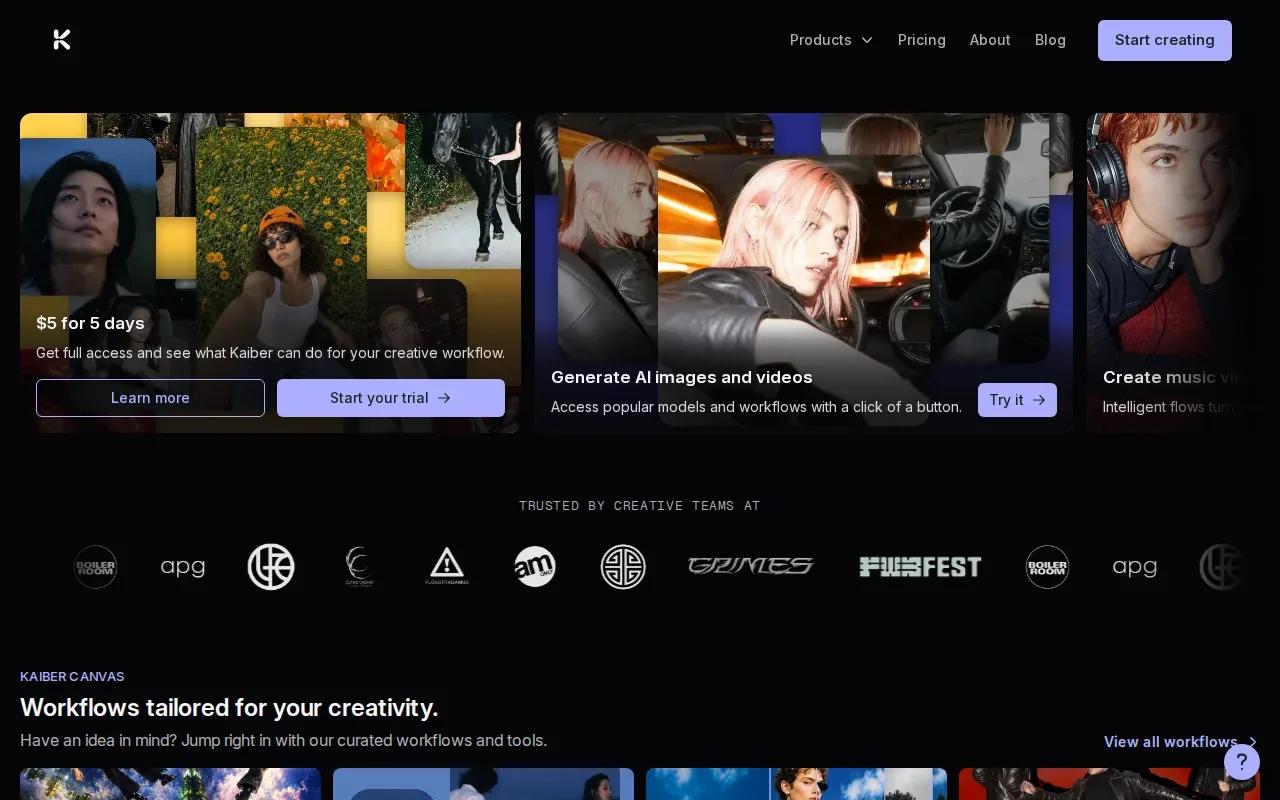
Its style direction and model selection give you room to steer the look. Begin with an image that already has the color and shape language you want. Then describe the kind of motion or mood that should carry through the sequence. A useful prompt tells the model what the image should feel like in motion, not just that it should move.
Kaiber runs on credits, so it is worth checking how often you expect to generate and how many versions you’ll want to test before you settle on a look.
For a music visual, you might use a bold illustration as the source and ask for flowing, dreamlike movement. For a brand clip, a clear style direction can help the result feel intentional rather than like a random effect. Check each render against the image’s key shapes and colors before you build it into a longer edit.
Choose Kaiber when the creative brief calls for a visible style shift. If you want the still to remain close to its original appearance, write a restrained motion prompt and judge the result before making a batch.
For a broader comparison of image-led workflows, the photo-to-video animator options can help you match a tool to the kind of shot you’re planning.
4. Vidu: reference-guided image animation
Vidu has both Reference-to-Video and Image-to-Video workflows. Its reference-guided approach suits creators who already have a character design, object, or scene image they want to use as a guide.
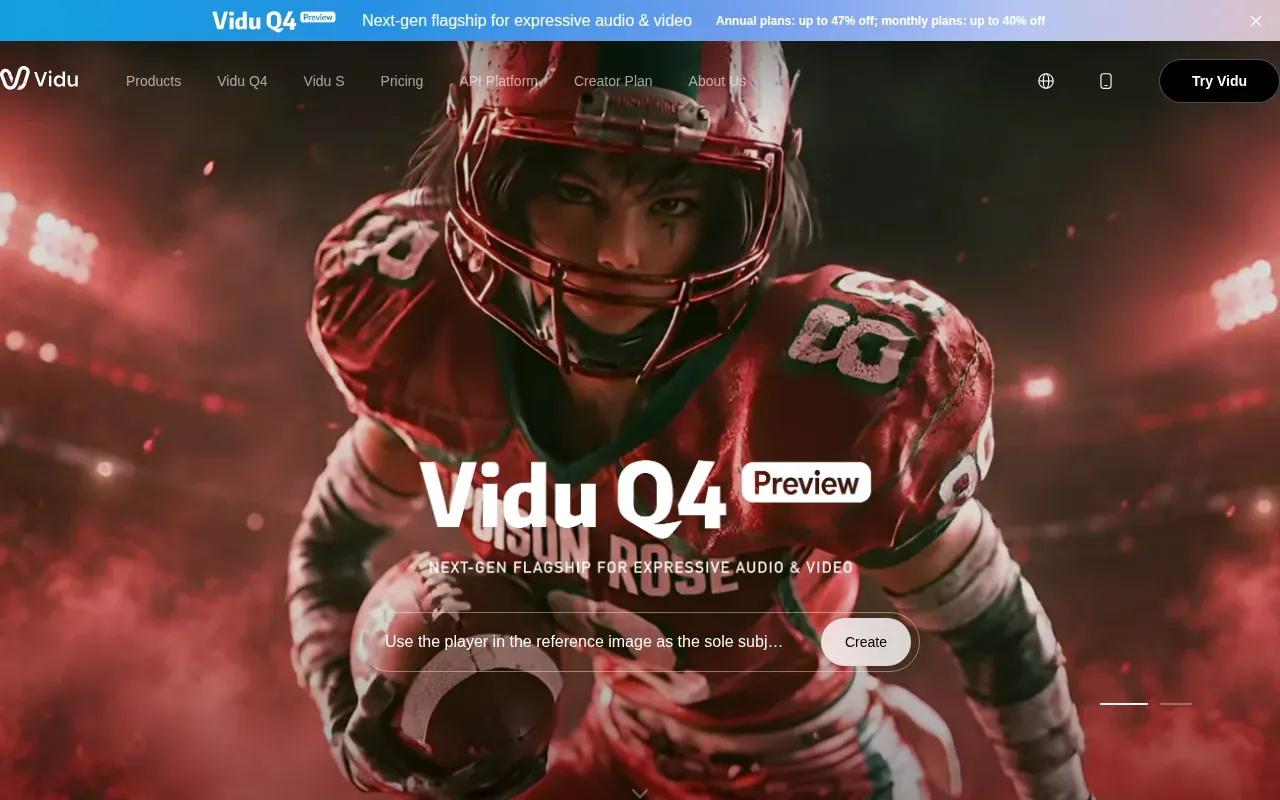
Image-to-Video adds movement to a still. Reference-to-Video uses character, object, and scene images to guide generation. That distinction helps when a project depends on a visual identity that you’ve already set. For example, if you have an established character design, use the reference workflow to guide the generated video instead of relying on a text description alone.
Prepare the references before you generate. Pick images that show the details the model should carry into the shot, then describe the action you want. Avoid changing the character’s design and asking for a complicated action in the same first prompt. Separate tests make it easier to see whether the reference or motion direction needs work.
Vidu is a useful choice for a character-led story, a recurring mascot, or a scene that needs visual guidance from more than one image. Veo Studio also supports reference images, with up to three images for supported generations, alongside first- and last-frame control. The key difference in this shortlist is Vidu’s named Reference-to-Video workflow.
When the reference itself is the anchor of the shot, Vidu gives you a workflow built around that input.
5. Magic Hour: talking photos and lip sync
Magic Hour brings several creation workflows into one system. Its capabilities include talking photos and advanced lip sync, making it a fit for daily content creators who want a portrait to speak.
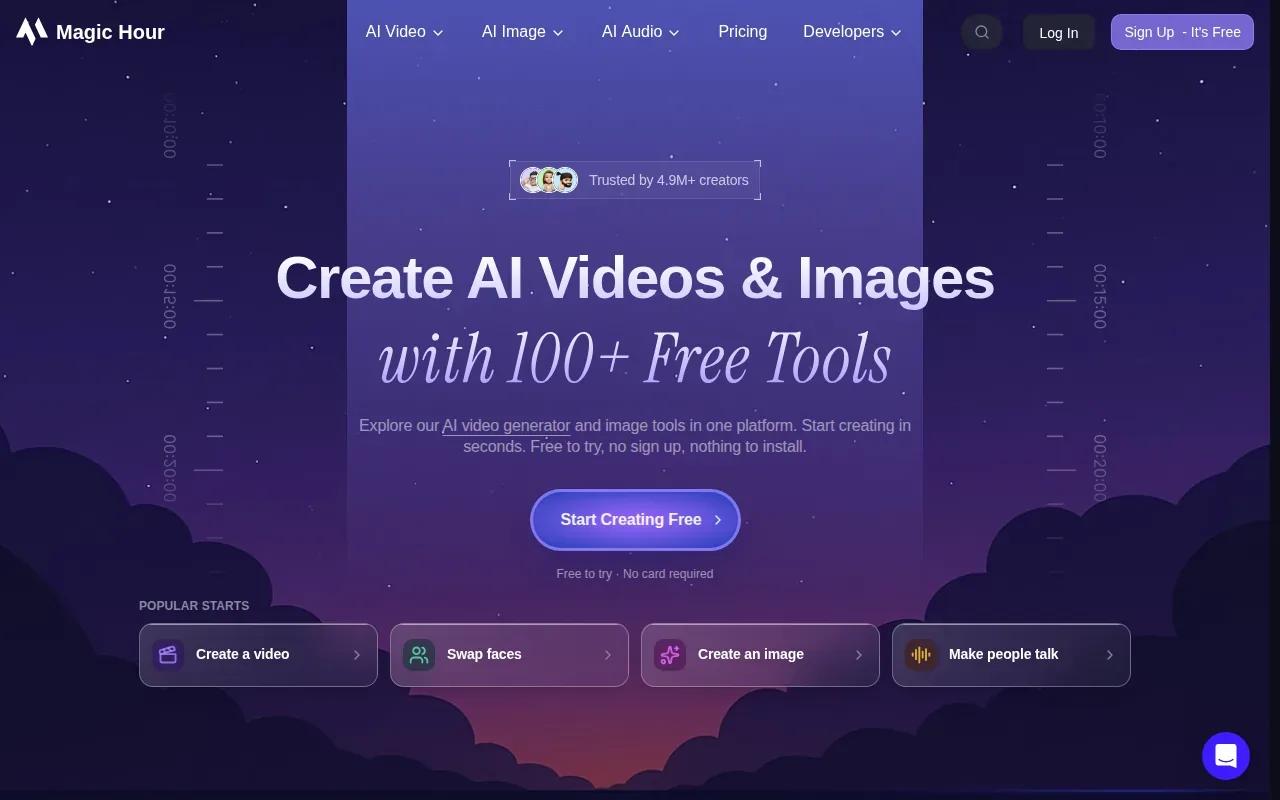
A talking-photo task starts with a face image and a speech plan. Before generating, decide what the person should say and whether the clip needs a direct-to-camera feel. Then check how the mouth movement lines up with the words. Lip sync matters most when viewers can clearly see the face, so review the finished clip rather than judging it from a small preview.
Magic Hour also includes face swap plus AI image and video tools. Supported tools can be tried free without signing up. It also has credit packs without a subscription, and unused credits never expire. Those details may suit a creator who wants to try a specific workflow or keep credits for a later project.
Use Magic Hour when the core task is a talking portrait or lip-synced performance. If the still needs to become a wider scene with a camera move, sound, or a longer continuation, compare that brief with Veo Studio’s image-to-video and scene-extension controls.
One note for any speaking portrait: use an image you have permission to animate and share. That matters even when the output is clearly AI-generated.
AI Picture Animator Comparison Table
Use this table to match the workflow to the job. The useful question is what you need the still to do, not how many features a tool names.
| Tool | Useful fit | Workflow cue |
|---|---|---|
| Veo Studio | Directed scenes with sound or dialogue | Reference images, frame control, scene extension, output up to 4K |
| Pika | Fast social content experiments | Quick image-to-video with a community-focused workflow |
| Kaiber | Music visuals and experimental art | Choose style direction and model |
| Vidu | Established character designs | Guide generation with character, object, or scene references |
| Magic Hour | Talking photos for regular content | Use talking-photo or advanced lip-sync workflows |
For a product shot that needs dialogue or a planned transition, Veo Studio has the relevant controls in one browser-based workflow. For style-led motion, compare Kaiber; for a reference-led character shot, consider Vidu.
FAQ: AI Picture Animators
Can I animate a picture with a text prompt?
Yes, many image-to-video tools let you upload a still and describe the motion you want. Start with one clear action, such as a person turning or a camera moving closer. Generate a draft, watch the full clip, then adjust the prompt if the motion changes details you wanted to keep.
Which AI picture animator is good for talking photos?
Magic Hour is designed for talking photos and advanced lip sync. Veo Studio can also generate synchronized sound and dialogue with the video. Choose based on the shot: a portrait focused on speech points to a talking-photo workflow, while a scene with a broader camera move may need image-to-video controls.
Can AI keep a character consistent across an animation?
Reference images can guide character appearance. Vidu’s Reference-to-Video workflow uses character images, while Veo Studio supports up to three reference images for supported generations. Use clear images that show the design you want preserved, and review the result for shifts in face, clothing, or shape.
Can I use an AI-animated image in a public post?
You can publish only when you have the rights and permissions needed for the source image and its use. A portrait may show someone else, while a product photo may belong to a client or brand. Check the rules that apply to your project.
Conclusion
For a still that needs synchronized dialogue, character guidance, or room to extend the scene, start with Veo Studio. Use one clear reference image and a single motion prompt, then review the clip before you build it into a post.


