
A still photo can become a moving scene without a camera or a long edit. An AI photo video maker turns a prompt or image into a video draft, while a traditional editor mainly helps you arrange and refine media you already have. Here are five tools and the kind of work each fits.
We analyzed 60 comments and questions from Reddit, YouTube and Quora about AI photo video makers and found that 13% mentioned censorship and content limits.
1. Veo Studio
Veo Studio is an independent, browser-based video creation tool powered by Google’s Veo 3.1 models. It turns prompts and reference images into clips with synchronized sound and dialogue, character consistency, frame control, scene extension, and output up to 4K on supported settings.
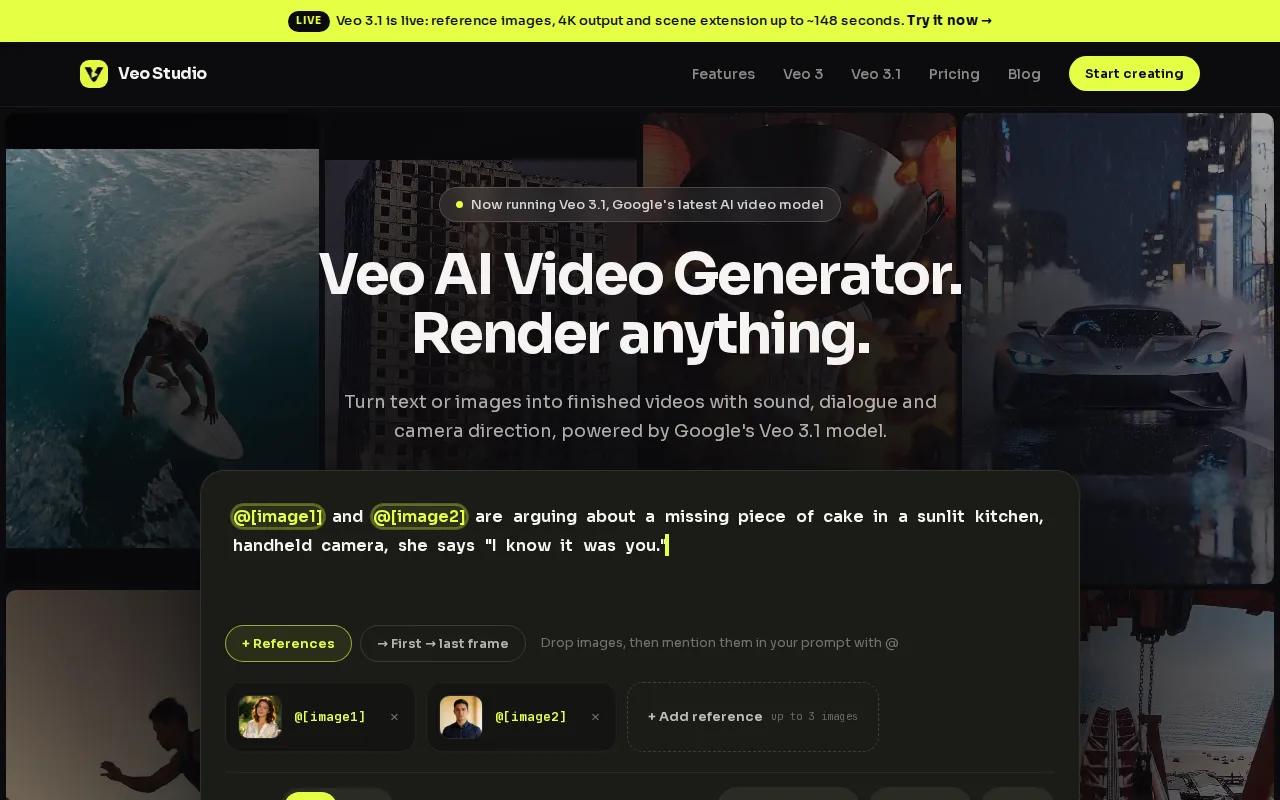
Veo Studio is an independent, browser-based AI video creation tool powered by Google's Veo 3.1 models. It suits social creators who need a vertical clip, marketers making a product spot, and filmmakers building a dialogue-led scene. Upload a product photo, describe a slow camera push and a line of dialogue, then review the generated picture and sound together. For an overview of the image-led workflow, see Image-to-Video creation.
Unlike a standard timeline editor, Veo Studio generates new motion from your prompt or visual reference. You can attach up to three reference images on supported generations to guide a product or character. First- and last-frame control can shape the transition between two stills.
Here’s a simple workflow for a first draft. Start with one clear image and name the subject, its action, and the camera move. Add a spoken line in quotation marks if you want dialogue. Choose a 9:16 format for a vertical social clip or 16:9 for a wide video, then generate and watch the full result with sound on.
Check the face, product shape, and framing before you publish. If the clip needs more time, scene extension can add to a finished 720p clip in seven-second steps. Supported generations can reach up to roughly 148 seconds through extension, while a standard generation is 4, 6, or 8 seconds.
The free plan includes a couple of 720p videos per month with no card required. Paid plans start at $14 per month and add higher resolutions and more video volume. Every plan includes a commercial licence, but 4K output requires a paid plan.
2. CapCut AI Video Editor: for an AI video editing workflow
CapCut AI Video Editor combines image-to-video generation with a broader editing workspace. It fits creators who want to animate a still, then keep refining the clip with familiar editing tools instead of treating the first AI result as finished.
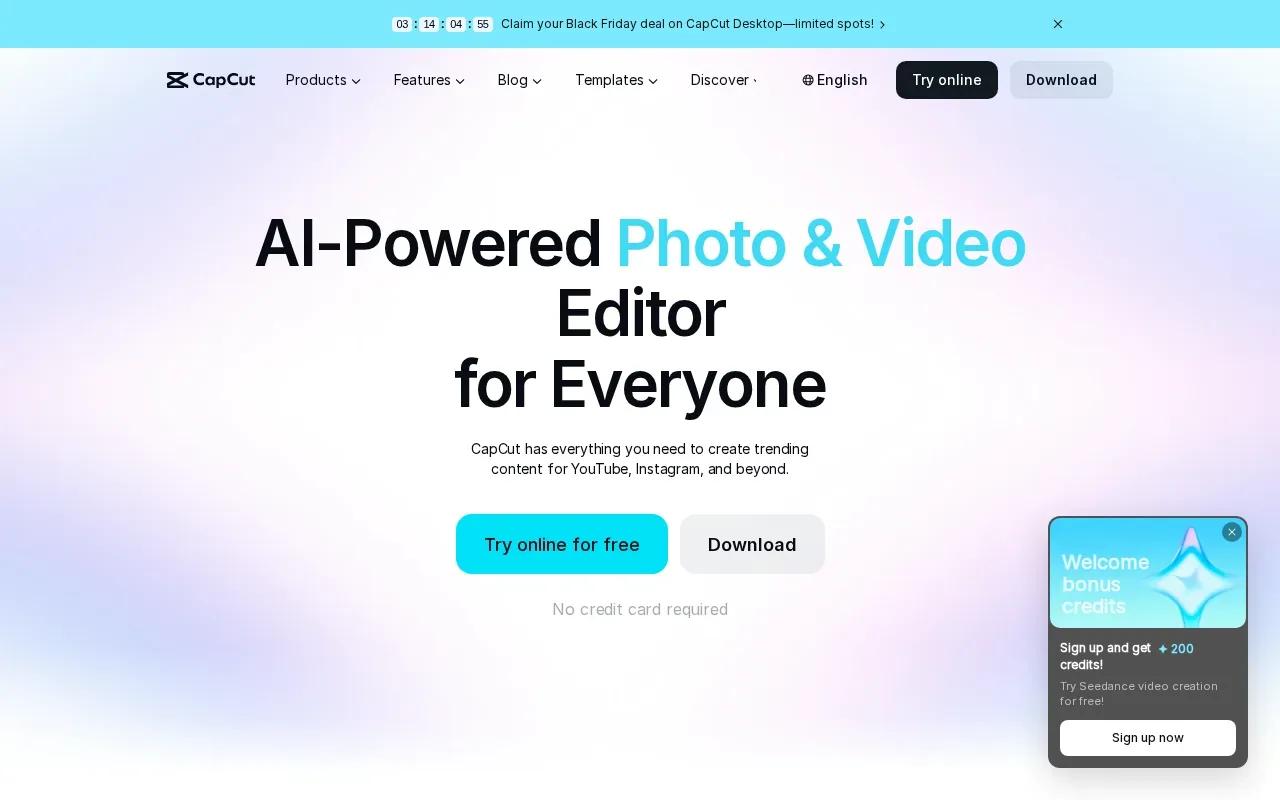
Its image-to-video flow starts with an uploaded photo and a short motion prompt. You can describe what should move, what must stay the same, and how the camera should behave. For a product shot, that might mean a slow push toward a bottle while keeping its logo and shape unchanged. A restrained first prompt is easier to judge than a list of competing actions.
After generation, CapCut’s editing tools can help you trim weak frames and add text, captions, music, or voice elements. CapCut's editor is available on desktop and mobile, which helps if you switch between a phone-based capture and a larger editing screen.
Before you generate, check the credit use shown in your account. CapCut's AI video maker is free to use, but AI generation may use credits, and availability can vary by account or region. That makes it sensible to treat each attempt as a test: set one clear goal, change one prompt detail, then compare the result.
For a photo-led project, start with a sharp source image that has room around the subject. Generate a draft with one subject action and one camera action. Watch the full clip, then inspect faces, hands, logos, and background edges. If the product changes shape, reduce the motion rather than adding more prompt detail.
This workflow is useful for short social posts or product clips where the generated motion is only one part of the job. CapCut’s timeline tools give you a place to adjust pacing and add the final copy before export. Our photo-to-video maker overview can help you compare that kind of edit-led workflow with prompt-led generation.
3. Higgsfield AI: for creating and editing media from prompts or references
Higgsfield AI creates images, videos, and voice content from text prompts or references. It also lets you edit and upscale media, automate creative workflows with its AI agent, and generate content on web and mobile.
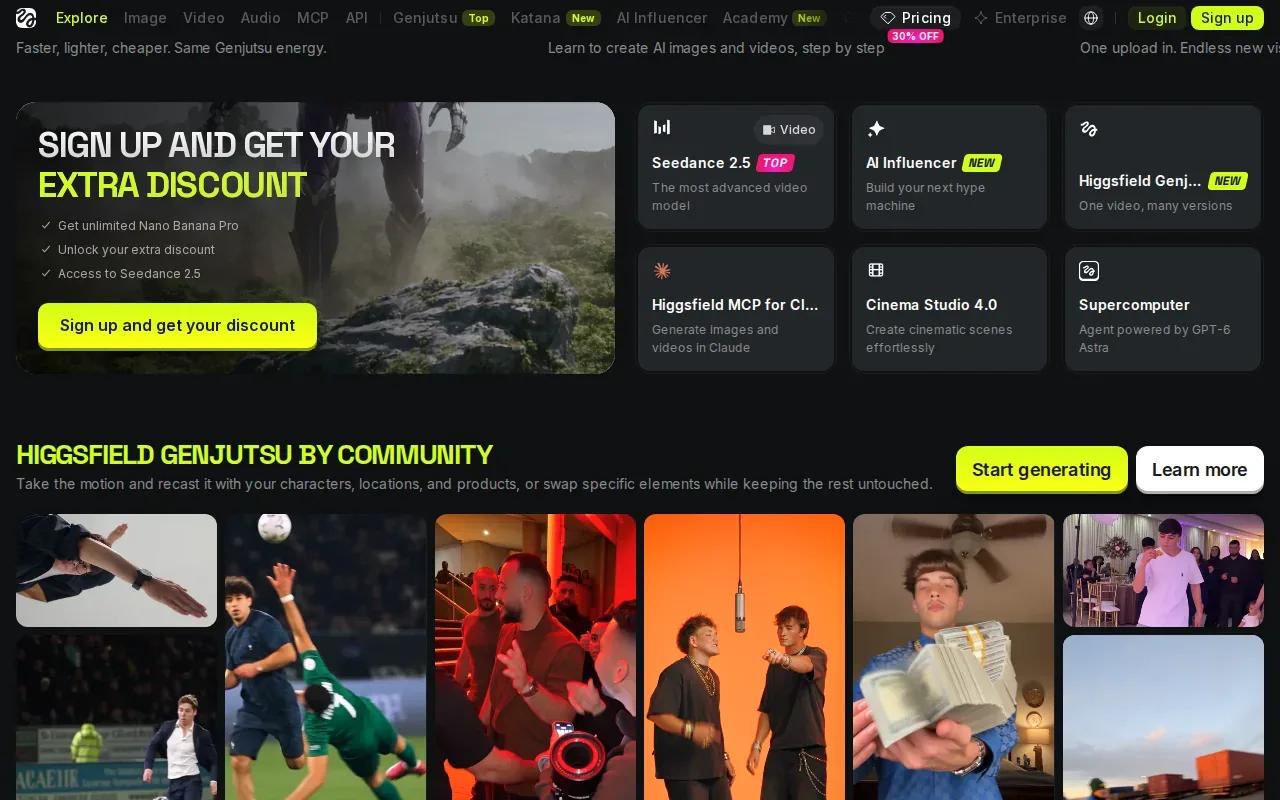
That mix can suit a creator who has footage that needs a quick change as well as someone starting from a new idea. You can write a prompt for a fresh clip or use an existing reference, then make edits such as changing a background or sharpening footage. The workflow keeps generation and several common fixes in the same browser-based toolkit.
Higgsfield AI includes multiple video models, such as Seedance and Kling. That can give you different starting points for a shot rather than relying on one model for every look. If you are making a product variation, for example, you could generate a new scene from a prompt, then check whether the product remains clear in the final framing.
It can also suit a small marketing team that needs to adapt existing footage. A presenter clip might need a cleaner background before it goes into a lesson or an ad. A social clip may need a sharper image before it is sent for review. The key is to watch the whole result at normal speed, since hair, hands, and moving edges can reveal problems that a still frame hides.
Higgsfield AI supports prompt-based media creation, editing existing material, and upscaling.
For frequent creative work, test one challenging clip before building a routine around it. Watch the subject outline during movement, then view the export at phone size if it’s meant for a social feed. That quick check can show whether a background change or upscale holds up where viewers will see it.
4. Fliki: for voiceover and synced dialogue
Fliki focuses on voice-led video, including talking photos with synced lips, head motion, and facial expression. It suits creators who want a portrait or character to speak from a still image, or who need generated voiceover and dialogue in a larger video workflow.
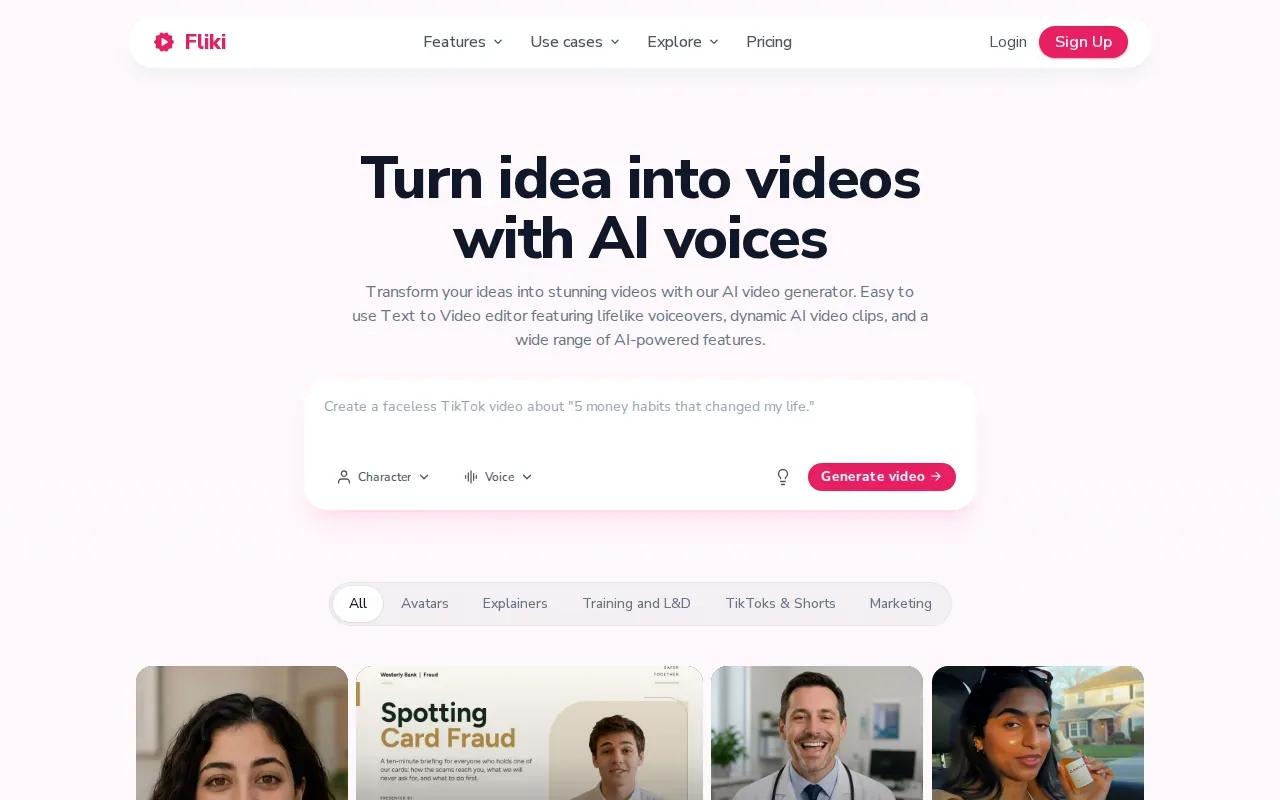
For a talking-photo clip, you can upload an image and type a script or add an audio file. Fliki can generate speech and animate the face to match.
Fliki’s photo-to-video workflow includes different video and image models, including Kling, Seedance, and other options. The selected model can vary by shot. That gives you a few ways to approach a scene, but it also means you should review the output rather than assuming each model will handle a portrait in the same way.
Fliki can fit a language lesson, a mascot clip, or a short message built around one face. A script gives the voice a clear job. Keep it short enough to match the visual beat, then listen and check lip movement before using the clip. Fliki offers a free plan with no credit card required; the free plan’s allowance and feature access can vary by workflow.
For a single speaking photo, Fliki’s focus on voice and face animation may be the key difference from a tool built around broader scene direction. If you need camera movement around a character, a product in a setting, or a longer scene that can be extended, compare those needs with Veo Studio’s synchronized sound and dialogue, character consistency, first/last-frame control, and scene extension before you settle on a workflow.
5. AKOOL: for 4K video with native audio and region editing
AKOOL supports cinematic 4K video generation with Seedance 2.5, region editing, and native audio. It may fit marketers or creative teams who want high-resolution generated clips and the ability to adjust parts of a scene.
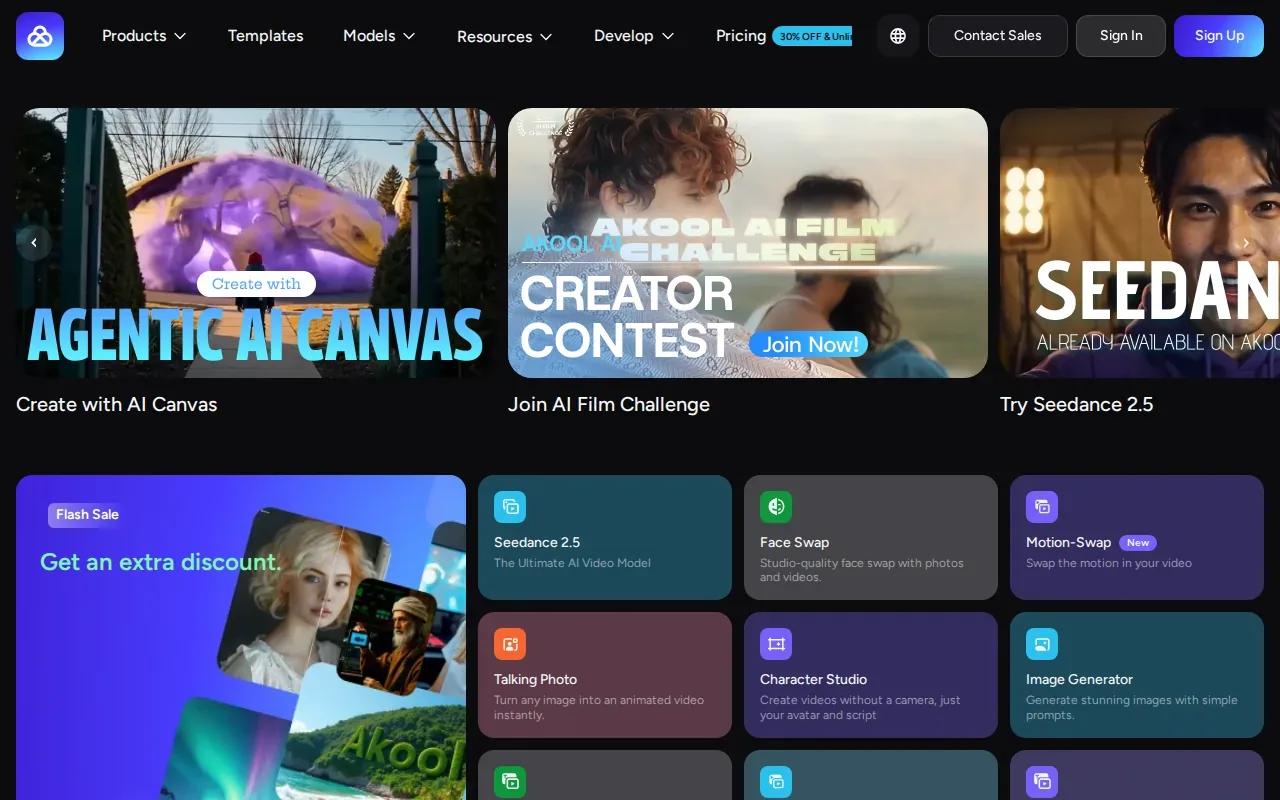
Region editing is useful when a change should stay focused on one area instead of altering the whole shot. For example, a creator may want to revise part of a scene while keeping the rest of the composition intact. Check the generated result closely to see whether the edit follows the intended boundary and whether the surrounding details remain consistent.
AKOOL also has image-to-video workflows. You can begin with an uploaded still, describe the movement or camera direction, then choose from the available model and settings. A clear reference image helps establish the subject. A short prompt can then direct one action, such as a product turning slightly while the camera moves closer.
For product and brand work, review labels, shape, and color before using a generated clip in an ad.
AKOOL is a fit to consider when 4K output, native audio, and region editing are central to the brief. If your main need is a speaking portrait, another workflow may be more direct. If your shot needs a continuing scene or specific frame control, compare those requirements with each tool’s features before you begin.
Compare the 5 AI Photo Video Makers at a Glance
The right choice depends on what you need the image to do. Some tools center on generation, while others pair it with editing or voice features. Use this table to match the workflow to your next clip, then check the tool’s current settings before you commit to a larger batch.
| Tool | Good fit for | Supported detail to weigh |
|---|---|---|
| Veo Studio | Directed scenes from prompts or reference images | Synced sound and dialogue, frame control, scene extension, up to 4K on supported paid settings |
| CapCut AI Video Editor | Generating a clip, then editing it in a timeline | Generating and editing video |
| Higgsfield AI | Prompt-based creation plus media edits | Image, video, and voice content; editing and upscaling; web and mobile access |
| Fliki | Talking photos and voice-led clips | Synced dialogue and a free plan with no card required |
| AKOOL | High-resolution generation with focused edits | Seedance 2.5, native audio, region editing, and 4K video |
Before uploading, decide what the final clip must contain. A moving product shot needs stable product details. A spoken portrait needs clear speech and matching mouth movement. A short ad may need an edit-ready export more than a complex camera move.
Also check the rights and privacy terms before uploading personal photos or customer images. Use images you have permission to use, and make sure the tool’s plan covers your intended commercial use.
Frequently Asked Questions
What is an AI photo video maker?
An AI photo video maker turns a still image or written prompt into a video draft by generating movement and, in some tools, sound. That differs from a traditional video editor, which mainly helps you arrange and refine existing footage. Some products combine both approaches, so you can generate a shot and then trim or add captions in the same workspace.
How do I turn a photo into a video with AI?
Upload a clear photo, describe the motion you want, then generate and review the clip. Keep the first prompt focused on one action and one camera move. Watch the full result for changes to faces, hands, logos, and framing. If you need more than one scene, check whether the tool can use multiple images or extend a finished clip.
How long can an AI-generated photo video be?
Video length depends on the tool and its settings. Veo Studio’s standard generations are 4, 6, or 8 seconds. Its scene extension can add seven seconds at a time to supported 720p clips, up to roughly 148 seconds. Other tools may use different limits, so check the duration options in the generation workspace.
Can I use AI-generated photo videos for commercial projects?
Yes, if the tool’s licence and the rights to your source image allow it. Every Veo Studio plan includes a commercial licence. Other products may set different terms by plan or output type. Before publishing an ad, check the current licence and confirm you have permission to use the photo, voice, logo, or other source material.
What export format should I use for social media?
Use the format and aspect ratio required by the channel where you plan to post. Other tools may have their own export choices. Check the finished file before publishing, especially if it needs captions or a vertical layout.
Conclusion
If you want a generated scene with synchronized dialogue, reference-image guidance, and room to extend a clip, start with Veo Studio. Review the result before choosing a paid plan.


