
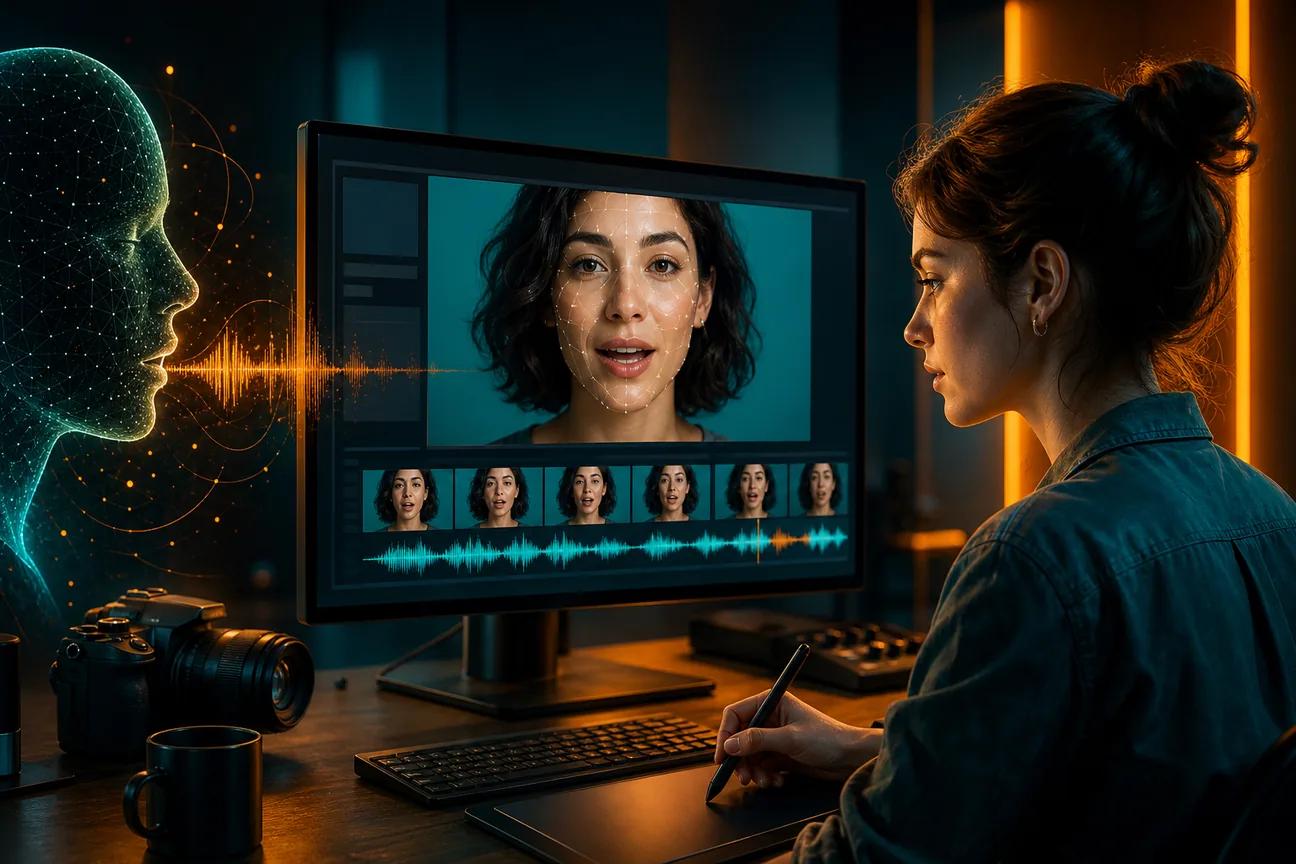
An AI lip sync generator can help you change spoken dialogue without filming the scene again. The right tool depends on whether you’re making a new scene, dubbing an existing clip, or building a music video. Here are five named options, starting with Veo Studio, with a clear look at the work each one suits.
We analyzed 48 comments and questions from YouTube and Quora about AI lip sync generators and found that 17% mentioned lip-sync accuracy and gaze realism problems.
1. Veo Studio
Veo Studio is an independent, browser-based AI video creation tool powered by Google’s Veo 3.1 models. It generates short clips from a prompt or reference images, with synchronized sound and dialogue in the same generation.
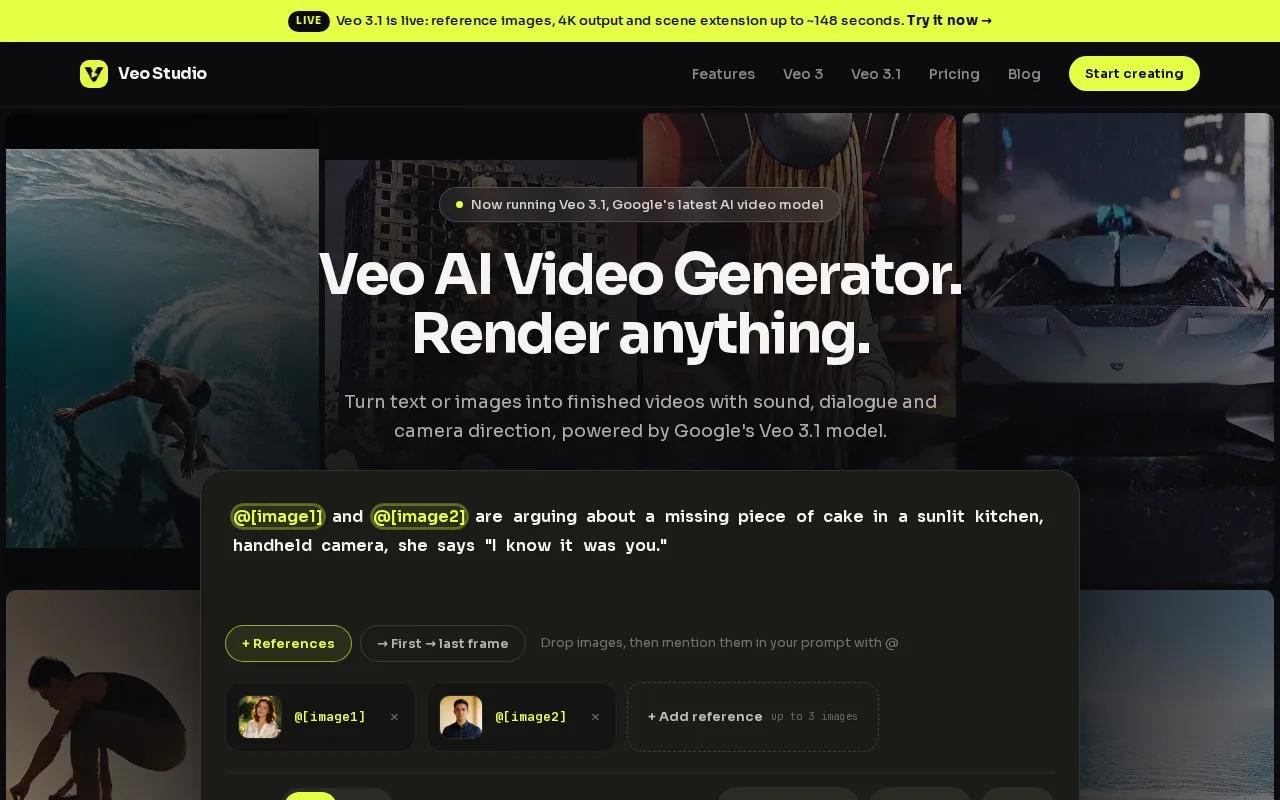
It suits creators who want to build a dialogue-led scene, rather than upload a finished talking-head video and replace its audio. Put the line you want spoken in quotation marks in your prompt, then describe who says it and what happens around them. Veo generates the scene with matching mouth movement.
Reference images can guide character appearance within a clip. First- and last-frame control lets you provide two stills for the model to connect, while scene extension adds time to supported clips. The output can reach 4K on eligible settings. These controls are useful when a short social clip needs a planned opening, a specific camera move, or more time to finish a beat.
Veo Studio’s free plan includes a couple of 720p videos each month, with no card required. Paid plans start at $14 per month and include higher resolutions, more video volume, and a commercial licence. If you want to check the product before setting up a workflow, visit Veo Studio’s video creation page.
One useful distinction: this is a prompt-led video generator, not a dedicated tool for dubbing an existing recording. For a generated scene with spoken words, it keeps the picture and speech together. For an already-shot clip, look at a dubbing-focused option below.
Creators who need a longer scene can also follow the steps in this guide to extending a video with AI. Scene extension works on eligible 720p clips, adding seven seconds per extension step. It can help carry a moment forward, but you should review the join between the original and added footage before publishing.
2. Sync: focused on lip sync and visual dubbing
Sync, by Sync Labs, focuses on matching a person’s mouth movements to an audio track. It’s a good fit when you already have video and want to create a dubbed version or adapt spoken content for another language.
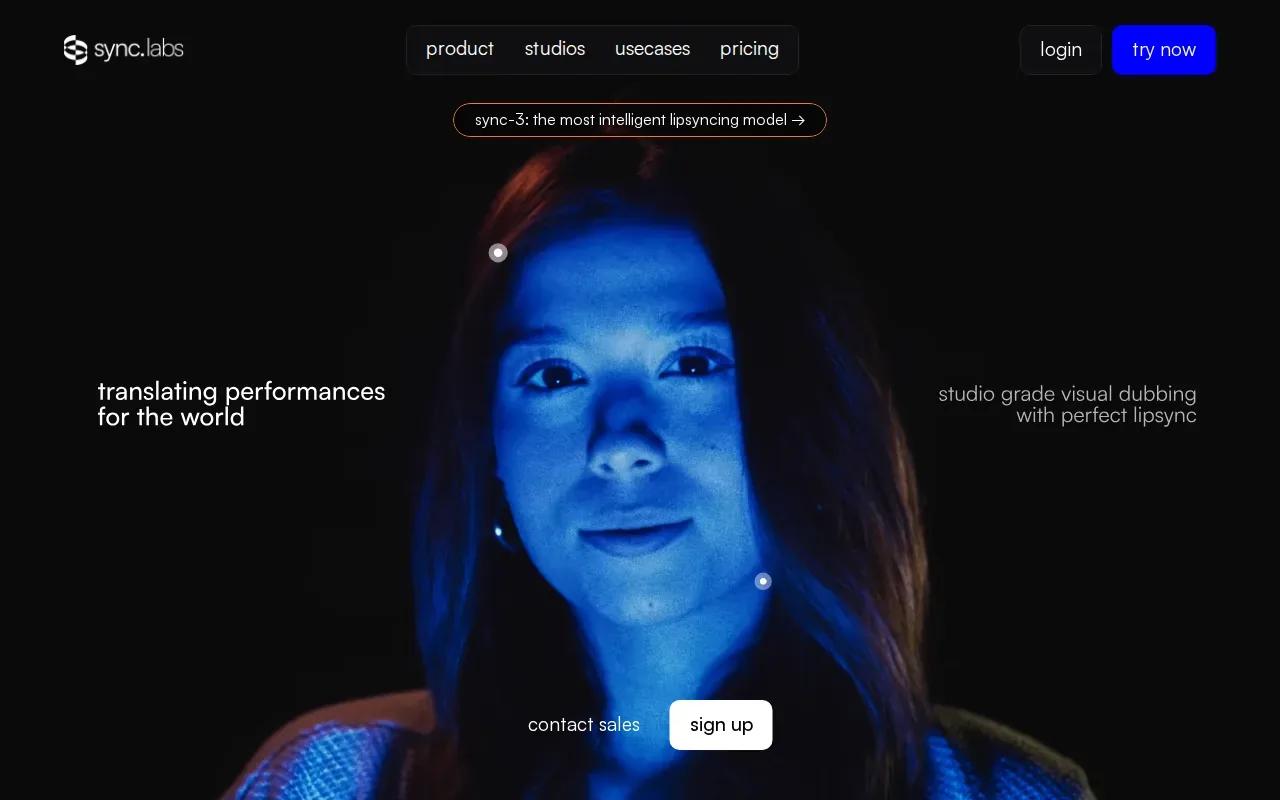
The workflow separates the source picture from the new sound. You provide a video and an audio track, then the system generates mouth movement that follows the new speech. For example, a presenter’s existing English video can be paired with Japanese audio so the visible speech follows the translated track.
Developers can also connect through its API and official Python or TypeScript SDKs. The service has models aimed at different balances of speed and visual detail, so a team can test a short sample before choosing a workflow for a larger set of videos.
It’s worth checking the source footage before you spend time on a full edit. Sync Labs says its lip-sync model works best when the input has natural mouth movement and may struggle with static CGI or cartoon faces. Still frames during a spoken segment can also cause the lips to stop moving, even if the audio continues.
That makes the first test simple: choose a short section where the person faces the camera and speaks steadily. Check the lips across the full sentence, not only on the first word. If the original face barely moves, changing the audio alone may not fix the mismatch.
The entry plan includes a free tier. For teams building a repeatable dubbing workflow, the API and SDKs can fit into an existing app or production process. For an individual creator, the browser Studio gives a way to try the models before writing integration code.
Use Sync when the main job is changing audio on existing footage. If you need a new scene with a generated character, a prompt-led video tool may be a better match.
3. Vozo AI: multilingual localization for global audiences
Vozo AI combines video localization with subtitles, AI dubbing, and lip sync. It’s suited to teams adapting a source video for viewers in different regions, especially when the same message needs to work across multiple languages.
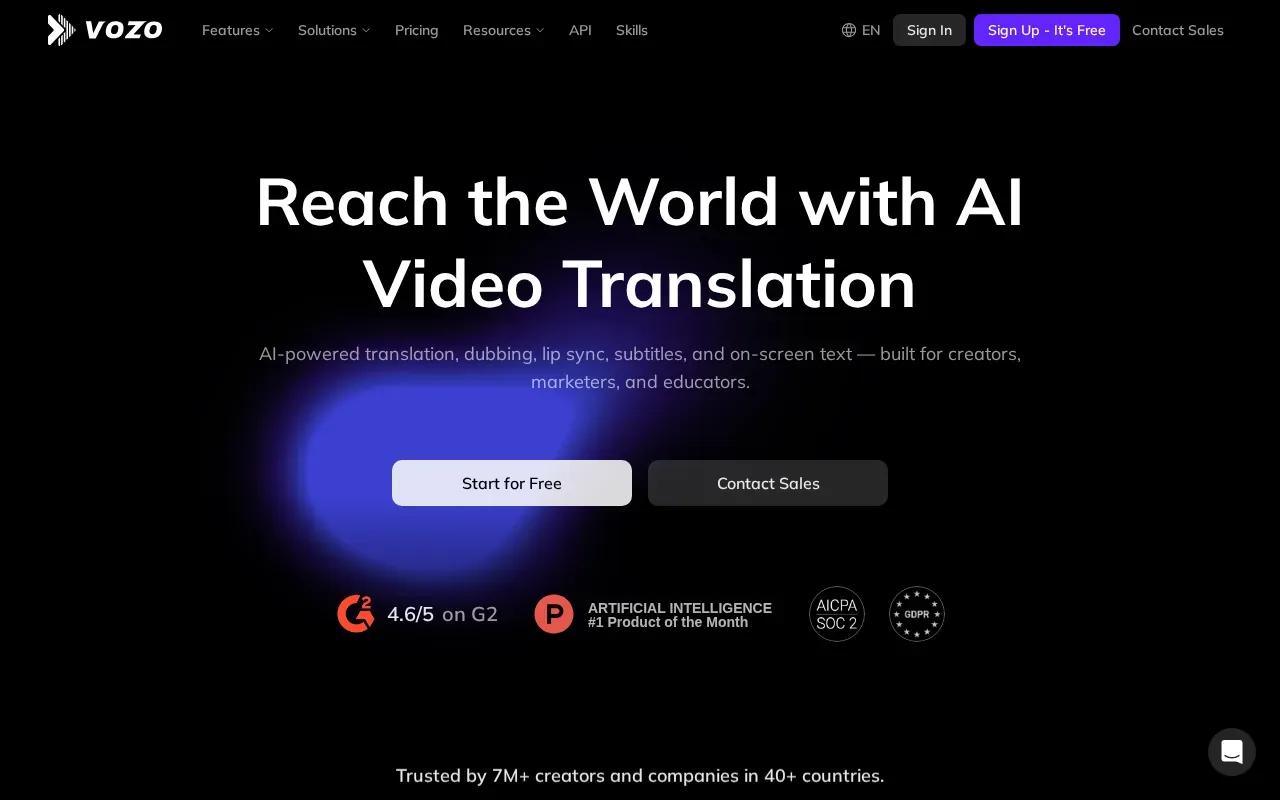
The listed localization support covers more than 160 languages. That breadth can help when a team needs versions for several markets. With subtitles, AI dubbing, and lip sync available for localization, teams can prepare translated versions from a source video and review the result.
For a localized clip, check that the translated audio and lip sync work together. Reviewing a short passage first can help identify issues before preparing a larger batch.
When comparing localized versions, focus on whether the message remains clear and the dialogue feels aligned with the video. A careful review can help teams decide whether the finished clip is ready for its intended audience.
Creators comparing face-led video workflows may also find this overview of talking photo AI tools for realistic videos helpful. A talking portrait and a dubbed recording can look similar in a feed, but they begin with different source material and solve different editing tasks.
Vozo provides a free trial. For localization work, make a test with a short passage first. Then review names and timing before preparing a larger batch.
4. Freebeat: music-led lip-sync video creation
Freebeat builds lip sync into a broader song-to-video workflow. It’s aimed at musicians and creators who want a character to perform a track, then need the rest of the video to follow the music.
The tool can start with an audio file or a supported music link. Freebeat describes analyzing the song’s structure before planning shots, so the result can include performance footage alongside other visuals. Its singing-video workflow also uses a photo or a described avatar as the basis for the on-screen character.
That changes the job compared with dubbing a filmed interview. You’re starting with music and shaping a visual performance around it. The system can generate a full-length music video, with character consistency across the video and lip sync tied to the track. The listed export limit is 1080p.
Freebeat states that it has 500 lifetime credits on its free tier. It also promotes roughly 90% mouth-shape accuracy. Treat that figure as the company’s stated claim, not a universal quality score: results still depend on the input image, the song, and whether the generated performance looks right to you.
For a fast social edit, a one-click path may be enough. For a track where the artist’s look or shot choices matter, review the generated concept and character before exporting. A quick preview can catch a face that changes between shots or a performance that doesn’t fit the song’s mood.
Choose Freebeat when the song is the starting point and you want a full music-video workflow. If you only need to sync a new voice to a finished interview, a dedicated dubbing tool is more directly aimed at that task.
5. MakeSong: longer lip-synced music videos
MakeSong promotes lip-synced music videos of up to 10 minutes and supports consistent characters. It’s a fit to consider when your project calls for a longer music performance rather than a short talking clip.
Longer output changes the review process. A short clip can be checked in one pass; a longer music video needs checks at different points in the song. Look for mouth movement that stays aligned with the vocals, and check whether the character remains recognizable as the video moves between scenes.
MakeSong’s stated character-consistency support can help when the same performer needs to appear throughout a video. That may matter for a recurring avatar or a stylized artist persona. Still, review the rendered sections together. A feature claim isn’t a substitute for checking the finished edit at the points where shots change.
MakeSong has no free tier. That makes it sensible to prepare your audio and creative direction before starting a paid workflow. Decide which sections need a clear singing performance, then note where a cutaway or a change in scene would make the video feel less repetitive.
| Project check | MakeSong detail | What to review |
|---|---|---|
| Planned length | Up to 10 minutes | Check lip sync at the start, middle, and end of the track. |
| Recurring character | Consistent characters are supported | Compare the character’s look across scene changes. |
| Free access | No free tier | Have the audio and shot plan ready before you begin. |
For a long song, think in sections rather than treating the whole track as one continuous performance. Mark the parts where the singer needs to be on screen, then check whether the final video keeps the performance coherent throughout.
FAQ
How does an AI lip sync generator work?
An AI lip sync generator matches visible mouth movement to speech or singing in an audio track. Depending on the tool, you can supply an existing video and new audio, or generate a new scene with dialogue. The result needs a visual check, since face angle, still frames, and the source material can affect how natural the movement looks.
Can I use these tools to dub a video into another language?
Yes, some tools support dubbing and localization. Sync focuses on matching existing video to a new audio track, while Vozo AI combines localization with subtitles, dubbing, and lip sync across more than 160 languages. Review the translated audio and the speaker’s mouth movement before you publish each version.
Which option works for a music video?
Freebeat and MakeSong are the two music-led options in this shortlist. Freebeat combines song analysis with video generation and states a 1080p maximum resolution. MakeSong promotes videos up to 10 minutes and supports consistent characters. Your choice depends on the planned length and the workflow you want to test.
What makes lip sync look unnatural?
Common issues include a face that is turned away, a mouth that is hidden, or source footage with little natural speaking motion. Sync Labs also notes that static CGI or cartoon faces can be harder for its model, and still frames can interrupt mouth movement. Test a short segment first, then watch the whole sentence before using the result.
Conclusion
For a new dialogue-driven scene, start with Veo Studio: it can generate synchronized sound and speech, use reference images, extend eligible clips, and output up to 4K.


