A talking photo AI tool turns a still image into a video with speech and facial motion. The right pick depends on whether you need a single speaking portrait or a scene with sound and room to grow. Here are six tools to compare, starting with Veo Studio.
We analyzed 44 comments and questions from YouTube, Quora and Reddit about AI talking photo and found that 18% mentioned the realism of generated videos.
1. Veo Studio
Veo Studio is an independent, browser-based AI video creation tool powered by Google’s Veo 3.1 models. Upload a reference image or describe a scene, then prompt a character to speak. Veo Studio generates synchronized sound and dialogue with the video.
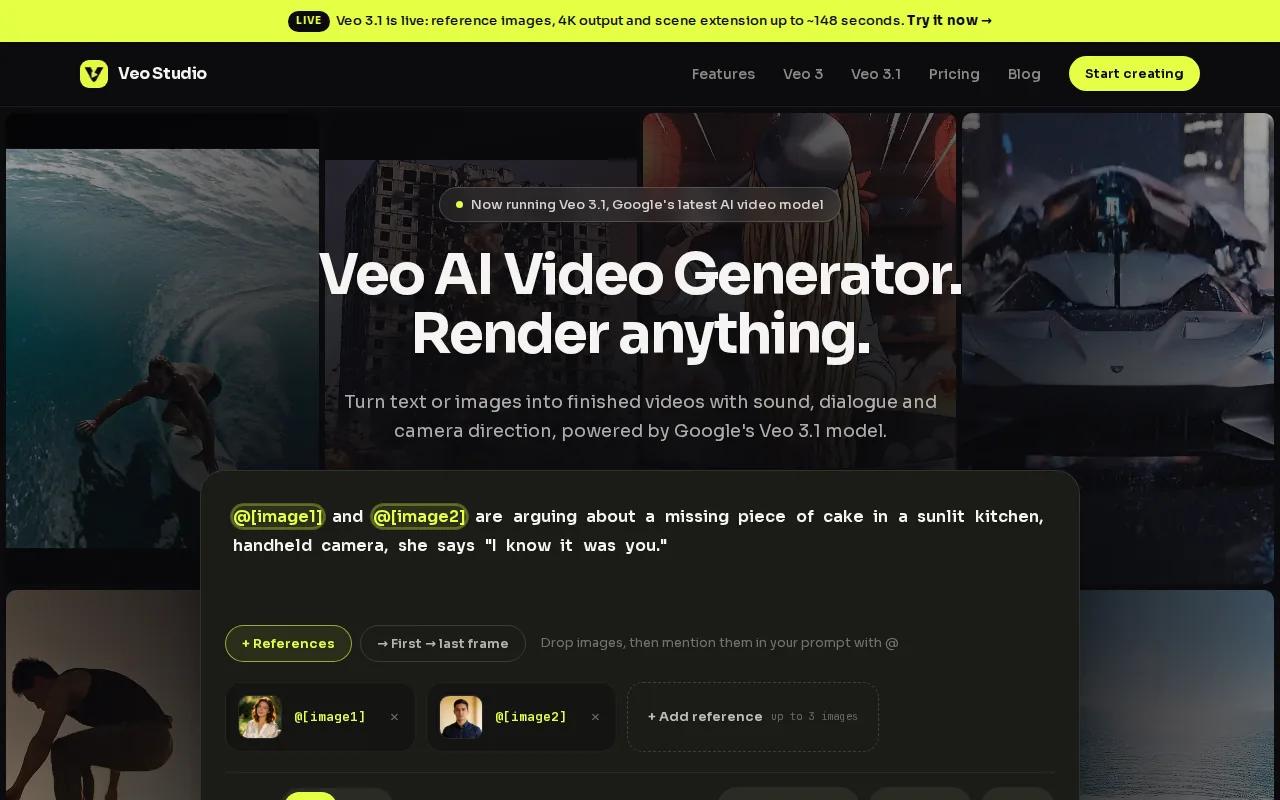
This setup suits creators who want more than a close-up face reading lines. Reference images help keep a character consistent, first- and last-frame controls guide how a shot begins and ends, and scene extension can carry a 720p clip forward in seven-second steps.
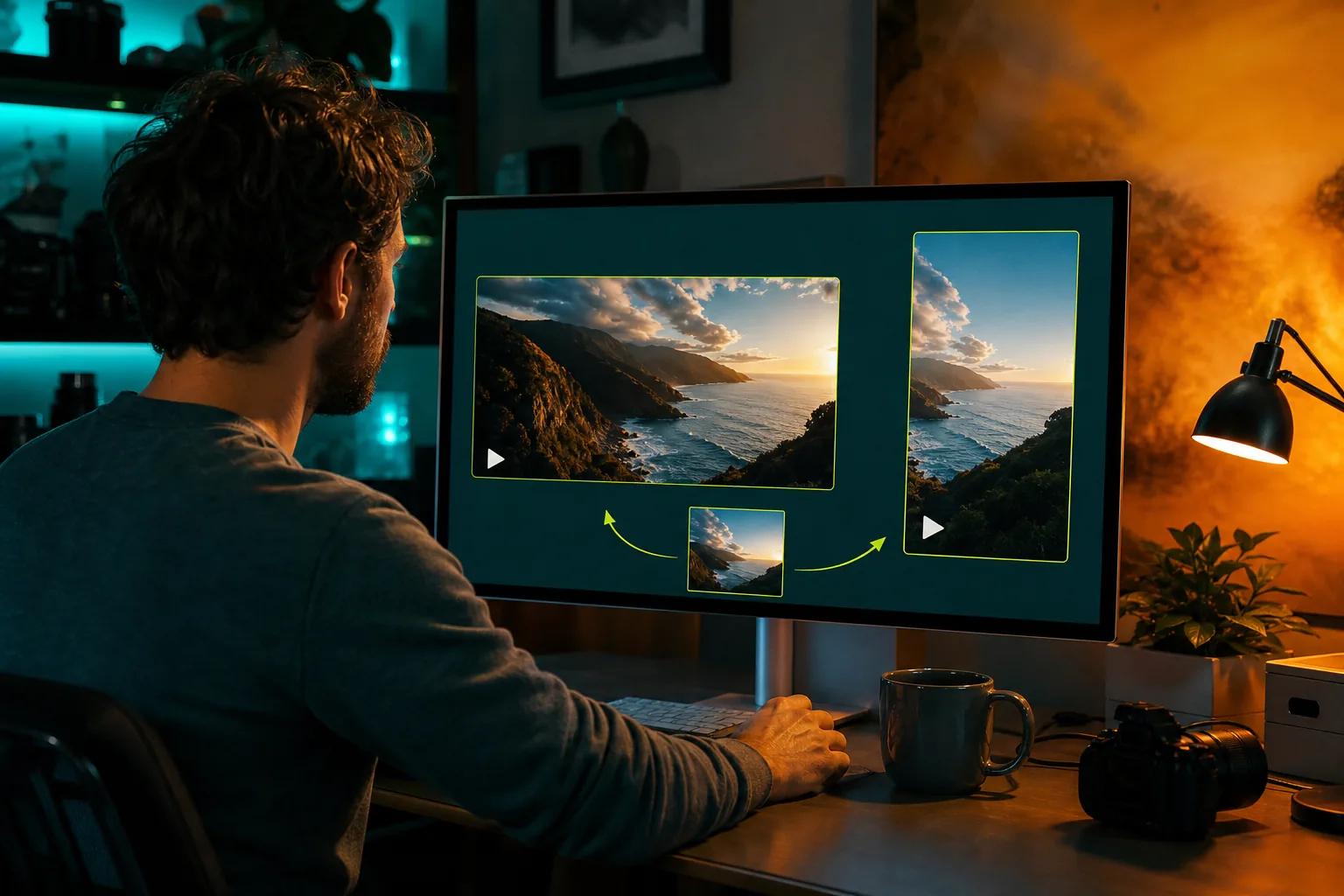
Veo Studio supports output up to 4K. It’s a fit for a dialogue-led short, a product image that needs a spoken pitch, or a vertical social clip. Veo Studio requires a paid plan.
If you want to test a prompt or reference image in the browser, try Veo Studio’s video generator. It’s a wider creative workflow than a tool built only to animate a speaking portrait.
2. Avatar IV by HeyGen: lifelike photo-to-video avatars
Avatar IV by HeyGen turns a photo into a lifelike talking video with natural lip sync, expressive gestures, and multilingual voice. HeyGen also supports video creation from text, images, or audio, with narration, captions, visuals, and animations.
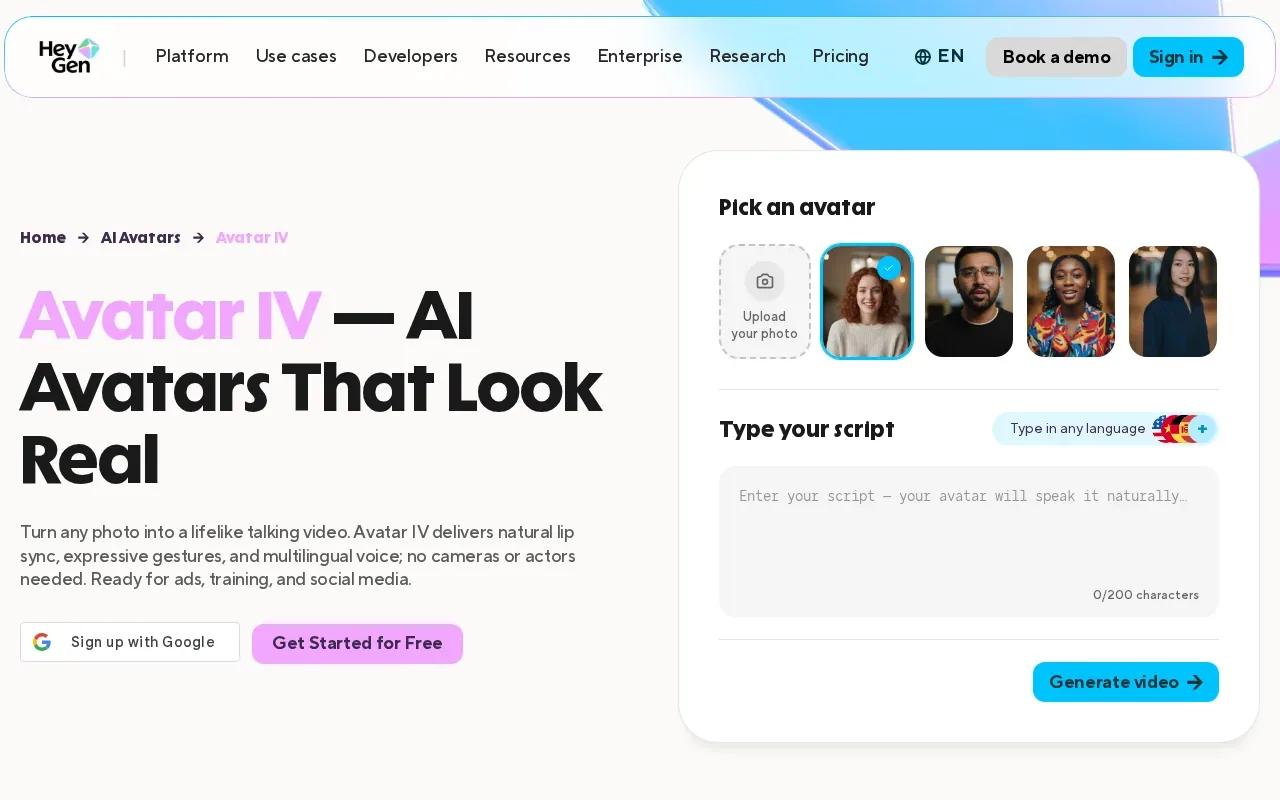
That makes it a sensible option for a presenter-style clip. Start with a portrait, then use text or audio as the speech input. If you’re preparing a multilingual demo, its stated language support may help you adapt the speaker’s delivery for different audiences.
Think of a short product explainer where one person addresses the viewer. Avatar IV’s focus on a speaking photo and expressive gestures fits that setup. It’s less suited to someone who mainly wants to direct a broader scene with an opening and closing frame.
Before you publish, check the mouth movement against the audio and review the captions. A face can look convincing in a still frame yet feel off once it speaks.
3. AKOOL: personalized visual marketing and advertising
AKOOL is a generative AI platform for personalized visual marketing and advertising. Its talking-photo workflow is described as a way to animate a still headshot using a script or uploaded audio.
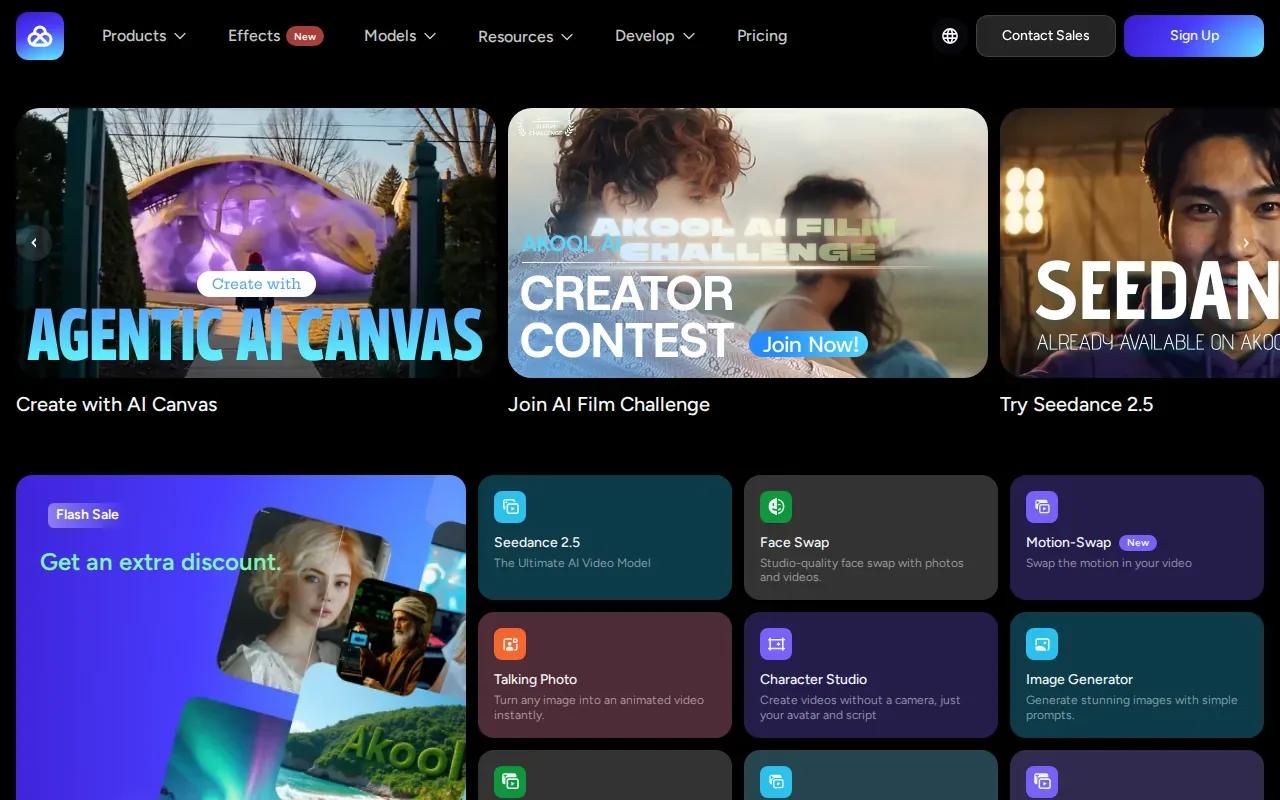
Its workflow includes choosing an AI voice or language and generating a speaking portrait. It also describes emotional facial expressions, such as a smile or a look of surprise. That can suit a campaign that needs a spokesperson-style message rather than a full scene.
For a small business, imagine using a spokesperson portrait to introduce a new service. A marketer could draft a short line, choose an audio approach, then review whether the face’s expression matches the message. Keep the script brief and check every generated version before using it in an ad.
AKOOL’s focus is personalized marketing content. If your project depends on a longer continuous shot or detailed control of scene transitions, compare those needs against the tools that explicitly support scene extension or frame controls.
4. Fotor AI Talking Avatar: a photo-animation option to investigate
Fotor AI Talking Avatar animates a still image to speak with an AI voice or uploaded audio. Its described workflow is direct: upload a suitable image, enter a script or add a recording, then generate and preview the result.
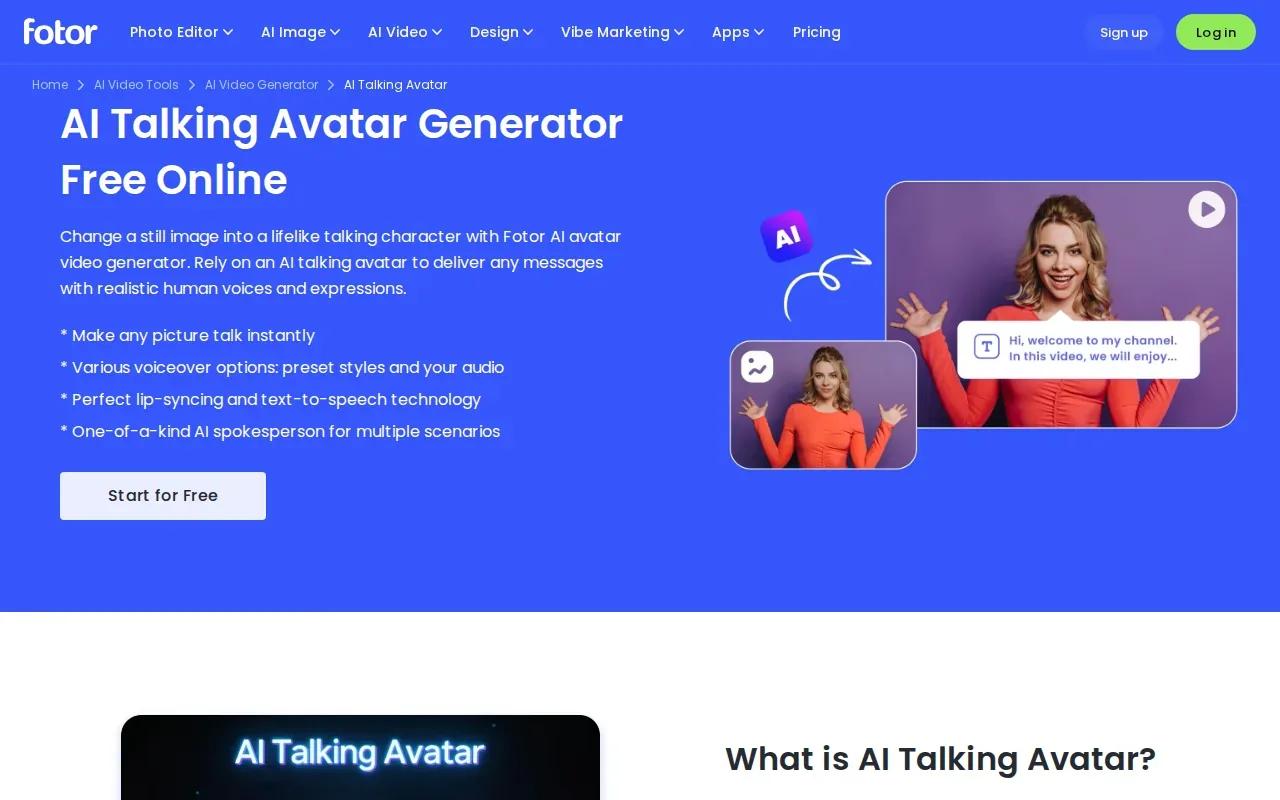
Fotor says its tool supports multilingual input and output. It also describes voice styles across ages and genders, plus lip sync that follows recorded audio. For a short tutorial or greeting, you can use your own voice instead of text-to-speech.
Image choice matters. Fotor recommends a clear face that looks toward the camera, with visible facial features. A blurry portrait, a face turned far to the side, or a face hidden by objects can make the animation harder to judge.
Commercial use depends on the current plan terms and the rights to the image and audio. For more production context, the photo-to-video workflow guide covers image prep and adding sound.
5. Fliki: script-led talking-head video creation
Fliki turns any script into a talking-head video with a lifelike AI avatar. Its character consistency means the same face and voice can carry across scenes, which can help when you’re building a small series.
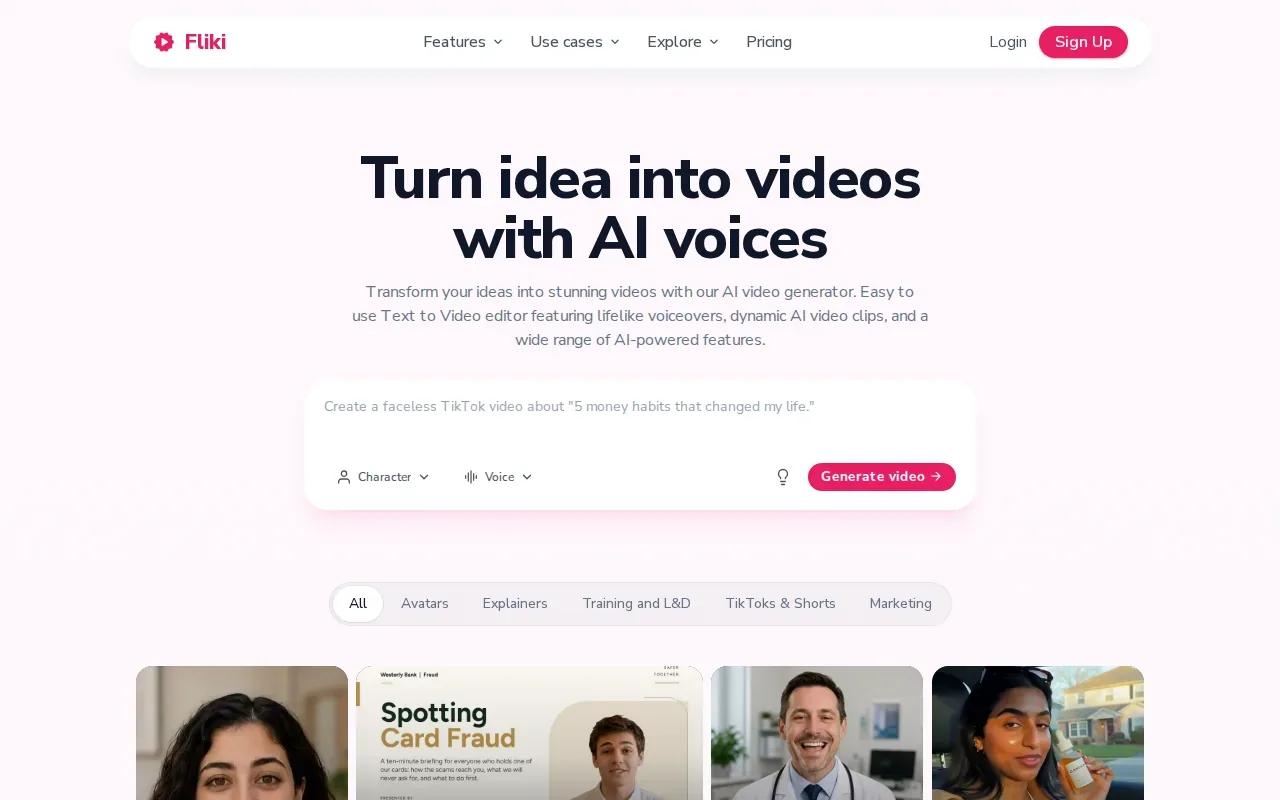
Fliki does not offer scene extension, so it may be less suited to extending a scene directly. The free plan requires no credit card. That makes it an option to consider when you want an avatar-led video created from a script and need consistent character identity across scenes.
6. InfiniteTalk AI Talking Photo Generator: a dedicated generator to compare
InfiniteTalk AI Talking Photo Generator is a named tool to include in a talking-photo shortlist.
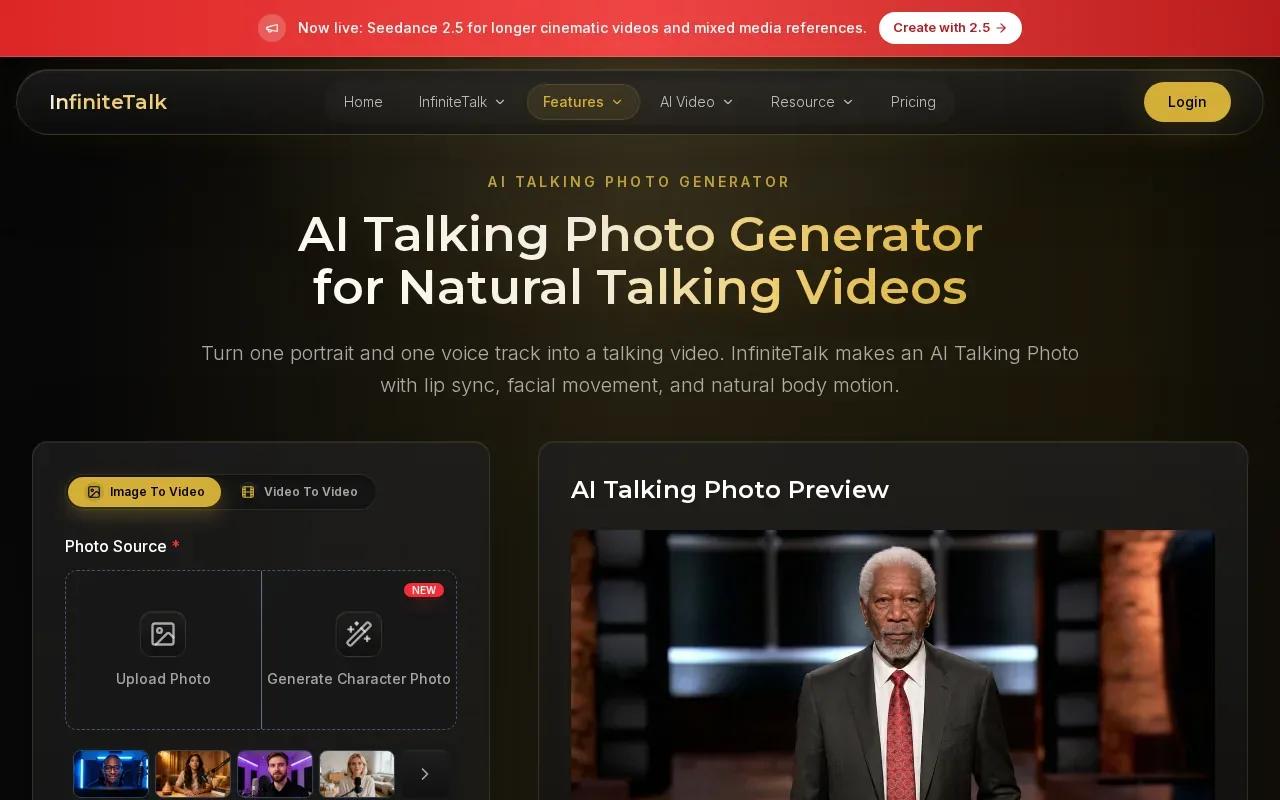
That doesn’t make it impossible to assess. Use the same clear portrait and short script you try elsewhere, then judge whether the mouth motion follows the words and whether the final video fits your planned use. Keep the test clip simple so you can focus on the speaking face.
Also check what the service lets you do with the finished file before building it into a campaign. For a one-off greeting, a basic portrait animation may be enough. For a recurring series, you’ll want to confirm that the workflow supports the level of consistency and editing your schedule needs.
In short, treat it as a candidate to test rather than assume it matches the controls of a broader video editor. A quick side-by-side review of the same source material will tell you more than a tool name alone.
Talking photo AI tools compared: features, limits, and suitable uses
The table focuses on the workflow each option is suited to, using only stated product details. It’s meant to narrow your shortlist, not replace a test with your own portrait and audio.
| Tool | Stated workflow | Useful for | Detail to weigh |
|---|---|---|---|
| Veo Studio | Prompt or reference image to video with synchronized sound and dialogue | Scene-led videos, dialogue, and clips that may need extension | Paid plan required |
| Avatar IV by HeyGen | Photo-to-video avatar with lip sync, gestures, and multilingual voice | Presenter-style explainers | Best matched to a speaking-avatar workflow |
| AKOOL | Personalized visual marketing with a talking-photo workflow | Spokesperson-style marketing content | Its described focus is marketing and advertising |
| Fotor AI Talking Avatar | Photo plus text or uploaded audio | Greetings, tutorials, and multilingual messages | Clear, front-facing images are recommended |
| Fliki | Script or audio to animated talking photo, with an editing workflow | Social clips and script-led presenter videos | Talking photos are included on paid plans; no scene extension |
| InfiniteTalk AI Talking Photo Generator | Dedicated talking-photo generator | A candidate for a direct output test | Compare the result with your own sample image and script |
For a scene that needs sound generated with the picture, consistent characters, or an extended shot, Veo Studio is the clearest match among these options. Its first- and last-frame controls can also help guide a transition, while output can reach 4K on supported models.
For a single presenter who reads a script, Avatar IV by HeyGen or Fliki may fit the job more directly. If you’re still choosing an image-to-video workflow, the AI talking video generator comparison looks at adjacent creation needs.
A reference image can become a scene with synchronized dialogue in Veo Studio.
FAQ
What is a talking photo AI tool?
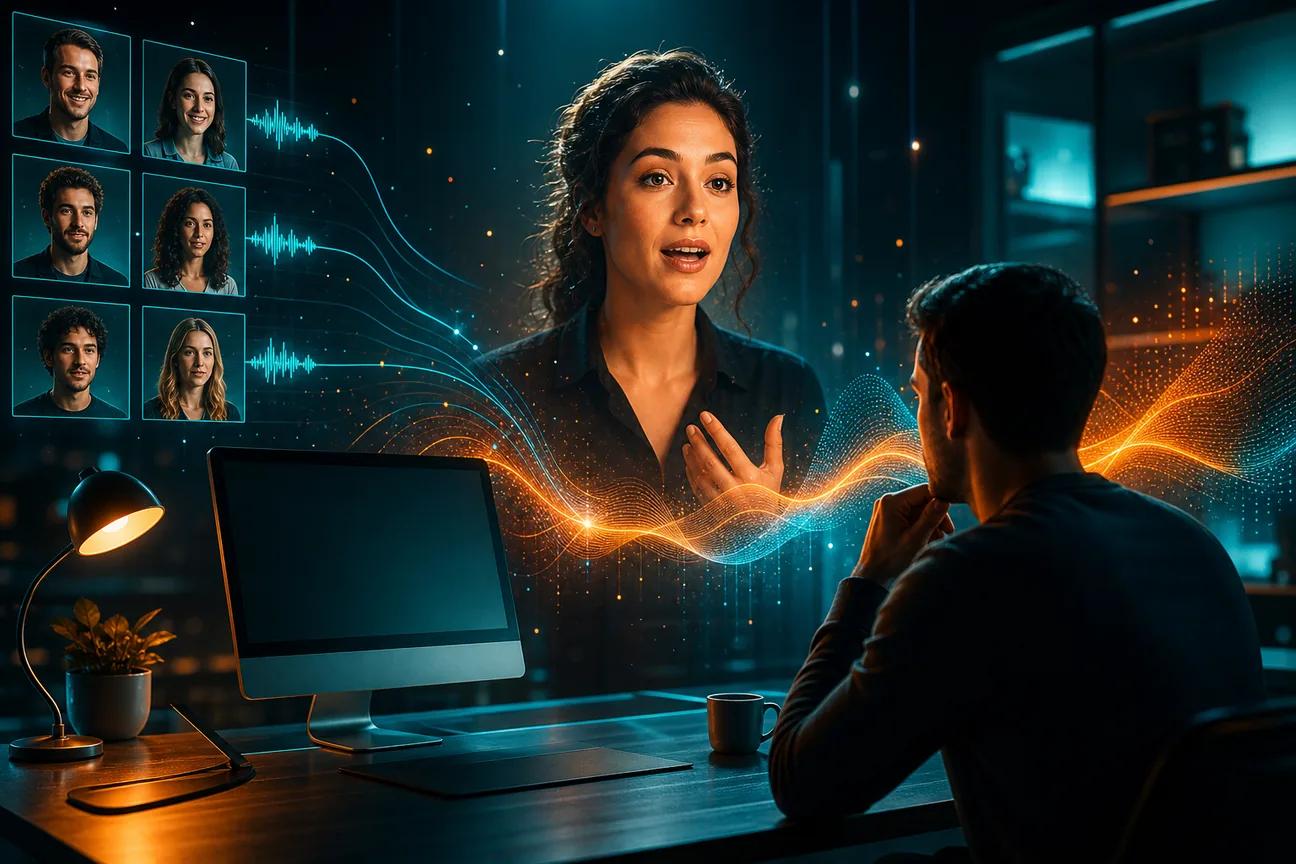
A talking photo AI tool turns a still image into a video of a person or character speaking. The tool pairs speech from a script or audio file with animated facial movement. Some tools focus on a speaking portrait, while others can place dialogue inside a wider generated scene.
How do I make a photo talk with AI?
Upload a clear image, add a short script or recorded audio, then generate and preview the video. Check that the lips match the speech and the face looks natural during movement. Once you’re happy with the result, download it or share it through the tool’s available options.
Can AI talking photos speak different languages?
Yes, some tools support multilingual voices or input. Avatar IV by HeyGen and Fotor AI Talking Avatar describe multilingual support. Check the language and voice options in the tool you plan to use, then review pronunciation and lip sync before publishing.
Is it okay to make a real person’s photo speak?
Get permission before making a real person appear to say something they never said, and make clear when a video is AI-generated. Deepfakes are synthetic media that can depict a person saying or doing something they didn’t. Avoid deceptive impersonation, especially in ads or public statements.
Can I use a talking photo video on social media?
Yes, these videos can suit social posts, short tutorials, greetings, or product messages. Check the tool’s export settings and the platform’s current rules before posting. If you use a real person’s image or recorded voice, make sure you have the rights and permission needed for that use.
Conclusion
Choose Veo Studio if your talking portrait needs to sit inside a scene with synchronized dialogue, consistent characters, or room to extend the shot. Veo Studio requires a paid plan; use a reference image and a short line of dialogue to assess fit before building a full video.