
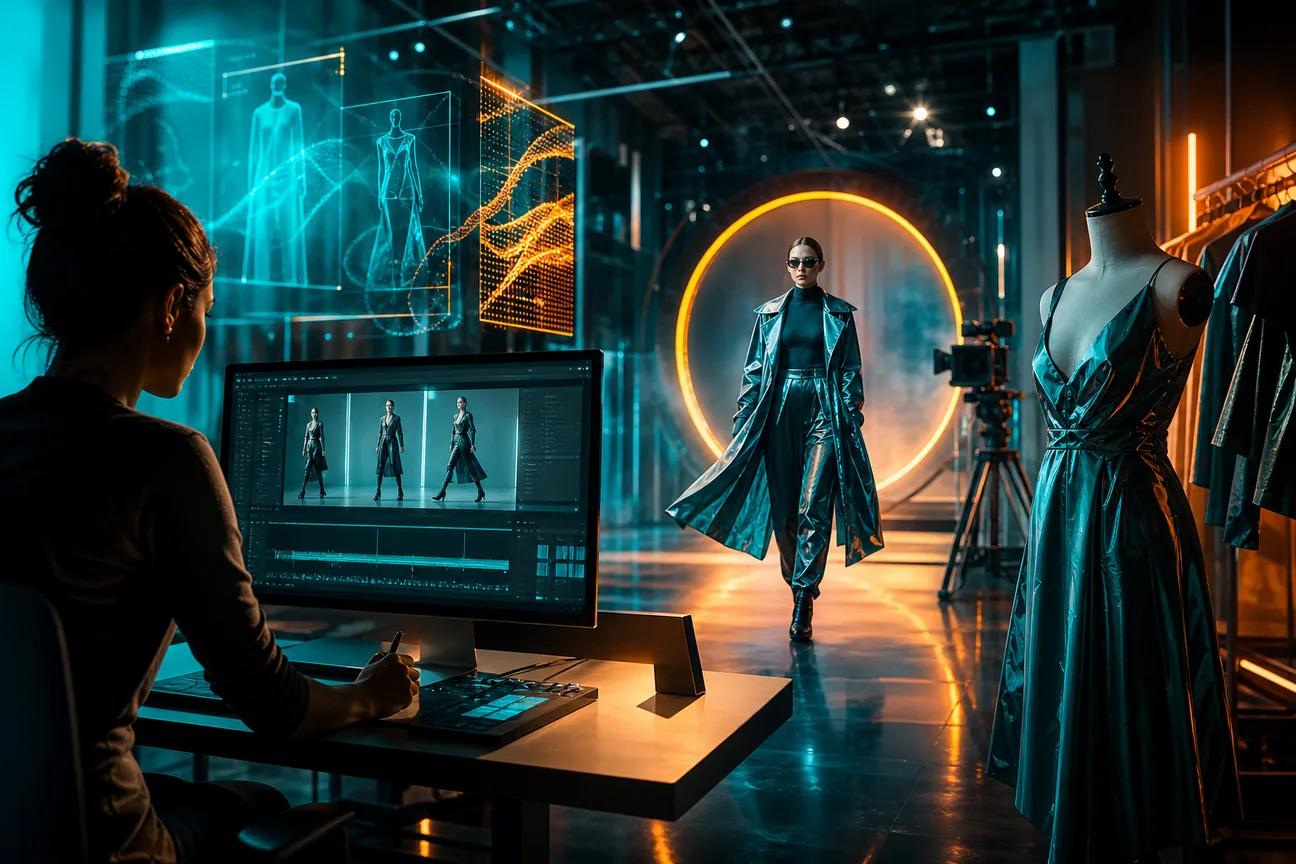
An AI fashion video generator can turn a still outfit shot into a moving clip, but garment details may shift as the scene changes. Here are five options for fashion visuals, with notes on where each fits and what to check before you publish.
We analyzed 44 YouTube comments about AI fashion video generators and found that 34% asked about technical constraints on image generation.
1. Veo Studio
Veo Studio is an independent, browser-based AI video creation tool powered by Google's Veo 3.1 models. It turns prompts and reference images into videos with synchronized sound and dialogue, character consistency, frame control, scene extension, and output up to 4K on supported settings.
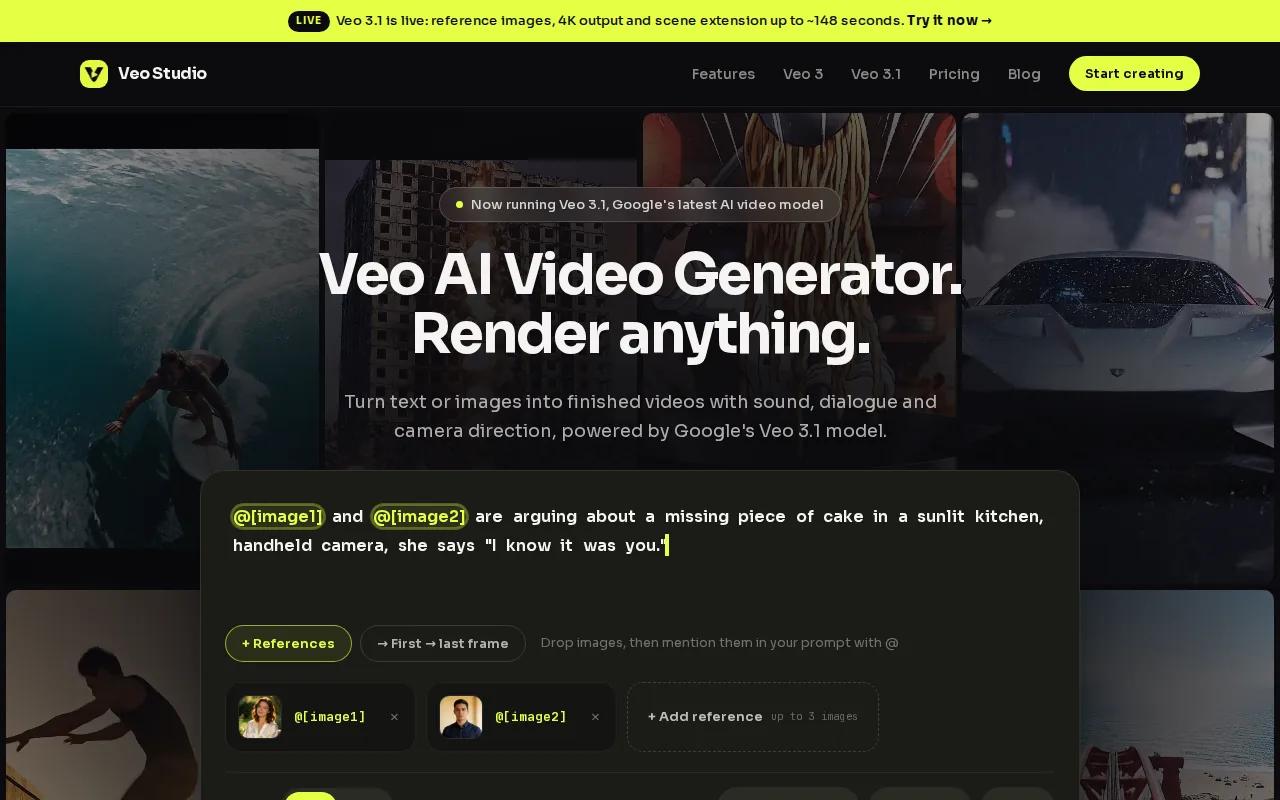
It fits social creators and brand teams who want to animate a product photo or build a short fashion scene. Attach reference images to guide a character, garment, or visual style. You can also set opening and ending frames, then ask for a model to turn, walk, or show a detail as the camera moves.
The free plan includes a couple of 720p videos each month and doesn't require a card. Paid plans start at $14 per month and include higher resolutions and a commercial licence. For a first test, upload a clear outfit image and keep the prompt focused on one action. The Veo Studio free plan lets you try that workflow before paying.
Generated motion can change small details, so check the final clip for seams, prints, buttons, and fit. If the first take misses, adjust one prompt detail at a time. For longer storytelling, scene extension can add seven seconds per step to supported 720p clips.
2. PixVerse: Reference-led fashion clips and transitions
PixVerse is a reference-led video option with first-to-last-frame transitions and multi-shot workflows. It may suit a creator who already has two outfit images and wants to connect them with movement, rather than ask a model to invent the whole scene.
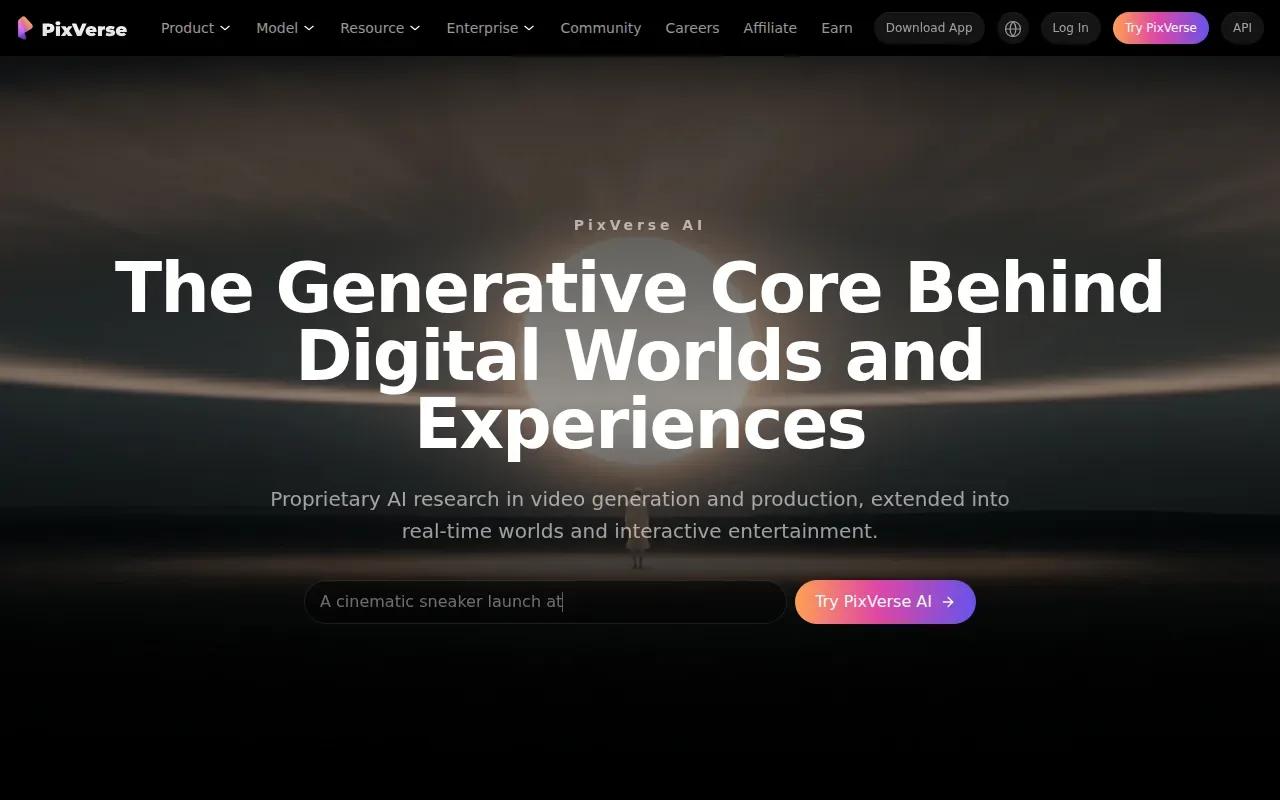
For a look change, use one image as the opening frame and another as the ending frame. Then describe the motion between them, such as a model turning as the coat changes. PixVerse also supports video extension tools, which can continue a clip, and its listed maximum resolution is 1080p.
PixVerse's documented transition workflow uses starting and ending frames to guide the scene between compositions.
Keep the action simple when the garment must stay faithful. A turn, step, or camera move is easier to inspect than a prompt that asks for several scene changes at once. Review the result for outfit continuity and check that the last frame still matches the reference image.
Creators making vertical fashion posts can also compare the workflows in these AI video tools for TikTok. The right format depends on whether your source is a still, a set of planned frames, or an existing clip.
3. Higgsfield AI: Trend-inspired fashion shorts
Higgsfield AI makes images, videos, and voice content from text prompts or references. It suits creators who want to make a short around a current social trend while keeping a character recognizable as other elements change.
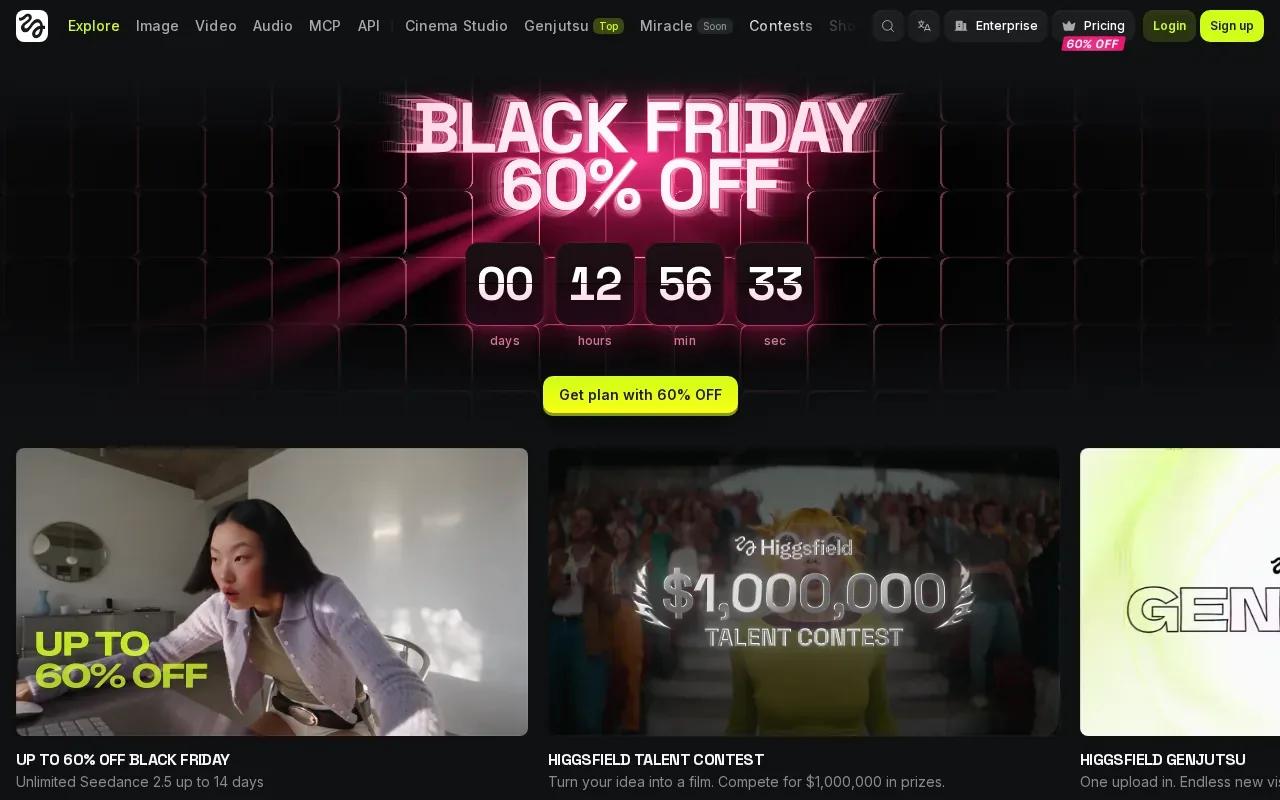
For a fashion short, start with a reference image of the character or outfit, then describe the new setting and movement. Higgsfield AI can keep a character while swapping elements. That can help when the idea calls for the same person to appear in more than one visual setup.
The platform also includes tools to edit and upscale media, plus an AI agent for automated creative workflows. Its maximum resolution is 4K. Those features give creators room to test a trend-led concept, then refine the output before using it in a campaign or social post.
Trend formats can move quickly, but a fast prompt still needs a clear shot plan. Name the garment and the action you want to show. Then inspect the output for changes to color, shape, or trim. A character that stays consistent doesn't guarantee that every clothing detail does.
Choose Higgsfield AI when the visual hook matters more than a long, carefully staged product story. For a catalog clip where exact garment details carry the message, review every frame before publishing.
4. OpenArt: Fashion visuals and video in one platform
OpenArt is an all-in-one platform for creating AI images and videos. It suits fashion creators who want to prepare a visual and then make video from it in the same workspace.
Reference images can guide consistent character creation. OpenArt also has built-in text-to-speech with lip-sync and music, and its listed maximum video resolution is 4K. That mix can work for a short spoken styling clip, a model introduction, or a fashion concept that needs a matching still and video asset.
When garment accuracy matters, prepare clean reference images that show the item from useful angles. If a sleeve, strap, or print is central to the shot, check it after generation. A strong overall look won't tell you whether the small details stayed true.
OpenArt may be a fit when your work moves between still images and motion. It can also keep a character tied to reference images for later generations, which helps when you want a recurring face across a set of visuals. Treat that as guidance, not a promise that every pose will match perfectly.
5. Seedance 2.5 by ByteDance: Native audio in longer fashion takes
Seedance 2.5 by ByteDance generates a native 30-second take at up to 720p with audio in the same pass. It may suit a fashion concept that needs more time for an entrance, a garment detail, and a closing shot without splitting the idea into several short generations.
Its reference endpoint accepts images or video to guide consistency. For apparel, a reference can anchor the subject or the look, while your prompt describes the action and camera direction. Native audio is generated with the video, so a social clip can include sound without treating the visual and audio as separate generations.
Before making a full sequence, test a short idea and check whether movement, outfit details, and sound fit the intended edit.
The trade-off is resolution: Seedance 2.5 is listed here at up to 720p. That may work for a quick social draft, but check the delivery size you need before choosing it for a large display or a high-resolution campaign.
For a longer fashion take, write the prompt as a simple sequence. First show the outfit, then direct one clear movement, and end on the detail you want viewers to remember. Keep the references consistent across the shot.
Compare the AI fashion video generators at a glance
The useful choice depends on the shot, not a feature count. Start with the job: animate a catalog image, link two looks, make a trend-driven short, or hold a scene long enough for a small story.
| Tool | Useful for | Reference and continuity | Sound and resolution |
|---|---|---|---|
| Veo Studio | Product scenes and dialogue-led clips | Reference images, first and last frames, scene extension | Synchronized sound and dialogue; up to 4K on supported settings |
| PixVerse | Outfit transitions and connected shots | Reference-led creation and first-to-last-frame transitions | Maximum 1080p |
| Higgsfield AI | Trend-inspired short videos | Can keep a character while swapping elements | Maximum 4K |
| OpenArt | Image and video work in one platform | Consistent character creation with reference images | Built-in TTS with lip-sync and music; maximum 4K |
| Seedance 2.5 by ByteDance | Longer takes with generated audio | Reference endpoint accepts images or video | Native audio; maximum 720p |
Pricing varies by product and plan, so compare the amount you can generate with the number of usable clips you need. Veo Studio has a free plan with a couple of 720p videos each month; paid plans start at $14 per month. For a product-photo workflow, see these AI product video tools and compare their generation inputs before budgeting.
For any option, a useful cost-per-video check is simple: divide the plan cost by the number of clips you expect to keep, not by the number of generations you start. Include retries in that estimate. A clip that needs several rounds of correction costs more in time, even when the plan price stays fixed.
FAQ
What is an AI fashion video generator?
An AI fashion video generator makes moving video from a prompt, a still image, or reference media. You can use it to animate a product image, show a model moving, or sketch a social concept. The model builds motion from the visual input and instructions, so check the output for changes to the clothing, face, or scene.
Can AI keep clothing accurate in a fashion video?
It can use reference images to guide the look, but you should inspect the result rather than assume every detail will match. Check prints, seams, fasteners, fabric shape, and color across the full clip. If one detail changes, simplify the prompt or try a clearer reference before using the video in a product listing or ad.
Which tool can make a longer fashion clip with sound?
Seedance 2.5 by ByteDance can generate a native 30-second take at up to 720p with audio in the same pass. Veo Studio can extend supported 720p clips by seven seconds per step, up to roughly 148 seconds. These work differently, so choose based on whether you want one longer generation or an extendable scene.
Can I make fashion videos from product photos?
Yes. Veo Studio accepts reference images, and PixVerse and OpenArt also support reference-led workflows. Start with a clear photo, describe one movement, and keep the camera direction simple. Preview the whole clip, especially if the garment has a small logo-free pattern, narrow straps, or other details that must remain accurate.
What should I check before posting AI fashion content?
Check that the garment still matches the source and that you have the rights to use your reference images. Review the sound and any spoken lines. If the clip represents a real product, make sure the visuals don't imply details the item doesn't have. Keep a human review step before posting or using the video in an ad.
Conclusion
For a fashion clip that needs reference guidance, synchronized sound, and room to extend the scene, start with Veo Studio.


