
A commercial can start with a prompt or a product photo, then turn into a video draft in minutes. These AI commercial generator tools suit different jobs, from native dialogue to quick ad variations.
We analyzed 45 comments and questions from YouTube and Quora about AI commercial generators and found that 31% mentioned feature capabilities and limitations.
1. Veo Studio
Veo Studio is an independent, browser-based video tool powered by Google's Veo 3.1 models. It turns text prompts or reference images into videos with synchronized sound and dialogue. It suits social creators, brand marketers, small businesses, and filmmakers who want to direct a scene without installing software.
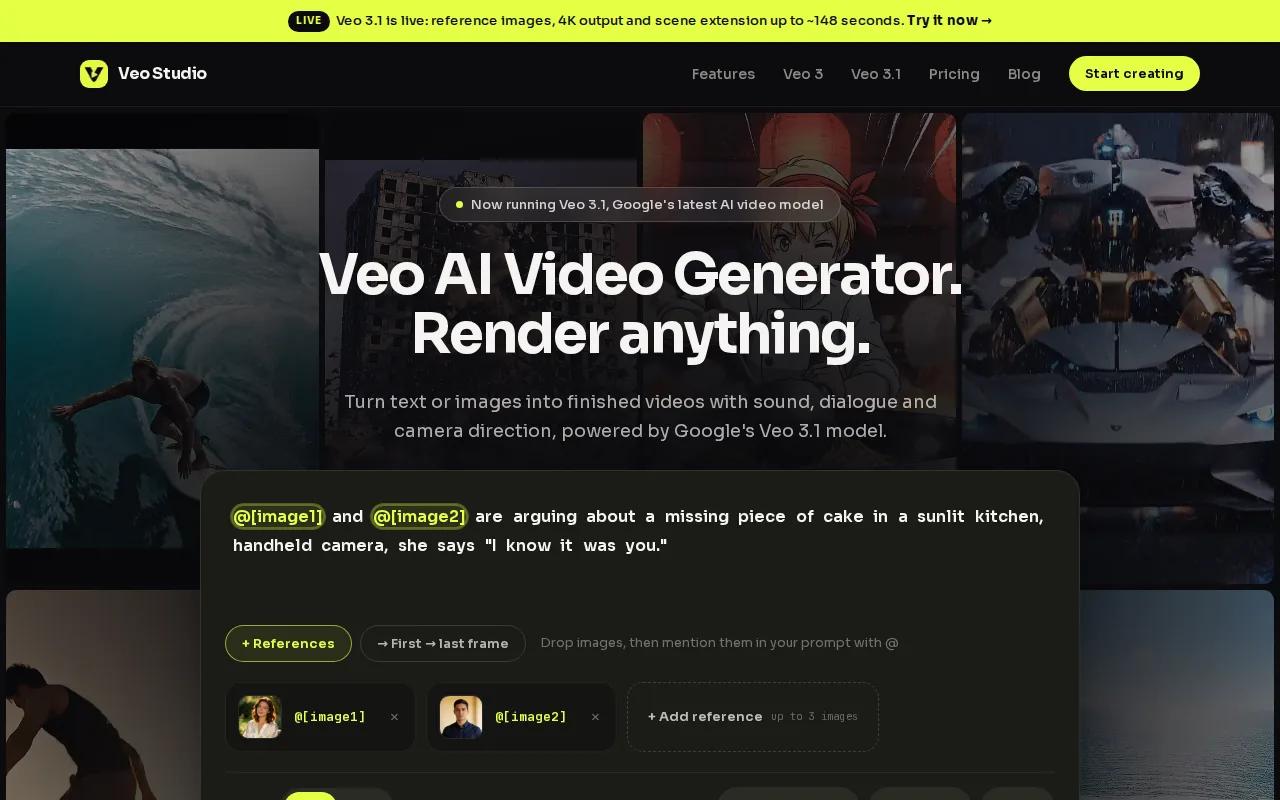
For an ad, describe the setting, camera move, action, and any line of dialogue. You can attach reference images to guide the look of a character or product. Veo Studio also supports first-and-last-frame control, so you can guide how a shot begins and ends. Its scene extension adds seven seconds at a time to eligible clips, and paid plans support output up to 4K.
That mix helps when an ad needs more than a silent product spin. A small shop could start with a product photo, ask for a slow close-up, then add a spoken line in the same generation. You can find more planning ideas in this article on product ads and promotional videos.
The free plan gives you a couple of 720p videos a month, with no card required. Paid plans start at $14 per month and include a commercial licence. For a recurring campaign, reference images can help keep the same person or product recognizable while you test different shot ideas.
2. Deevid: Fast ads from text, images, or URLs
Deevid is an ad-creation tool that can start with text, images, or a URL. It suits e-commerce teams and performance marketers who need to turn a product brief into ad variations without setting up a shoot.
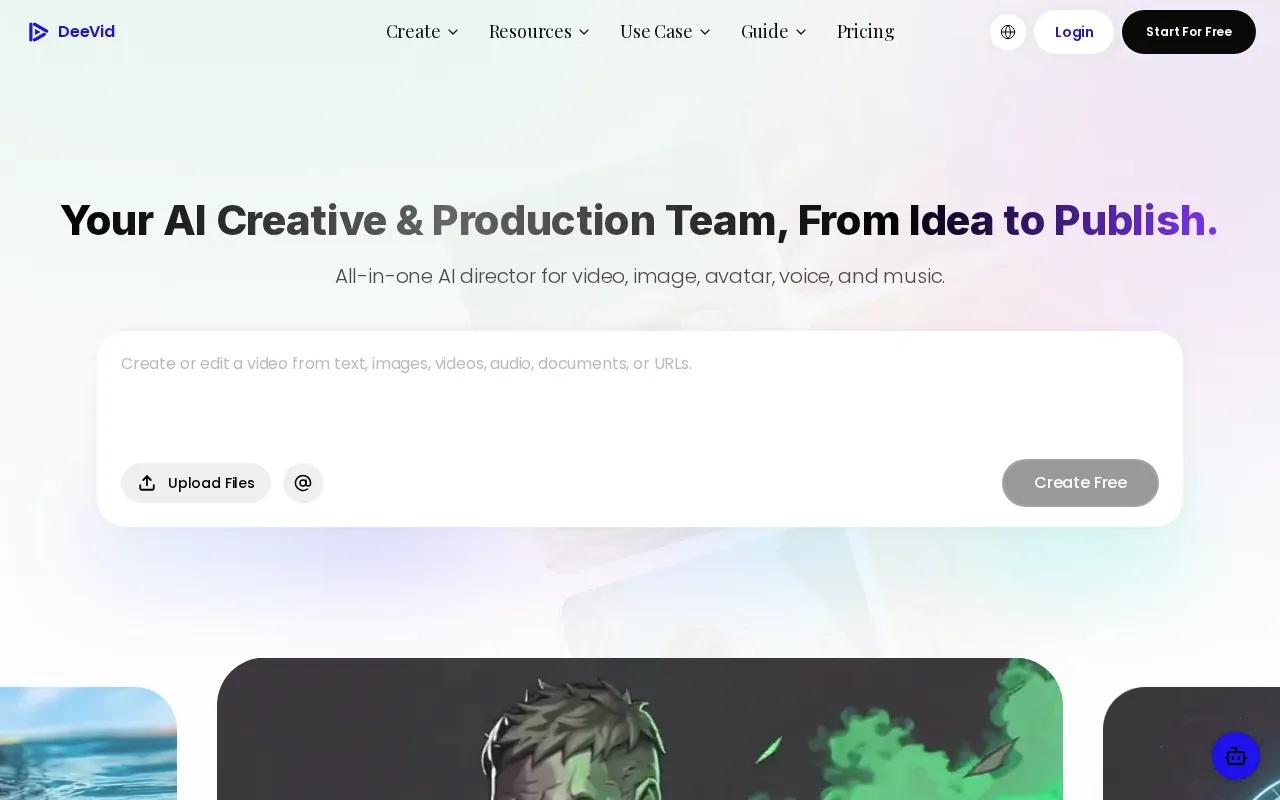
Its ad workflow can add voiceover, animation, and branded transitions. For a product spot, you can start with a product image or script and shape the output around the offer you want to show. That gives a marketer a quick first draft to review before spending time on fine edits.
Deevid makes ad videos for TikTok, Instagram Reels, YouTube Shorts, Facebook, and Google. That can help when the same campaign needs versions for vertical social placements and other ad channels.
Think of it as a way to get from a page or asset to a draft quickly. You’ll still want to check that product details, claims, and on-screen text match the offer before publishing. For a team testing new hooks, create distinct versions with a clear change in message, then compare them in your own campaign workflow.
3. Fliki: Script-to-video with AI avatars
Fliki turns text, scripts, or blog posts into videos with AI voices and avatars. It suits teams that have a script ready and want a talking-head format without filming a presenter.
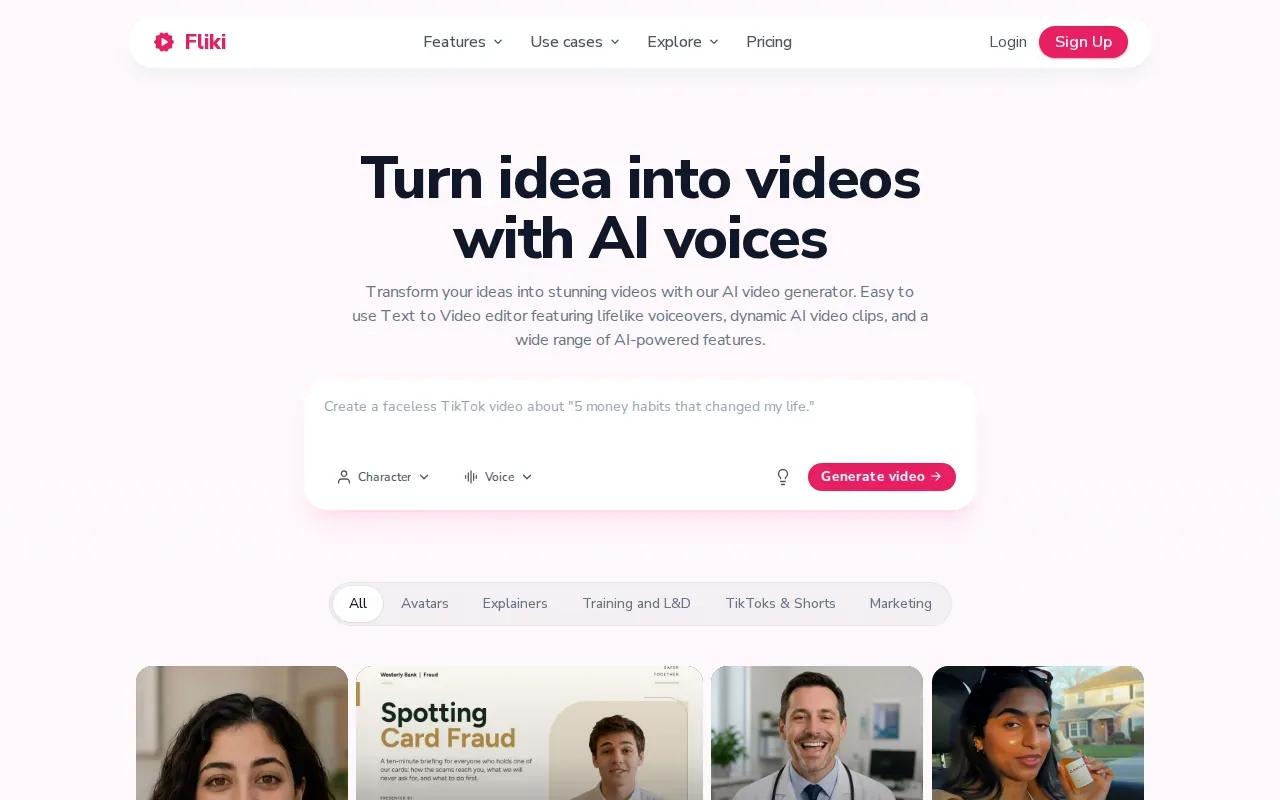
You can use a script for a product explainer, then choose an avatar to deliver the message. Fliki also lets users create a digital twin. That makes it a fit for teams that want a presenter-led style for repeated updates or explainers, rather than a cinematic product scene.
It offers more than 2,000 AI voices in over 80 languages. That range can help when you need narrated versions for different audiences. It also has character consistency, which can support a familiar on-screen face across a campaign.
Keep the script short and focused. A single clear benefit followed by one action is easier to review than a dense block of copy. If your ad depends on a casual creator-style delivery, an AI UGC video generator workflow may also be worth considering.
4. ImagineArt: Reference-image consistency across scenes
ImagineArt can maintain character consistency across scenes and formats via reference images. This can help when an ad series needs the same character to appear in multiple cuts.
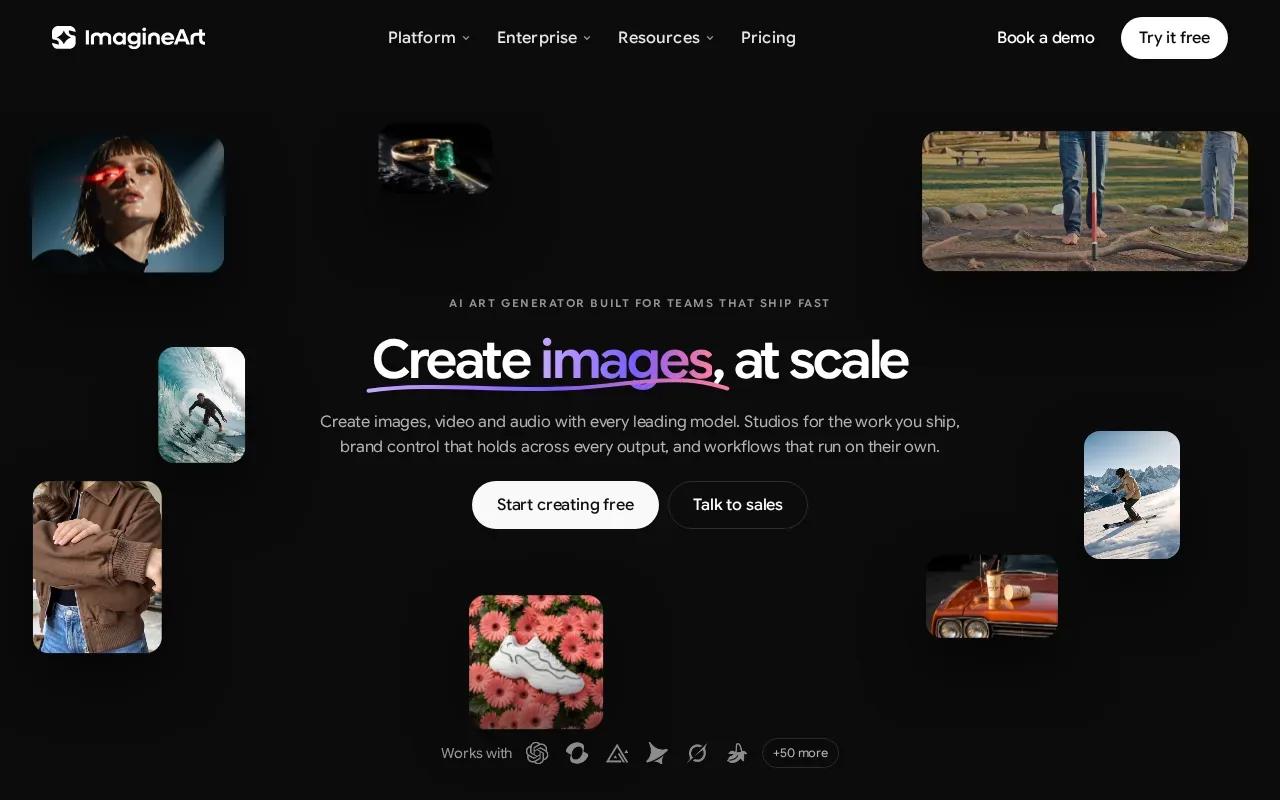
Use a reference image as visual guidance while building scenes around the same character. Review drafts side by side to check whether the character remains consistent; reference images provide a point of comparison during creative review.
ImagineArt has a free plan, with upgrades for more generations, higher resolutions, or team features.
For an ad series, start with one reference image and make a few scene drafts before building the full set. Check the character, product shape, and brand colors in each draft. Consistency can reduce visual drift, but a final human review still matters, especially when packaging or claims must match a real product.
5. AKOOL: 4K generation with native audio
AKOOL is a video creation platform with text-to-video, image-to-video, and video-to-video workflows. It suits teams that want to work from a prompt, a product image, or existing footage.
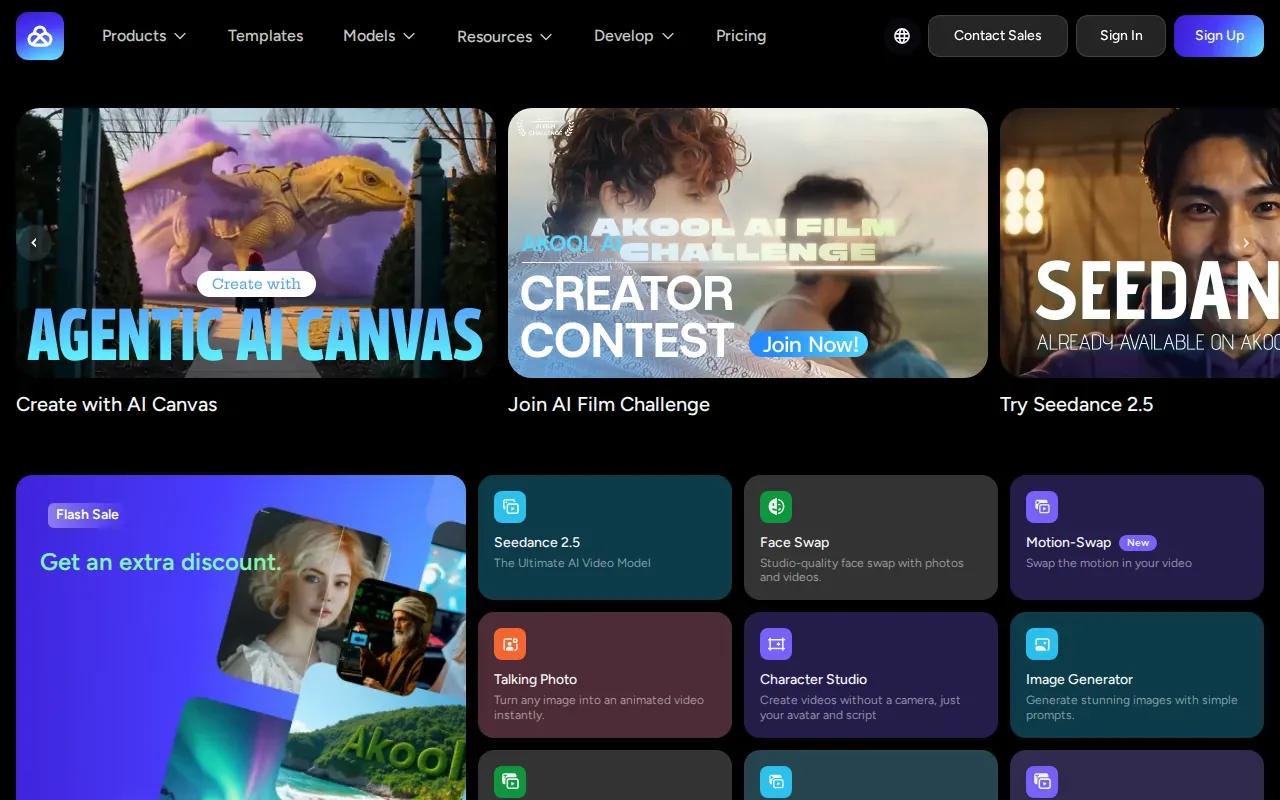
It offers 4K video generation with native audio using Seedance 2.5. Its broader video tool also has options for text prompts, image conversion, footage editing, reference-driven generation, face swap, motion swap, talking photos, and avatars. These controls can support different ad needs, from animating a still to making a presenter-led clip.
For a product ad, an image-to-video start can give the model a visual reference instead of asking it to invent the item from text. That’s useful when the item’s shape or appearance must stay recognizable. Before launch, review the generated result against the original asset and check all spoken or on-screen claims.
AKOOL’s feature set spans several types of video work. Pick the workflow that matches the source you already have. If you’re starting with a product photo, image-to-video is the most direct route; if you’re refining existing footage, video-to-video is the relevant option.
6. Kapwing: Prompt-generated videos with voiceover and subtitles
Kapwing is a browser-based video generator and editor. It suits creators and marketing teams that want to generate a draft, then refine scenes and add finishing edits in a timeline.
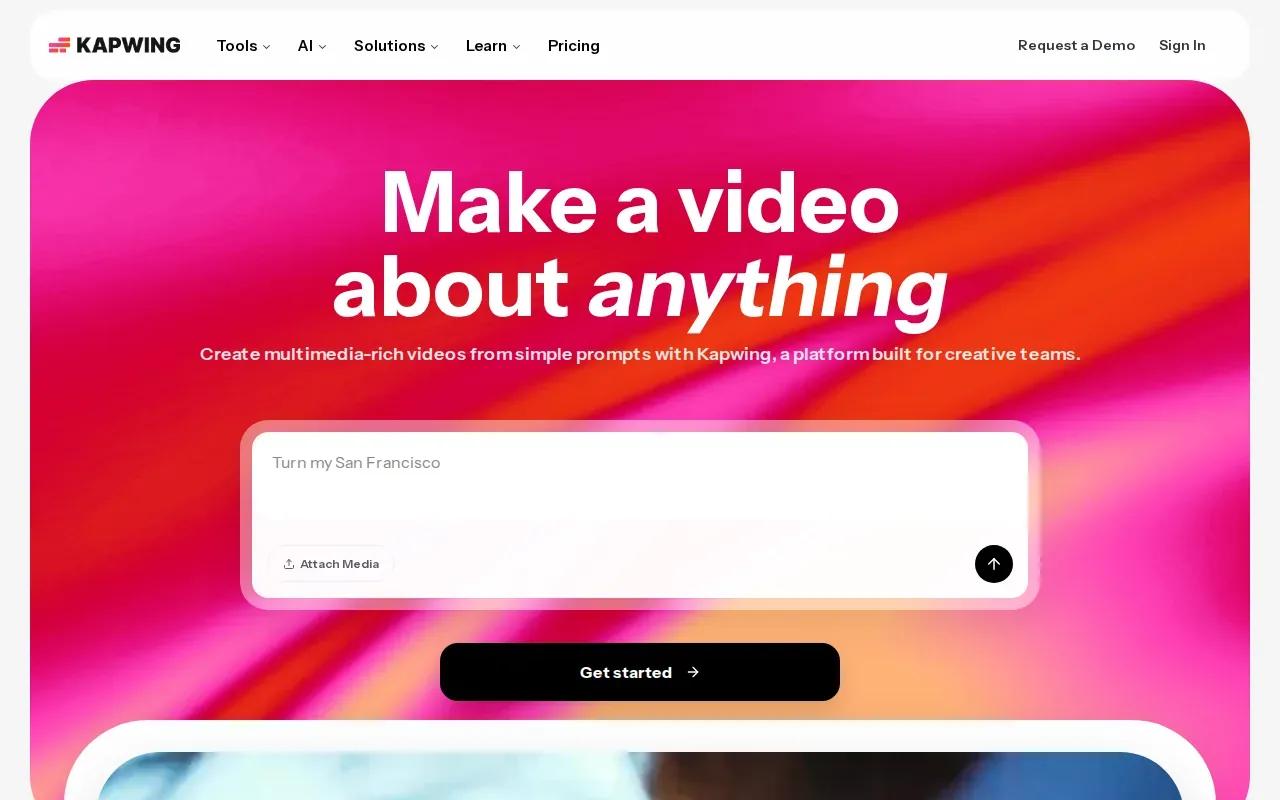
Start with a prompt, image, script, article, or PDF. Its AI assistant can help shape a prompt and plan scenes, shots, and camera angles. You can choose an aspect ratio such as 9:16 for TikTok or 16:9 for YouTube, then continue editing the project in the timeline.
Kapwing can add subtitles, voiceovers, music, and brand assets after generation. It also supports reference media and saved characters for reuse across scenes. For teams preparing several campaign versions, the editor can help adjust pacing, change the text, or resize a project without restarting from the first prompt.
The free version is available to try, but free exports contain a watermark. If a clip is meant for a paid campaign, check the export terms and review the final cut before publishing. A generated draft still needs a human check for product accuracy and platform fit.
AI Commercial Generators Compared
These tools don’t all solve the same production problem. Use this comparison to match your starting point and desired output to a workflow.
| Tool | Useful starting point | Notable workflow fit | Detail to check |
|---|---|---|---|
| Veo Studio | Prompt or reference images | Synced sound, dialogue, frame control, scene extension | Free plan is limited to a couple of 720p videos monthly |
| Deevid | Text, image, or URL | Quick ad drafts and platform-ready formats | Review offer details and generated copy |
| Fliki | Text, script, or blog post | Talking-head videos with AI avatars | Check avatar and voice choices |
| ImagineArt | Prompt and reference image | Consistent characters across scenes | Choose a plan based on generation volume and team needs |
| AKOOL | Prompt, image, or footage | Multiple video workflows, including 4K generation | Check the output against the original asset |
| Kapwing | Prompt, image, script, article, or PDF | Generation followed by timeline editing | Free exports include a watermark |
For dialogue-driven scenes with reference images and a route to 4K output, Veo Studio is a strong fit. If your brief is mainly a scripted presenter video, Fliki is more directly focused on that format. For a quick product-page-to-ad draft, Deevid’s URL input may save setup time.
Keep testing and measurement in your ad platform or campaign process. Generate variations with a specific change, such as the opening line or visual, then compare results using your own performance measures. The generator can make creative options; it can’t tell you which one will deliver a better return before you test it.
FAQ
What is an AI commercial generator?
An AI commercial generator turns prompts or media assets into video ad drafts. Depending on the tool, you might begin with a text brief, product image, script, or existing footage. The tool may generate visuals, speech, subtitles, or music. You should still check product details and ad claims before publishing.
Can I make social media ads with AI?
Yes, you can make social ad drafts with these tools. Deevid makes ad videos for channels such as TikTok, Instagram Reels, YouTube Shorts, Facebook, and Google. Kapwing also supports common aspect ratios for social platforms. Check the final video’s framing and text before posting, since each placement has its own layout.
Can an AI video tool keep the same character in each scene?
Some tools support character consistency, but the method varies. Veo Studio uses reference images to guide a character or product, while Fliki offers consistent characters in its videos. ImagineArt also uses reference images to keep characters consistent across scenes and formats. Review each generated shot to make sure the person still looks like the intended spokesperson.
Can AI-generated commercials include dialogue and sound?
Yes. Veo Studio generates synchronized sound and dialogue with its video output. Other tools in this list support voiceover or audio workflows, including Fliki and Kapwing. For a spoken ad, check that the words are correct and that the audio matches the scene. A final listen can catch issues that a quick visual review misses.
Are AI-generated ads ready to publish without editing?
Usually, you should review and edit a generated ad before publishing. Check the product’s appearance, pricing or offer details, captions, sound, and framing. Some tools include timeline or scene editing, while others focus on generating a draft. Treat the first render as a starting point, then confirm it meets your brand and ad requirements.
Conclusion
Choose the tool that matches your source material and the kind of ad you need. Start with a short prompt or a reference photo, then create a first video in Veo Studio and review the result before building out the campaign.


