A well-matched cutaway can make a talking video easier to watch, but finding or filming one takes time. An AI B-roll generator can make new footage or match visuals to spoken content. Here are six named tools, starting with Veo Studio, an independent browser-based tool powered by Google's Veo 3.1 models.
We analyzed 38 comments and questions from YouTube and Quora about AI B roll generators and found that 24% mentioned B-roll generation not working.
1. Veo Studio
Veo Studio turns text prompts or reference images into video with synchronized sound and dialogue. It fits creators who want to direct a specific shot, such as a close-up product view or a character speaking a short line.
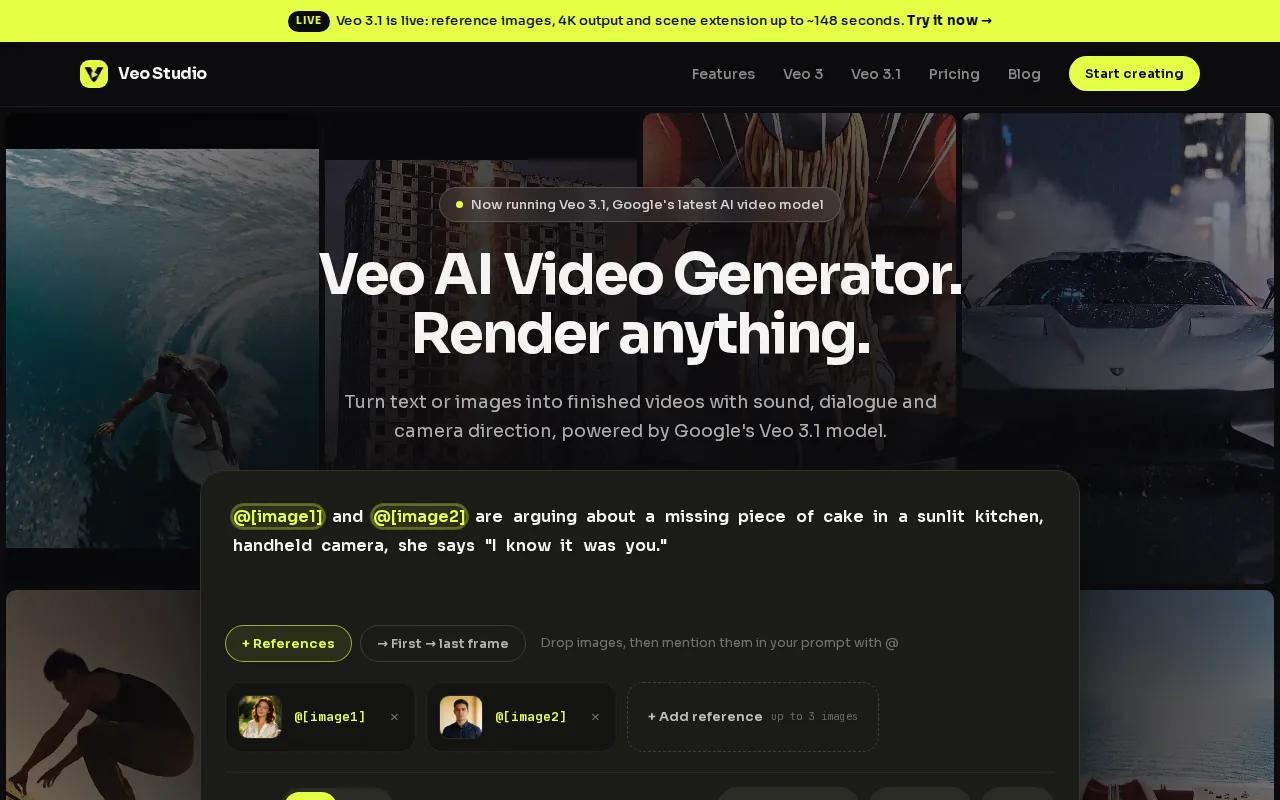
Rather than searching a stock library, describe the subject, action, setting, and camera move. You can attach up to three reference images to guide the look of a subject or product. First-and-last-frame control lets you supply two stills and generate the motion between them.
Sound comes with the generated video, including music, effects, or lip-synced dialogue. That can help when your B-roll needs a spoken line or sound that belongs to the scene, rather than a separate voice-over edit. Veo Studio also supports scene extension for supported clips and output up to 4K.
For a presenter-led video, pair the cutaway with a talking video workflow. If the clip needs to continue beyond its first few seconds, see the notes on extending a video with AI.
The browser-based tool has a free plan with a couple of 720p videos per month and no card required. Paid plans start at $14 per month and add more video capacity and higher resolutions. A generated clip is typically 4, 6, or 8 seconds before any supported extension.
Use Veo Studio when you need to direct the scene itself, preserve a visual reference, or include sound in the generated shot. For simple visual cutaways with no dialogue, you may not need every control.
2. Higgsfield AI
Higgsfield AI creates images, videos, and voice content from text prompts or references. It suits creators who want to start with a written scene idea or an image they already have, then work on the generated media within the same creative workflow.
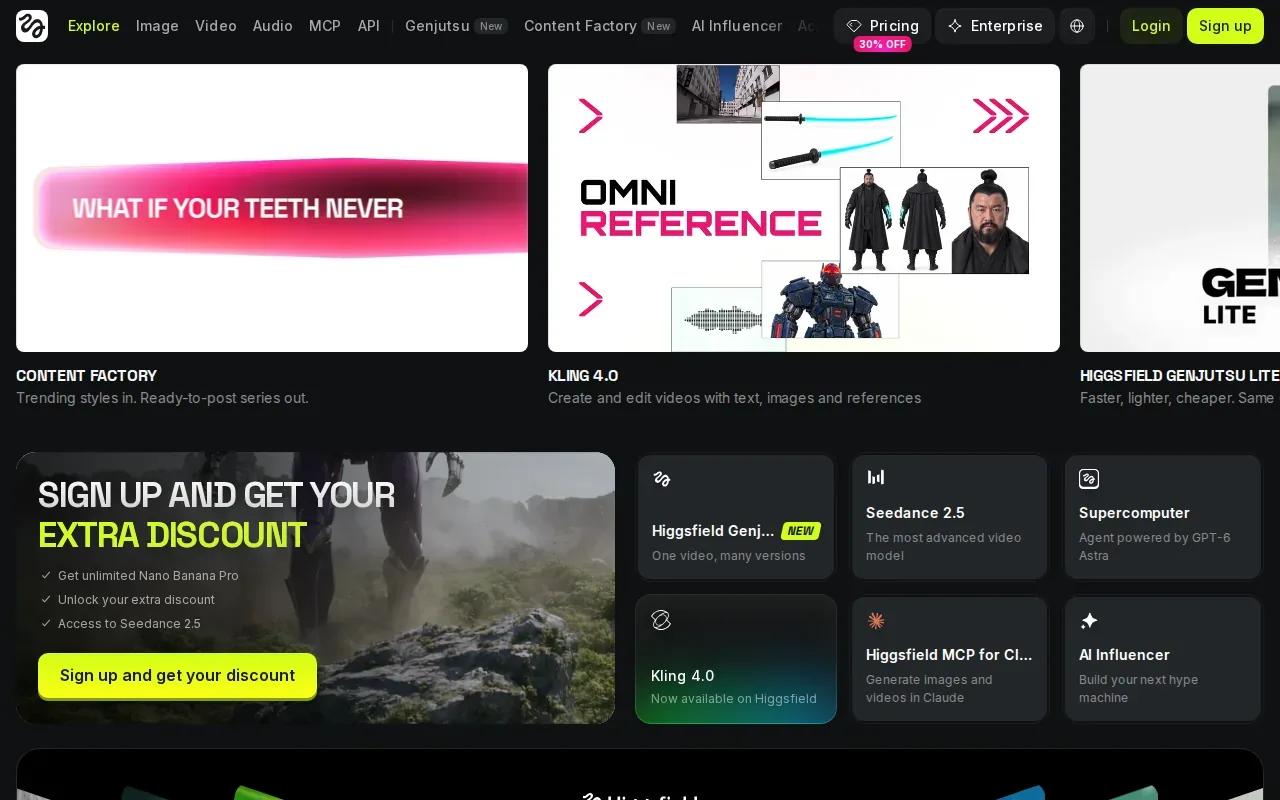
For B-roll, be clear about what the viewer should see. A prompt such as “a hand places a ceramic cup beside a sunlit window, slow push-in, natural morning light” gives the model a subject, action, camera move, and lighting direction. That level of detail makes the result easier to judge against the edit.
The tool set includes editing and upscaling media, plus an AI agent for automating creative workflows. Content can be made on web and mobile. Those capabilities make Higgsfield AI a possible fit when a creator needs generated visuals and plans to refine the media before placing it into a larger video.
Reference-led work can help when a product or character needs to remain recognizable. Still, inspect each generated frame before using it in an ad. Check the subject's shape, any visible lettering, and whether the movement matches the action you asked for.
Higgsfield AI is worth considering when reference input and later media edits matter to your shot. Keep the brief focused, then adjust one detail at a time if the scene misses the mark.
3. Async
Async is a chat-based AI creative suite for video production. It fits creators who want to describe B-roll needs in chat and move from raw footage or AI-generated scenes toward a finished video in one workflow.
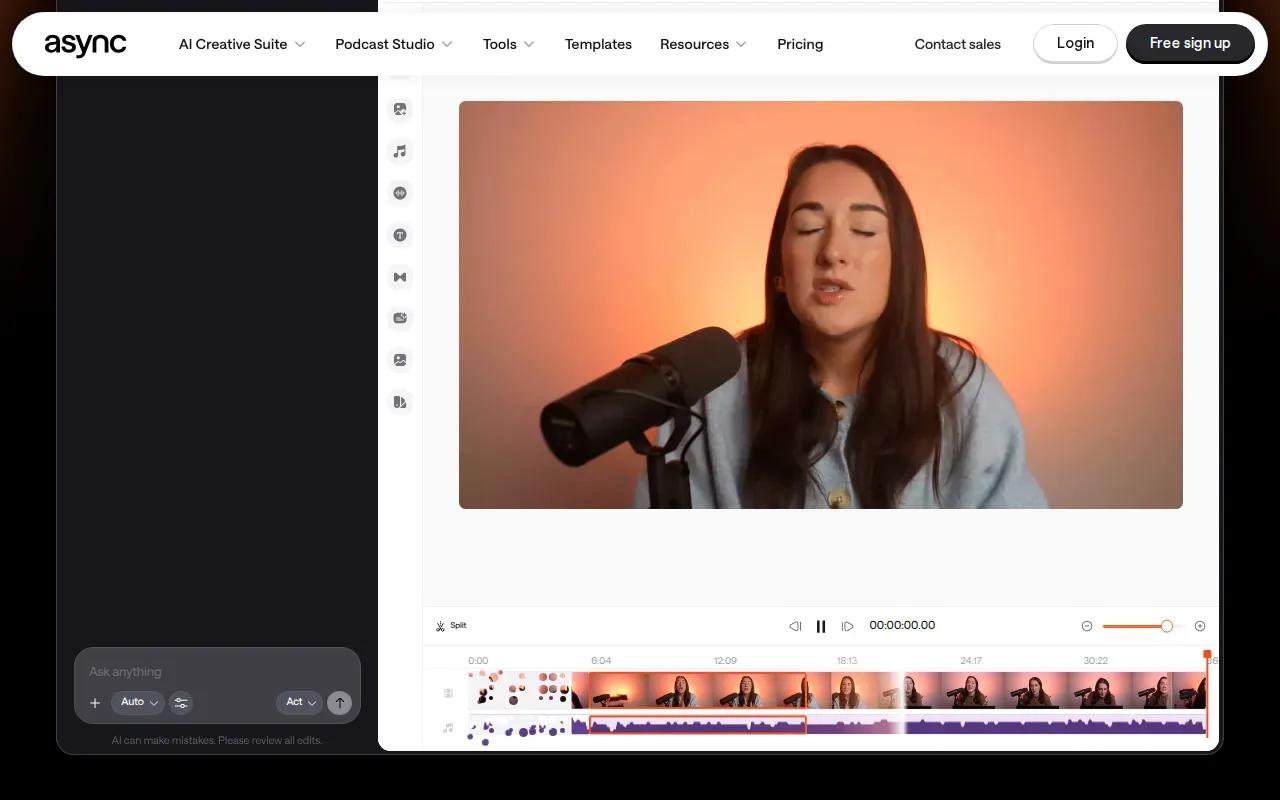
Its B-roll workflow starts with footage. Add your video, describe the shots you need in the AI chat, then review the suggested visuals. Async can find or generate relevant B-roll, so the chat can focus on what the edit needs: a cutaway for a spoken point, a transition, or more context for a scene.
You can fine-tune clips and add captions or music before export. That can be useful for a creator cutting a talking-head clip for social media: the spoken track stays at the center, while generated or found visuals break up long stretches of the same shot.
Keep your directions narrow. Ask for one kind of cutaway at a time, and name the moment in your footage it should support. If the proposed shot feels too polished for a casual vlog, request a more natural style and check the result before approving it.
AI can speed up the first pass, but it cannot judge whether a visual supports your exact point. Review every placement, especially when the footage shows a product or person. The final edit should still match what the narration actually says.
4. Submagic
Submagic focuses on short-form video with AI captions, B-roll, and smart edits. It fits creators making social clips who want those elements handled as part of a short-form editing workflow.
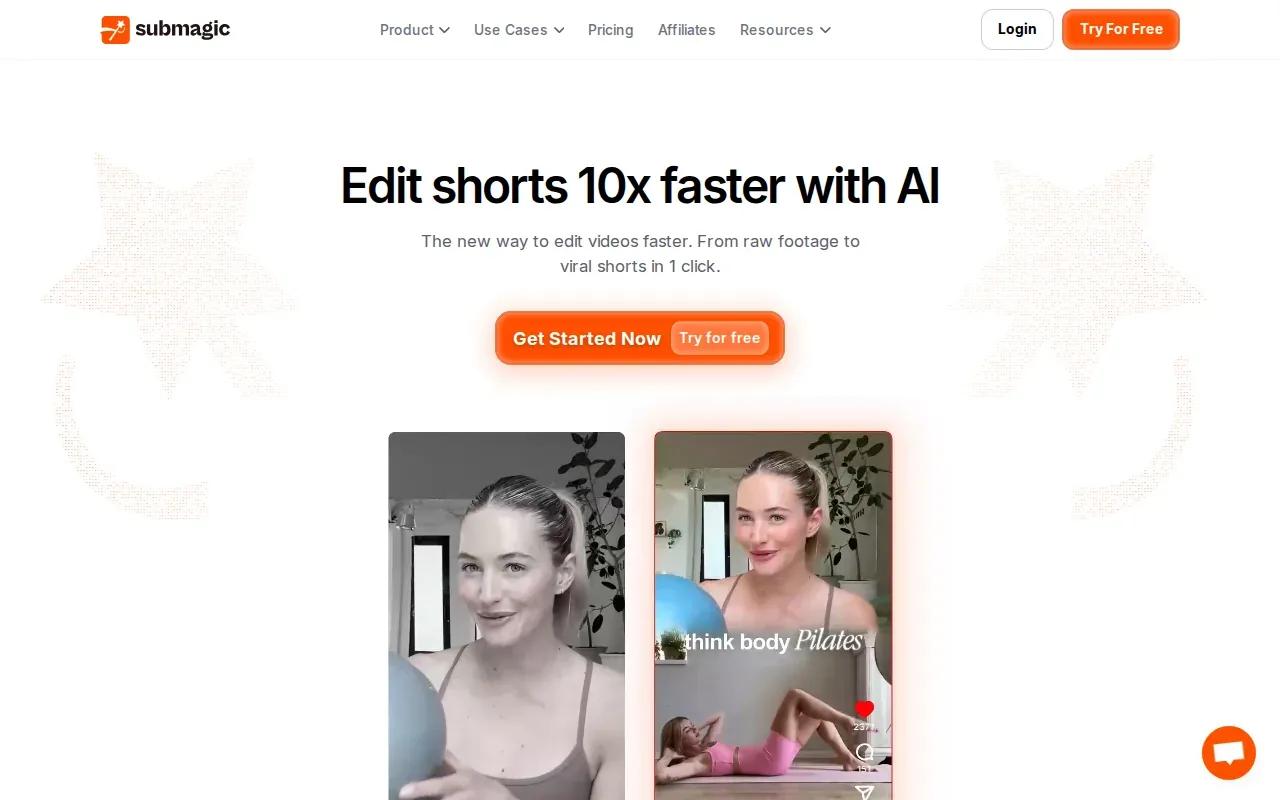
That focus can help when a clip needs more visual change without losing its main message. Captions can support viewers watching with sound off, while B-roll can add a visual break over a spoken section. Smart edits can shape the pace of the short video.
Before choosing any edit, watch the clip with its captions and visuals together. A cutaway should support the line being spoken, not distract from it. If a caption covers a key product detail or the B-roll suggests something the speaker did not say, adjust the edit.
Submagic's focus is short-form video, so it makes sense to assess it against social clips rather than a longer narrative project. For a creator who wants a prompt-generated scene with synchronized dialogue, compare that specific need with tools built around generating scenes from prompts or references.
The useful question is what part of the short-form edit you want the tool to help with. If captions and B-roll are central, Submagic's feature set aligns with that job. If the main task is inventing a custom scene, prioritize a prompt-based generator instead.
5. Kapwing
Kapwing can generate a full video project from a single prompt, and its B-roll tool matches footage to a video's topic. It suits marketers and other teams making explainers, product reviews, or tutorial videos in a browser-based editing workflow.
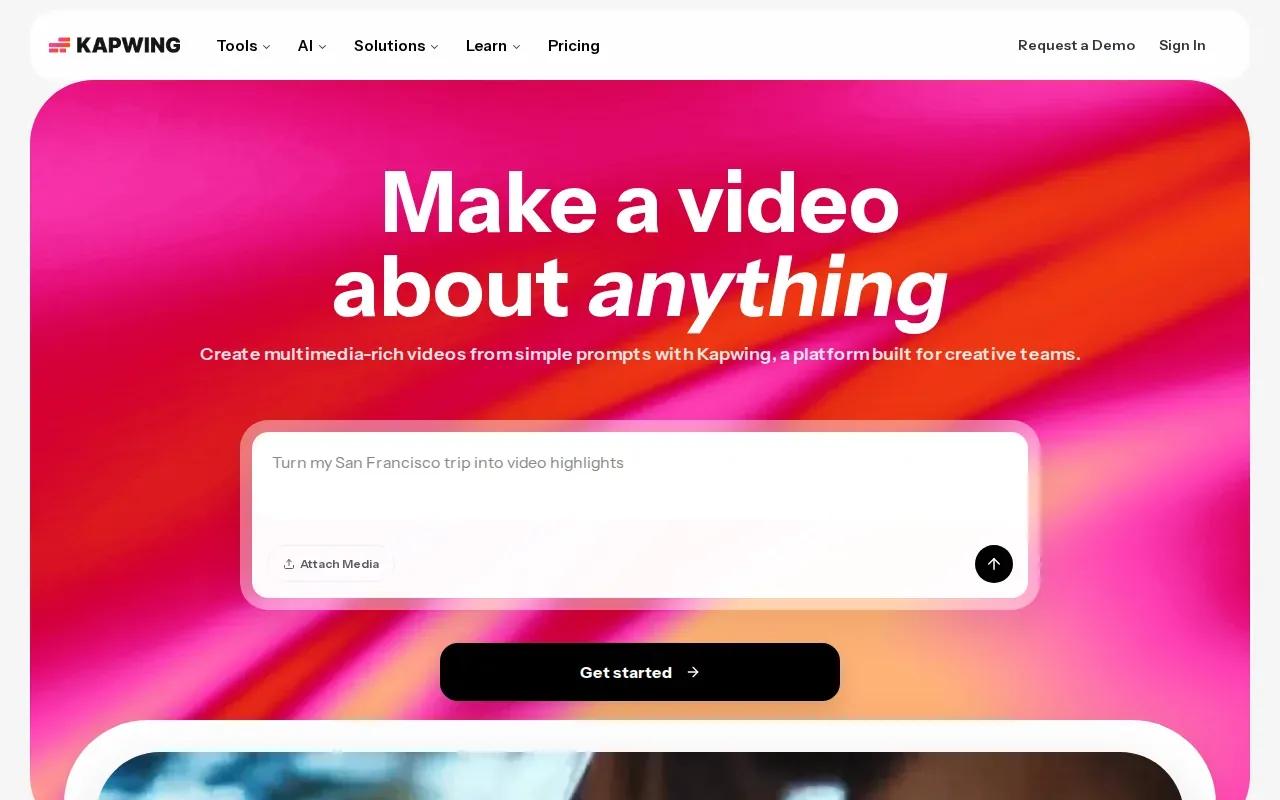
For automatic B-roll, Kapwing analyzes the transcript to find key themes and visual moments, then matches footage to the narration. Its tool can use stock footage or custom visuals generated from text prompts. That gives an editor two routes: use a ready-made visual for a familiar subject, or generate a more specific scene.
Kapwing places the B-roll in its editing timeline, where you can trim, reposition, resize, swap, or remove clips. Kapwing requires spoken audio for automatic matching. If your video has no spoken track, that transcript-based workflow may not fit the project as-is.
Kapwing's broader AI video maker can start with a text prompt, image, script, article, or PDF. You can continue editing the generated project in the timeline. For a marketing team, keeping generation and edits in one workspace can make it easier to review the cut before export.
Choose Kapwing when transcript-based matching and timeline edits matter to your work. Review the suggested cutaways against the original narration; automated placement is a draft, not a substitute for editorial review.
6. NemoVideo
NemoVideo is a chat-based AI video editing agent. It fits creators who want to ask for editing help in plain language and also want to find viral videos or analyze trends as part of making content.
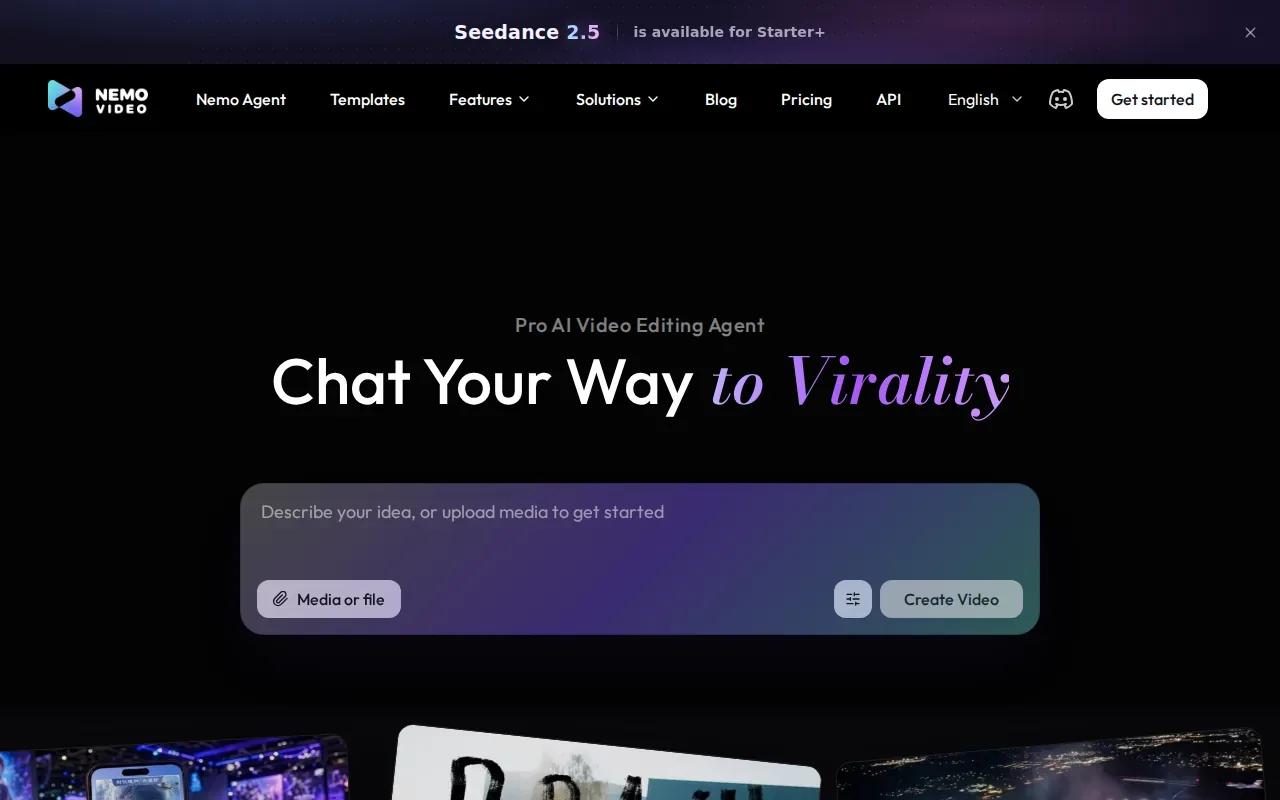
NemoVideo is built to hunt viral videos, analyze trends, and create ready-to-go content, with no editing skills required and a free way to start. That points to a workflow centered on chat and trend-aware content, rather than a narrow tool for adding B-roll to an existing talking-head cut.
Before choosing, match the tool to the kind of work you need done. This table compares the listed options by their starting point, not by overall quality.
| Tool | Starting point | Consider it when |
|---|---|---|
| Veo Studio | Text prompts or reference images | You want generated scenes with synchronized sound or dialogue. |
| Higgsfield AI | Text prompts or references | You want image, video, or voice content with editing and upscaling. |
| Async | Raw footage, AI scenes, or chat directions | You want B-roll within a chat-based video workflow. |
| Submagic | Short-form video | You want a workflow built around captions, B-roll, and smart edits. |
| Kapwing | Spoken video, a prompt, or other project inputs | You want transcript-matched B-roll or a prompt-made video project. |
| NemoVideo | Chat instructions and trend research | You want help with trend-aware content and editing tasks. |
AI-made B-roll is useful when a scene is hard to film or you need a specific visual concept. Stock footage can be a quicker fit for common subjects. Original footage remains the clearest choice when a real product, person, or event must be shown accurately.
For any generated clip, review motion and visual details before publishing. Mirrors and complex reflections can look inconsistent, while overly dramatic lighting or camera moves can make a casual ad feel staged. Use a reference image when the subject needs a recognizable look, and keep the prompt focused on visible action.
FAQ: AI B-Roll Generators
What does an AI B-roll generator do?
An AI B-roll generator makes supporting video or helps match visuals to an existing video. Some tools start with a text prompt or reference image, while others analyze spoken content and place related footage near the matching moment. You still need to review the shot, timing, and context before the edit is ready to publish.
Can AI add B-roll to an existing video?
Yes, some tools can analyze a video's spoken content and suggest or insert matching B-roll. Kapwing offers a transcript-based workflow, while Async lets you add footage and ask for relevant visuals through chat. Check whether the tool needs spoken audio, then review every placement and swap any cutaway that doesn't fit.
How do I write a prompt for AI B-roll?
Describe the subject, the action, the setting, and the camera move in plain words. Add a lighting or style cue when it matters, such as “soft window light” or “handheld phone footage.” Keep the prompt focused on what should happen in the shot, then change one detail at a time if the first result misses.
Can AI B-roll include sound or dialogue?
Yes, Veo Studio can generate video with synchronized sound and dialogue. That can help when a cutaway needs sound effects, music, or a character speaking in sync with the scene. Other B-roll workflows may focus on matching visuals to existing narration, so check whether you need generated sound or only a visual overlay.
Should I use AI B-roll, stock footage, or original footage?
Use AI B-roll when you need a made-to-brief scene or a subject that is difficult to film. Stock footage can suit familiar cutaways that don't need to match a specific product or person. Use original footage when accuracy and trust depend on showing the real item, person, or event. You can mix these sources in one edit.
Conclusion
For creators who need directed scenes with synchronized sound, reference control, and scene extension, Veo Studio is a strong place to start.