

A prompt can give you more than moving pictures: some AI tools generate sound with the video, too. Here are four options and Veo Studio, an independent browser-based tool powered by Google's Veo 3.1 models, with notes on how each handles dialogue, voiceovers, and clip length.
We analyzed 48 YouTube comments about text-to-video with sound and found that 21% mentioned adding custom voiceovers.
1. Veo Studio: Browser-based video with synchronized sound and dialogue
Veo Studio, an independent browser-based tool powered by Google's Veo 3.1 models, turns text prompts or reference images into video with synchronized sound and dialogue. It’s a fit for creators who want to direct a scene, keep a character’s look steady, or make a short product spot without filming every shot.
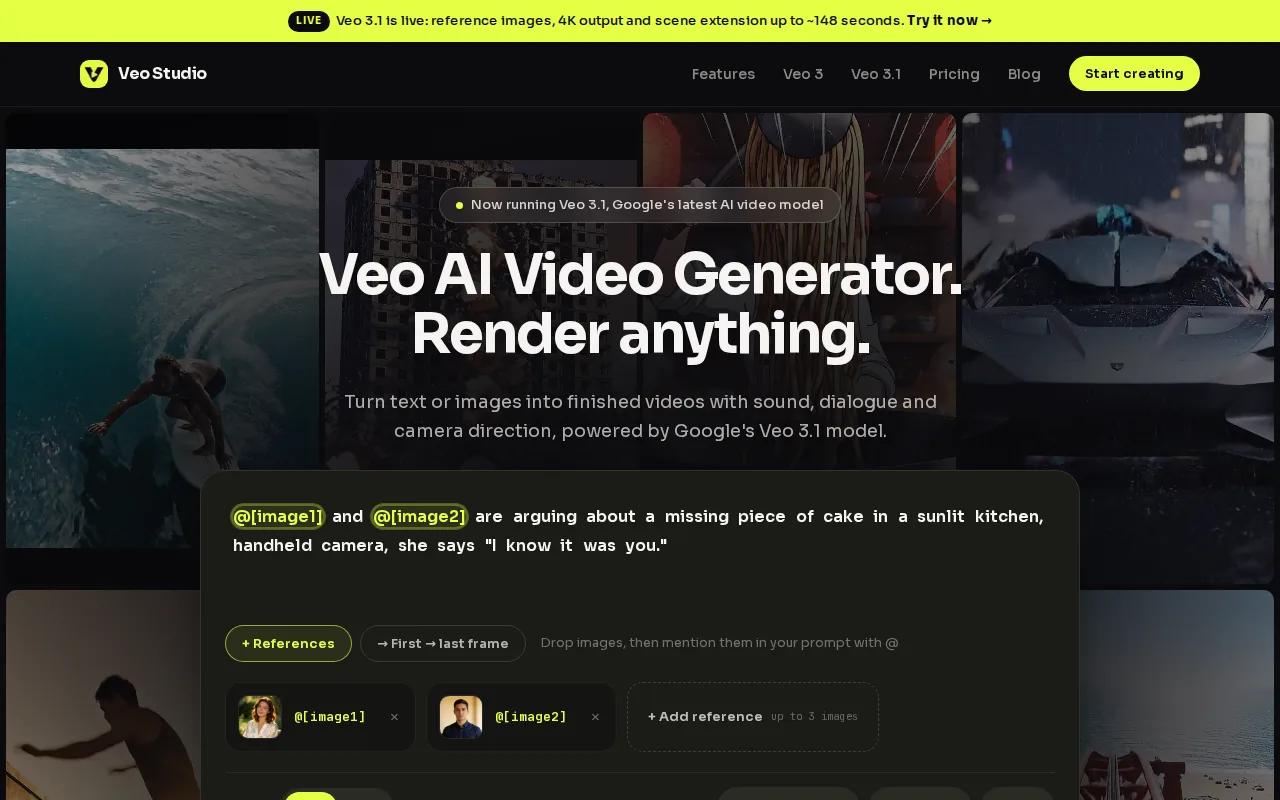
Describe the action, setting, and camera move in plain language. Add a spoken line in quotation marks when you want a character to say it. Veo Studio generates the picture and audio together, including lip-synced dialogue. That means you can review the line against the character’s mouth movement in the same clip.
Reference images help carry a character, product, or visual style through a scene. You can also set the first and last frames to guide a transition. For a product ad, for example, start with a photo of the item, describe a slow camera move, then set the final frame around the view you want the clip to reach.
Veo Studio supports 16:9 and 9:16 video. Clips run 4, 6, or 8 seconds, with 4K output available on supported plans and settings. At 720p, scene extension adds 7 seconds per step, up to roughly 148 seconds of continuous video. Extension is available for 48 hours after generation.
The free plan includes a couple of 720p videos each month, with no card required. Paid plans start at $14 per month. You can read more here before you write your first prompt.
For a first test, keep the scene simple: one subject, one clear action, and one spoken line. Then listen to the full clip and check that the dialogue, motion, and sound suit the intended cut.
2. OpenArt: Lip-synced voiceovers, music, and sound effects
OpenArt is an online video creation and editing platform with text-to-video and image-to-video workflows. It suits creators who want to generate a clip, add lip-synced voice, then work on the result in the same creative space.
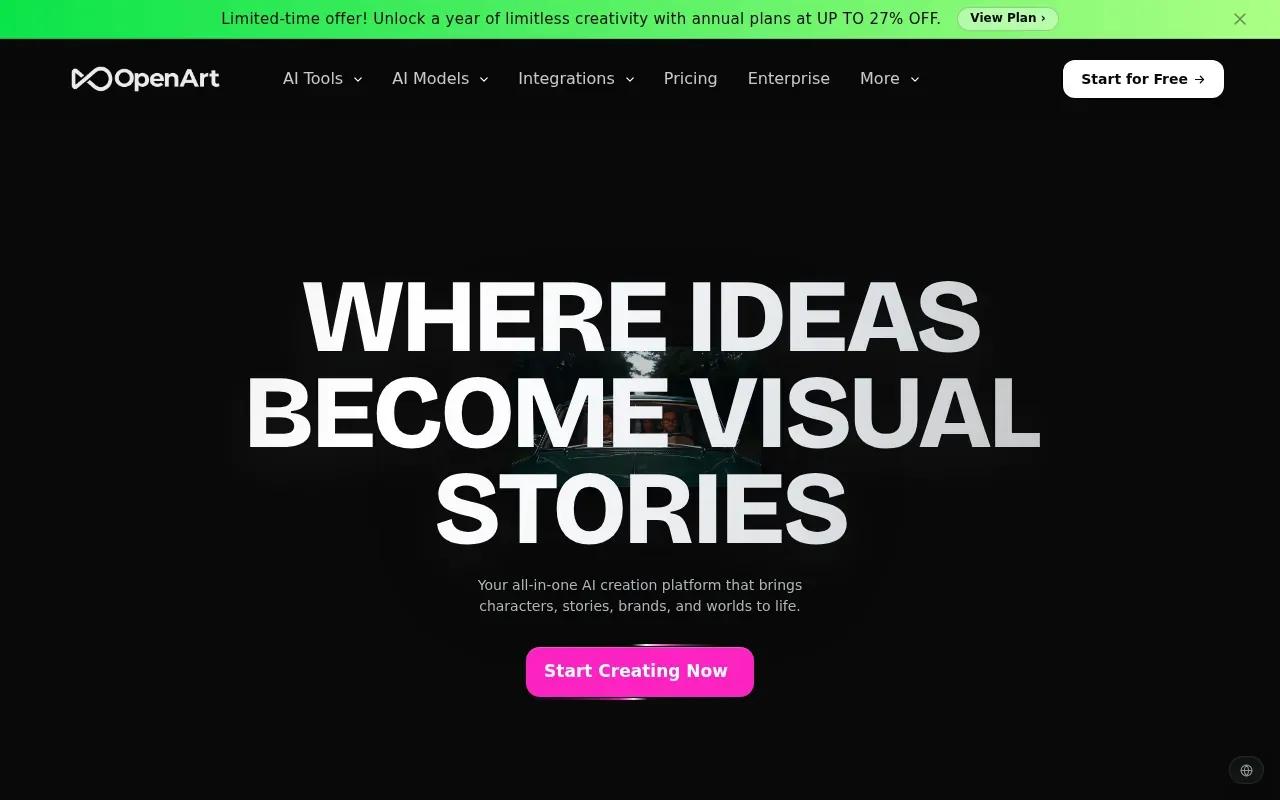
OpenArt supports AI voiceovers with lip-sync, music, and sound effects. Saved characters can keep the same face and style across clips, which can help when you’re making several scenes around one presenter or character. You can start with a text prompt or use a still image as a reference.
Camera direction can be part of the prompt. Describe a pan, orbit, zoom, or tracking shot to guide the view. For a sequence with more than one angle, plan the shots before refining its look.
OpenArt also has a Lip Sync workflow for talking-head and presenter clips, using a voiceover to match speech with the character. For an explainer, you might start with a presenter reference, add narration, and then build supporting visuals around the spoken message. Check the final audio and mouth movement before publishing.
The broader audio workflow is useful when a clip needs more than a music bed. For audio considerations, see Veo Studio’s overview of AI video sound tools.
OpenArt may suit a project that needs several visual directions or a recurring character. Its mix of generation, character tools, and editing gives you room to shape a clip after the first render.
3. Kapwing: Prompt-to-video projects with voiceover and subtitles
Kapwing turns a prompt into an editable video project with voiceover, visuals, subtitles, music, and characters. It’s a natural fit when you want a complete draft from text, then plan to edit the timeline before export.
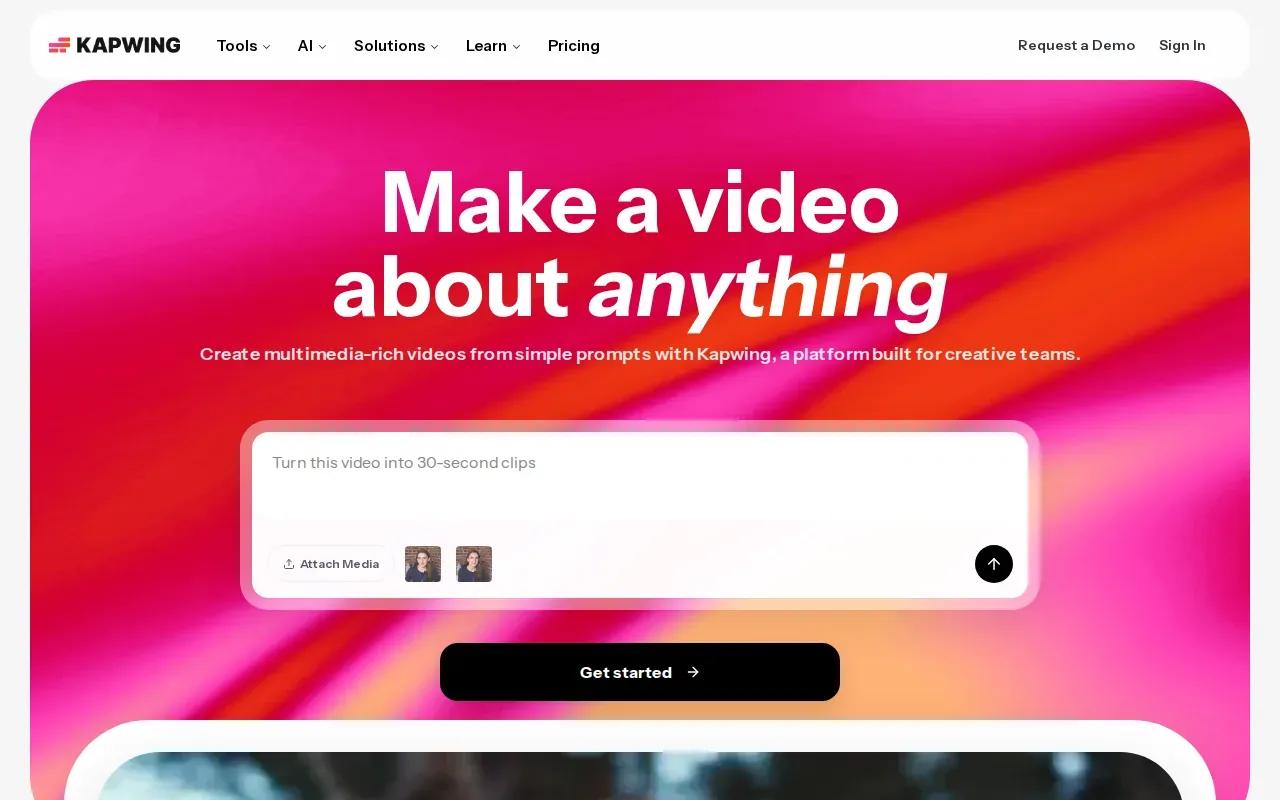
You can begin with a prompt, script, article, or other written idea. Kapwing can propose scenes and pacing, then generate a project with multiple scenes. Its editor lets you adjust subtitles, swap clips, change music, and resize the result for a platform.
That edit-after-generation workflow is useful for a social post or product update where the first draft is only a starting point. For example, turn a short brief into a narrated draft, review the scene order, then replace a visual or adjust captions before exporting.
It supports exports up to 1080p, while its text-to-video projects can run from 15 seconds to 5 minutes. That longer project range can help when a brief needs more than one short generated scene.
Sound is part of the assembled project: voiceover and music can sit alongside the generated visuals and subtitles. If you need a character’s spoken line to match its lip movement inside a generated scene, check that specific shot carefully rather than assuming every voice track is lip-synced.
Kapwing’s strength is the editable project. If you prefer to make the video draft and polish it in one browser-based workspace, the timeline gives you direct control over the finished cut.
4. Wan 3.0 by Alibaba: Longer generations with native dialogue and effects
Wan 3.0 by Alibaba generates video with dialogue, background music, and sound effects in the same pass as the picture. It’s worth considering when one continuous generation needs to run longer than a few seconds.
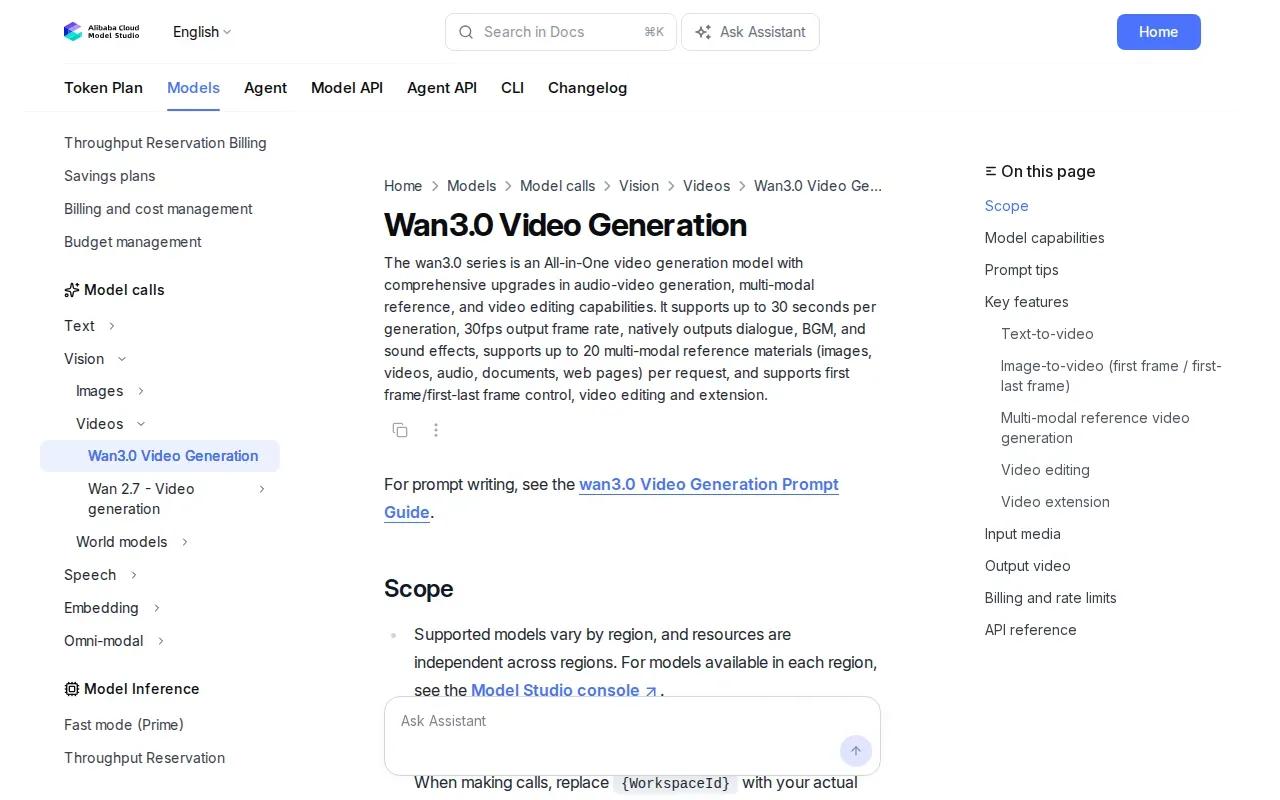
A single generation can run from 2 to 30 seconds, with output up to 1080p. The model generates audio alongside the visuals, with sound synchronized from the first frame. For a scene that starts with a spoken line and continues into a change in action, that longer span can keep the idea in one generated clip.
Wan 3.0 supports text prompts as well as image, video, and audio references.
For example, a creator can provide a character image and prompt a short scene with a line of dialogue and a specific camera move. A team with existing reference footage or audio can use those materials to guide the generation instead of describing every detail from scratch.
As with any generated dialogue, listen to the result and compare the spoken words with your script. If exact wording matters for an ad or lesson, review it before you share the clip. Native sound can save a separate audio step, but it doesn’t remove the need to check the finished scene.
Choose Wan 3.0 when the longer single-generation limit matters more than a 4K export. Its documented maximum resolution is 1080p.
5. HeyGen: 4K avatar videos with voice cloning
HeyGen makes text-led videos with AI presenters, voiceovers, and captions. It suits teams that need a recurring presenter or want to use a cloned voice across video content.
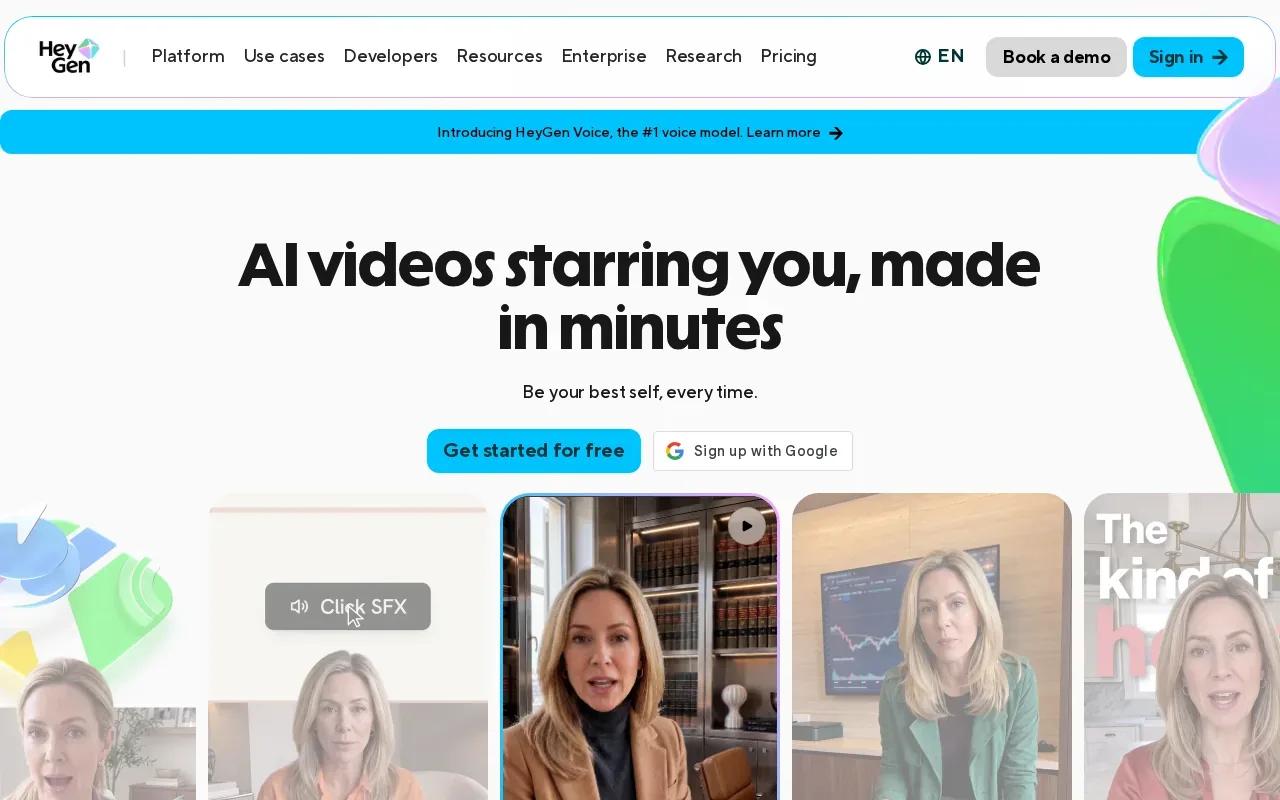
You can paste a script or prompt, choose a presenter, and shape the visuals. HeyGen also lets you create a custom digital twin and clone a voice. That can help keep the same speaker across a set of explainers without filming each one again.
HeyGen’s text-to-video workflow can also make a video without an on-screen presenter. Add a voiceover, then use AI scenes or B-roll to carry the message. Captions are generated with the video, and the editor lets you adjust elements before exporting.
For a team creating training or marketing content, the avatar format changes the main question: do you need a person speaking to camera, or would a scene with environmental sound and character dialogue fit better? HeyGen’s voice cloning and digital twins fit the presenter-led case. Veo Studio’s generated scenes may be a better match when you want the dialogue to belong to a character in the action.
HeyGen’s Pro plan costs $49 per month, includes 1,000 credits, and offers 4K export. HeyGen supports voice cloning and custom digital twins. If you’re comparing outputs, check the project’s needs for presenter style, clip length, and export resolution before choosing.
Compare the text-to-video-with-sound tools at a glance
Start with the kind of sound your scene needs. A spoken character, a narrator, and a music bed call for different checks. Clip length and editing control matter just as much as the first render.
| Tool | Sound workflow | Useful distinction | Consider it for |
|---|---|---|---|
| Veo Studio | Generated sound with lip-synced dialogue | Reference images, frame control, scene extension, up to 4K | Directed scenes and short clips that may need extension |
| OpenArt | Voiceovers with lip-sync, music, and effects | Saved characters and video editing tools | Recurring characters and multi-angle planning |
| Kapwing | Voiceover and music in editable video projects | Timeline editing and subtitles | Script-led projects that need edits before export |
| Wan 3.0 by Alibaba | Dialogue, background music, and effects generated natively | Generations up to 30 seconds and 1080p | Longer single-scene generations |
| HeyGen | Voice cloning for presenter-led video | Custom digital twins and 4K export | Videos built around a recurring presenter |
Audio made with video can be convenient, but sound quality and timing still need a human check.
Frequently Asked Questions
What is text-to-video with sound?
Text-to-video with sound turns a written prompt into moving images with audio. Depending on the tool, the sound may include dialogue, a voiceover, music, or effects. Some systems generate audio with the visuals, while others assemble voice and music into an editable video project. Check which type fits your scene before you start.
How do I write a prompt for a video with sound?
Describe one clear subject and action, then add the setting and camera move. State what you want to hear, such as a line of dialogue or a quiet room tone. Put a line in quotation marks when you want a character to speak. Keep details consistent, then review the generated audio and visuals together.
Which tool can make a longer AI video in one generation?
Wan 3.0 by Alibaba supports a single generation up to 30 seconds. Kapwing can build editable projects from 15 seconds to 5 minutes, but that’s a project-length range rather than one continuous model generation. Veo Studio’s 4-to-8-second clips can be extended in 7-second steps at 720p.
Can AI-generated dialogue match a character’s mouth?
Yes. Veo Studio generates lip-synced dialogue, and OpenArt supports voiceovers with lip-sync. Those features can help when a character needs to speak on screen. Still, check the mouth movement and listen to each line in the final clip, especially when exact wording matters.
Conclusion
For prompt-led scenes with synchronized dialogue, reference-image control, and a path to longer clips, try Veo Studio first. Start with a short prompt and a single spoken line, then review the result before building out the next scene.


