
A video can look finished and still feel flat when its sound misses the action. An AI video sound generator can build audio into a scene or help you add a voiceover and effects afterward. Here are six tools to compare, starting with Veo Studio.
1. Veo Studio
Veo Studio is an independent, browser-based AI video creation tool powered by Google's Veo 3.1 models. It turns a prompt or reference images into video with synchronized sound and dialogue, character consistency, frame control, scene extension, and output up to 4K on supported plans.
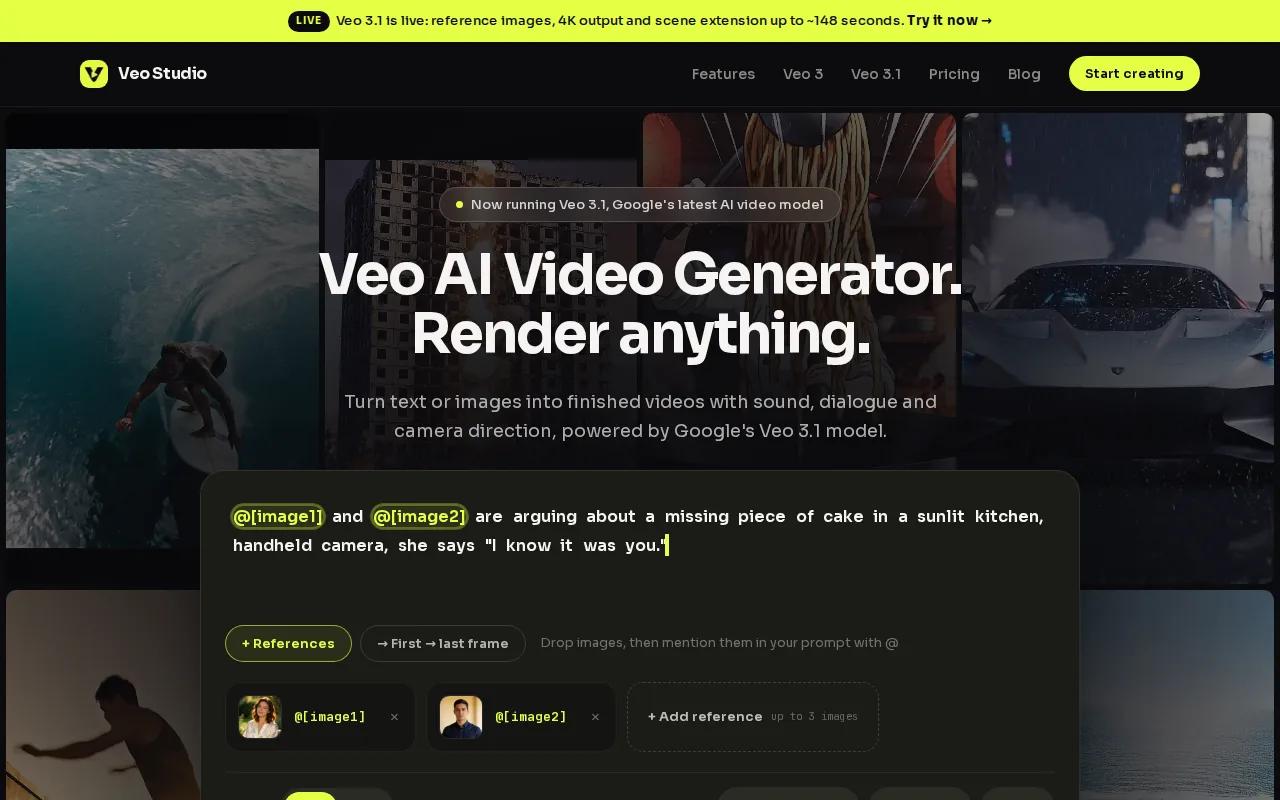
It fits creators making short narrative scenes, product spots, or social clips where sound should follow the action. Describe the shot and camera move in plain language. Put a character's spoken line in quotation marks when you want lip-synced dialogue.
The sound is generated with the video, so you can test a spoken line or an ambient scene without building a separate audio track first. Reference images can help keep a person or product consistent, while first- and last-frame controls shape how the shot begins and ends. For longer sequences, finished clips can be extended in seven-second steps, up to roughly 148 seconds.
If dialogue is the main feature you need, compare the different AI talking video generator workflows before settling on a production style.
Veo Studio supports native audio generation, reference-image guidance, first-and-last-frame generation, and video extension. Those controls are useful when the brief depends on more than a generic soundtrack.
Veo Studio has a free plan with a couple of 720p videos each month and no card required. Paid plans start at $14 per month and include higher-resolution options and a commercial licence. A base clip is four, six, or eight seconds, so plan a short test before building a longer sequence.
2. HeyGen Video: A whole scene with dialogue, ambience, and effects
HeyGen Video generates a scene in one pass with a matching track of dialogue, ambience, and sound effects. It suits creators who want the sound and picture to arrive together rather than assembling each element from separate files.
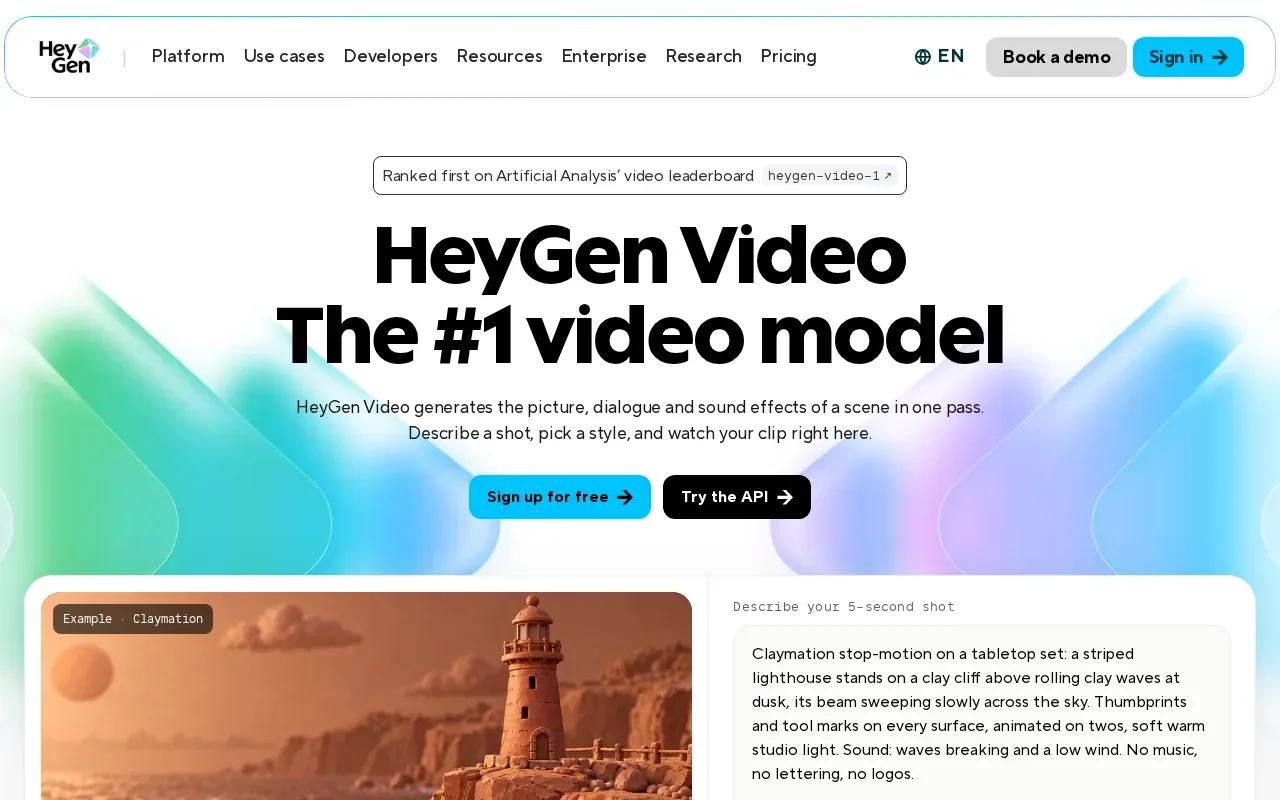
For a short scene, describe what happens on screen and what you want to hear. A clear brief might name one action, the room tone, and a short line of dialogue. That gives the generator a specific sound target instead of asking for a vague cinematic mood.
Think about a product clip where a lid clicks shut, followed by one spoken sentence. If the effect lands late or the dialogue is hard to understand, the output still needs a review before you post it. Automated sync can reduce manual alignment, but it doesn't remove the need to listen through the full clip.
HeyGen's broader talking-video workflow is also relevant when the scene needs a presenter or an avatar speaking to camera. The comparison of talking video tools can help you separate presenter-led content from generated narrative shots.
Keep the prompt focused. State the sound source and its timing, then name any sound you don't want, such as background music. This is especially useful when a clean spoken line matters more than a dramatic score.
HeyGen Video is a fit when you want dialogue, ambience, and effects in one generated scene. Check the rendered speech and sound placement before using it in a campaign or client deliverable.
3. Fliki: Script-to-video with voiceover and captions
Fliki turns a blog post, script, or prompt into a video with AI voiceover, visuals, music, and captions. It suits creators who start with words and want a narrated video draft, rather than a single cinematic shot with native dialogue.
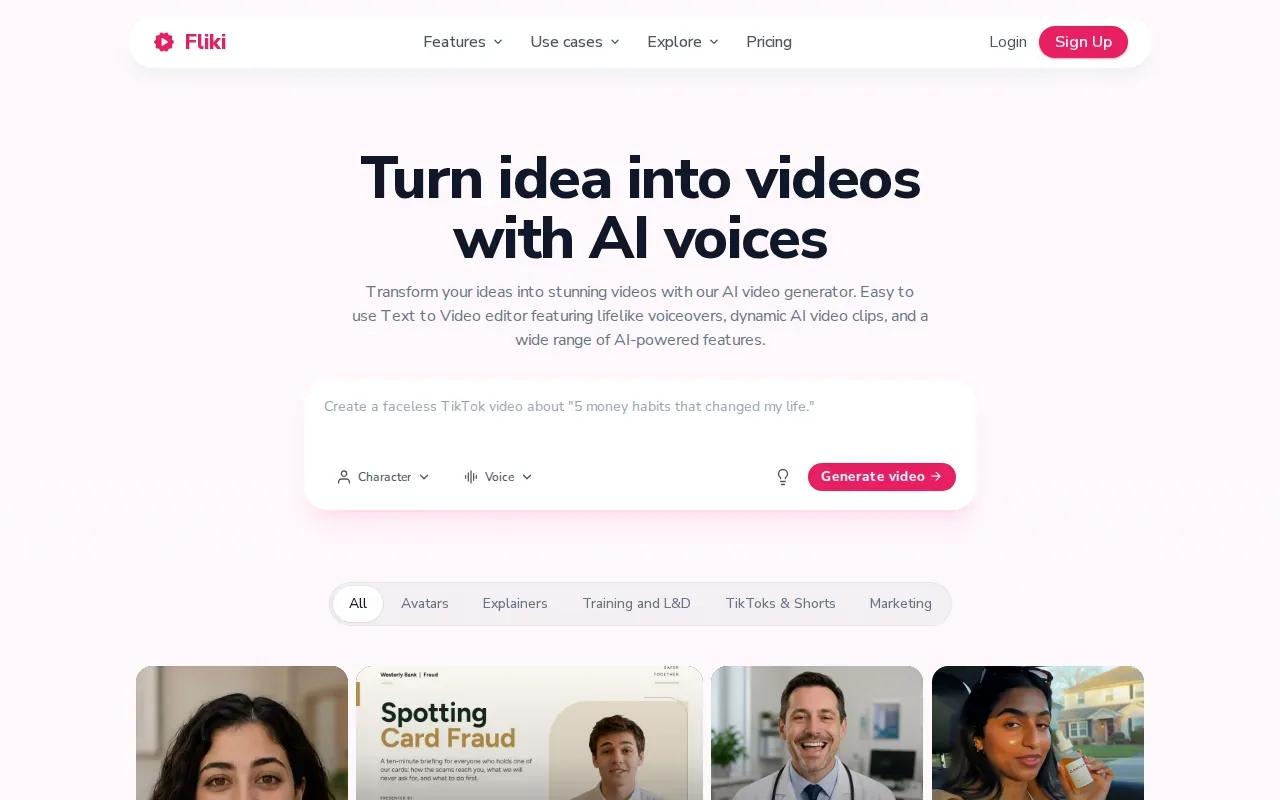
Paste in a script or prompt, then review how the voiceover and visuals work together. A product explainer, for example, can use a short spoken explanation while captions make the main points easy to follow with the sound off.
Fliki's text-to-video workflow puts narration and visual assembly in the same process. It also supports talking-head video with a lifelike AI avatar. Fliki supports character consistency across scenes, which can help when the same presenter needs to return throughout a video.
Its sound role differs from a native-audio video model. Fliki's workflow pairs voiceover with visuals, music, and captions; that is useful for scripted explainers or repurposed articles. It isn't the same as asking a character inside a generated scene to speak a line with the action.
For a social post, keep the script brief and listen for pacing before export. A voiceover that reads every sentence at the same speed can make an otherwise polished visual feel stiff. Captions should match what the narrator says, especially when you edit the script after the first draft.
Fliki is a sensible fit when your source is a script or article and narration is the backbone of the video.
4. Higgsfield AI: Create and edit video from prompts or references
Higgsfield AI creates images, videos, and voice content from text prompts or references. It suits creators who want to develop source media and then edit or upscale it within the same creative workflow.
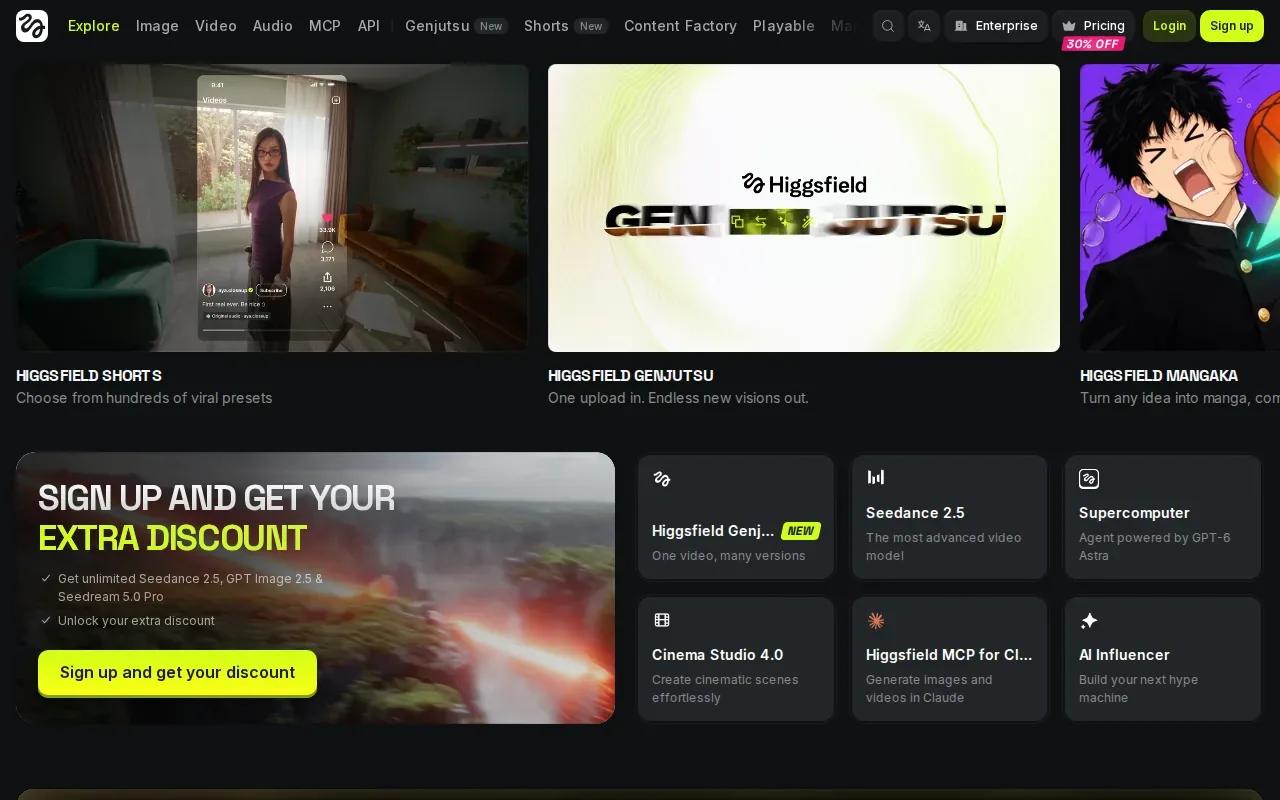
Start with a prompt or reference image, then shape the result through editing. If a character or location must appear in more than one shot, prepare clear reference material and describe what should stay the same. Specific visual instructions give the model a firmer guide than a broad request for realism.
That reference-led approach is useful for a short story with a recurring character. You can define the look first, then use that visual direction as you build scenes. Higgsfield AI supports voice-content creation.
Higgsfield AI also supports media editing and upscaling. Its AI agent can automate creative workflows, and the service is available on web and mobile. Those details may matter if you want to work across devices or refine existing media rather than generate every element from scratch.
When sound timing is central to the shot, listen for whether the audio matches visible movement. A door sound should land when the door moves; a spoken line should fit the character's mouth and the scene's pace. Treat the first render as a draft and check those points before you build more scenes around it.
Choose Higgsfield AI when prompt- or reference-led creation and editing are the main needs. If exact dialogue sync is the deciding factor, test that part of the workflow with a short sample first.
5. InVideo AI: AI video creation and editing for content workflows
InVideo AI combines AI video creation with editing through Agent Two. It suits creators who already have footage or a timeline and want help placing sound around specific moments.
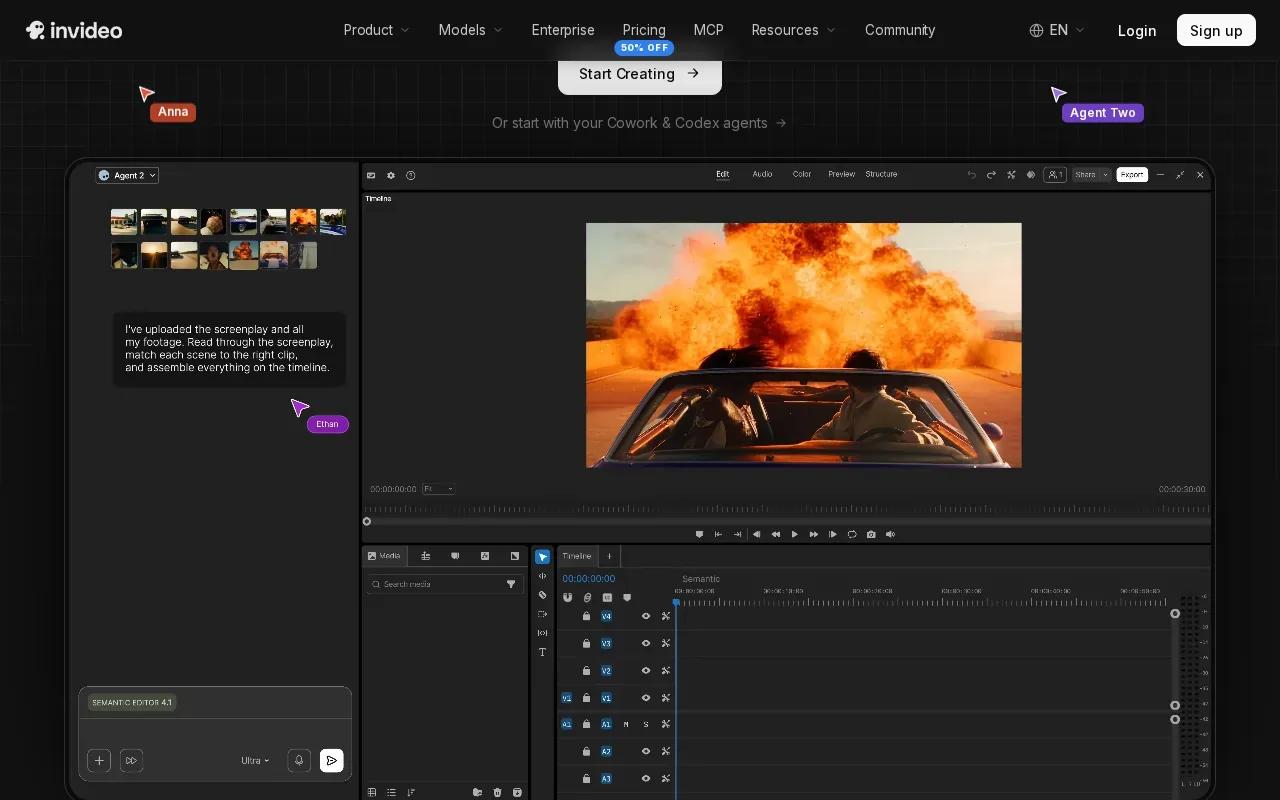
In the editor, describe the sound design you want and name the moments that need it. For a product clip, you could ask for a soft click during an interface action and a stronger impact when a visual mark appears. Agent Two can find or generate sounds and arrange them around the video.
The resulting sound layers remain editable. You can ask for a change in plain language, make a manual adjustment, or use the audio track mixer to alter levels. That control helps when an effect masks dialogue or the music feels too loud beside a voiceover.
Try a small pass first. Play the timeline with the new sounds, check each effect against its visual cue, then listen again with the dialogue in place. If the timing is off, describe the specific change or adjust the layer directly.
6. Veo3 AI: Text-prompt videos with native audio
Veo3 AI generates videos from text prompts, with native audio. It may suit creators who want to begin with a written scene brief and get sound with the generated video.
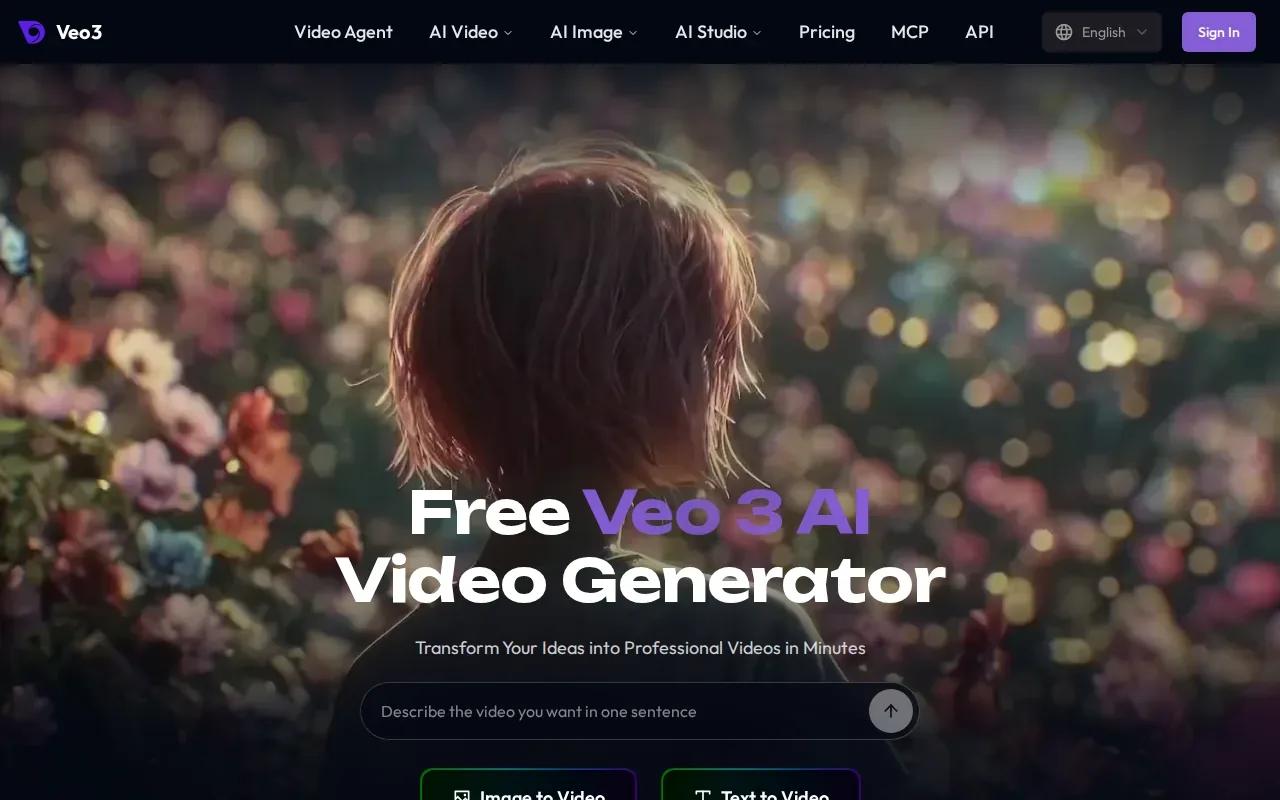
Write what the viewer should see and hear in the same prompt. For instance, describe a ball rolling across a table, then specify the sound of it tapping the edge. That makes the audio request part of the scene brief, rather than a separate note after generation.
Veo3 AI offers 4K output and a free starting option. Treat resolution as a setting to verify in your own workflow before you build a delivery plan around it. Output size matters if the clip needs to fit a larger screen or a specific client requirement.
Native sound can save a separate audio step when the result fits the brief. Still, listen for timing and clarity. A sound can be present yet feel disconnected if it doesn't line up with the visible action.
Veo3 AI is worth considering for prompt-led clips where generated sound is part of the goal. If your scene depends on a recurring character or controlled opening and closing frames, compare those needs with the controls described in the other options.
Quick comparison: Which AI video sound generator fits your workflow?
Pick based on where sound enters your process. Native audio models generate sound with the scene; script-led tools build narration around content; editing agents help place or refine sound after a timeline exists.
| Tool | Best fit in this shortlist | Audio workflow | Check before publishing |
|---|---|---|---|
| Veo Studio | Directed scenes with dialogue and continuity | Sound and dialogue generated with video | Clip length, output resolution, and lip sync |
| HeyGen Video | Whole scenes with speech and ambience | Dialogue, ambience, and effects in one call | Speech clarity and effect timing |
| Fliki | Script-led explainers and social videos | Voiceover with visuals, music, and captions | Narration pace and caption accuracy |
| Higgsfield AI | Prompt- or reference-led media creation | Voice content is supported | Audio sync for the exact video mode you use |
| InVideo AI | Sound work on an existing timeline | Agent-assisted sound layers and manual mixing | Layer timing and dialogue levels |
| Veo3 AI | Text-prompt video with native audio | Audio generated with the video | Resolution and sound fit for your brief |
To get a more reliable draft, prompt sound as a sequence: name the source, describe its quality, then say when it happens. For example, ask for a low room hum throughout, followed by one sharp click when a switch flips. Generate a few versions if the first one misses the timing.
Sync is not the same as clean audio. Listen for speech that stays clear over music, effects that land with visible movement, and any clipping or abrupt cuts. For film, TV, or game delivery, 48 kHz WAV is a common professional audio target; follow the specs for your project or distribution partner.
Licensing deserves its own check. Veo Studio's paid plans list a commercial licence. For the other tools, review the terms for your account and the assets in your export before using the video in paid work.
Frequently asked questions
Can AI video tools generate dialogue and sound effects together?
Yes, some tools generate dialogue and effects with the video. Veo Studio and HeyGen Video generate synchronized sound with the scene. Results still need review: check that the spoken words are clear and that effects line up with the visible action. Other tools may focus on voiceover or timeline-based sound instead.
How do I write a prompt for video sound?
Name the sound source, describe how it should sound, and tie it to an on-screen moment. For dialogue, write the exact line and say who speaks it. For ambience, state whether it should continue through the scene. Make one prompt change at a time so you can tell what improved the result.
Can I use AI-generated video and audio for commercial work?
It depends on the tool and plan. Veo Studio's paid plans list a commercial licence. Check the current terms for your account, generated media, and any uploaded assets before running an ad or delivering work to a client.
What should I check before publishing an AI video with sound?
Watch the full video with sound on. Check spoken words, lip movement, effect timing, music level, and abrupt audio cuts. Then confirm the export matches the platform or client requirements, including the requested resolution and audio format. A quick review can catch issues that aren't obvious from a silent preview.
Conclusion
For short scenes that need synchronized sound, dialogue, and continuity controls, start with Veo Studio. Use the Veo prompting and generation walkthrough to shape the next draft.


