
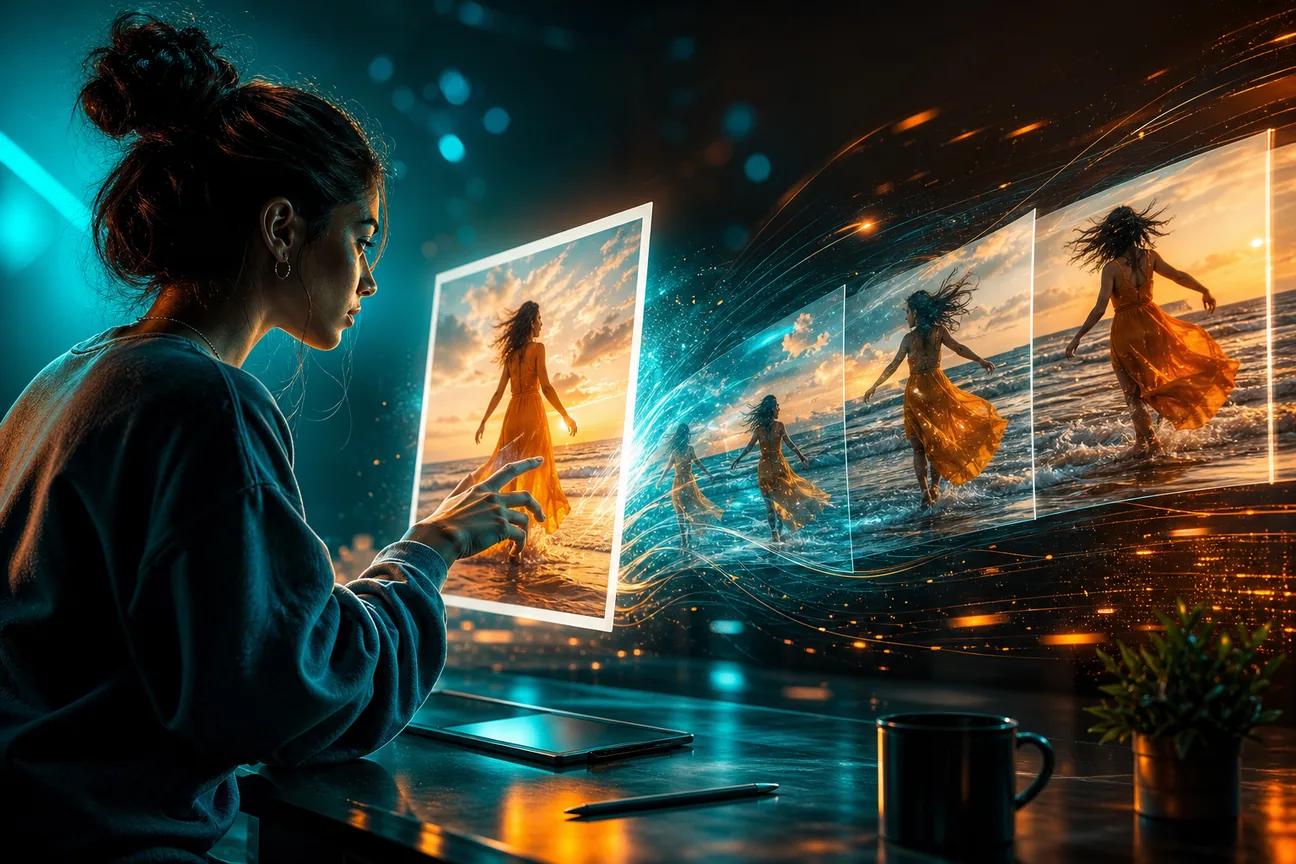
A still photo can become a short scene with a camera move, a small action, or even spoken dialogue. Making a photo move with AI is quick, but the right tool depends on how much control you need over the subject and final clip. Here are five options, starting with Veo Studio.
We analyzed 55 YouTube comments about AI photo animation tools and found that 25% asked about setting up prompts and image sources.
1. Veo Studio
Veo Studio is an independent, browser-based AI video creation tool powered by Google's Veo 3.1 models. Upload a reference image, describe the shot, and guide the camera in plain language. It's a good fit when a social clip or product spot needs more than a basic zoom effect.
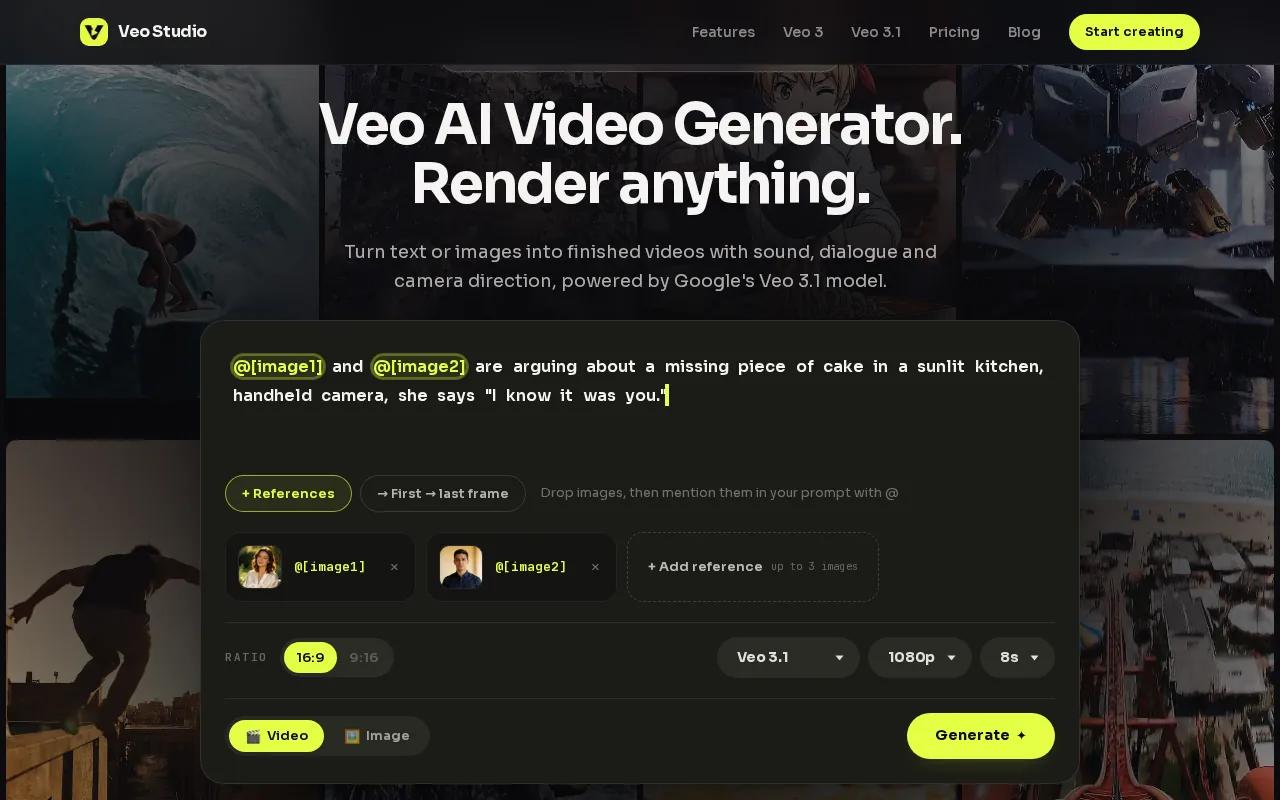
You can attach up to three reference images to guide a character, product, or visual style. First- and last-frame control lets you provide two stills and generate the motion between them. The model can also create synchronized sound and dialogue, while scene extension can add to a finished clip. Output reaches up to 4K.
That range helps when a single photo is only the start of the idea. For a product reveal, use the photo as a reference, describe a slow camera move, then set an ending frame that shows the item closer. For a short story, use reference images to guide character consistency and write dialogue in the prompt.
Veo Studio has a free plan with a couple of 720p videos each month and no card required. Paid plans start at $14 per month and include a commercial licence. If you want more detail on the broader workflow, the Image-to-Video creation guide explains how to direct an image-led clip.
Keep the first prompt focused. Ask for one clear subject action and one camera move, then check the face, product shape, and background before you extend the scene.
2. Pika 2.5: A low-cost entry point for image-to-video
Pika 2.5 is an image-to-video model for turning a still into a moving clip. It's a fit for creators who want to test a photo-led idea without starting with a higher-priced plan. Its Starter plan costs $10 per month, or $8 per month billed annually, the lowest paid entry price among the options in this shortlist.
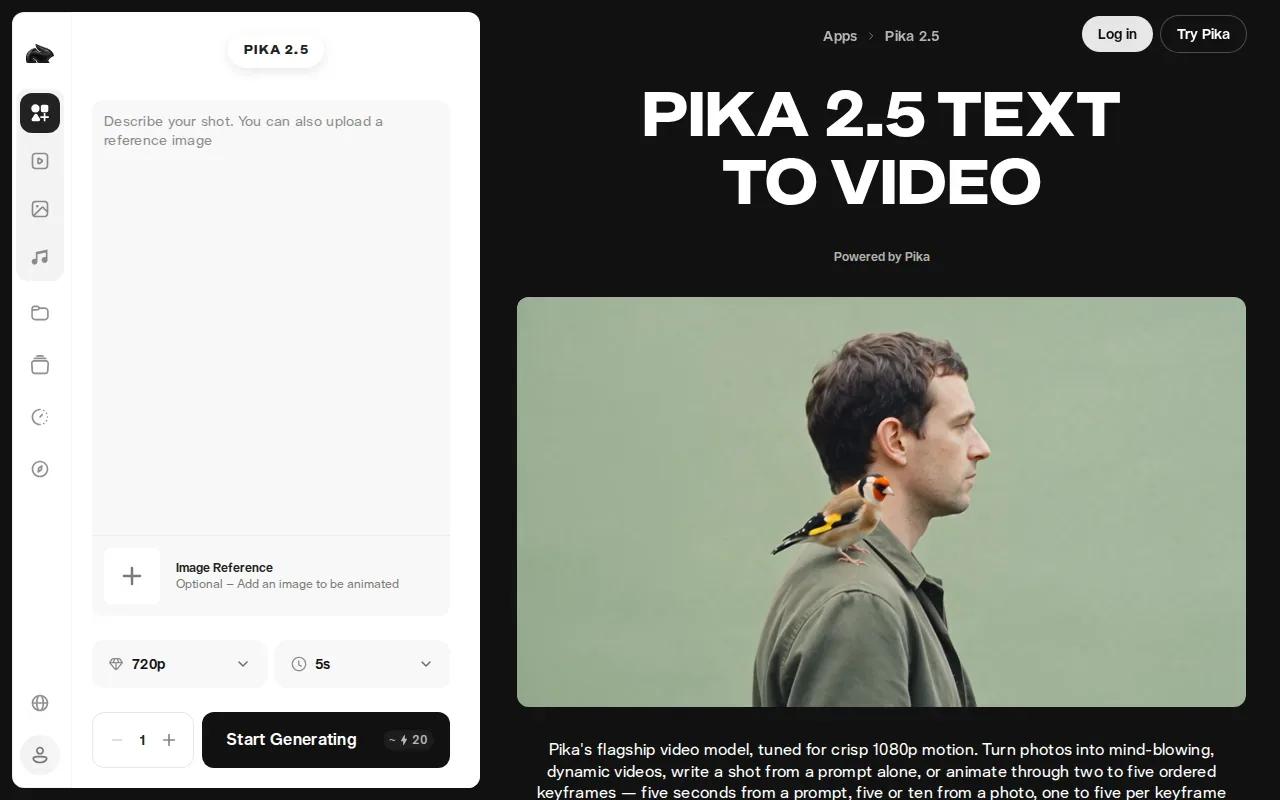
Pika's flagship video model is tuned for crisp 1080p motion. That makes it worth considering when a social post needs more detail than a low-resolution preview, while the job remains focused on generating motion from an image. Pika 2.5 is an AI creative tool built for creators.
Start with a photo that has a clear subject. Then describe the movement you want in a short prompt. A portrait might call for a slight turn toward the camera; a landscape might need only moving leaves or a slow push-in. A restrained first attempt makes it easier to see whether the motion suits the image.
Review the result closely before you post it. Look for changes to the subject's face or important details in the frame. If the clip feels too active, simplify the direction and try a smaller movement. That gives you a clearer test than rewriting the prompt with a string of broad style words.
Pika 2.5 is a straightforward option when the main task is image-to-video generation. If you need exact start and end images or a longer continuous scene, compare those controls with the other tools before choosing.
3. CapCut: A fast option for assembling social videos
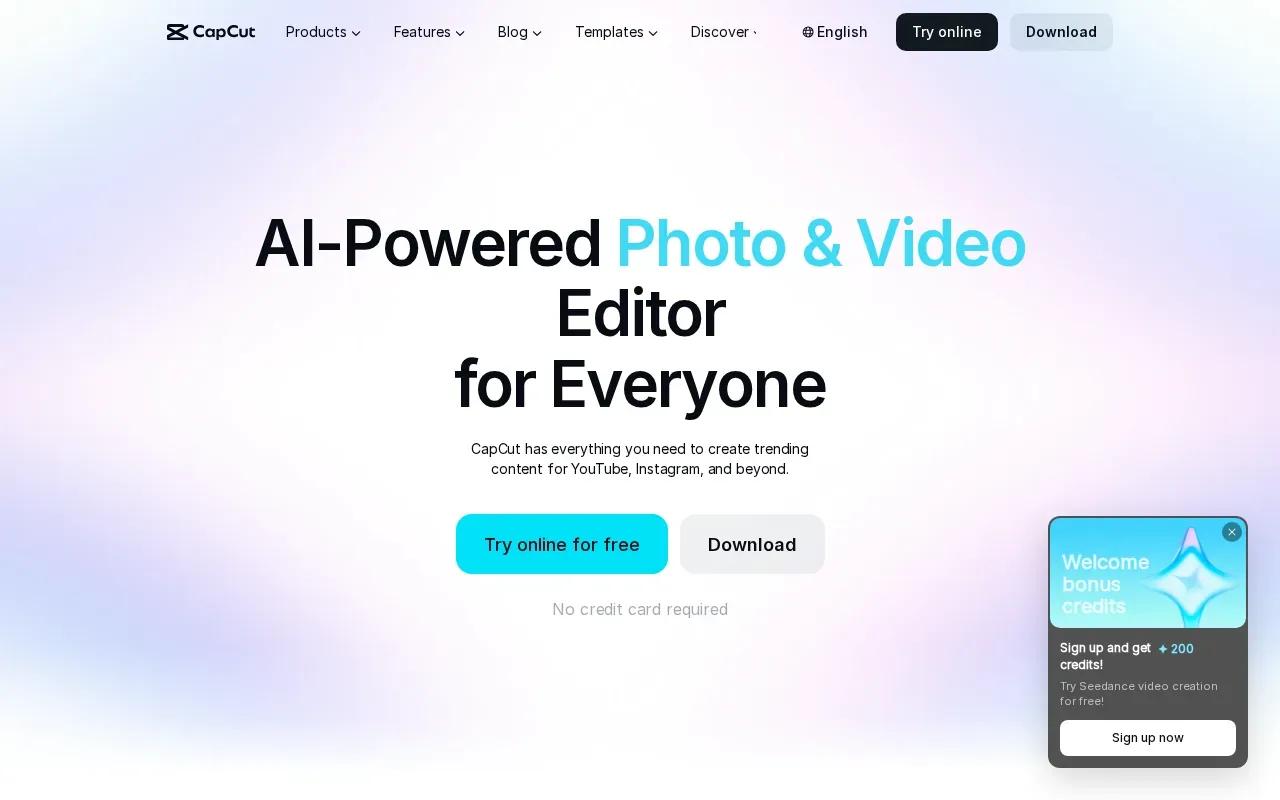
CapCut combines AI video generation with an editing workspace. It suits creators who want to make a draft from an image or prompt, then keep shaping the clip in the same workflow. Its AI video editor can build a video from scratch through a chat-style interaction.
For image-to-video work, begin with a sharp photo where the main subject stands apart from the background. Describe what should move, how it should move, and which details must stay the same. For a product image, that might mean a slow camera push-in while the label and shape remain unchanged.
Before generating, check the settings shown in the account, including the credit use for the attempt. CapCut's web workflow may use credits for AI generation, and availability can vary by account or region. Check the export resolution against the quality your project needs.
After generation, watch the full clip and pause on moments where faces, hands, logos, or frame edges shift. If the motion works, continue editing to trim weak moments or add captions and sound. CapCut's free online access gives you a way to try the workflow, but don't assume every AI generation is unlimited.
This is a useful route for quick social edits where the generated motion is one part of a finished video. If you’re working with a set of stills rather than one image, the guide to how to make a video from photos covers that broader assembly task.
4. Domo AI: Reference tools for keeping subjects consistent
Domo AI includes reference features for image-to-video work. It's worth a look if you need to guide a subject across a clip or build motion from several stills, rather than relying on a single prompt to carry the whole scene.
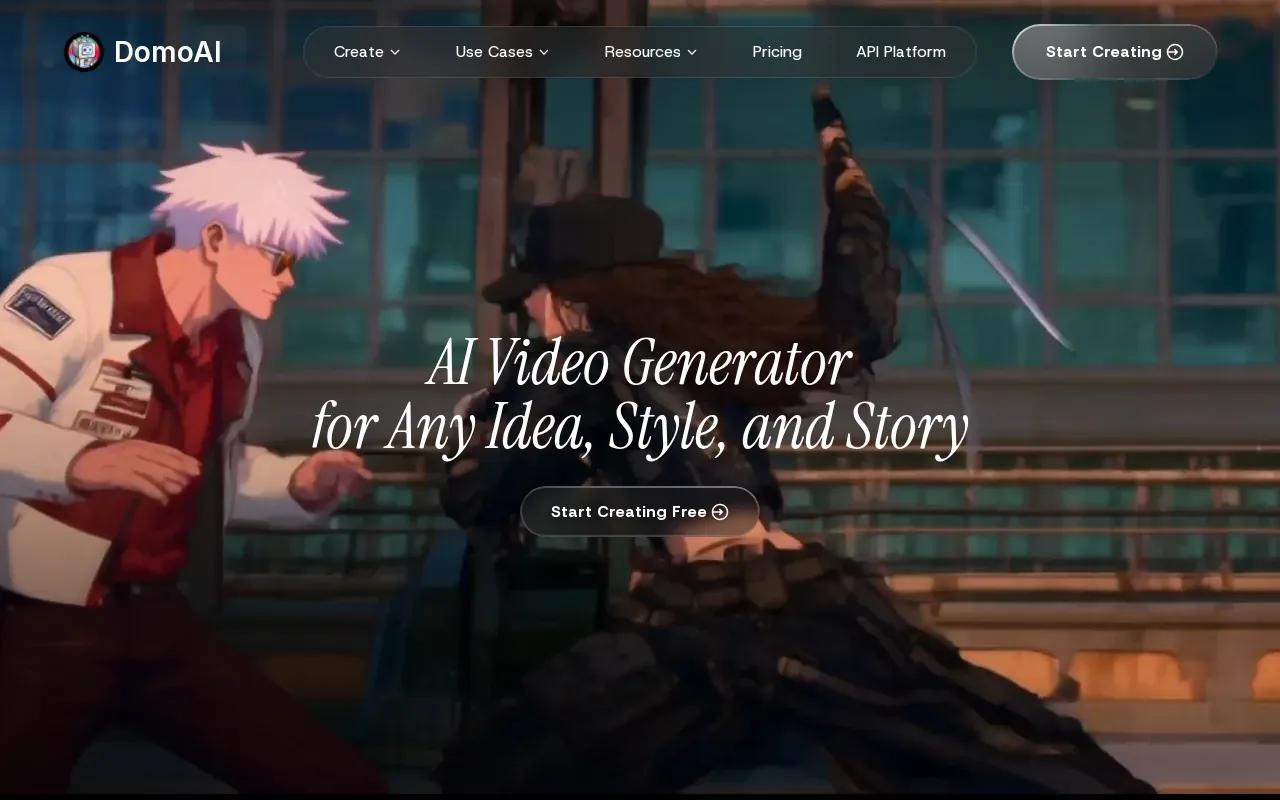
Its reference options can guide image-to-video work, and character consistency is supported. That can help when a character or visual subject needs to remain recognizable as the action changes. For stop-motion-style work, Frames to Video handles image sequences, giving you a way to start with a series of planned stills.
Domo AI also supports extended durations up to 30 seconds on Pro Fast Mode. That may suit a short sequence that needs more time than a single brief image animation. Think of a simple sequence of poses: use frames to set the visual order, then review whether the movement between them feels right.
Reference tools still need useful input. Choose images with a clear subject and a consistent look, especially if the clip depends on the same character appearing across multiple moments. If the source images differ sharply in angle or lighting, review the transitions carefully before using the result in a finished piece.
Choose Domo AI when reference handling or image-sequence control is central to the job. Check that the mode you plan to use matches the length and pace you need.
5. Runway Gen-4: Frame control and high-resolution output
Runway Gen-4 supports frame control, and paid plans include 4K upscaling. It may fit a production where you need to guide the framing and plan for high-resolution delivery. The Standard plan is $15 per month, or $12 per month billed annually.
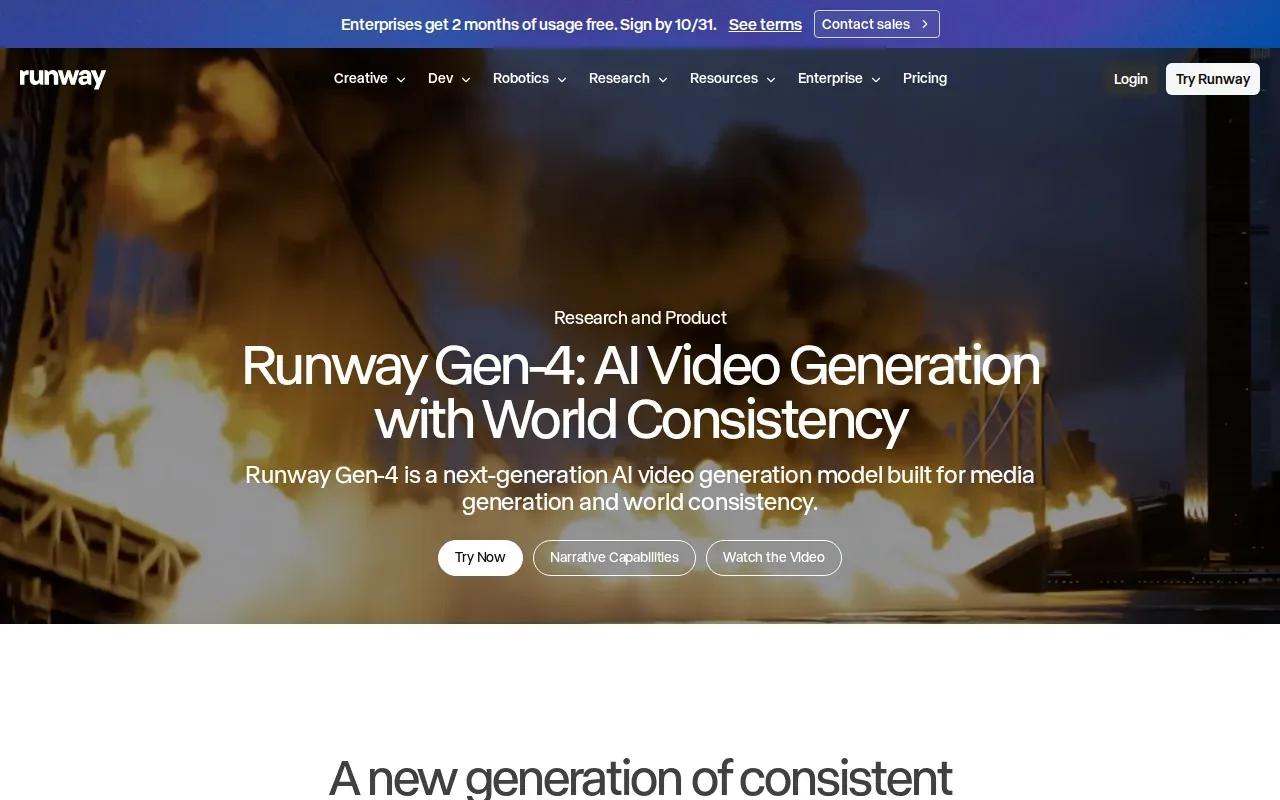
Frame control is useful when a clip needs a specific visual start or finish. For example, you might want an opening still to match a campaign image, then guide the scene toward a closer view. Before committing to that workflow, confirm the frame controls suit the transition you have in mind.
The trade-off is credit use. The Standard plan includes 625 credits a month, and heavy users can burn through credits fast. If you're producing many versions of a short clip, factor repeat generations into your choice rather than judging the tool on one test.
Runway Gen-4 makes sense when frame control and 4K upscaling matter enough to justify the plan price. For a single social animation, a lower-cost option may be enough. Either way, check the full clip at the final delivery size before you use it.
Compare AI tools for making a photo move
AI photo animation turns a still image into a video by generating movement from the image and any direction you provide. The amount of control differs. Some workflows start with a prompt and image, while others let you guide references or specific frames.
| Tool | Useful when you need | Supported detail to weigh |
|---|---|---|
| Veo Studio | Image guidance with sound or a planned transition | Reference images, first and last frames, scene extension, up to 4K |
| Pika 2.5 | A lower-cost paid image-to-video entry | 1080p motion, Starter from $8 per month billed annually |
| CapCut | AI generation followed by editing | Free to try online |
| Domo AI | Reference-led clips or sequences of stills | Omni Reference, Frames to Video, extension up to 30 seconds on Pro Fast Mode |
| Runway Gen-4 | Frame control and high-resolution output | 4K upscaling, Standard plan from $12 per month billed annually |
For any tool, the basic workflow is similar: choose a clear image, describe a small amount of motion, generate a draft, then review it before download or editing. Use a photo with visible subject details and some room around the edges. A close crop can make a camera move harder to judge, while a busy background can distract from the action.
These tools make video output, but export options can vary by product and project. Check the file type and size before you build a social post or add the clip to an edit. If you need a GIF, confirm that the tool or your editing step can make one from the video.
Keep commercial rights in mind, too. Veo Studio's paid plans include a commercial licence. For other tools, check the terms that apply to your account and the content you plan to publish. Extra care matters when a real person's face is involved: get permission before making or sharing an animation that could mislead viewers.
Frequently Asked Questions
How do I make a photo move with AI?
Upload a clear image to an image-to-video tool, describe the movement you want, then generate and review the clip. Keep the first prompt simple. Name the subject action and camera move, then state which details should stay unchanged. Watch the result for face, hand, logo, or background shifts before downloading or editing it.
Can AI animate an old family or pet photo?
Yes, an old family or pet photo can be a starting image when the tool accepts it. A sharp scan or clear digital copy gives the model more visual detail to work with. Ask for restrained movement first, then inspect the face and key features. Get consent before sharing an animation of another person.
Can I use an AI photo animation in a commercial video?
It depends on the licence for the tool and plan you use. Veo Studio's paid plans include a commercial licence. Check the terms for any other tool before using an animation in an ad or other paid work. Also make sure you have permission to use the source image and any recognizable person's likeness.
Why does an AI photo animation look blurry or jittery?
Blurring or jitter can come from a low-quality source image, a crowded frame, or a prompt that asks for too much movement. Start again with a clearer image and one subject action. Reduce the camera movement if important details keep changing. Then compare the new clip with the original photo before adding effects or captions.
Conclusion
If you want an image-to-video workflow with reference images, frame control, synchronized sound, and output up to 4K, start with Veo Studio. Its free plan lets you try a couple of 720p videos each month without a card. Start creating with Veo Studio and test one clear motion prompt with a photo you already have.


