
Want to make a promo that gets to the point before someone scrolls past? Learning how to create promotional videos starts with one clear goal, then moves through a short script, strong visuals, and a final check on the right screen.
We analyzed 33 comments and questions from YouTube and Quora about creating promotional videos and found that 21% mentioned lack of resources for a school assignment.
Veo Studio is an independent, browser-based AI video creation tool powered by Google’s Veo 3.1 models, with synchronized sound and dialogue. Here are four steps to plan and produce a video that fits your audience and the place you’ll share it.
Step 1: Set the Goal, Audience, and Offer
Choose one result you want the video to support. A product launch might aim for product-page visits. A sale promo might aim for purchases. A service introduction might ask viewers to book a demo or request a quote.
Write down the viewer, too. “People who need a new blender” is a start. “Busy parents who want a quick breakfast” gives you a more useful guide for the message, setting, and pace. The better you understand their need, the less time you’ll waste explaining details that don’t help them decide.
Before you pick shots, answer these questions:
- Who should see this video?
- What problem or need do they have?
- What one benefit should they remember?
- What should they do after watching?
Keep the offer specific and accurate. If you’re promoting a sale, state the terms clearly. If you’re showing a product, focus on a benefit you can support. A good promo doesn’t need to explain every feature. It needs to make one useful point and give the viewer a clear next step.
Decide where the video will appear before production. A vertical clip can suit TikTok, another short-form video platform, or YouTube Shorts. A landscape version may fit a website or a YouTube placement better. That choice affects framing, caption placement, and how much text can fit on screen.
For another perspective on product-focused campaigns, see product ads and promotional videos.
A useful brief matches the audience and script to a defined objective and keeps the message focused. A clear call to action can help move viewers toward the next step.
Step 2: Write the Script and Storyboard the Video
Turn the brief into a short sequence the viewer can follow. Start with a hook that names a need, shows a result, or asks a direct question. Then show how the offer helps. End with one next step.
For example, a small bakery promoting a new lunch special might open on a fresh sandwich being cut in half. The next beat shows the filling and the price. The closing frame tells viewers where to order. Each shot has one job, so the viewer doesn’t have to guess what the video is about.
Write the script the way you’d say it out loud. Read each line at a normal pace, then cut words that repeat an idea or sound like a slogan written for a boardroom. If the message still makes sense without a sentence, remove it. Keep claims factual, especially when the video includes a product benefit, price, or offer deadline.
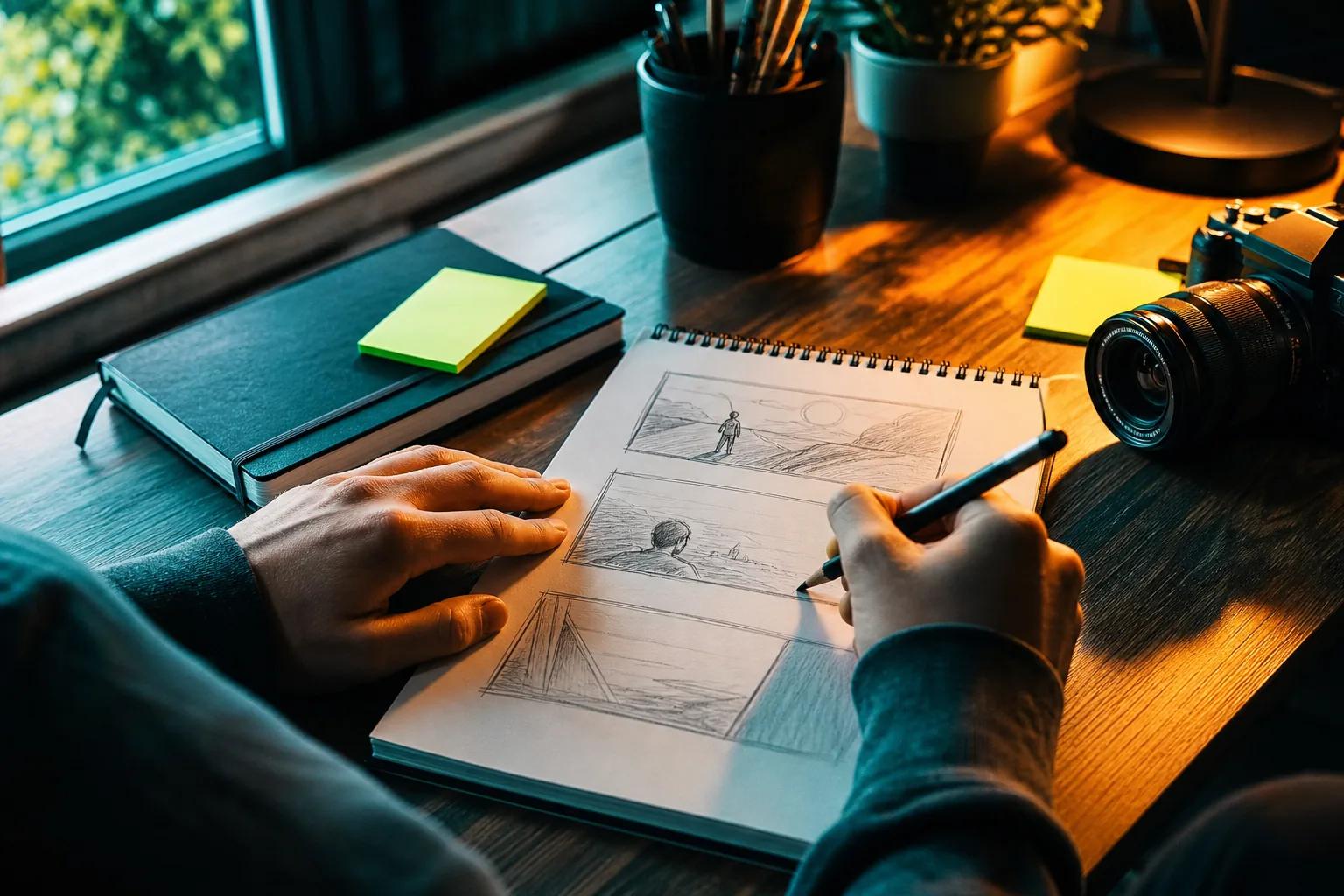
Next, sketch a storyboard. You don’t need polished art. Draw a box for each shot, then note what appears on screen, what changes, and whether the viewer hears speech or sound. A three-shot outline could look like this:
- Opening: Show the product or the problem right away.
- Middle: Show the product in use or the result it supports.
- Close: Show the offer and leave the call to action on screen long enough to read.
Build a shot list from that outline. Add a wide view if the setting matters, then a close-up when a product detail needs attention. If you’re filming a person, plan a steady main take first. Add supporting footage, often called B-roll, only when it helps explain a line or makes a change in the story easier to see.
For an AI-generated scene, write down the subject, one action, the setting, and the camera move. A prompt like “A ceramic mug on a kitchen counter, steam rising as the camera slowly pushes in” gives the scene a clear focus. In Veo Studio, you can start from a prompt or attach reference images. Its first- and last-frame controls can guide the transition between two stills.
For a related topic, see how to create a commercial video. Keep your promo storyboard lean, though. One clear idea per shot is easier to film, generate, and edit.
Step 3: Create the Footage, Visuals, and Audio
Make each shot support the script. You can film with a phone, build graphics from a template, generate a scene, or mix those methods. Pick the approach that suits the idea and the assets you already have.
For a live product shot, clean the camera lens and set the phone on a stable surface or tripod. Face a window or another soft light source. Avoid placing a bright window behind the person or product, since that can leave the main subject too dark. Record a short test before filming the full take.
Sound needs its own check. A small microphone placed near the speaker can help make speech clear. If you’re using the phone’s built-in mic, choose a quiet room and listen for fans, traffic, or echo. Record a test line, then play it back with headphones. Fix a noisy room before recording the full script.
For AI visuals, keep the prompt focused. Describe what the camera sees and what moves. If you need a mascot or product to look consistent across shots, use reference images where the tool supports them. Veo Studio supports up to three reference images for supported generations, plus character consistency. That can help keep a recurring character’s look aligned across a series of promo clips.
Veo Studio can also generate synchronized sound and dialogue. Put the exact spoken line in quotation marks in the prompt, then review the words and lip movement in the result. You can guide a shot with camera directions in plain language, such as a slow push-in or a wide view. The tool supports output up to 4K, with higher resolutions available on paid plans.
Music can set the pace, but it shouldn’t bury the message. Use audio you have permission to use, whether that’s a licensed track, a permitted library track, or original music. Keep speech easy to hear. Add captions so the core point still works for viewers watching with sound off, then check every name and product term by hand.
Veo Studio has a free plan with a couple of 720p videos per month and no card required. Paid plans start at $14 per month and include higher resolutions and a commercial license. Check the current plan details against the kind of output you need before starting a larger batch.
Step 4: Edit, Export, Publish, and Improve
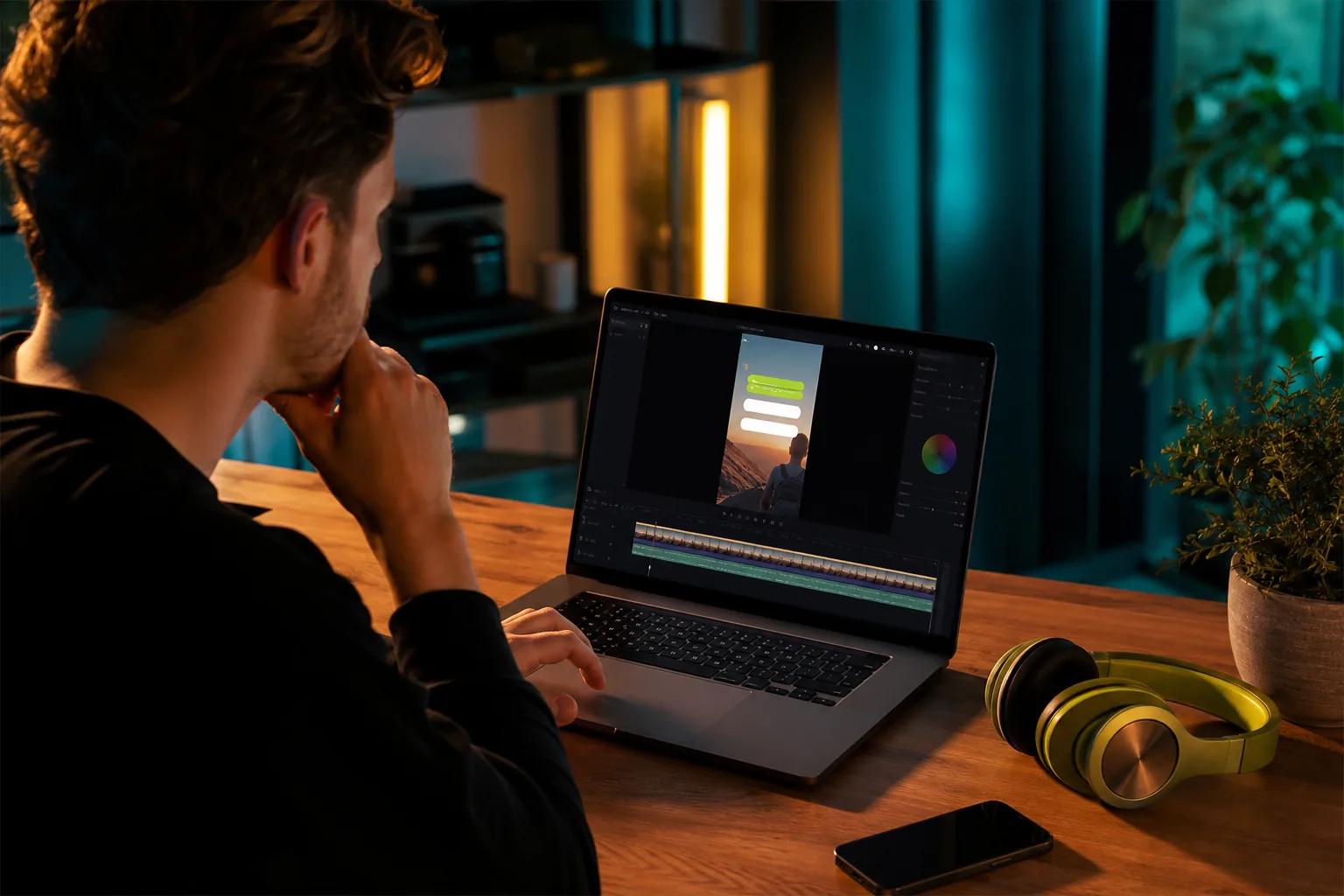
Put the shots in story order, then trim anything that slows the message. Watch the first cut once without stopping. If the main point isn’t clear, simplify the sequence before adding effects or extra text.
Use brand elements with restraint. Add your logo where it helps people recognize the business, but don’t let it cover the product or compete with the headline. Keep text large enough to read on a phone. Choose fonts and colors that match your brand, then use them the same way across each version.
Check the captions against the audio. Auto-captions can save time, but they may mishear names, product terms, or short phrases. Correct those by hand and make sure the text stays on screen long enough to read. Keep important words and visuals away from the screen edges, where platform controls may cover them.
Export a separate version for each placement when the crop or layout changes. Vertical video suits many short-form feeds. Square can work for some feed placements. Landscape can fit a website or widescreen video placement. Check each platform’s current upload settings before exporting, then watch the final file on a phone and a larger screen.
Review the opening, the sound level, the caption timing, and the final call to action. Make sure the last frame doesn’t cut off the offer. Check that every photo, clip, logo, and music track is cleared for your intended use. If a real person appears, get the permission needed for the planned use.
Once you publish, judge the video by the goal you set in Step 1. For awareness, look at reach and meaningful viewing activity. For site visits, track clicks and landing-page visits. For sales or leads, check completed actions. View counts may be defined differently across platforms, so use the measure that matches your campaign goal.
Make one change at a time when you test a new version. Try a different opening hook while keeping the offer and audience the same. That makes it easier to tell which change may have affected the result. Save the approved export with its caption and asset notes so you can find the right file when the offer changes.
FAQ: Creating Promotional Videos
How long should a promotional video be?
A promotional video should be only as long as the message needs. A simple offer may fit in a short clip, while a product demo may need more time to show how it works. Decide what viewers need to understand, then cut any shot or line that repeats the same point.
What should a promotional video include?
A promotional video should include one clear message, visuals that support it, and a direct next step. Start with a hook that earns attention, show the benefit or offer, then close with a call to action. Add captions when they help viewers follow the message without sound.
Can I make a promo video without a camera?
Yes, you can make one with templates, graphics, or AI-generated footage instead of filming. Veo Studio can turn prompts and reference images into video with synchronized sound and dialogue. Review each result for accurate product details and claims before you publish it.
How do I make one video fit TikTok, Reels, and YouTube?
Plan the frame for the platform before you film or generate the video. Vertical framing suits many short-form feeds, while YouTube or a website may call for a landscape cut. Export and review each version separately so the crop, captions, and call to action remain clear.
Conclusion
Start with one audience, one benefit, and one action you want viewers to take. Then make a short draft and review it on the screen where people will see it. If you’re planning a paid campaign, see AI video ad tools before you publish.


