
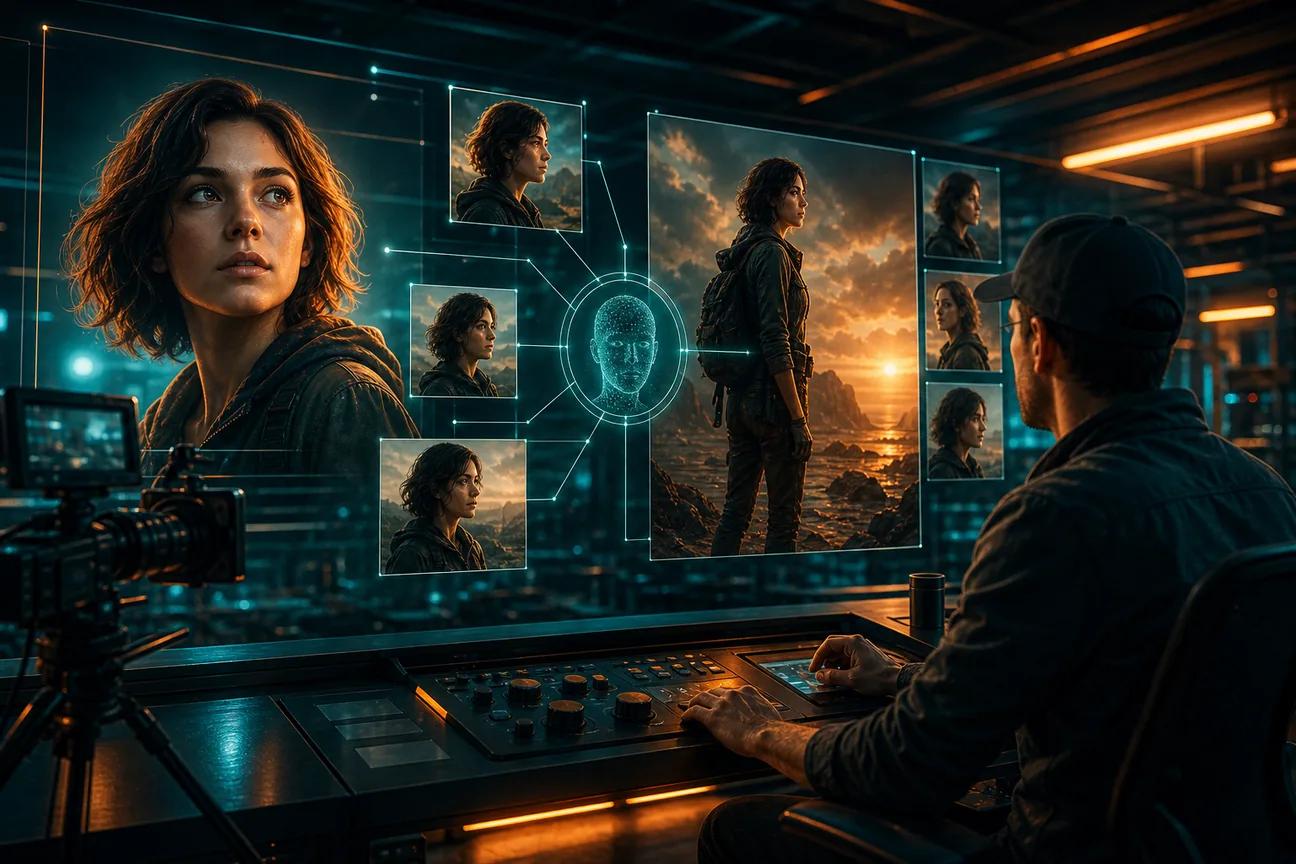
A character can look right in one clip, then feel like a stranger after the edit. The right AI video workflow gives you a reusable visual anchor and helps keep the same identity across scenes. Here are six tools to consider, including options for reference images, custom models, and speaking avatars.
We analyzed 49 YouTube comments about AI character video consistency and found that 20% mentioned limitations of the generation tool.
1. Veo Studio
Veo Studio is an independent, browser-based video creation tool powered by Google’s Veo 3.1 models. It’s a fit for creators who want a character or product reference to guide a clip, with synchronized sound and dialogue in the same workflow.
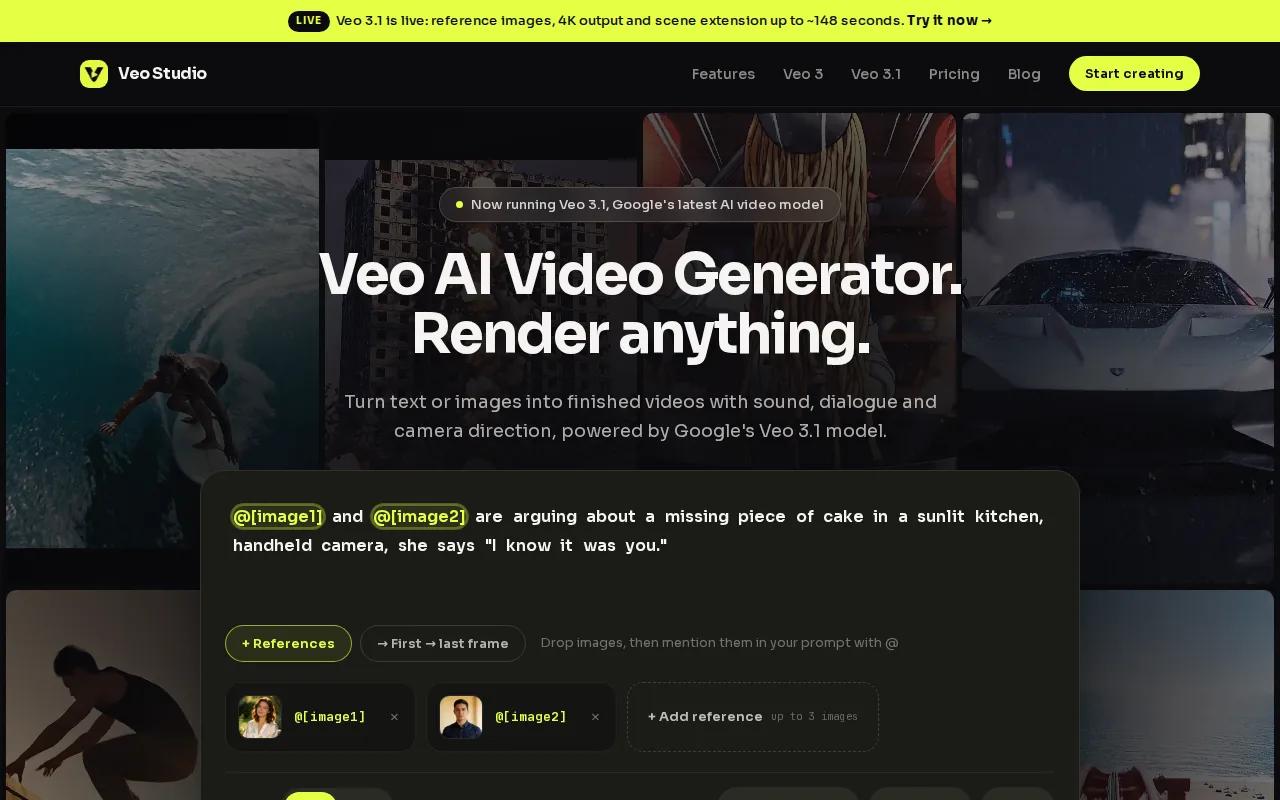
Attach reference images to help keep a character recognizable, then describe the action and camera move. Veo Studio also supports first- and last-frame control, scene extension, and output up to 4K on supported settings. That combination can help when a short scene needs a clear opening pose, a spoken line, or more time to finish its beat.
For a recurring character, start with one approved reference image and keep the character’s fixed details steady. Change one scene element at a time, such as the setting or action. If the face or outfit shifts, simplify the prompt before adding more direction.
Veo Studio has a free plan with a couple of 720p videos a month and no card required. Paid plans start at $14 per month. Its browser-based Veo 3.1 workflow suits short social clips, product spots, or story scenes where sound and visual continuity belong together.
If you’re still shaping the shot, this AI video prompt guide can help you state what should stay fixed and what should change.
2. Runway Gen-4.5: Reference-image consistency and camera control
Runway Gen-4.5 is a video model with reference-image consistency, camera control, and style matching. It suits creators who want a reference-led shot with a directed camera move, such as a slow push toward a character or a wider reveal.
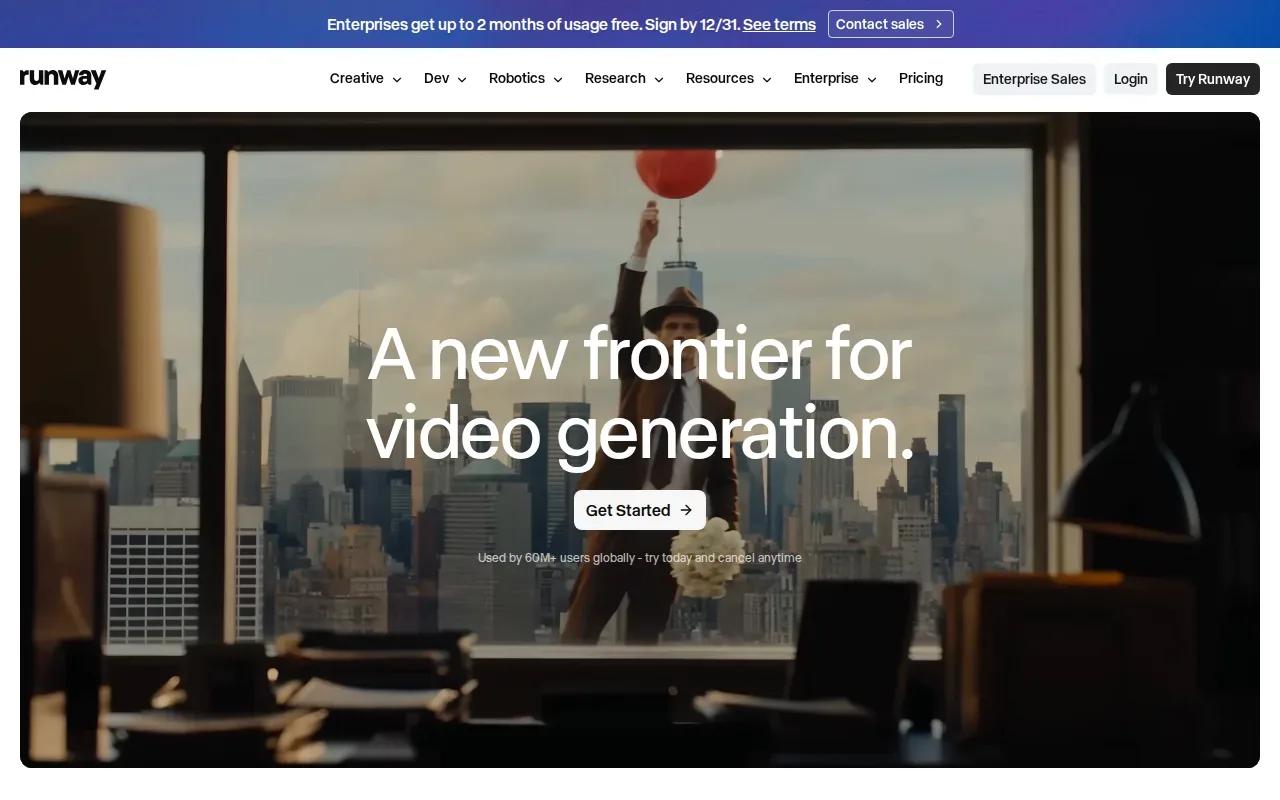
Start from a still image when you already have an approved look. Then write the prompt around the movement, lighting, and scene action. Specific camera directions give the model a clearer task than broad mood words. For example, ask for a slow push-in rather than simply calling the shot “dramatic.”
Runway Gen-4.5 supports clips up to 60 seconds and 4K upscaling. Those details may matter when a shot needs a longer beat or when the finished file needs a higher output size. Keep in mind that upscaling is a separate step from generating a character reference; check both parts of the workflow on a test clip.
For continuity, save the reference and reuse it across related shots. Keep the character description brief, then add only the scene change. If a new generation drifts, compare it with the approved still before moving on to the next shot. This catches a changed face or jacket before it spreads through an edit.
Choose this workflow when camera direction and reference-led identity are central to the shot. For a scene built around spoken dialogue, check that the full audio workflow matches your needs before committing to a batch.
3. Scenario: Custom character models trained on curated images
Scenario supports custom character model training using curated example images to maintain identity across projects. It’s a strong fit for a character who returns across many assets, especially when a team needs a reusable visual identity rather than a fresh prompt for every image.
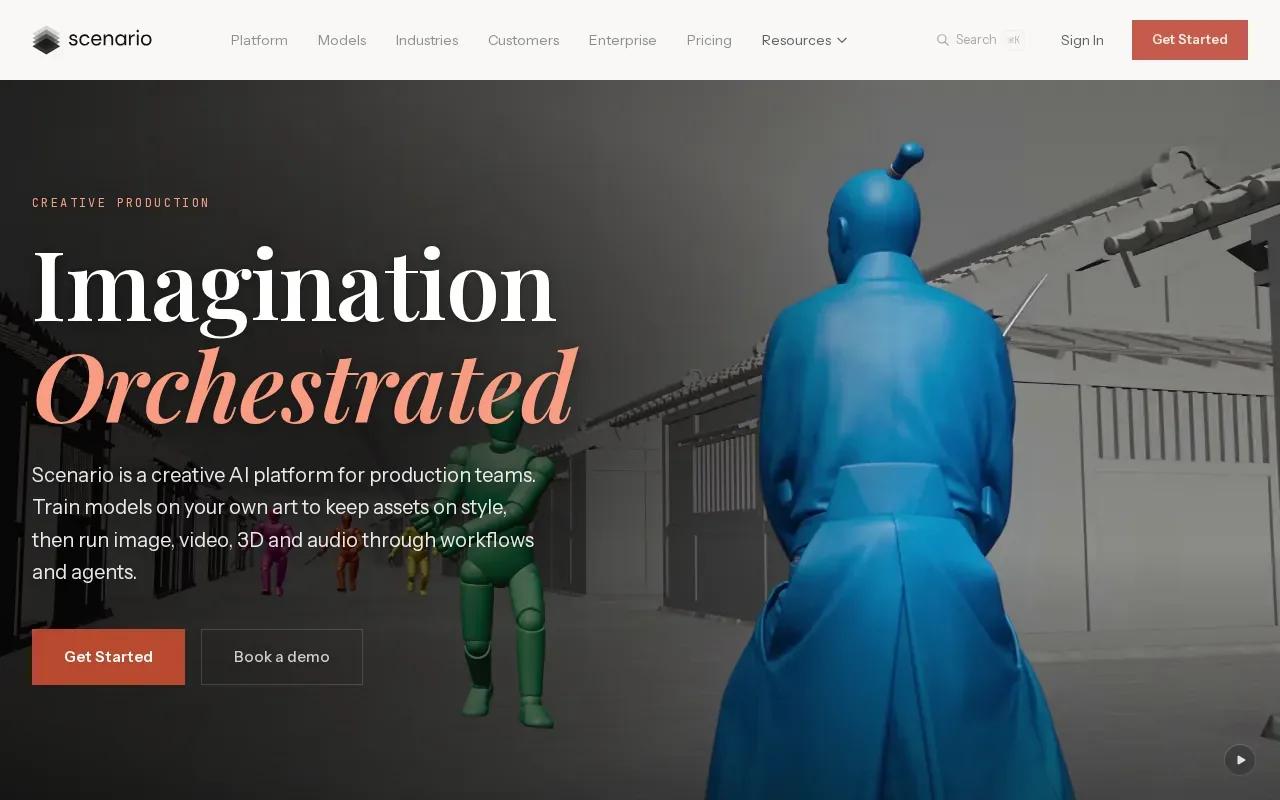
Scenario’s character consistency approach uses custom character model training with curated example images. A useful training set should show the same character from more than one angle or pose. Keep signature traits easy to see. If a character always wears a striped scarf, include clear views of it rather than letting it hide behind hair or a hand. Consistent source images make it easier to spot when an output has wandered.
For more on organizing a character-led sequence, see AI short film workflows for creators.
This approach is most relevant when a character will recur across projects. A curated image set can give the team a shared starting point.
Keep a short identity sheet beside the image set. Note the traits that must stay fixed, then separate them from details that can change, such as clothing or location. That makes review less subjective when several people are choosing between generated versions.
4. Ideogram Character: A recognizable identity from a character reference
Ideogram Character uses a character reference to preserve a recognizable identity. It suits creators who have one clear character image and want to try new poses, outfits, or settings without first training a custom model.
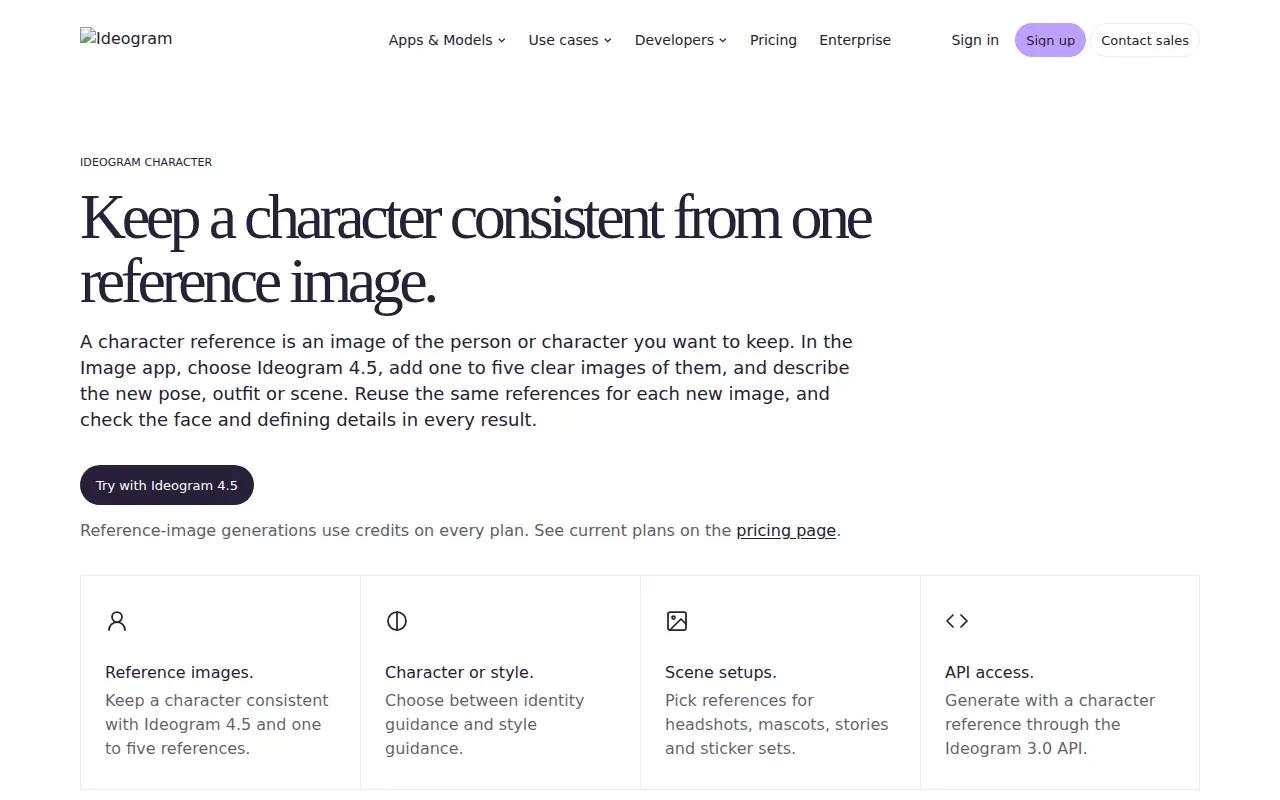
In the image-generation workflow, choose Ideogram 4.5, add one to five clear images of the person or character, then describe the new scene. A clean reference helps: use an image where the face and defining details are easy to see. If your source has a strong shadow across the eyes, the model has less visual detail to follow.
Keep the prompt split into two parts in your own notes. First, list the character traits that should remain recognizable. Then describe the new action or setting. This acts as a prompt anchor: identity stays steady while the scene changes. It also gives you a simple way to compare generations side by side.
Style needs a clear instruction too. If the source is a realistic portrait but the output should be an illustration, state that change directly. Test a small set of scenes before building a long sequence. If the character’s face changes in one style, adjust that direction before making more images.
A reference image guides the result, but it isn’t a promise that every generation will match perfectly. Look at the face, hair, and any signature item before using an image as a new reference. A weak variation can pass on its differences to later shots.
This is an image-led character workflow. If you need the character to speak or move through an extended scene, assess the video and audio needs separately rather than assuming an image reference handles the whole production.
5. GoEnhance: Character references plus 4K video upscaling
GoEnhance combines character reference generation with video upscaling up to 4K. It suits creators who want to guide a character’s look with a reference, then prepare a higher-resolution version of the video.

The two tasks are distinct. A reference image guides identity during generation. Upscaling changes the output size later. If you’re preparing a vertical social draft first and a larger final file after, test both stages on the same short scene so you can judge the result before making a batch.
Choose a test shot where the face and clothing stay visible through the movement. Check the character at the start, during the action, and at the end. A clip can begin with a good match and drift after a turn or fast camera move, so don’t judge it from a single frame.
Use the reference to anchor the character, then keep the prompt focused on the scene. If you change identity details, action, and camera direction all at once, it’s harder to tell what caused a mismatch. Make one change, generate again, and compare the result with your approved image.
GoEnhance is worth considering when reference-led character generation and 4K upscaling fit the same production path. If the scene depends on a spoken line, confirm the speech workflow you need before designing the whole piece around it.
6. HeyGen: Consistent speaking avatars for dialogue-led videos
HeyGen focuses on speaking avatars that deliver a script. It suits explainers, training videos, or updates where the same presenter needs to appear across multiple pieces of content.

HeyGen is a different animal: it generates presenters and AI avatars that speak. That makes it a fit for dialogue-led presenter videos, rather than a character moving through a generated story scene.
Before you build a series, try a short script with the tone and pace you plan to use. Review the mouth movement against the spoken words. Then check whether the same avatar feels right in the framing your final video needs.
Here’s a quick way to match the workflow to the job:
| Production need | Option to assess | What to check in a test |
|---|---|---|
| Generated character scene with synced sound | Veo Studio | Reference match, dialogue timing, and scene length |
| Camera-directed reference shot | Runway Gen-4.5 | Character look through the camera move |
| Recurring character built from a curated image set | Scenario | Identity across poses and generated video |
| New scenes from a small character reference set | Ideogram Character | Face and defining details across styles |
| Reference-led video with higher-resolution upscaling | GoEnhance | Identity before and after upscaling |
| Scripted presenter or avatar | HeyGen | Avatar consistency and lip sync |
For dialogue-led work, the presenter-first design is the key distinction. For a character who needs to act within a changing scene, compare scene control and references as well as speech.
FAQ
How do I keep a character consistent in AI video?
Reuse a clear character reference and keep the defining details steady in each prompt. Write down the traits that must stay fixed, such as face shape or a signature item. Then describe the new action separately. Review each generated clip beside the approved reference, since a reference can guide identity but still needs a human check.
What should I put in a character reference set?
Use clear images that show the same character and make key traits easy to see. Include views that help show the face, clothing, and signature details. Avoid mixing versions with different hair or outfits unless those changes are intentional. Keep a short identity note with the images so anyone on the project knows which features should remain fixed.
Why does an AI character’s face change between clips?
A new prompt can leave room for the model to interpret the character differently. A weak or unclear reference can add to that drift, as can a prompt that changes too many things at once. Reuse the same reference, keep identity notes consistent, and test one scene change at a time. Compare the full clip, not only its first frame.
Can AI video tools keep characters consistent while they speak?
Some tools combine character or avatar consistency with speech, but the workflow depends on the tool. HeyGen focuses on speaking avatars, while Veo Studio supports synchronized sound and dialogue in generated video. If lip sync matters, test a short line first. Check both the character’s appearance and whether the mouth movement follows the words.
Should I train a custom model for a recurring character?
A custom model can make sense when a character returns across many assets and you can prepare a curated set of images. Scenario supports custom character model training with reference images. For a one-off clip, using a reference image may be a simpler starting point. In either case, review outputs before treating them as new references.
Conclusion
Choose the workflow that matches the job: Veo Studio for reference-led scenes with synchronized sound, dialogue, and scene controls; a custom model for a recurring character; or a speaking avatar for scripted delivery. Start with one short test clip, check the character from first frame to last, then build the rest of your edit from the version that holds together.


