

Choosing an AI video tool gets easier when you start with the kind of video you need to make. For AI video generators for YouTube, the key split is between tools that assemble a draft and tools that generate directed scenes. Here are six options, starting with Veo Studio.
We analyzed 42 comments and questions from YouTube, Quora and Reddit about AI video generators for YouTube and found that 21% mentioned a need for tutorial videos.
1. Veo Studio: browser-based creation with Veo 3.1
Veo Studio is an independent, browser-based AI video creation tool powered by Google’s Veo 3.1 models. It turns text prompts or reference images into video with synchronized sound and dialogue, character consistency, first- and last-frame control, scene extension, and output up to 4K.
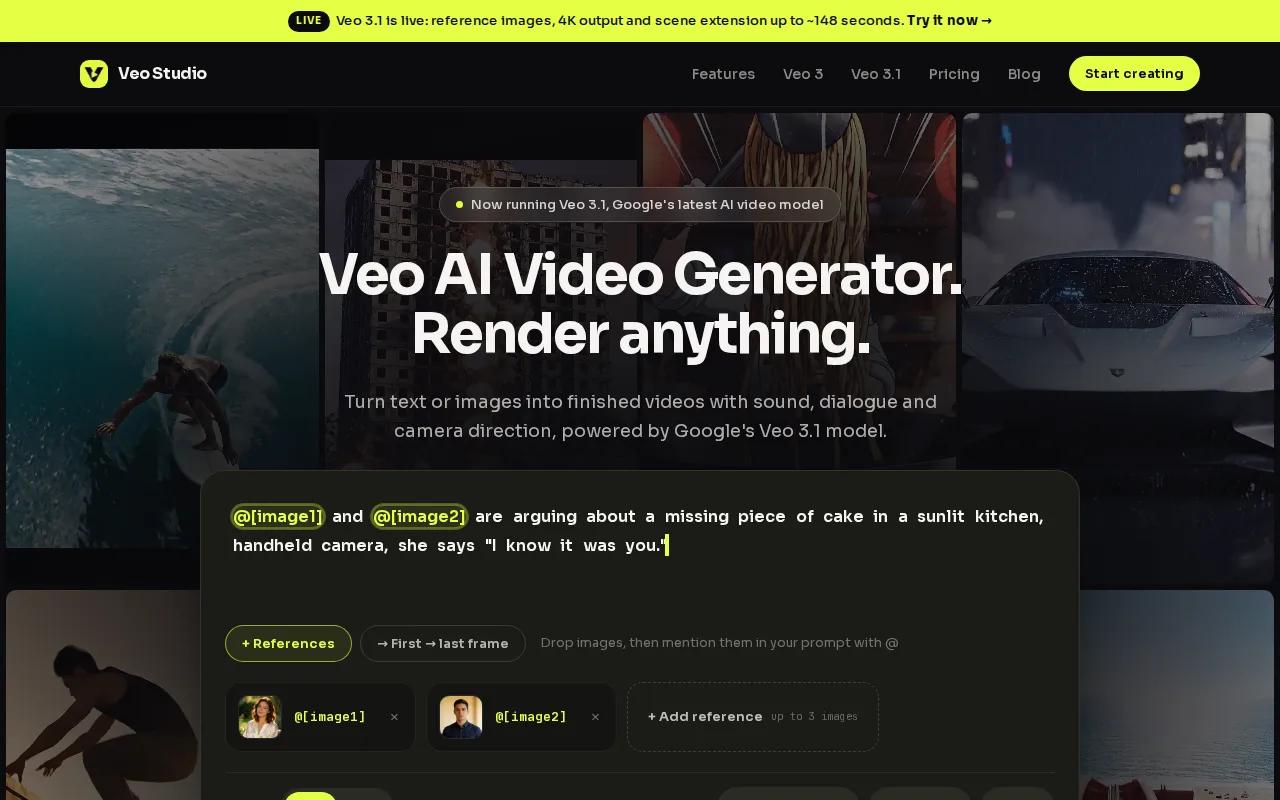
It suits Shorts creators, small businesses, brand marketers, and storytellers who want to direct a scene. For a product Short, attach a product photo and describe the action, camera move, and sound. For a character scene, reference images can help keep the character consistent.
The free plan includes a couple of 720p videos each month, with no card required. Paid plans start at $14 per month and add higher output options, including 4K. A clip begins at 4, 6, or 8 seconds; supported 720p clips can be extended in 7-second steps, up to roughly 148 seconds.
That makes Veo Studio a fit for short scenes and selected shots in longer videos, rather than a full episode assembled from one prompt. You can find more context in this AI video generator selection.
The controls matter when the shot needs to land on a planned image. Set a first and last frame to guide the transition, or use a reference image to steer the look. For dialogue, write the spoken line in the prompt and review the lip sync before using the clip.
Veo Studio runs in a browser, so you can start without downloading an editing app. The free plan is a low-friction way to test a prompt before deciding whether you need more clips or higher resolution.
For YouTube, choose a landscape or vertical idea before writing the prompt. Then name the subject, setting, camera move, and the single action that should happen. A focused shot brief is easier to review than a prompt asking for an entire episode.
2. CapCut: fast editing for YouTube Shorts
CapCut is a mobile-first editing option for creators making TikTok videos, Reels, and YouTube Shorts. It has a free tier and suits a workflow where speed matters and you expect to shape the video as you go.
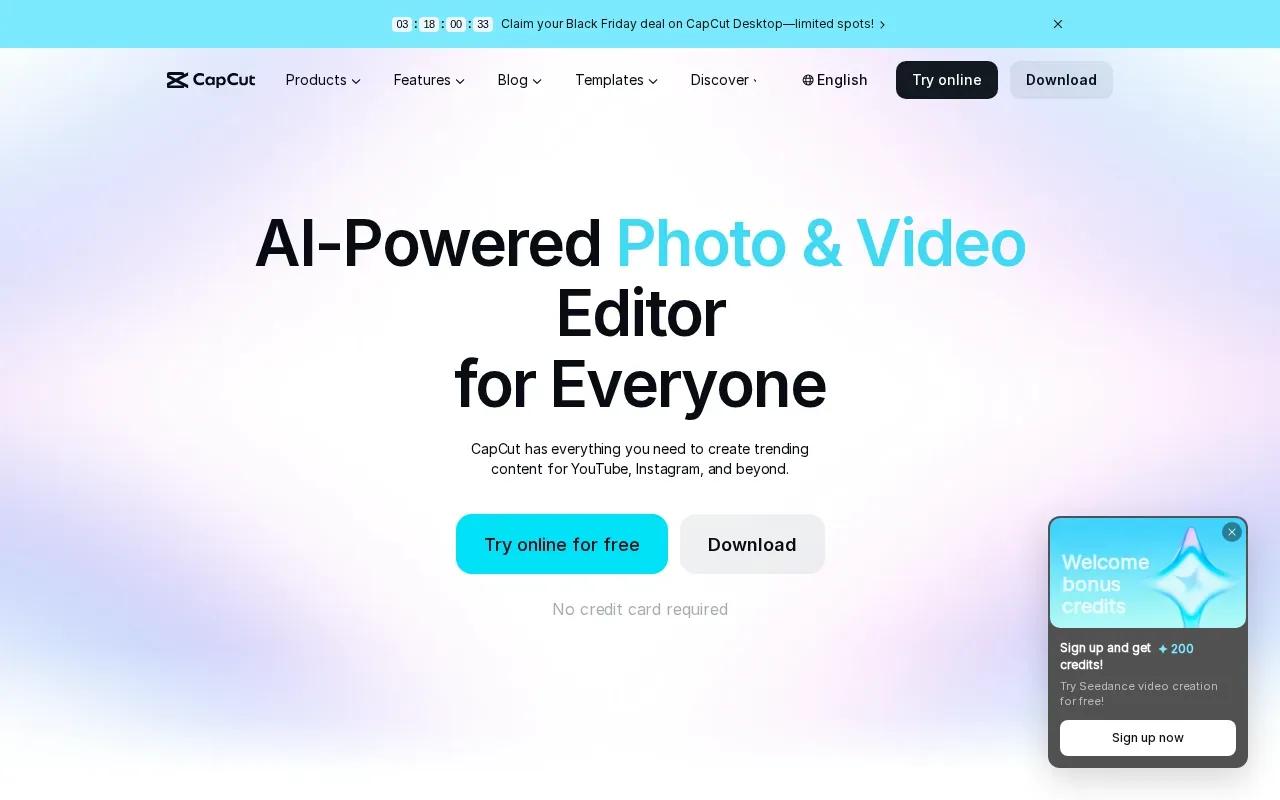
Think of it when you already have footage or a rough idea and need to prepare a short social edit. Its strength is fast editing on mobile; generated shots still need review before you publish. Keep an eye on the crop and pacing as you edit for a vertical feed.
A useful test is to take one short concept through your usual process. Check how quickly you can get to a cut you’d publish, then review the exported video on a phone. A preview that looks fine on a large screen can feel cramped in a vertical frame.
CapCut is a sensible place to start if your main task is shaping short-form content. If your project depends on a directed scene with consistent characters or generated dialogue, compare that need against a scene-generation tool instead.
3. InVideo: faceless YouTube videos and small-business content
InVideo suits small businesses and marketers, and it works well for faceless YouTube content. It’s also a useful option for someone new to video who needs a social media draft quickly.
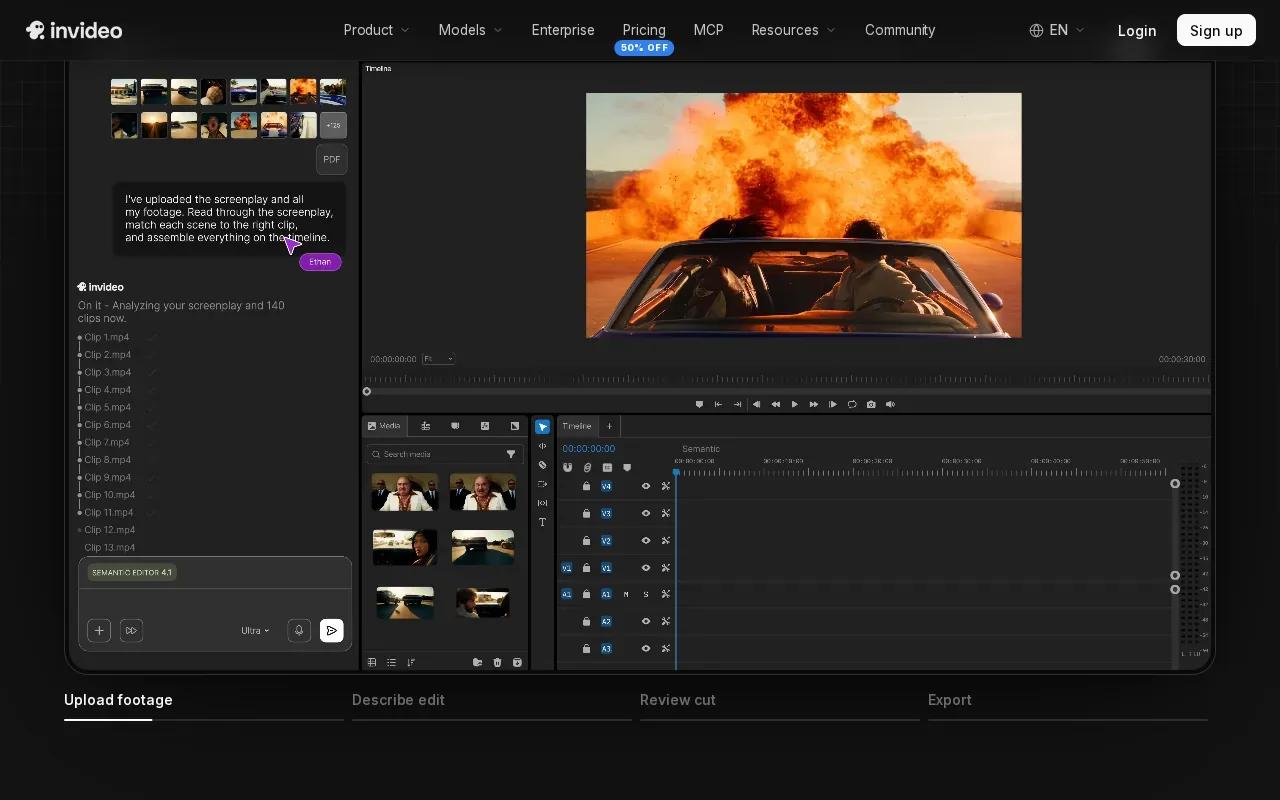
Consider it when the video can work without a presenter on camera. A small business might start with a simple topic or promotion and use the resulting draft as a base for review. Before publishing, check that the visuals fit the spoken message and that every factual claim is correct.
For a faceless channel, decide what carries the episode: narration, original footage, or a mix. A tool that helps you get a draft moving can save time at the start, but the final edit still needs a human check for tone, pacing, and accuracy.
InVideo is a better match for marketers who want a prompt-led starting point than for creators whose main goal is precise control over one cinematic shot. You can also browse these video marketing examples when planning a campaign concept.
4. Runway: creative control for filmmaker-style videos
Runway is a filmmaker’s toolkit for creators who want control over generated shots, rather than focusing only on raw visual quality.
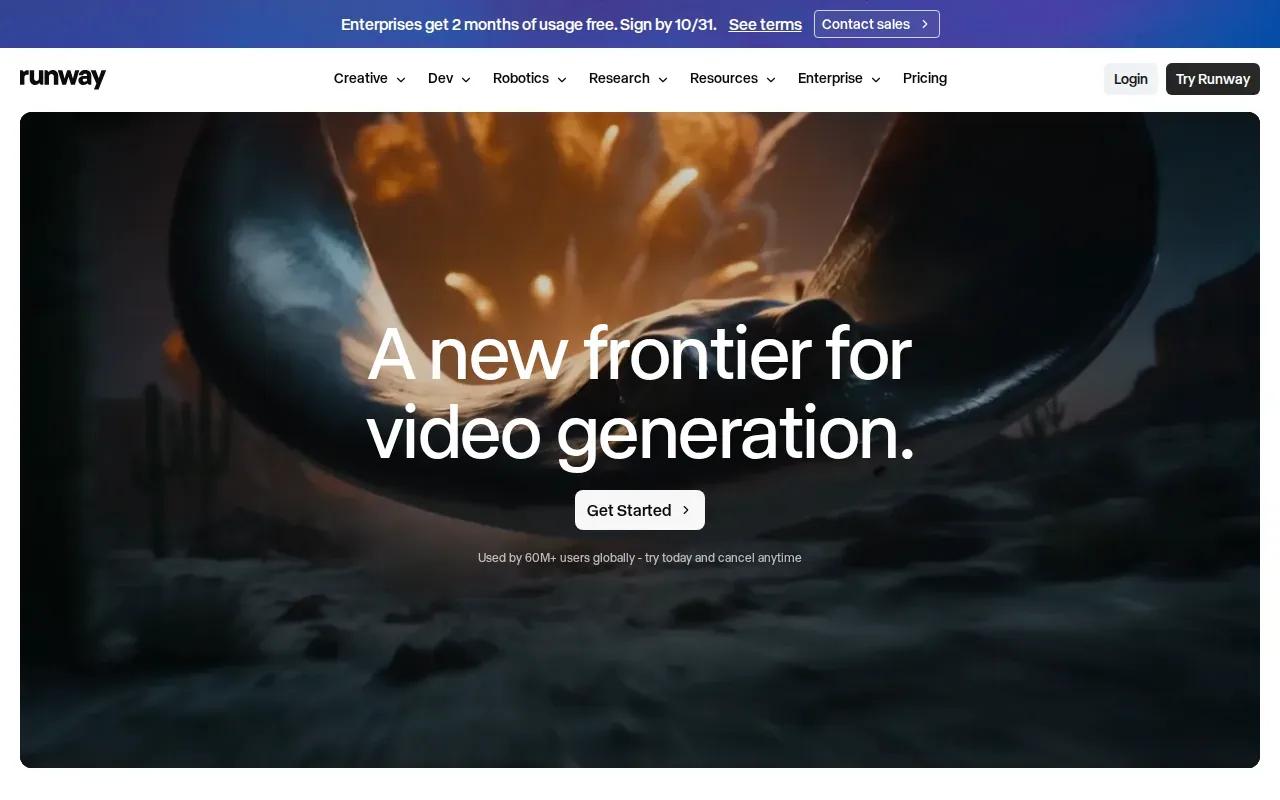
That makes it worth considering for selected moments in a YouTube story: a visual opening, a transition, or a shot that needs careful direction. Plan the episode first, then use generated footage where it adds something that narration, screen capture, or recorded video cannot.
The Standard plan costs $15 per month ($12 a month billed yearly) with 625 credits, and includes 4K upscaling. When you’re planning a sequence, account for the shots you’ll keep, not only the number of generations you can start. A clip that needs several revisions has a different budget impact from a shot that works on the first try.
Runway may suit you if you think in shots and want a hands-on creative workflow. If your channel needs a complete narrated draft or an avatar presenter, compare that job with the other options before choosing.
5. HeyGen: presenter-led videos with AI avatars
HeyGen is a fit for presenter-led videos made with AI avatars. The free tier includes three watermarked videos per month, and 4K export is on the Pro plan.
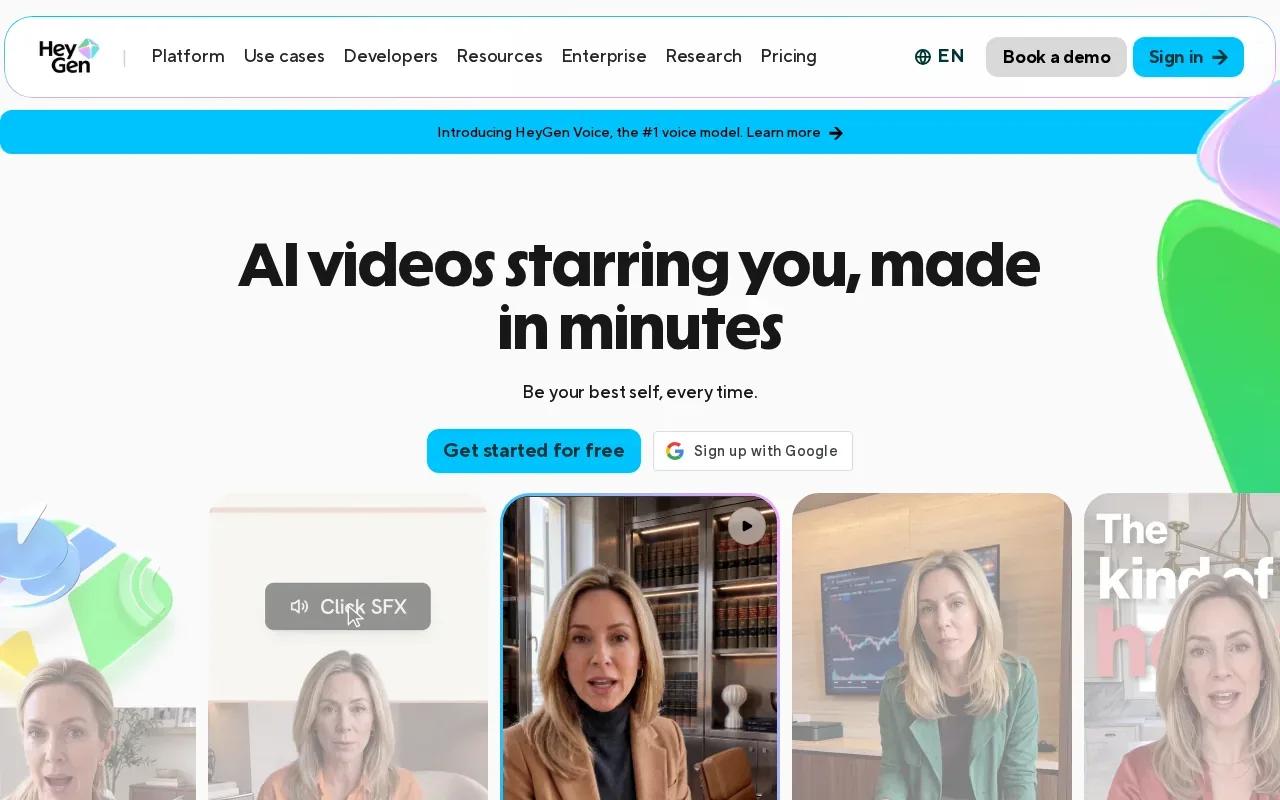
The Creator plan costs $29 per month, less with yearly billing, and exports in 1080p. That pricing may suit a channel built around frequent presenter-style delivery, but it’s a different production choice from generating a scene with a character inside a setting.
Use it when a consistent on-screen speaker is central to the format, such as a recurring explainer or a presenter-led update. Review the full video for natural pacing and clear delivery before you publish. The avatar should support the substance of the episode, not take the place of useful information.
For an episode that depends on a host speaking to camera, start with a short script and test how the delivery feels. For a story scene or product sequence, compare whether a generated scene gives you the framing and action you need.
Veo Studio and HeyGen address different types of speech-led video. Veo Studio generates dialogue as part of a directed scene; HeyGen is built for presenter-led video with an AI avatar. Pick based on the role the speaker plays in your video.
If you’re weighing Veo Studio’s paid options against other workflows, its plans and pricing can help you estimate whether the monthly allowance fits your planned output.
6. Higgsfield AI: text- and reference-led creative workflows
Higgsfield AI supports creative work from text prompts or reference material. Its workflow includes creating images, videos, and voice content, then editing or upscaling media. It’s available on web and mobile.
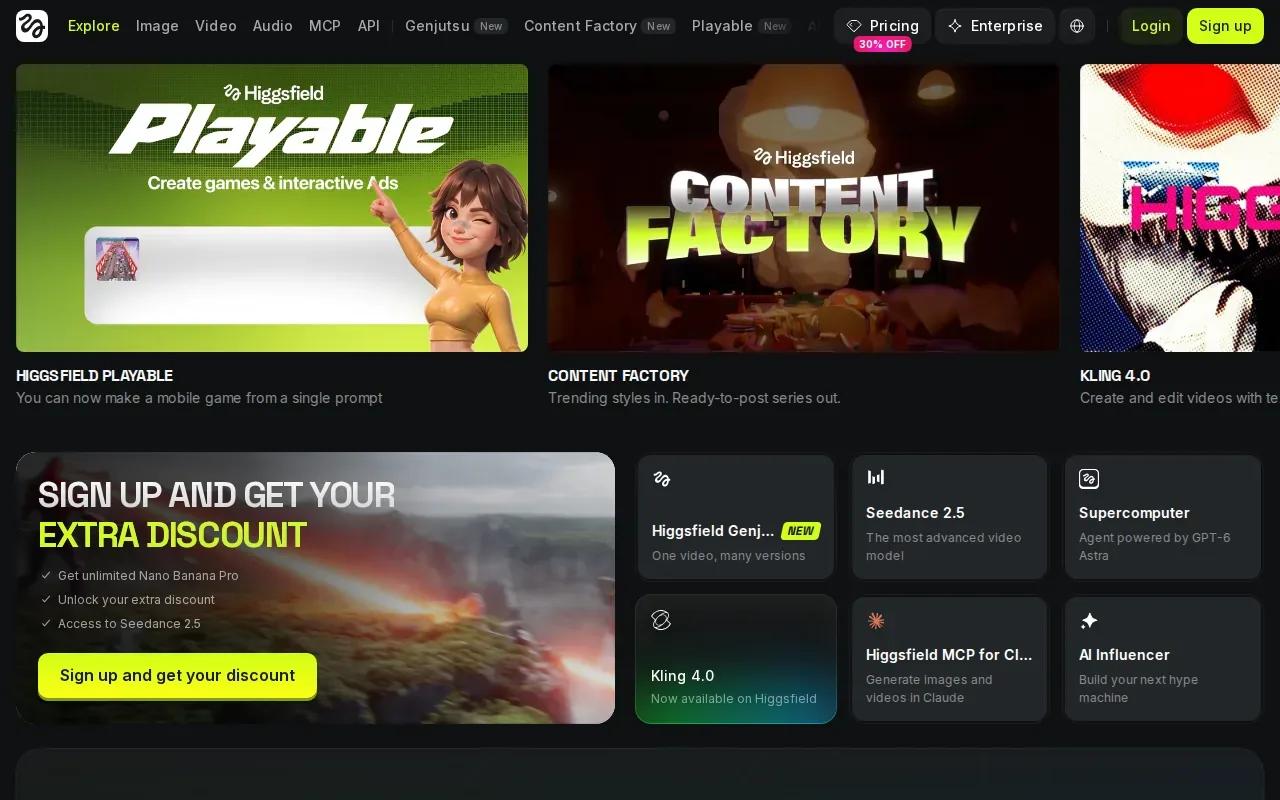
The platform may suit a creator who wants to start from a written idea or a visual reference and work across more than one type of media. Its AI agent can automate creative workflows, which may be useful when you’re building a repeatable process for content production.
Before making it part of your channel routine, test it with an actual shot from your next video. Use a prompt or reference that reflects your usual work, then check the output against your needs for pacing, continuity, and final edit quality.
Higgsfield AI covers the widest range of media in this shortlist. Match the tool to the specific job you need done, such as developing a visual concept or working with reference-led media.
Compare AI Video Generators for YouTube
Choose by production role, then check resolution, format, and cost against one real video you plan to make. Separate tools that assemble a full video from tools that generate individual shots, so a short clip limit is not mistaken for a complete episode workflow.
| Option | Good fit for | Details to weigh |
|---|---|---|
| Veo Studio | Directed scenes, Shorts, and selected story shots | Synced sound and dialogue, frame control, scene extension, up to 4K; free 720p plan |
| CapCut | Fast mobile-first Shorts editing | Free tier; consider it for a short-form editing workflow |
| InVideo | Faceless videos and small-business social content | Useful when you need a quick starting draft |
| Runway | Filmmaker-style shot control | Standard from $15 per month; 4K upscaling |
| HeyGen | Presenter-led videos with AI avatars | Free tier includes three videos per month; Creator is $29 per month, less billed yearly |
| Higgsfield AI | Text- or reference-led creative work | Creates and edits image, video, and voice content |
A quick workflow for a YouTube video
Start with a short shot list. Mark which parts need generated scenes and which can use narration, screen capture, or footage you already have. Write each prompt around one action, then add camera direction and any reference image that helps define the look.
Pick landscape or vertical framing before generation. Check resolution, credit use, and any watermark or export limits in the tool you choose. Review the result at the size your viewers will see, and check dialogue timing when a character speaks.
For longer videos, build a sequence from approved clips rather than expecting one generation to carry an entire episode. Assemble the footage with narration and other material in your editing workflow. Before upload, review claims, music and image rights, and any current platform disclosure rules that apply to your video.
Frequently Asked Questions
Which AI video generator is good for YouTube Shorts?
Veo Studio fits Shorts that need a directed scene with synchronized sound or dialogue. CapCut suits creators who want fast, mobile-first editing. InVideo is a fit for marketers and small businesses making faceless social content. Decide whether you need to generate a scene, assemble a draft, or edit short footage before picking a tool.
Can AI video generators make full-length YouTube videos?
They can help make parts of a longer video, but the tools serve different production jobs. Veo Studio generates clips of 4, 6, or 8 seconds, with supported extensions. For a full episode, plan a sequence of clips and combine them with narration or other footage in an editor.
Which options have a free tier?
Veo Studio has a free plan with a couple of 720p videos each month. CapCut has a free tier, and HeyGen starts with three videos per month. Free access does not mean every resolution or workflow is included, so check the plan details and test the exact output you need.
Can AI video tools generate synchronized dialogue?
Veo Studio supports synchronized sound and dialogue, and HeyGen avatars speak your script with lip sync. Those features fit different formats: Veo Studio generates dialogue within a scene, while HeyGen is aimed at presenter-led videos with AI avatars. Review the finished speech and lip sync before publishing.
What should I check before publishing an AI-generated video?
Review the video for factual errors, visual glitches, and audio timing. Check that you have the rights needed for any source material or added media. Then confirm the current YouTube rules that apply to your content, including any disclosure requirement. Export and view the final file on the device and screen size your audience is likely to use.
Conclusion
If your YouTube videos need directed scenes, synchronized dialogue, character consistency, or 4K output, start by testing Veo Studio’s free plan with one short shot. If your channel needs mobile editing, faceless drafts, or an AI presenter, choose the option built around that job instead.


