
Choosing the best AI photo animator depends on what you want the still to do. Some tools focus on cinematic movement, while others make a portrait speak or add motion on your phone. Here are six options, starting with Veo Studio, an independent browser-based tool powered by Google’s Veo 3.1 models.
1. Veo Studio
Veo Studio turns prompts and reference images into video with synchronized sound and dialogue. It suits creators who want to direct a scene from a still, such as a product reveal or a short character moment with spoken lines.
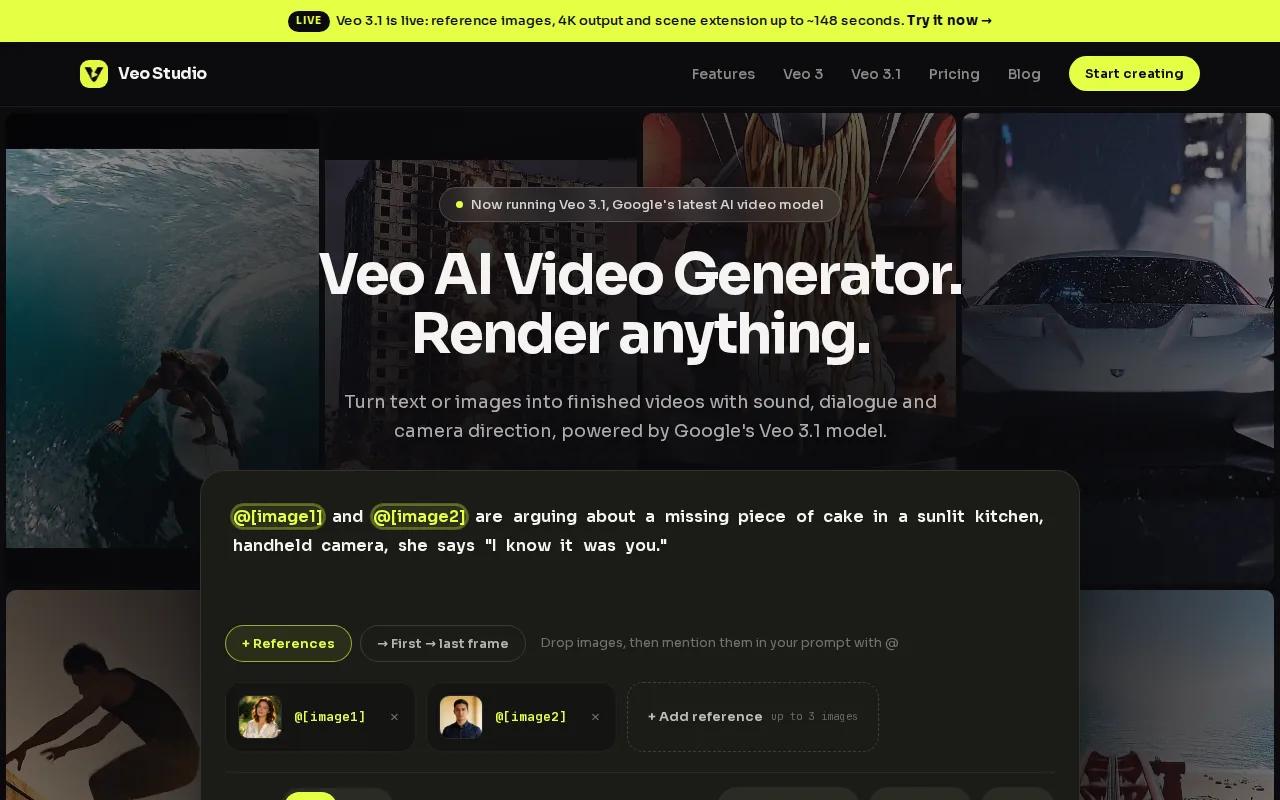
For a product clip, upload a reference image and describe the camera move and action. For a character scene, you can use reference images to guide consistency, then add dialogue in the prompt. The generated sound and picture come together, so a spoken line can match the character’s lip movement.
Veo Studio also supports first- and last-frame control. Provide two stills, and the model generates the transition between them. Scene extension can add to a finished clip, while supported output reaches up to 4K. That makes it a fit when a short image-led idea needs a more directed shot or room to continue.
Veo Studio has a free plan with a couple of 720p videos each month and no card required. Paid plans start at $14 per month and add higher resolutions, more videos, and a commercial licence. If you’re weighing the workflow against other tools, this comparison of AI image animator tools covers more ways to turn a still into video.
2. Runway: cinematic motion from still images
Runway is an image-to-video option centered on cinematic motion. It fits creators building a shot where camera movement and the feel of the scene matter more than making a portrait deliver a script.

Think of a still of a shop window at dusk. You might want the camera to push toward the display, or the frame to feel like a moment from a film. Runway belongs on the shortlist for that kind of motion-led brief. The useful question is what movement you want the still to suggest, not how many effects you can add.
Before you generate, write down the shot’s main action in plain words. If the subject should remain the focus while the camera shifts, say so in the prompt. Then review the result for whether that movement serves the story. This is a sound habit with any image-to-video tool, especially when your source image has a product edge or face you need to keep recognizable.
Runway is the production-oriented pick in this group for cinematic motion from a still. If the clip needs spoken words or a specific start-to-end transition, compare those needs with Veo Studio’s synchronized dialogue and frame controls before you settle on a workflow.
3. Pika: expressive animation and multi-frame control
Pika leans toward expressive motion. Its Pikaframes tool animates between two and five stills you supply, at up to 1080p. That makes it a fit when you already have several images and want the movement between them to carry the idea.
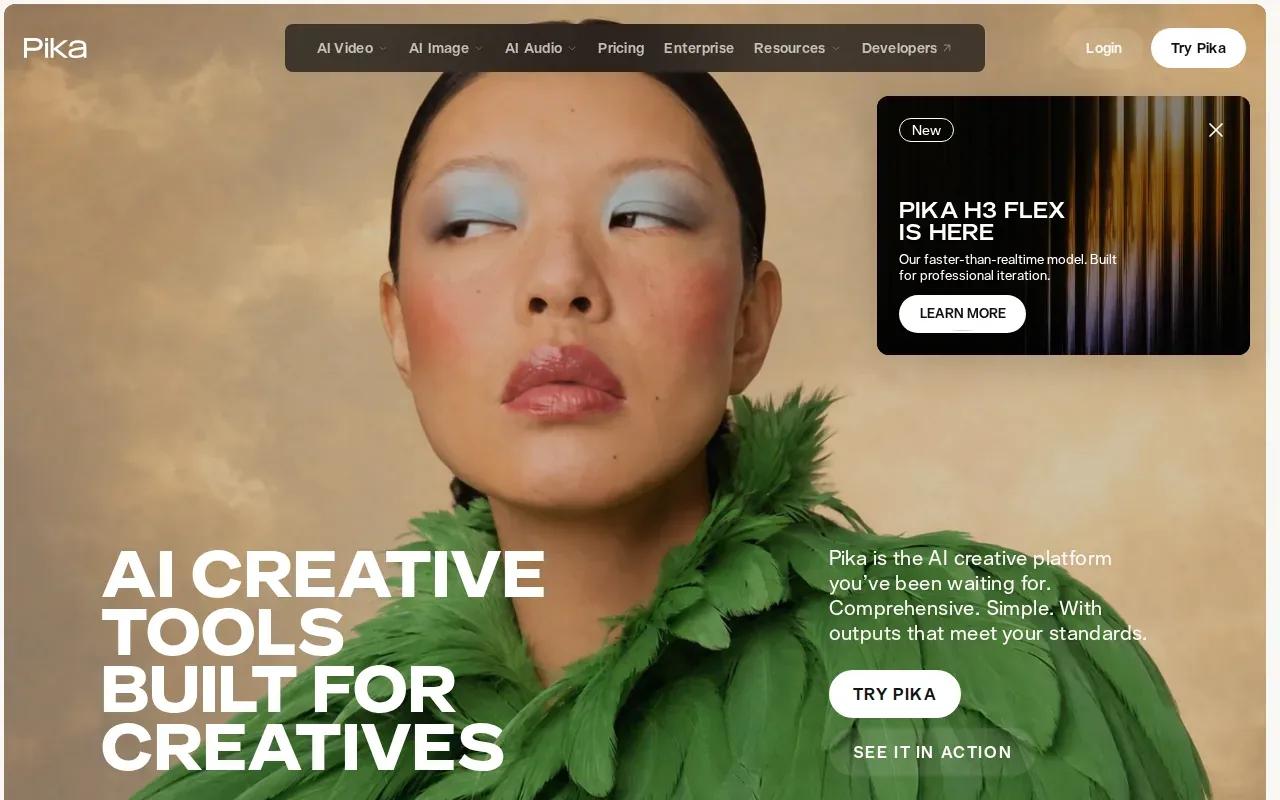
For example, you could arrange a small set of stills that show a character’s pose changing, or a product moving through a few planned states. Each image provides a visual point for the animation. Keep the sequence focused: each still should help define the change you want the viewer to notice.
That multi-image approach is different from asking a model to invent all the motion from one photo. It can suit a social post or a playful visual beat where expression matters. Output goes up to 1080p, so check whether that meets the size your project calls for before building a delivery plan around it.
The transition shows the motion between those frames. This photo animation walkthrough also explains how to write a clear motion prompt and review the result.
4. HeyGen: make a portrait photo speak
HeyGen makes a still photo speak. It’s suited to a presenter-style clip where a person in a portrait needs to deliver a script, such as a short lesson or a social update.

The talking-photo workflow starts with a portrait and typed script. HeyGen generates speech along with mouth movement, blinking, and head motion. You can also give plain-language directions for the face’s expression, such as asking the speaker to look at the camera or take a more serious tone.
That makes HeyGen a distinct choice from a tool focused mainly on cinematic camera motion. Use it when the message itself is the center of the video. A single portrait can carry a product announcement or lesson without filming a new take for every script change.
Keep the source image suited to the job: a clear portrait gives the face room to carry the message. If you only want a landscape or product image to move, a talking-photo workflow may be more than you need.
5. Deep Nostalgia by MyHeritage: subtle portrait animation
Deep Nostalgia by MyHeritage applies portrait presets for actions such as blinking, smiling, and slight head turns. It’s aimed at animating faces in old family photos, rather than directing a full scene or creating a scripted presenter video.
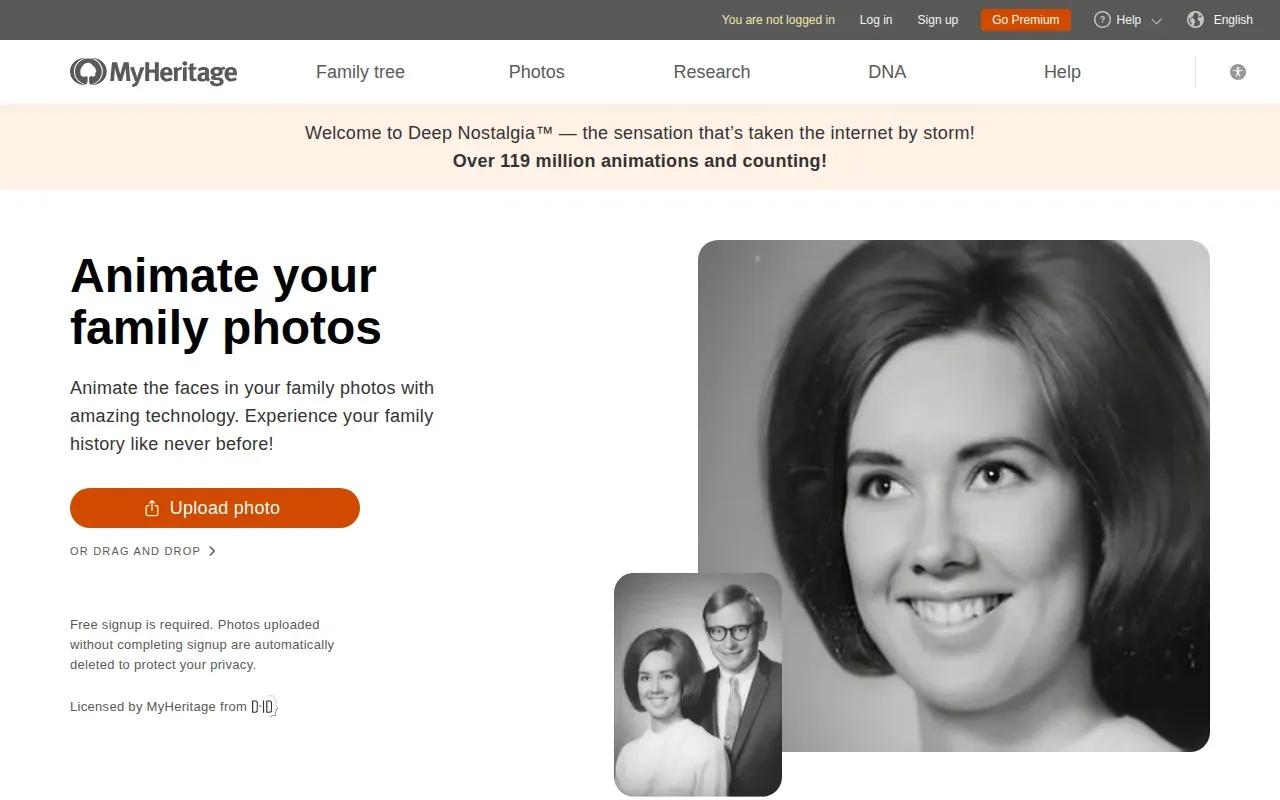
The limited, gentle movements are part of the appeal. A family portrait can feel more immediate when the person blinks or turns their head, while a restrained result can keep attention on the original image.
Keep in mind what the animation represents. MyHeritage explains that the movement comes from AI and is an estimate, not historical footage of the person. That distinction matters if you plan to share an old photo as part of a family story. Present it as an animation of a still image, not as a recording of an event.
Pick Deep Nostalgia when the goal is a small facial gesture on a family portrait. For product scenes, dialogue, or motion across a wider frame, a different kind of image-to-video workflow is likely a closer fit.
6. CapCut: mobile-first photo animation
CapCut brings photo animation to mobile with its AI Motion feature. It suits social media creators who work mainly from a phone and want to make a moving clip without shifting their whole workflow to desktop.
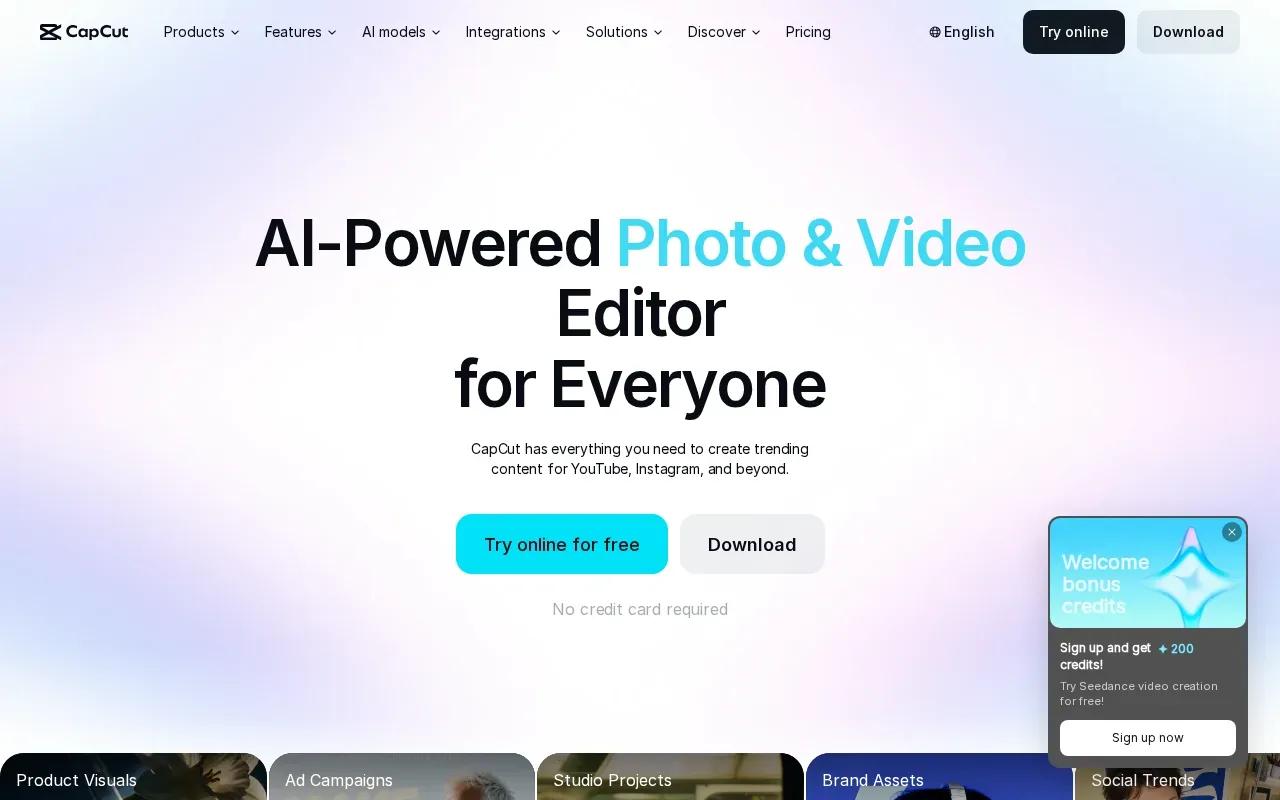
That phone-first setup can help when you shoot a product or portrait on the go, then want to prepare a quick social post. Keep the motion brief clear: identify what should move and what should stay recognizable. After generation, inspect the subject and the saved video before posting. A generated frame can alter details in the source photo.
CapCut is the sensible option when the device and handoff matter most. For complex motion, dialogue, or precise frame direction, match the job to the tool’s capabilities rather than assuming every photo animator handles those tasks the same way.
| Your main need | Option to consider | What to check in the result |
|---|---|---|
| Directed scene with sound | Veo Studio | Frame transition, character continuity, dialogue sync |
| Cinematic motion | Runway | Whether the camera movement supports the shot |
| Motion between several stills | Pika | How the action flows across supplied frames |
| Portrait with a script | HeyGen | Mouth movement and expression against the spoken line |
| Gentle family-photo animation | Deep Nostalgia by MyHeritage | Whether the preset motion feels suitable for the image |
| Phone-based social content | CapCut | Subject details and the exported clip |
Frequently Asked Questions
What is the best AI photo animator for creators?
The right AI photo animator depends on the result you need. Veo Studio fits directed image-to-video scenes with synchronized sound, dialogue, first/last-frame control, and output up to 4K. HeyGen is a more specific fit for a portrait that needs to speak, while Deep Nostalgia focuses on gentle movements in family portraits.
Can AI make a photo talk?
Yes, some AI tools can animate a portrait to speak from a script. HeyGen makes a still photo speak. Veo Studio can generate synchronized dialogue with a video scene. Choose based on whether you need a presenter-style portrait or dialogue inside a broader shot.
Can I animate more than one still image?
Yes. Pika’s Pikaframes tool animates between 2 and 5 stills you provide. That can suit a planned sequence where each image marks a stage of the motion. For a single reference image, describe the main action you want and check how the generated frames treat key details.
Can I animate old family photos?
Yes. Deep Nostalgia by MyHeritage applies portrait presets such as blinking, smiling, or slight head turns. That’s worth keeping in mind when you share an animated image as part of a family history.
Which photo animator works well on a phone?
CapCut is a phone-oriented option because its AI Motion feature brings photo animation to mobile devices. That can suit creators who shoot and prepare social content on the same device. Check the generated clip before you post, especially if the image includes a face, product shape, or small detail that needs to remain recognizable.
Conclusion
For a still that needs directed motion plus synchronized sound or dialogue, start with Veo Studio. Create a free account, upload a reference image, and test one short prompt before planning a larger batch.


