

Want smoother motion without filming at a higher frame rate? AI video frame interpolation estimates the movement between existing frames and generates new ones. These five tools suit different jobs, from local file processing to real-time playback. For story-led video rather than frame-rate conversion, Veo Studio is an independent browser-based tool powered by Google's Veo 3.1 models.
We analyzed 63 YouTube comments about AI video frame interpolation and found that 25% asked about supported input formats and settings.
1. Topaz Video AI - advanced interpolation with Apollo and Chronos
Topaz Video AI is a desktop video enhancement app for creators who want to adjust frame rate alongside other footage fixes. Its Apollo, Chronos, and Aion models target different interpolation needs, and the app can run locally or use cloud rendering.
Local rendering keeps files on your computer, which can suit confidential or proprietary footage. Cloud rendering uses Cloud Credits and can take pressure off your hardware. Topaz Video can also work as a standalone app or as a plugin for video editing software.
That flexibility makes it a fit for post-production work, such as restoring an old clip before adding it to a current edit. It can create new frames, reduce noise, upscale footage, and stabilize camera movement. Keep the job focused, though: interpolation changes motion, while denoising and upscaling address other parts of the image.
Topaz’s model names can help you compare approaches, but the best test is still your own footage. Watch a short section with fast movement and fine detail before processing a full file. Look for warped edges, doubled shapes, or a face that changes between frames.
Frame-rate conversion works by generating intermediate images between existing frames, so the quality of the source clip still sets the ceiling.
2. UniFab Smoother AI - a full-featured trial for smoothing footage
UniFab Smoother AI is a desktop app for creators who want to smooth existing clips, with a stated 30-day free trial that includes full features and no watermark. It outputs up to 120 fps, which may suit footage intended for high-frame-rate playback or slow-motion editing.
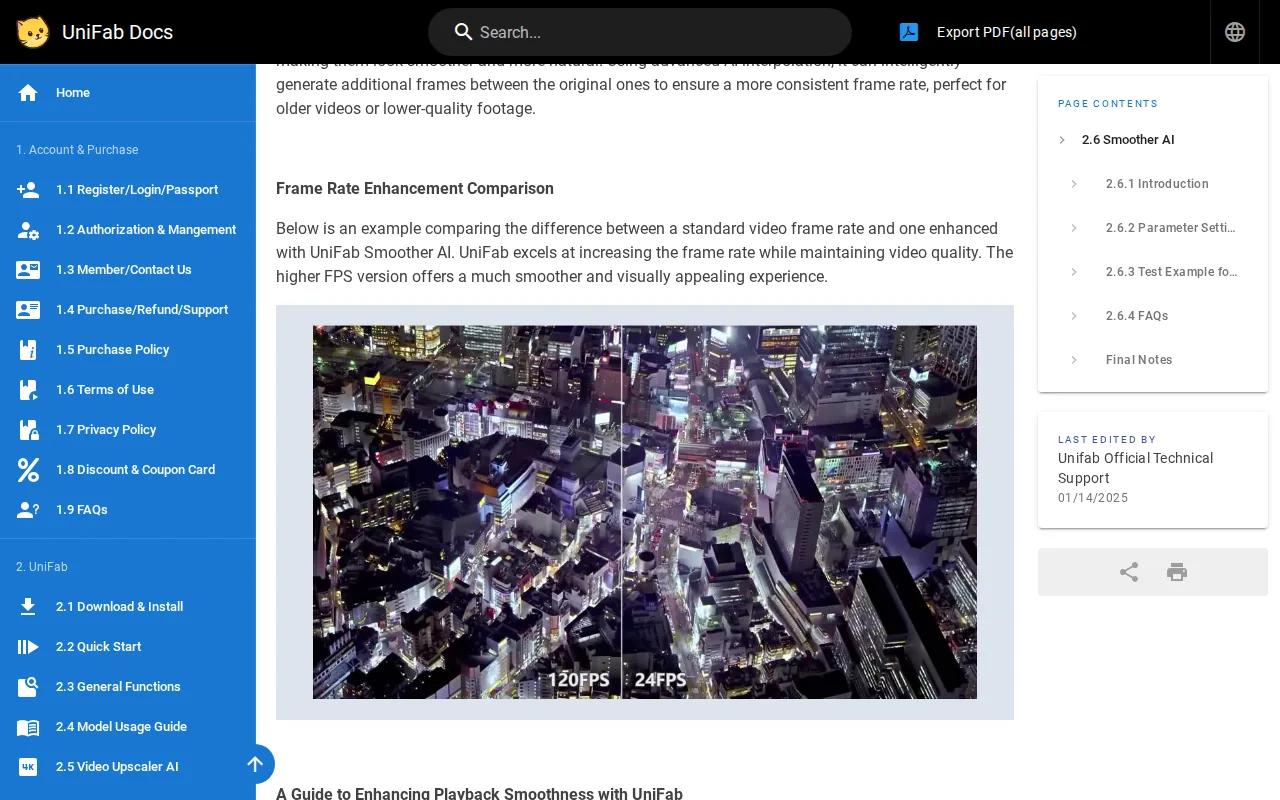
The basic workflow is direct: add a video, choose the Smoother module, set a target frame rate, then start processing. Its settings also let you choose output quality, format, and codec. That can help when the finished file needs to fit a specific edit or delivery setup.
A high target frame rate doesn’t guarantee a clean result. Interpolation has to guess what happened between two real frames, so fast movement, fine lines, and sudden changes can lead to visual glitches. Test a short segment first, especially if a subject crosses the frame quickly.
Use this kind of app when the source clip already has the action and look you want. If you’re making a new scene from a prompt or reference image, interpolation software isn’t the right tool.
Choose a trial workflow when you need to check output on your own files before committing to a regular process. Compare the original and processed clip at the same display size, not only in a small preview window.
3. SVP (SmoothVideo Project) - real-time motion smoothing
SVP is for people who want smoother playback while watching video, rather than a newly rendered file as the main outcome. It generates intermediate frames in real time inside a compatible video player. The project describes conversion to 60 fps and higher.
That makes SVP useful for watching films or animation on a computer when you prefer smoother motion. The project describes its method as similar to motion-smoothing systems in TVs and projectors.
Real-time processing changes what you need to weigh. Playback has to keep up as the video runs, while a file-based app can spend time rendering an export. Some viewers dislike the “soap opera” look that can come with high-frame-rate playback. Try it on a short scene before deciding if the effect suits your taste.
Interpolation models estimate motion between frames. Optical flow, one method used in video processing, tracks apparent movement across images. The results can still vary by scene, so check movement near cuts and around objects that cross one another.
SVP makes more sense as a playback choice than as a general-purpose editing step. If your goal is a finished file for a client or social post, check whether your chosen workflow can export and preserve the file settings you need.
4. Flowframes - a free, open-source GPU-accelerated option
Flowframes is a free, open-source Windows app for generating intermediate frames on your own computer. It supports multiple model backends, including RIFE, DAIN, and FLAVR, and uses GPU acceleration for processing.
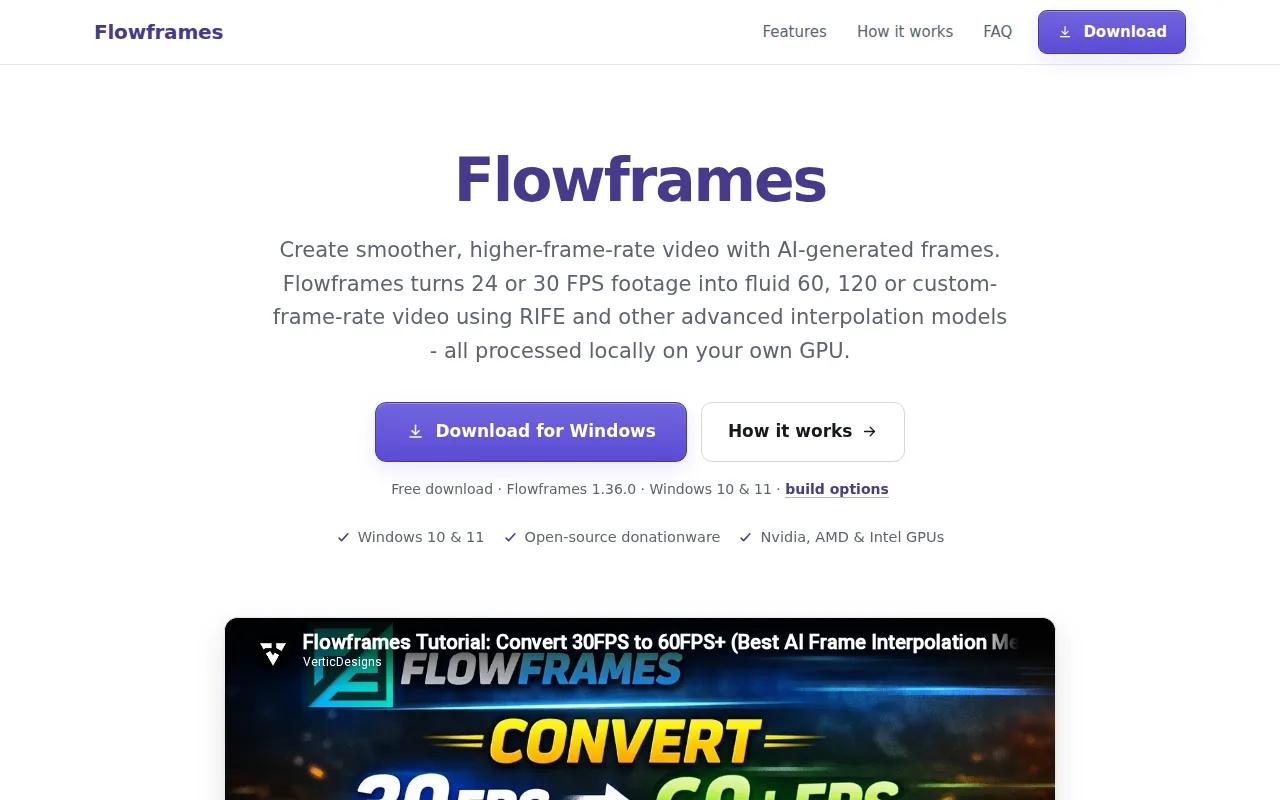
Its local workflow can suit people who want control over files and don’t want to upload video to a browser tool. You can import common video formats or image sequences, choose a model and output frame rate, then export a processed file. Supported exports include video containers and image sequences.
Hardware matters. Processing depends on supported hardware. The actual speed depends on the GPU, source resolution, model, and interpolation factor. There isn’t one speed claim that will predict every render.
RIFE is a common starting point in Flowframes, while DAIN and other available models let you compare how different methods handle a shot. Look closely at scene cuts: there’s no continuous motion to estimate across a hard cut. Flowframes includes scene detection to avoid generating frames across recognized cuts.
For a short test, try a clip with steady movement first. Then inspect fast action and thin details, such as hair or fence lines. If those hold up, move on to a longer render. The app also has options for handling duplicate animation frames and carrying over audio or subtitles where supported.
5. TensorPix - browser-based enhancement with motion smoothing
TensorPix is a browser-based AI enhancer with motion smoothing built in. It suits people who want to process a clip online without installing a desktop app. The service also describes video enhancement and upscaling, with output options that include 60 fps and resolutions up to 4K.
A typical browser workflow is simple: upload a clip, choose a smoothing setting, wait for processing, then download the result. TensorPix offers motion multipliers of 2×, 4×, and 8×. Pick a modest increase first, then review the clip before asking the system to add more frames.
Browser processing saves setup time, but a video still has to travel over your internet connection. A long or high-resolution source can take more time to upload than a short social clip. Before uploading sensitive footage, read the service’s current privacy terms and decide whether cloud processing fits your project.
TensorPix also includes enhancement and upscaling features, which may help when a clip needs more than smoother motion. Keep those tasks separate in your review: added frames can improve the feel of movement, but they don’t automatically repair a soft source or restore details that were never captured.
For quick jobs, browser access can be handy. For long files or work that must stay on a local machine, a desktop tool may fit better.
AI video frame interpolation tools compared
Choose by workflow first, then by the frame rate you need. A 120 fps target is less useful if the tool doesn’t fit your device or the result shows motion artifacts.
| Tool | Best fit | Processing style | Useful detail |
|---|---|---|---|
| Topaz Video AI | Enhancement and post-production | Local or cloud | Apollo, Chronos, and Aion models |
| UniFab Smoother AI | High-frame-rate smoothing | Desktop app | 30-day trial; output up to 120 fps |
| SVP | Smoother viewing | Real-time playback | 60 fps and higher |
| Flowframes | Local, open-source processing | Windows and GPU | RIFE, DAIN, and other model options |
| TensorPix | Online enhancement | Browser-based | Motion smoothing and upscaling |
For generated scenes rather than existing footage, Veo Studio works from prompts and reference images. Supported tools include first- and last-frame control, scene extension, synchronized audio, and up to 4K output. Use the right category: interpolation adds frames to a source clip; generation makes new footage.
Frequently asked questions
What does AI frame interpolation do?
AI frame interpolation generates new frames between the frames already in a video. The added frames estimate how people or objects moved, so playback can look smoother or the footage can support slow motion. It doesn’t increase the source image’s resolution. The result depends on the original clip and how well the model handles movement, edges, and scene changes.
Is RIFE or DAIN better for frame interpolation?
Neither model is the right choice for every clip. Flowframes supports RIFE and DAIN, among other options, so you can compare their output on the same short segment. Start with a shot that has clear movement, then inspect faces, edges, and fast motion. Pick the model that creates fewer visible errors for your footage.
Do I need a powerful GPU to interpolate video?
A supported GPU can speed up local processing, but performance depends on the model and source settings. Flowframes is a free, open-source GPU-accelerated front-end with multiple model backends. Browser tools process online instead, but upload time and internet access still affect the workflow.
Can I interpolate video in real time?
Yes. SVP applies motion smoothing during playback in a compatible video player. That differs from rendering a new file for an edit. Real-time interpolation can suit watching films or animation, but some people dislike the smoother visual style. Try a short scene and decide if it looks right to you.
Can AI interpolation fix blurry or low-resolution footage?
Interpolation mainly changes the timing of motion by adding frames. It doesn’t, by itself, restore all missing detail or raise resolution. Some tools combine motion smoothing with enhancement or upscaling, but review those effects separately. A soft source can remain soft, and fast movement may create artifacts in the added frames.
Conclusion
Use a local app when privacy or long renders matter, and a browser tool for a short, simple job. For a new scene with consistent characters and synchronized dialogue, Veo Studio supports a scene extension workflow for building a longer sequence.


