
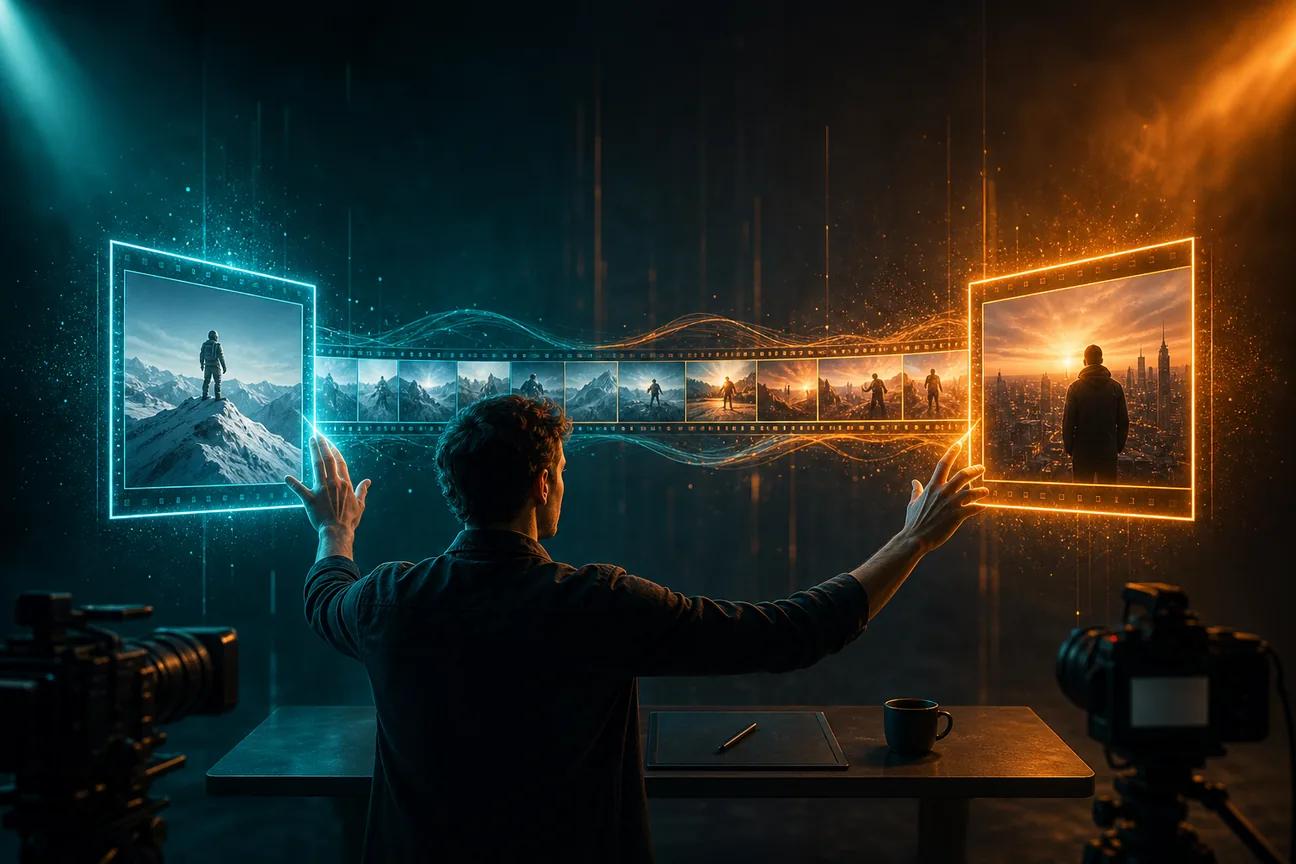
AI video with first- and last-frame control lets you set how a clip starts and where it lands. The model generates the motion between those two stills. Here are six named options, starting with Veo Studio, an independent browser-based tool powered by Google's Veo 3.1 models, with first/last-frame control.
We analyzed 25 YouTube comments about AI video first and last frames and found that 32% mentioned more customization options.
1. Veo Studio
Veo Studio is an independent browser-based video tool powered by Google's Veo 3.1 models, with first- and last-frame control. You can upload a starting image and an ending image, then prompt the motion between them. It suits creators who want a planned reveal, a character scene, or a short ad without setting up a local video workflow.
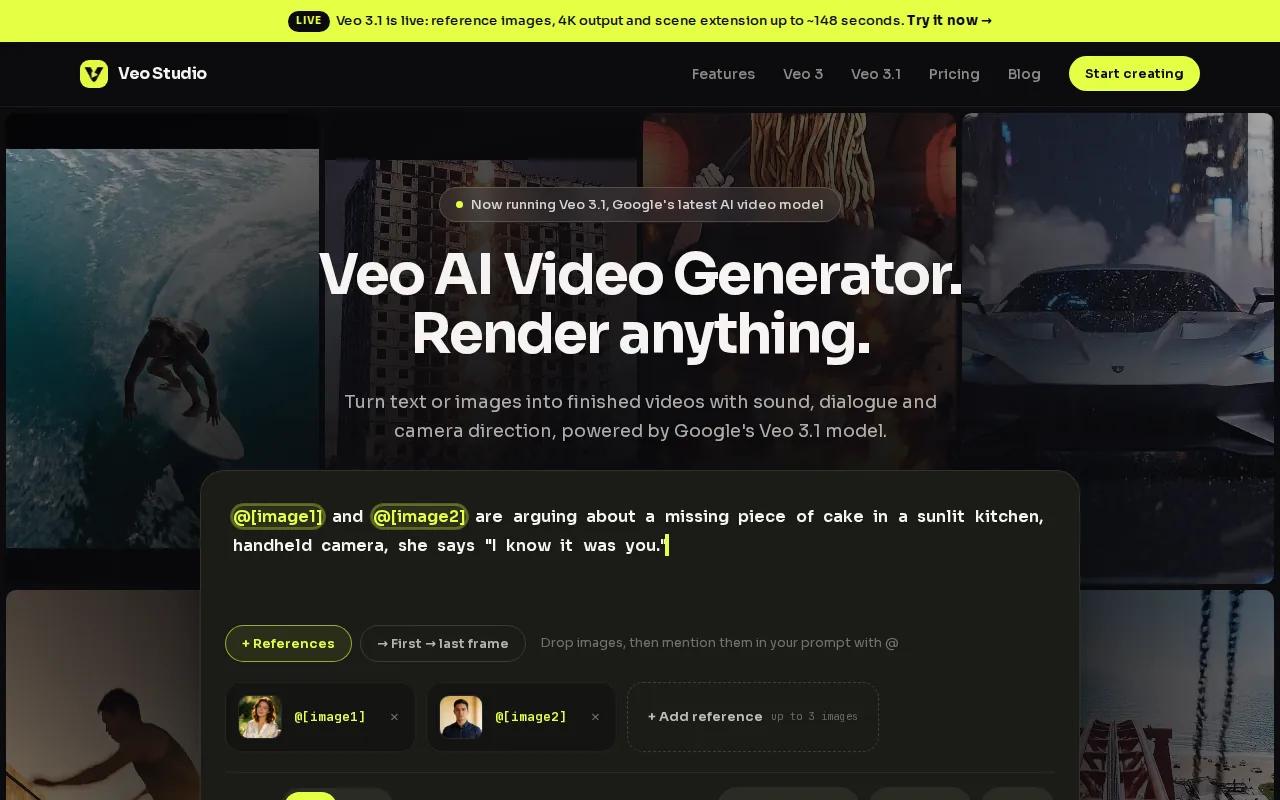
Frame control is one part of its workflow. Veo Studio also supports reference images for character or product consistency, synchronized sound and dialogue, scene extension, and output up to 4K on supported settings. Clips can run for 4, 6, or 8 seconds. 1080p and 4K output require an 8-second clip, and eligible 720p clips can be extended in 7-second steps.
For a first test, choose two stills with a similar camera angle and lighting. Then describe one clear movement between them, such as a slow turn or a camera move toward a product. Explore the Veo Studio workflow for frame control, references, and scene extension.
Veo Studio has a free plan with a couple of 720p videos each month and no card required. Paid plans start at $14 per month and include higher limits, higher resolutions, and a commercial license. The free plan is a useful way to test a short transition before you plan a larger batch.
For a product reveal, the first still could show a package on a table and the last could show it open. A prompt can then describe the camera move and the reveal. Check the rendered clip before using it in a campaign, especially if a face, logo, or small product detail must stay consistent.
2. WAN 2.7: Frame control with uploaded-audio synchronization
WAN 2.7 supports both a first frame and a last frame, with uploaded audio required for synchronization. It fits creators who already have a soundtrack, voice track, or other audio they want the generated motion to follow.
You can provide a first frame and a last frame, and generate clips up to 15 seconds long.
This setup is API-based. You need an API key, submit a generation task, then check its status to get the result. That can suit a developer or production team building video generation into an existing workflow. It may feel like extra setup if you only want to make one clip in a browser.
Plan the sound around the action. If a character turns toward the camera at the end, place the key spoken line or sound cue where that turn happens. Then review the rendered clip for timing. Uploaded audio gives you a sound source to sync against, but it does not mean the model has generated new dialogue for you.
Keep the two stills close in framing and light. A small change, like a person turning or a camera moving closer, gives the model a clear path to fill. A large change in viewpoint asks it to invent more of the transition.
3. Midjourney: A first-and-last-frame option for visual storytelling
Midjourney supports start and end frames for video generation. It suits visual storytellers who want to guide a short image-based scene, make a loop, or test a change in pose or viewpoint.
Start with an image, then add an end image and a prompt if you want to describe the motion. Midjourney also lets you choose a motion level. For a loop, the starting image can also act as the ending image. A character already shown mid-action may make a more natural loop than one standing still.
Match the two images' aspect ratios before you submit them. In Midjourney, the video uses the starting frame's aspect ratio, so a differently shaped end frame may be cropped or zoomed to fit. That can change the composition at the end of the shot.
Endpoint control can guide a pan or a change in perspective, but it doesn't guarantee that every detail will stay fixed. If a face or object changes between the stills, inspect the transition for abrupt shifts.
Try a simple scene first. A person looking up or an object turning in place is easier to assess than a busy shot with several simultaneous changes.
4. Vidu: A frame-guided option for shaping a clip's endpoints
Vidu supports start and end frames, giving you two fixed images to guide a generated clip. It can suit a short story beat or a slideshow-style transition when you already know the opening and closing compositions.
In a frame-guided workflow, you provide two images in order: the first image is the start frame, and the second is the end frame. That makes the input simple to plan. Choose the images as a pair, rather than treating them as unrelated pictures.
Keep the subject in a similar part of the frame when the action should feel continuous. For example, if a person starts near the left edge, avoid placing them at the far right in the end image unless the clip needs a clear crossing motion. Similar lighting and camera angles also give the model less visual ground to invent.
The two images guide the endpoints, not every moment in the middle. Describe the motion you want in a short prompt, then watch the full clip for unwanted changes in the subject or background. For more on starting from a still, see this guide to making AI video from a photo.
5. FLUX 3 Video: First and last frames from Black Forest Labs
FLUX 3 Video, the video model from Black Forest Labs, accepts a first and a last frame and generates the motion between them, with matching audio. It fits a workflow where the closing composition matters and you want the clip to land on an exact final shot.
Think of the two images as boundaries for the shot. A product can start in a closed or covered state and end fully revealed. The prompt should explain the movement that connects those states, rather than repeat details that are already clear in the images.
Higher resolution does not fix a mismatched pair of frames. If the first image shows a close view and the last shows a wide view, the model must bridge a major shift in composition. Make that change part of the intended camera move, or prepare a closer-matched pair for a subtler transition.
Use a short preview to judge the motion before committing to a final edit. Check whether the clip lands on the intended last image and whether the subject remains recognizable along the way.
6. Kling v3.0 Standard: Optional audio and defined frame endpoints
Kling v3.0 Standard supports first-frame and last-frame control, with optional audio. It suits clips where you need defined endpoints and want to decide whether the generation should include sound.
Before generating, plan the opening and closing images and decide whether the clip needs audio. Keep the requested action focused on the transition between those endpoints.
| Production choice | What it supports | Decision point |
|---|---|---|
| Frame endpoints | First-frame and last-frame control | Use this when both the opening and closing composition are planned. |
| Audio | Audio is optional | Choose based on whether the clip needs generated sound. |
| Output | 720p | Check that this output resolution fits the intended use. |
Use the chosen first and last frames to guide the clip's beginning and finish. If the motion between them does not fit your goal, adjust the prompt or the frames and generate another version.
For a clean handoff, inspect the first and final moments separately. Confirm that the first image appears as intended, then check whether the ending lands on the right pose and crop.
FAQ
What does first-and-last-frame AI video mean?
It means you give a video model one still for the opening and another for the ending. The model generates the motion between them. This is useful when a clip needs a planned start and finish, such as a product reveal or a character changing pose. The frames guide the endpoints, while the prompt helps describe the action between them.
How do I choose the first and last frame?
Choose stills with a matching aspect ratio, similar lighting, and a camera angle that makes the change feel possible. Then decide what should move between them. If the subject needs to stay in place, keep its position similar in both images. If the clip needs a camera move, make that move clear in the prompt.
Can these tools sync audio with generated video?
Some can. Veo Studio supports synchronized sound and dialogue with generated video, while WAN 2.7 requires uploaded audio for synchronization. Kling v3.0 Standard has optional audio. If your project needs a specific spoken line, check the selected tool's audio workflow before building the shot.
Can I use one of these tools for a longer scene?
Yes, but a single generation may have a short duration limit. Veo Studio supports scene extension for eligible 720p Veo 3.1 clips, adding 7 seconds at a time up to roughly 148 seconds. If you need a longer scene, check whether your chosen tool can extend a clip and review the joins between segments.
Conclusion
If you need frame control alongside synchronized dialogue, character consistency, scene extension, or 4K output, start with Veo Studio's free plan and test one short transition. Upload two matched stills, describe one motion, then review the ending before making more clips.


