AI video continuation can extend a clip while keeping its action connected. This guide compares five options, including Veo Studio, an independent browser-based tool powered by Google's Veo 3.1 models, with scene-extension capabilities, and reviews their controls, editing workflows, and fit for different shots.
We analyzed 25 YouTube comments about AI video continuation and found that 44% mentioned inconsistent visual details.
1. Veo Studio
Veo Studio is an independent, browser-based AI video creation tool powered by Google’s Veo 3.1 models. It suits creators who want to generate a scene, then continue it with synchronized sound and dialogue, character consistency, and control over the first and last frames.
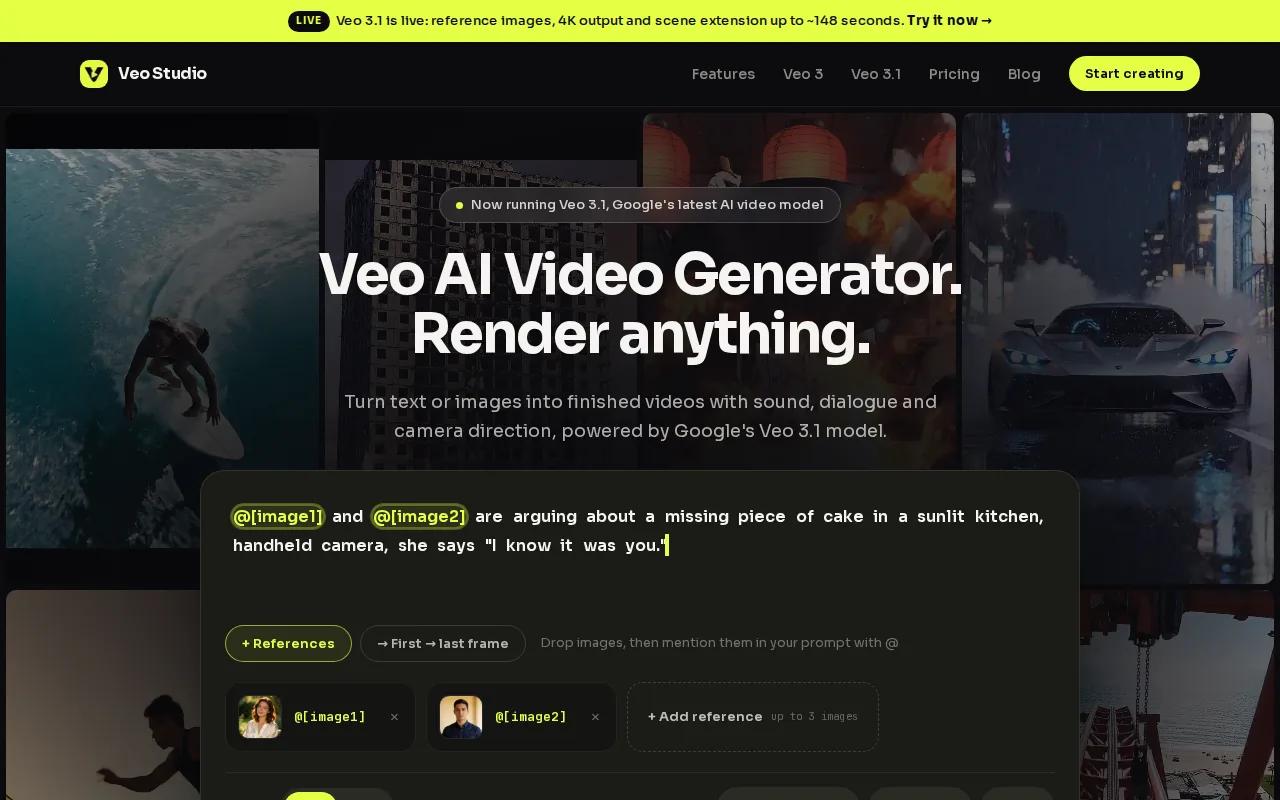
For a social clip, you might start with a product reveal and extend the scene as the camera moves closer. For a short film, reference images can help guide a character’s look, while generated dialogue can match the action. The model can also make video from prompts or reference images, with supported output up to 4K.
To try the workflow, create a clip and use the Extend control on an eligible 720p Veo 3.1 video. Each extension adds seven seconds. You can repeat the process to build a continuous scene up to roughly 148 seconds, within 48 hours of the original generation. Extensions are not available at every resolution, so treat 4K as an output option for supported generations, not as the extension setting.
Veo Studio has a free plan with a couple of 720p videos per month and no card required. Paid plans start at $14 per month and include higher output options, including 4K. For a closer look at model access and frame controls, see Veo 3.1 features and access.
Before extending again, watch the join between the source and new footage. Check the character’s face, the direction of motion, the lighting, and the sound. One clean seven-second segment is often easier to review than a long chain of changes.
2. Runway: Frame-level control for shots with real people
Runway fits creators who need to revise real footage with a more controlled edit. Its AI video editor can change a backdrop, update lighting, restyle a shot, or swap a product. That makes it useful when the source already works, but one visual detail needs to change.
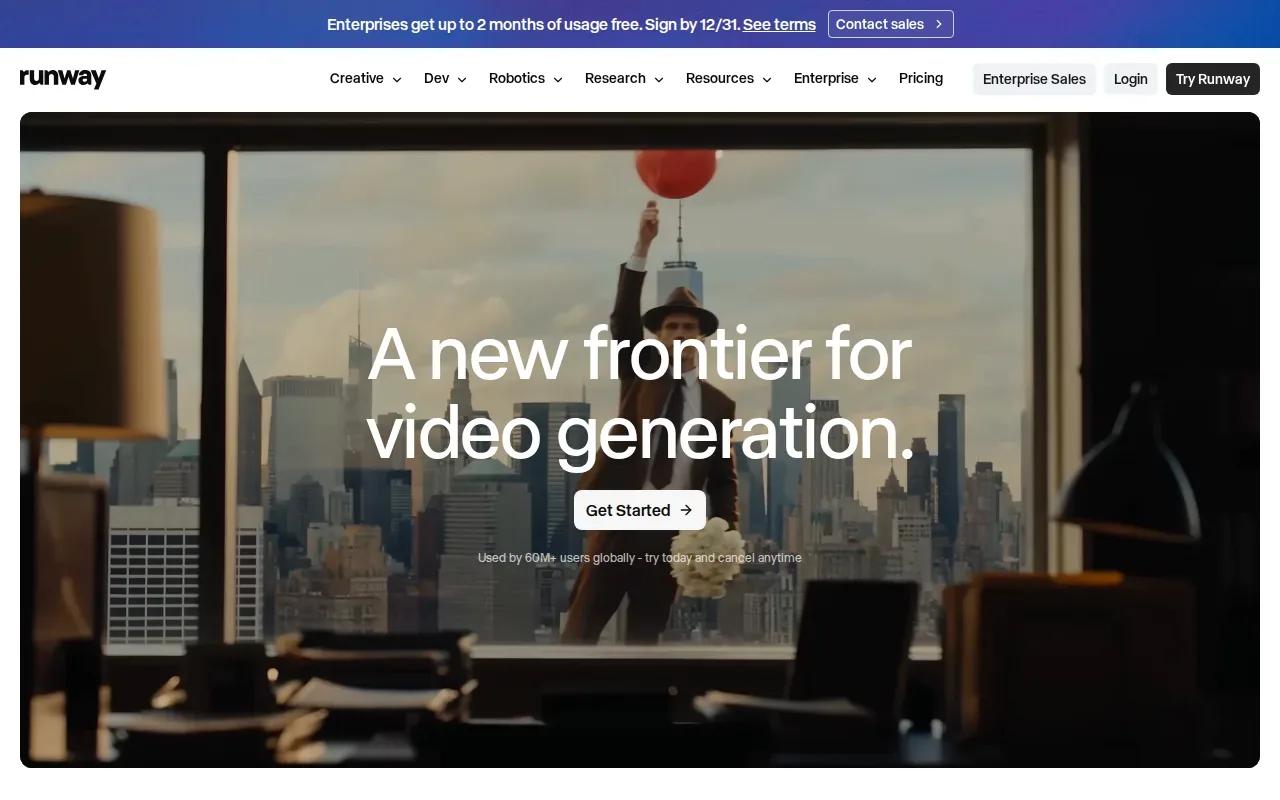
The editor works with real video or existing AI clips. You can review a change as a reference frame before generating the edit.
That reference-frame review can help when a brand team is testing a new setting or colorway before a reshoot. Make the requested change in plain language, inspect the preview, then refine it before applying the edit. Runway also lists 4K upscaling, which is distinct from generating new continuation footage.
Runway has a free tier with 125 one-time credits. Standard is $12 per month with annual billing. Those plan details can help teams estimate use, but the best fit depends on whether the task is editing a shot or extending its timeline.
If the missing footage is a few seconds of new action, look for a dedicated continuation control. Runway’s strength here is targeted editing of existing video, such as changing a location or lighting while keeping other parts of the shot steady.
3. GoEnhance AI: Extensions of up to one minute
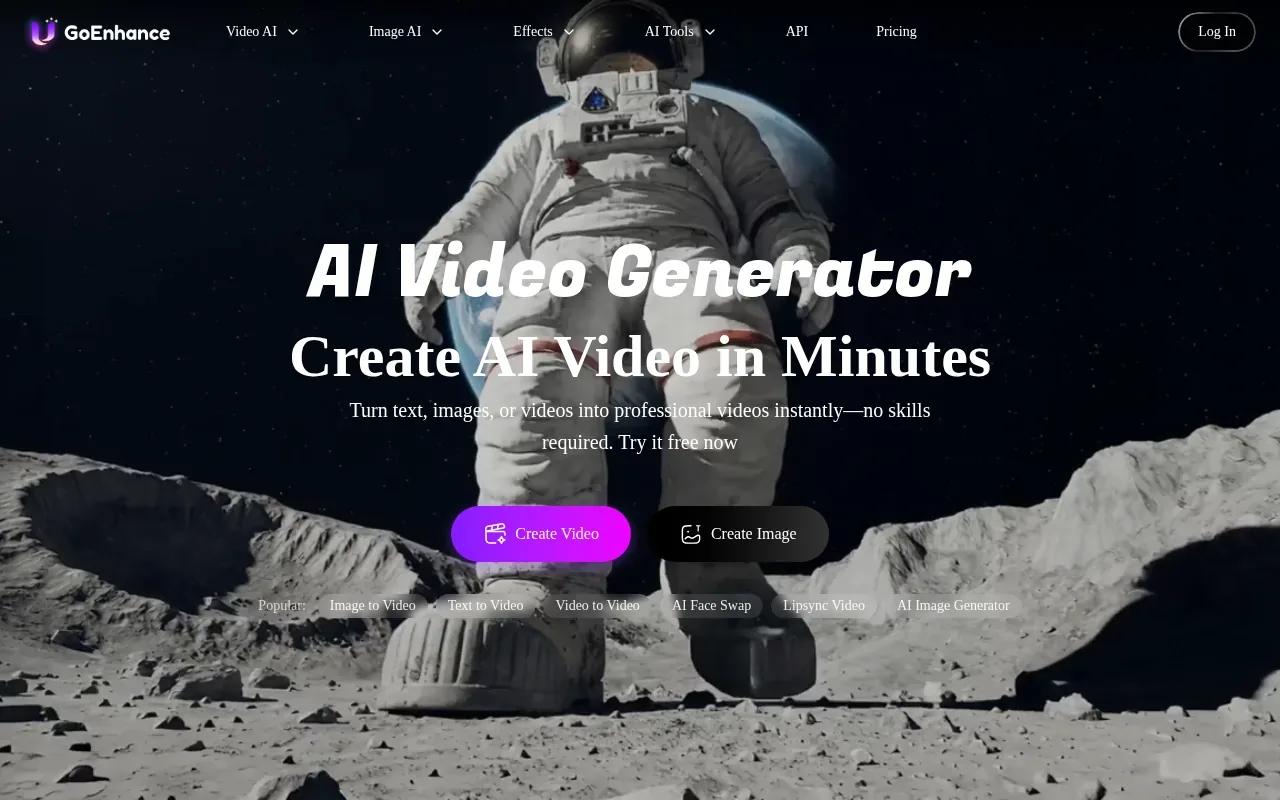
GoEnhance AI is a browser-based option for creators who want a longer extension in a single pass. It can add up to one minute per extension. That ceiling may suit a product demonstration, scenic B-roll, or a short narrative beat that needs more time.
The stated duration is a maximum, not a promise that every frame will stay identical to the source. A face, small object, or background can shift during a long generated segment. Start with a simple scene and one clear action, such as a person walking toward a doorway while the camera slowly follows.
Prompt detail helps set the direction. Name what continues, describe one camera move, and repeat the details that should stay fixed. For example, specify the subject’s clothing and the time of day, then ask for one next action rather than several events at once.
Audio needs its own check. Preserving a source soundtrack is different from creating accurate new speech with matching facial movement and lip sync. If the clip has dialogue, listen to the join and inspect the speaker’s mouth before using the extension in a finished edit.
For a social post, an extra stretch of scenery or a simple product motion may be easier to assess than a close-up conversation. Keep the first test short enough to review carefully, even if the tool can generate a longer segment. For more on extending a clip, see the AI video extension workflow.
4. Laike AI: Set extension lengths and output resolution
Laike AI gives you defined extension lengths and output choices in a browser workflow. Its settings include five, ten, or fifteen seconds, with 720p or 1080p output. That makes it useful when you want to compare a shorter continuation with a longer one using the same source clip.
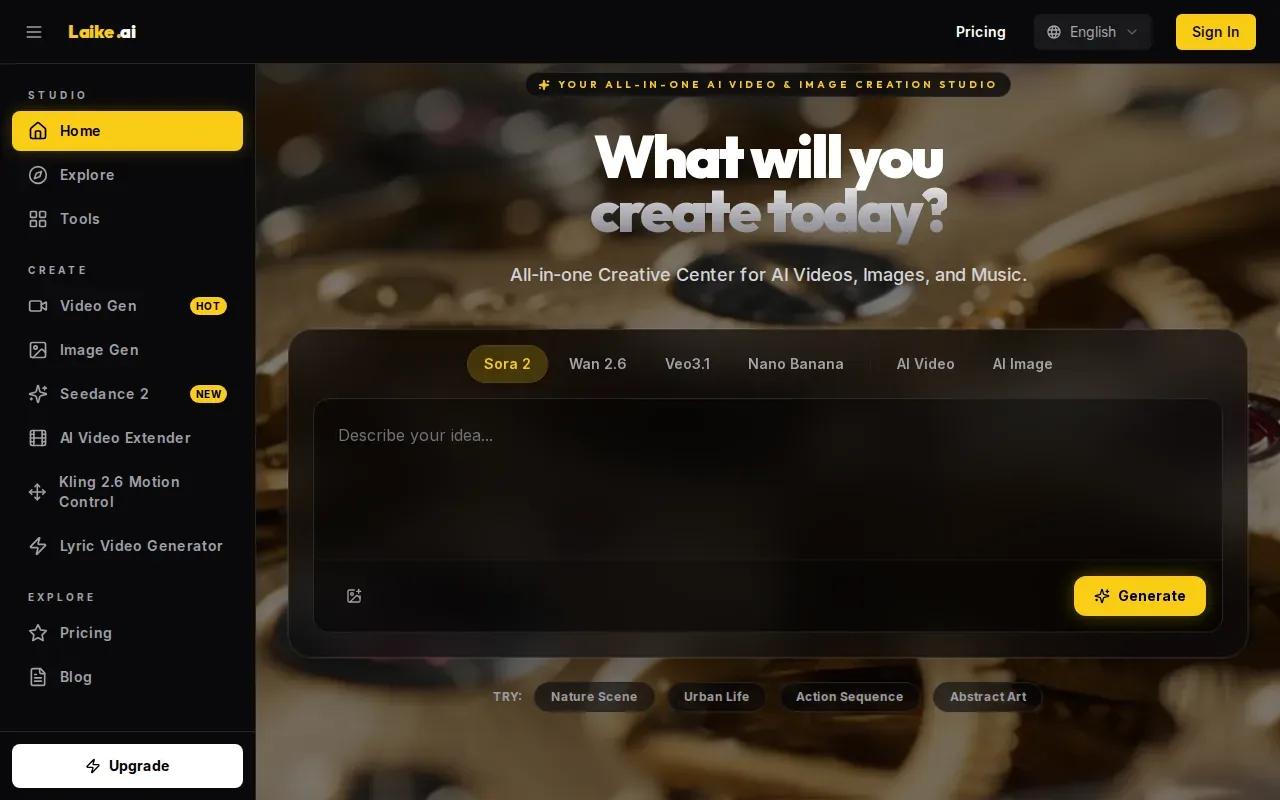
The tool accepts MP4, MOV, and WebM files up to 100 MB. It also gives access to multiple models, so you can select an approach based on the scene. A drone shot over a landscape and a person moving through a room may need different motion cues.
When you test a clip, keep the prompt focused on one action and one camera direction. A simple request to continue a slow pan is easier to judge than a prompt that changes the subject, setting, and camera at once. Review the transition for changes in light, color, or object placement.
Laike can be useful for social footage that needs a few more seconds for a hook or a complete gesture. The choice of length is a planning aid, not a guarantee of continuity. Before using an output in a campaign, check the generated section at normal playback speed and confirm the selected model’s audio behavior in the active workflow.
For a controlled comparison, start with the five-second setting. If the motion holds together, test a longer extension. That keeps the review focused and makes it easier to see where visual drift begins.
5. Edimakor by HitPaw: Continuation with built-in editing
Edimakor by HitPaw combines prompted continuation with editing tasks such as subtitles, trimming, audio, and effects. It suits creators who want to work on the generated segment and finish nearby edits in the same tool rather than hand the clip off immediately.
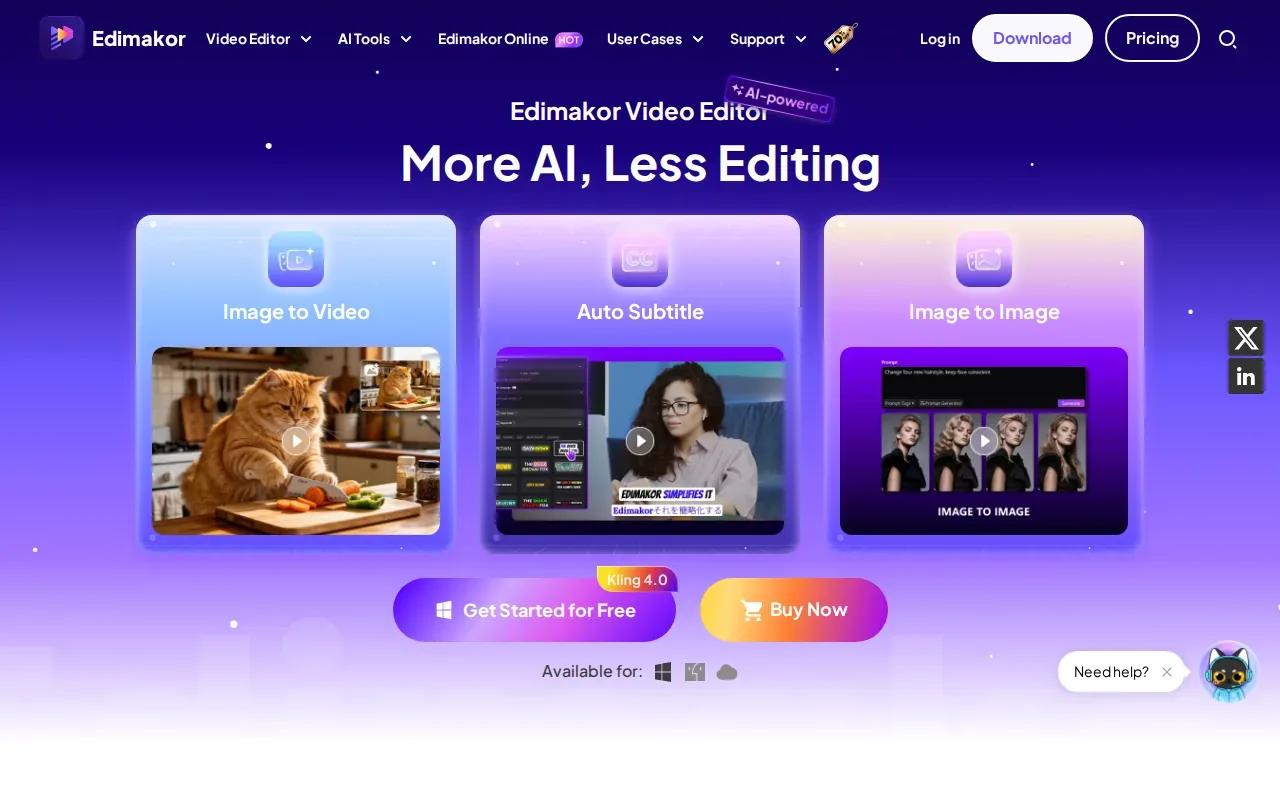
Its continuation capability adds several seconds. You can guide the next scene with a text prompt, then place the result on a timeline or export it. That can help when a short social clip needs a little more movement before an ending card or when a product shot needs a longer hold.
Edimakor also includes conventional editing tasks, so a continuation can sit beside trims, subtitles, and audio adjustments in the same workflow. For a brand video, that means you can review the new footage in context before deciding whether it needs a tighter cut or a sound change.
The added length is several seconds, so plan around a short addition rather than a specific long extension. As with any generated segment, inspect the handoff for changes in the subject, lighting, and camera motion. If you need a much longer continuous scene, compare the tool’s available extension settings with the length your edit needs.
AI Video Continuation Tools Compared
Longer single-pass generation and extending an existing clip are different workflows, so the largest duration number is not always the best measure for your edit.
| Tool | What it’s suited to | Extension detail | Useful check |
|---|---|---|---|
| Veo Studio | Scenes with sound and character guidance | Seven seconds per step on eligible 720p clips | Review the join and generated audio |
| Runway | Targeted edits to real or generated footage | Frame-level editing, not a stated continuation length | Preview edits across cuts |
| GoEnhance AI | Longer browser-based extensions | Up to one minute per extension | Check identity and dialogue sync |
| Laike AI | Testing set extension lengths | Five, ten, or fifteen seconds | Check the selected model’s output |
| Edimakor by HitPaw | Continuation beside editing tasks | Several seconds | Review the segment in the timeline |
Pick by the job. If your main need is a new stretch of a scene with synchronized sound, start with Veo Studio’s scene-extension capabilities. If you’re changing an existing shot, Runway’s edit controls address a different problem.
FAQ
What is AI video continuation?
AI video continuation generates new footage that carries on from an existing clip. The model uses the source scene and your prompt to create what happens next, rather than simply repeating frames or slowing the original video. The added footage still needs review for changes in faces, objects, lighting, motion, and sound at the join.
Which AI tool can extend a video the longest?
GoEnhance AI can add up to one minute per extension. That number describes a maximum duration, not a guarantee that a character or scene will stay consistent throughout. Veo Studio extends eligible 720p clips in seven-second steps, and Laike AI lists settings of five, ten, or fifteen seconds.
Can AI video continuation keep dialogue in sync?
Some tools generate synchronized sound and dialogue with video, but audio behavior varies by workflow. Veo Studio supports synchronized sound and dialogue in video generation. With other tools, preserving original audio does not by itself mean new speech will match facial motion. Listen to the transition and inspect lip movement before delivery.
How do I make an AI video extension look more natural?
Start with a clear ending frame and ask for one next action. Keep the camera direction and key details consistent in the prompt, such as clothing or lighting. Generate a short extension first, then watch the source ending and new beginning together. If the subject or motion changes sharply, simplify the prompt before extending further.
Conclusion
For creators who want scene extension with character guidance and synchronized dialogue, start with Veo Studio. After extending a clip, review the visual and audio join before building a longer scene.